
How to Scrape Google Search Results in 2026

Scraping Google search results has become harder over the years. For one, Google now often requires JavaScript to render results, so a plain request can return empty. Likewise, the old &num=100 trick that pulled 100 results at once no longer works either.
On their own, these are easy to miss. But neither one is really why your scraper gets blocked. Google scores the whole request at once: your IP, your browser fingerprint, and how you behave on the page. Miss any one of those and the other two won't save you.
This guide walks you through different methods you can choose from for scraping Google SERP results. Also, by the end, you’ll see where a proxy fits into your setup and how it can reduce your chances of getting blocked.
Is scraping Google search results legal?
There are no laws that say web scraping is illegal. As long as you're scraping publicly available data, you don't do anything unusual like fraud, or you're simply scraping legitimately on the safe side, there's nothing wrong with it.
The big reference point is hiQ Labs v. LinkedIn case, where the courts held that scraping public data doesn't violate the primary federal anti-hacking law (the CFAA) because public pages aren't "protected" the way a password-locked account is.
On top of that, a more recent case also makes the same point about Google's own results. In December 2025, Google sued SerpApi over scraping and reselling its search results, and in July 2026 a federal judge threw out those claims, reasoning that a search result containing no copyrighted content has no copyright there to protect.
Google still has a narrow window to amend part of the complaint, so it isn't fully closed. But the takeaway for you is the same one hiQ points to. Courts may often keep treating public pages as public, and the realistic risk of scraping Google is losing your access, not ending up in court.
What you can extract from a Google SERP
A quick look at a Google SERP will give you ideas for what you can extract. It’s spread into several features that are useful regardless of what you’re trying to do. Below are some common ones that might be useful in many use cases.
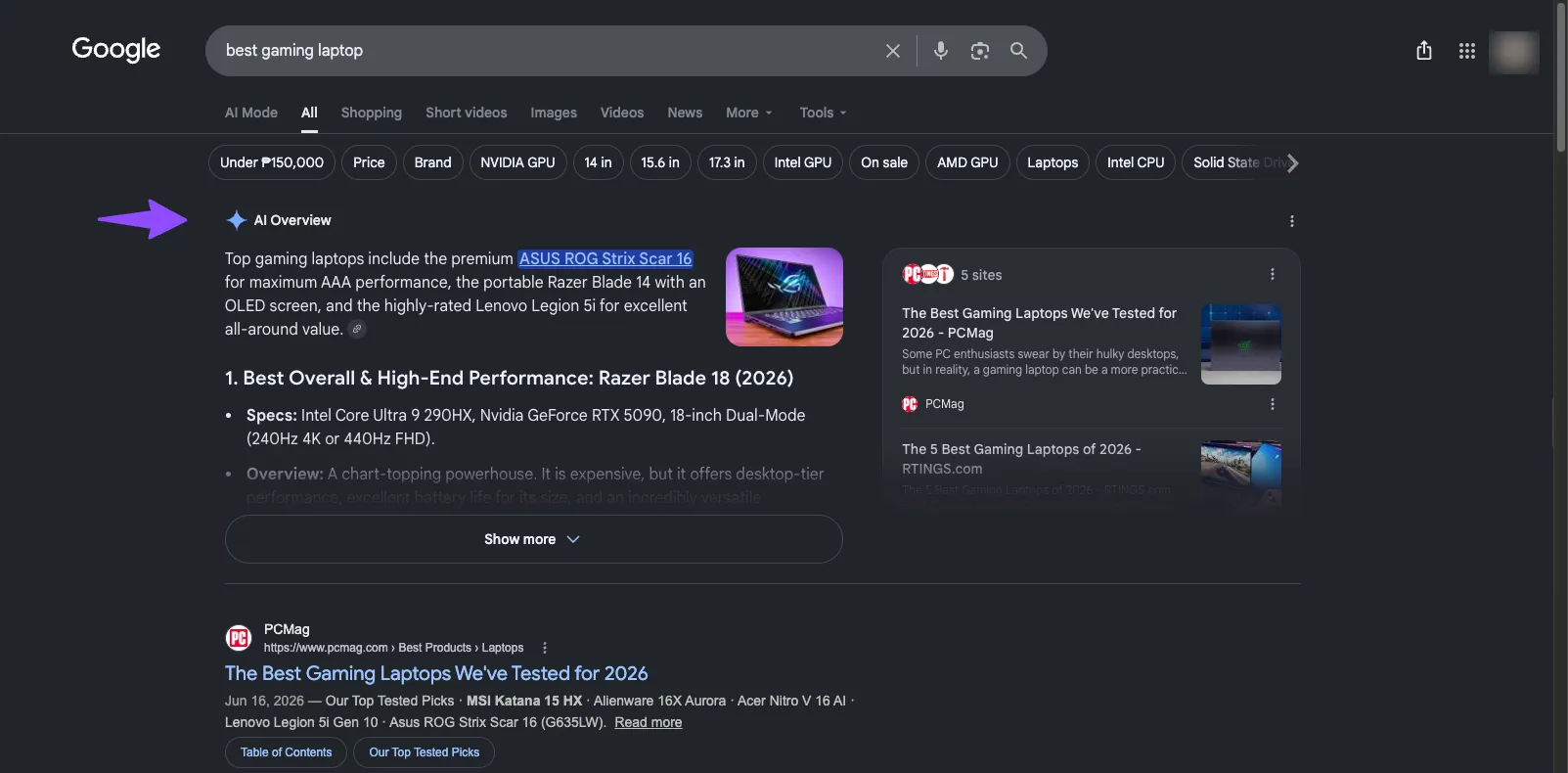
AI overviews
Considered to be the biggest change to the SERPs. These are the AI-generated answers Google now drops at the top of organic results. It basically summarizes an answer and cites sources from where the information came from.
According to a recent Ahrefs study, AI overviews reduced organic click-through rate by 58% for top-ranking pages, up from the 34.5% drop the same study measured in April 2025. Companies that are being cited from AI overviews often receive more brand recognition and awareness from the audience.
That said, extracting this data typically offers many advantages for brands that want to be mentioned by AI.
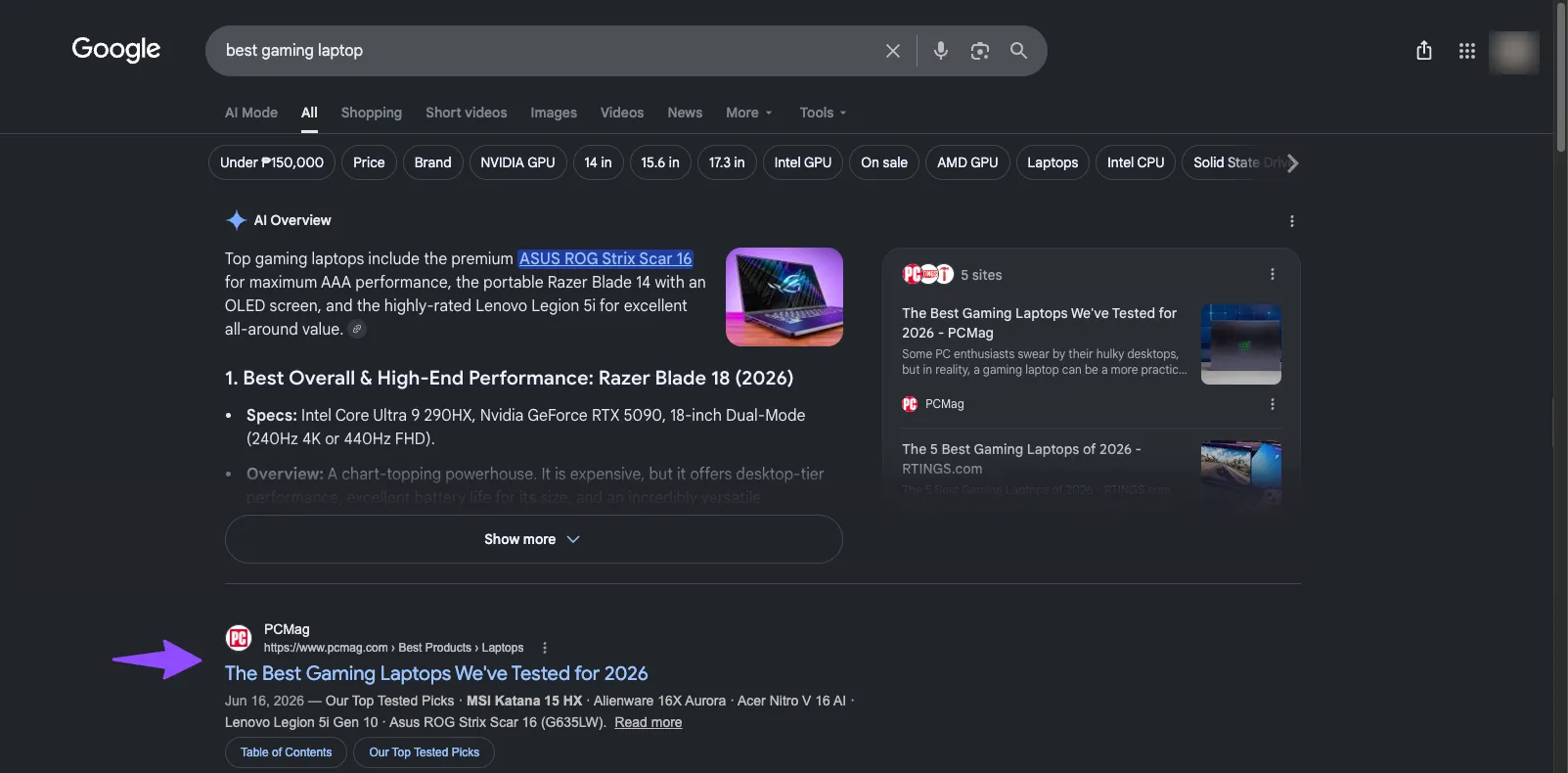
Organic results
These are the classic lists of web pages and blogs that appear right in front of your screen when you search for a keyword (e.g., best gaming laptop). It’s mostly the key data you need when you’re scraping competitors who are ranking for a certain keyword and conducting analysis based on it.
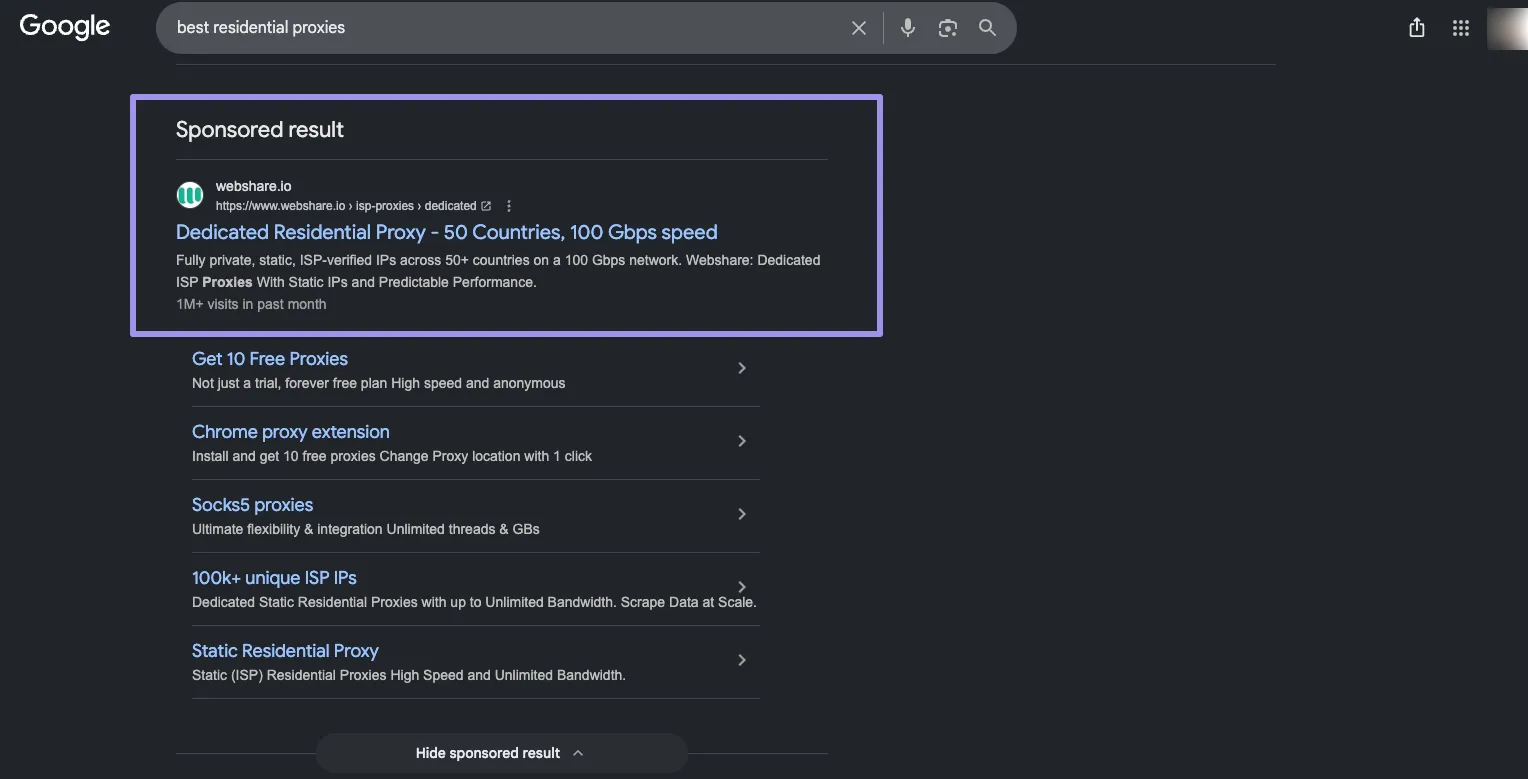
Ads (top and bottom)
It’s often listings that are labeled with "Sponsored" from your query. They usually sit above and sometimes below the organic results, where companies bid through Google Ads to get seen first. Extracting them helps you with competitor intelligence. Also, it's the raw data behind any ad-monitoring or PPC-research tool.
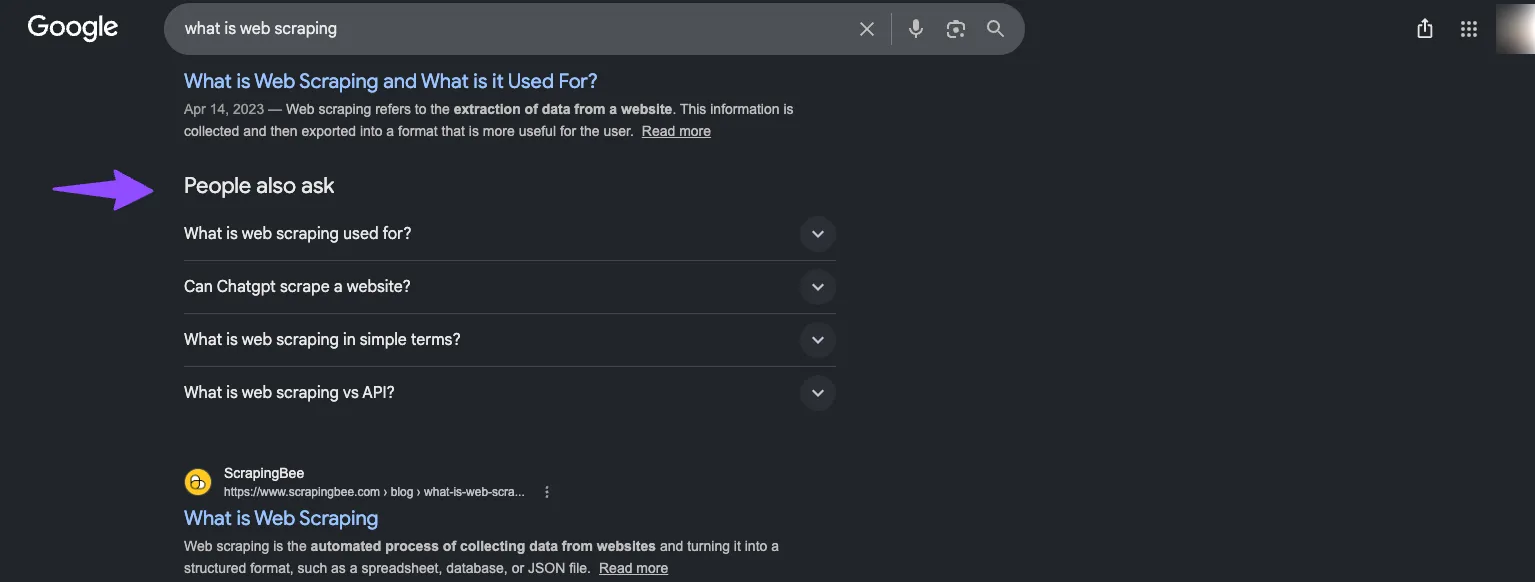
People also ask
These are real questions that most people are searching for related to your query. Google shows this to help you find common answers from questions that might be worth considering on your behalf.
Tools like AnswerThePublic are a good example of how they use this data for marketers. You’ll just type some keyword, and you’ll be able to see PAA questions that are relevant to it with a nice interface that’s easy to follow along.
Extracting the same thing would allow you to build tools like that, which help SEO and content marketers develop their strategy.
Related searches
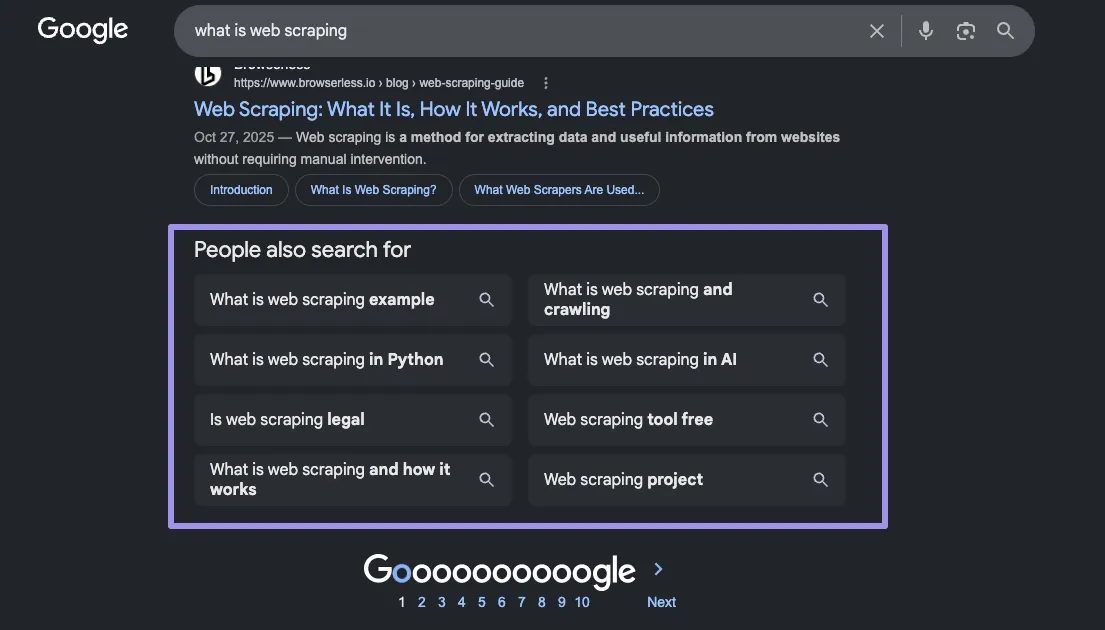
This is the block of similar searches at the bottom of the page. For example, let’s say you search for "Running shoes". You scroll down at the very bottom of the page, and you'll see "running shoes for flat feet," "trail running shoes," and more. Google is handing you keyword ideas from its own data.
So extracting this data is useful for you to identify a batch of seed keywords for building a keyword map and spot angles that your competitors missed. Also, it’s often one signal that keyword research tools use to expand a single seed term into hundreds of related ones.
Local pack
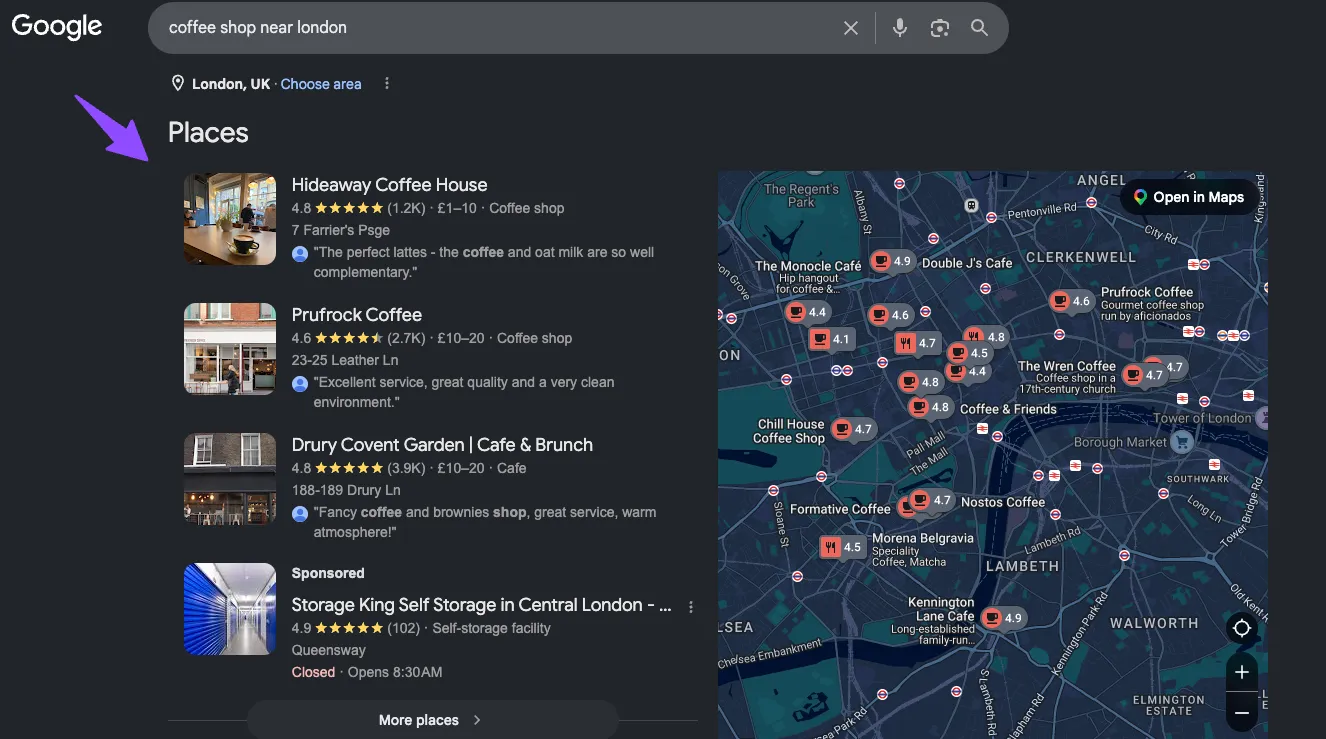
This is the map with three business listings that shows up for local intent (think "coffee shop near me" or "plumber in Chicago"), each with a name, rating, address, and hours.
If you do local SEO, this is the scoreboard, and therefore extracting it tells you which businesses rank in a given city. These results are tied tightly to location, so you'll need a proxy in the target city to see the real pack (we'll get to that).
Scraping Google SERPs
There are two common routes that you can choose when it comes to scraping Google SERPs. But before we dive into it, the guide below may not cover everything from scratch.
The goal is to help you understand the fundamentals so you can use them in your project and get started scraping Google SERPs right away.
Method 1: Build a Google scraper in Python (DIY approach)
This method is ideal if you need real volume and want control over how the scraping happens. Basically, you’re owning the whole process end to end, such as the browser setup, the proxies and even the parsing logic.
That said, you can tune each piece as Google changes. It may cost less per request once you’re running at scale, though you’ll have to handle the maintenance yourself or hire someone to deal with it on your behalf.
Prerequisites
To get started, you’ll need a few things installed. Make sure you have Python installed on your computer and a code editor or IDE, such as PyCharm or VS Code. We’ve used VS Code just for tutorial purposes, but the concepts and code may still apply to any code editor.
Once you have that ready, install the following libraries using pip. Just open your terminal, create a project folder and a virtual environment and run these commands:
pip install playwright playwright-stealth beautifulsoup4
playwright install chromium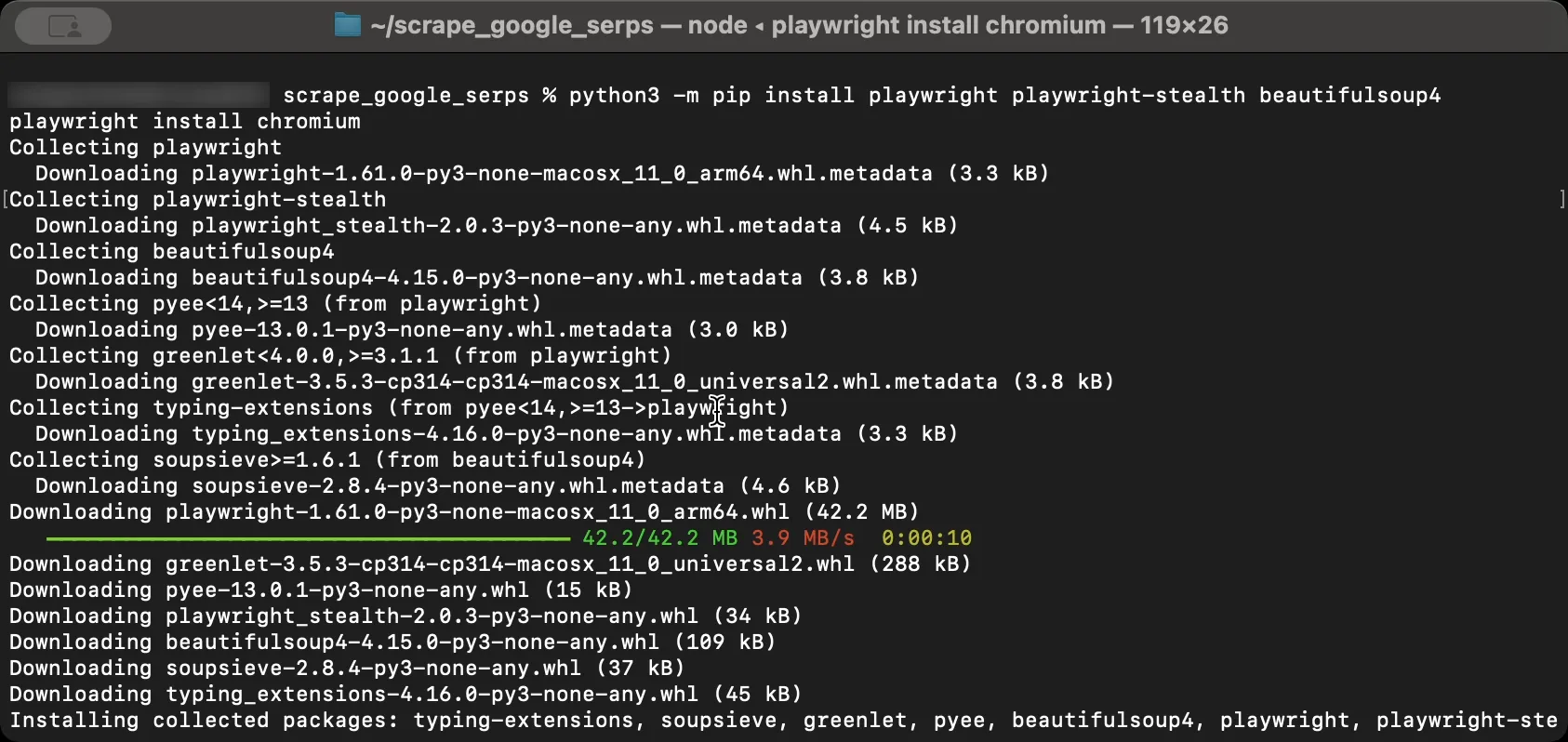
Why do we need these packages? They are necessary for the code to function properly.
- Playwright runs a real browser that renders JavaScript, which Google now requires to load results.
- playwright-stealth hides the tell-tale signs of automation that Google checks for.
- BeautifulSoup pulls the data you want out of the finished HTML.
- Chromium is the actual browser Playwright drives. That second command downloads it.
Building the scraper
To make it easier to follow, we've divided the code into ten steps. Each step adds one piece to the same file, so you can paste them in order from top to bottom and end up with a working scraper.
Step 1: Set the User Agent, Headers, and Proxy
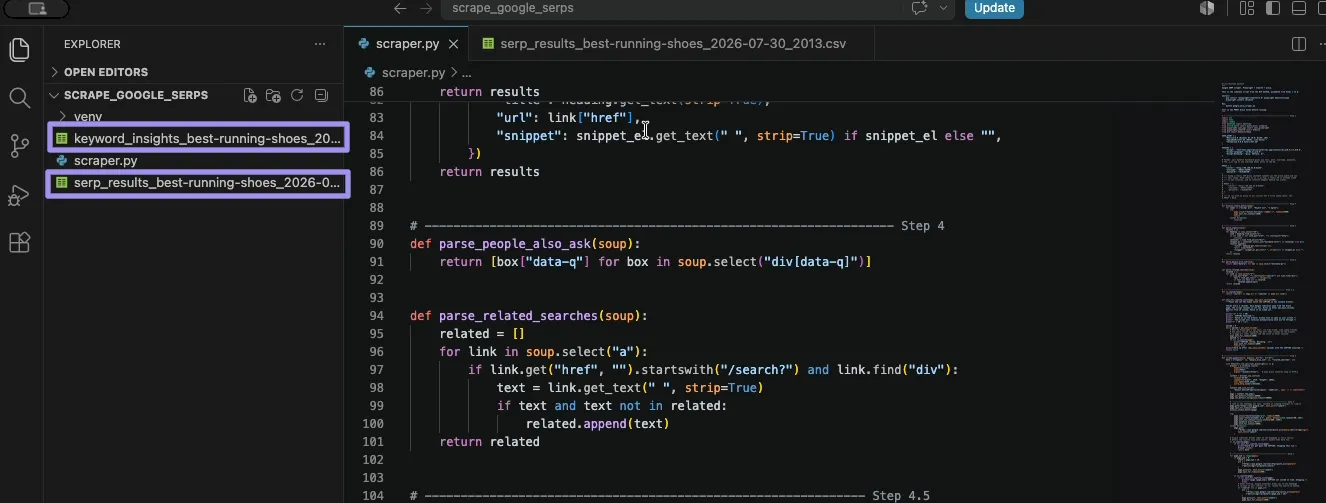
Open your code editor or Python IDE (e.g., VS Code or PyCharm) and open a project folder. For this tutorial, we use VS Code, and we named the folder google_serp_scraper. Once the folder is opened, add a .py file, which here is “scraper.py“.
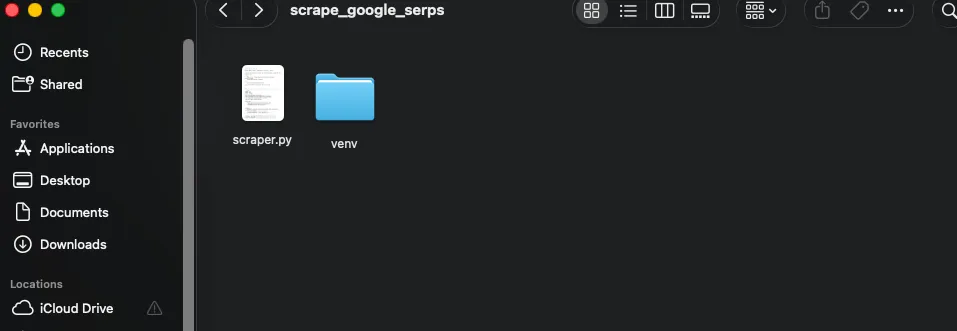
Open that file and import all the required libraries. These are necessary, as they will deal with the timing and randomness (time, random), URL encoding for pagination (quote_plus, urlparse), the browser automation (sync_playwright, Stealth), HTML parsing (BeautifulSoup), and saving the scraped results into a structured CSV file (csv, datetime).
import csv
import time
import random
from datetime import datetime
from urllib.parse import quote_plus, urlparse
from playwright.sync_api import sync_playwright
from playwright_stealth import Stealth
from bs4 import BeautifulSoup
Next, we declare the user agent and the headers that go with it. These two are set together on purpose. If your request tells Google it's Chrome, it should also send the headers Chrome actually sends, because when those two don't line up, it might be one reason Google spots a script.
USER_AGENT = (
    "Mozilla/5.0 (Windows NT 10.0; Win64; x64) "
    "AppleWebKit/537.36 (KHTML, like Gecko) "
    "Chrome/122.0.0.0 Safari/537.36"
)

HEADERS = {
    "Accept": "text/html,application/xhtml+xml,application/xml;q=0.9,*/*;q=0.8",
    "Accept-Language": "en-US,en;q=0.9",
    "Accept-Encoding": "gzip, deflate, br",
}
Finally, we point the scraper at the proxy. You might have a question: what does the proxy actually do here? Without one, every request goes out from your own IP address. A home connection running scripted searches builds a reputation within minutes, and once your IP is flagged, everything you send from it is suspect, including your normal browsing.
For demonstration purposes, we generated a static ISP proxy from Byteful, copied the host, port, username, and password from the dashboard, and dropped them straight into this block. Just fill the placeholders with your own proxy details.
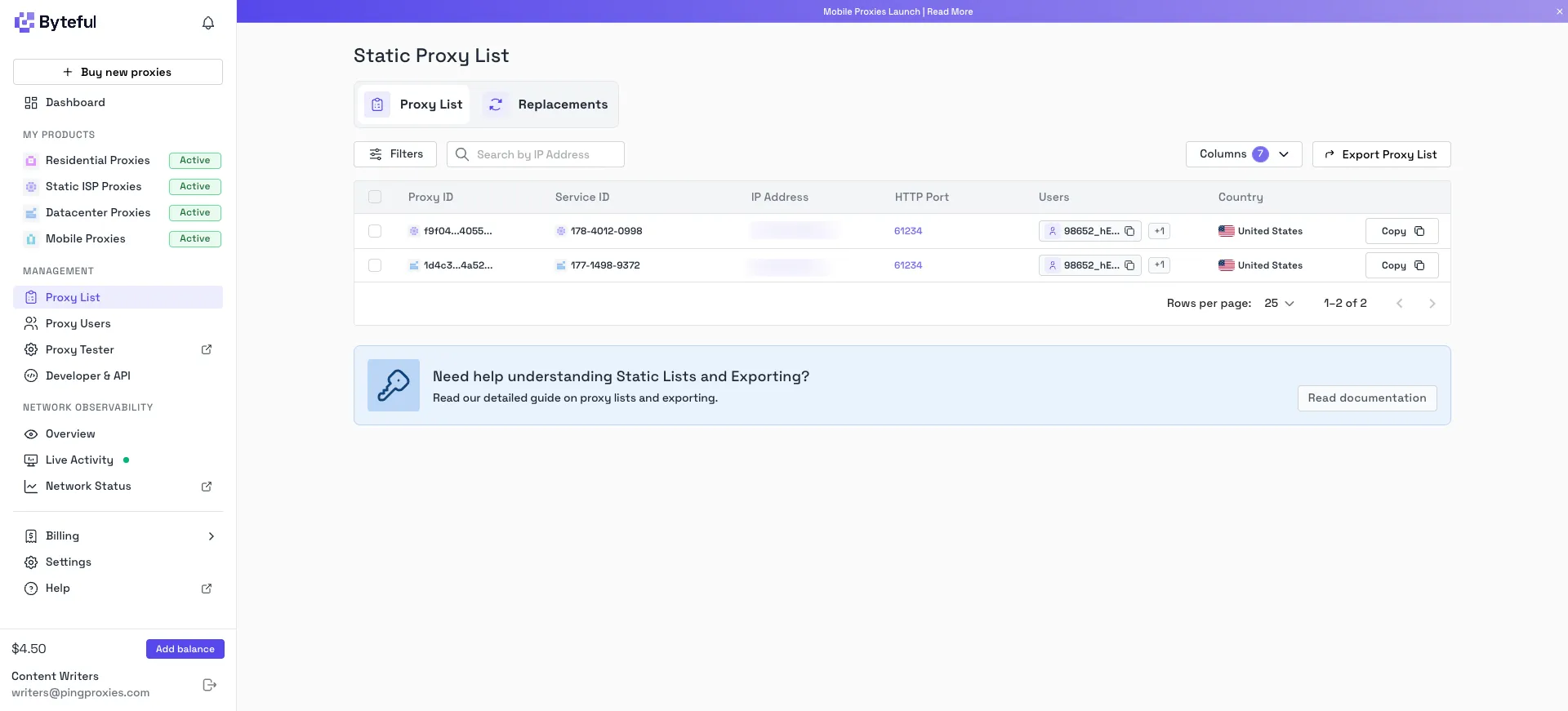
PROXY = { "server": "http://<host>:<port>", "username": "<your-username>", "password": "<your-password>", }If you're using a rotating residential proxy instead, the shape stays exactly the same. Only the values change, with the server pointing to the rotating endpoint (e.g., residential.byteful.com) and the username carrying the location tag like _c_us to keep exits in the US.
And if you want a quick smoke test with no proxy at all, set PROXY = None.
Step 2: Dismiss the Cookie Consent Banner
Depending on the exit IP, Google may greet you with a consent dialog before it shows anything. If you don't clear it, every selector after this point finds nothing.
Here, we are defining a function that tries a few known button labels and returns as soon as one of them works.
def dismiss_cookie_banner(page):
   for label in ["Accept all", "Reject all", "I agree"]:
       try:
           page.click(f"button:has-text('{label}')", timeout=3000)
           page.wait_for_timeout(1000)
           return
       except Exception:
           continue
The wording changes by region, which is why it loops instead of hardcoding a single label. The try/except also means a missing banner isn't an error, since rotating IPs can land you in different countries, so expect to see this banner sometimes and not other times.
Step 3: Parse the Organic Results
Before we open a browser, we need to write the functions that pull the data out of the page. This one handles the organic results. We'll call it later in Step 8, once we actually have a page to read.
The tricky part with Google is that it renames its CSS classes all the time. If you target those, your scraper might break within weeks. So we target the h3 heading instead, because every organic result's title is a heading, and that hasn't changed in years.
def parse_organic(soup):
   results = []
   for heading in soup.select("h3"):
       link = heading.find_parent("a")
       if not link or not link.get("href", "").startswith("http"):
           continue
       container = link.find_parent("div")
       snippet_el = container.select_one("div[data-sncf]") if container else None
       results.append({
           "title": heading.get_text(strip=True),
           "url": link["href"],
           "snippet": snippet_el.get_text(" ", strip=True) if snippet_el else "",
       })
   return results
Basically what the function does is that:
- It loops through every h3 on the page
- Walks up to the link wrapping each heading, which gives us the URL
- Skips anything whose link doesn't start with http, since those are Google's own internal links and not real results
- Looks in the surrounding div for the snippet, found through the data-sncf attribute rather than a class name
- Saves the title, URL, and snippet into the results list
So we can expect to see a clean list, one entry per result, in the same order Google showed them (i.e., first entry is rank 1, the second is rank 2, and so on.)
Step 4: Parse People Also Ask and Related Searches
Aside from parsing Google organic search results, we’ll also add parsing logic for parsing People Also Ask (PAA) and Related Searches.
These two blocks are the ones worth the most for content and keyword research, and both are short once you know where to look.
def parse_people_also_ask(soup):
   return [box["data-q"] for box in soup.select("div[data-q]")]
The questions sit right in data-q attributes, so there's nothing to clean up.
def parse_related_searches(soup):
   related = []
   for link in soup.select("a"):
       if link.get("href", "").startswith("/search?") and link.find("div"):
           text = link.get_text(" ", strip=True)
           if text and text not in related:
               related.append(text)
   return related
Related searches are just links back into /search?, so we collect the anchors pointing there and skip duplicates. Both blocks only appear on page 1, which is why the main loop later parses them once instead of on every pass.
Step 5: Detect the CAPTCHA and Wait for a Human Solve
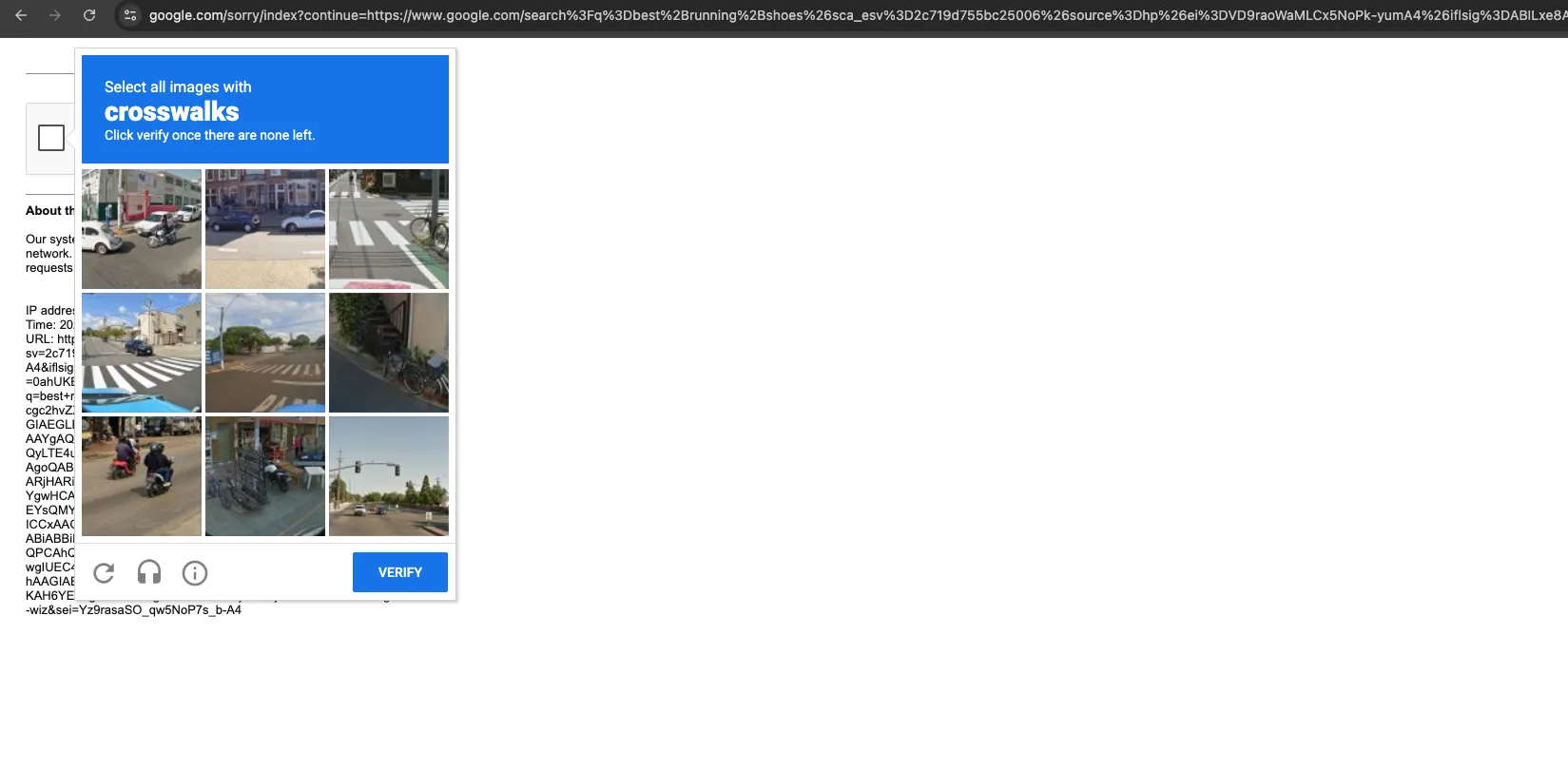
We now have the parsing logic for the organic results, People Also Ask, and related searches. But none of that helps if Google never hands us a results page in the first place. Even with a clean proxy and a stealth browser, it may still decide you look automated and serve a CAPTCHA instead.
So rather than crashing or quitting when that happens, we'll pause the scraper and hand control over to you.
First, we need a way to tell whether we've been blocked. When Google blocks a request, it redirects the browser to a /sorry/ URL. So instead of digging around in the page HTML, we just read the address bar.
def is_captcha(page):
   return "/sorry/" in page.url or "captcha" in page.url.lower()
That small helper gets used everywhere the script needs to check. Now for the part that does the waiting.
def wait_for_captcha_solve(page, max_wait_seconds=300):
   """Pause and let the human solve the CAPTCHA in the visible browser.

   Checks every 2 seconds. Once Google redirects away from the block
   page, the script resumes on its own. Gives up after max_wait_seconds.
   Returns True if solved, False if we timed out.
   """
   print("\n" + "=" * 60)
   print("  CAPTCHA detected.")
   print("  Solve it in the browser window that is open on your screen.")
   print("  The script will continue automatically once you're through.")
   print("=" * 60 + "\n")

   waited = 0
   while waited < max_wait_seconds:
       # Must be Playwright's own wait, not time.sleep. time.sleep freezes
       # the whole script including the part that listens to the browser,
       # so page.url never updates and the solve is never noticed.
       page.wait_for_timeout(2000)
       waited += 2
       if not is_captcha(page):
           print("CAPTCHA solved. Resuming...\n")
           page.wait_for_timeout(2000)
           return True
   print(f"Gave up after {max_wait_seconds} seconds with the CAPTCHA unsolved.")
   return False
Here's how it plays out. The banner prints in your terminal, and because the browser is visible on your screen, you solve the CAPTCHA in that window as any person would.
The script checks every 2 seconds whether you're through, and the moment Google redirects you off the block page, it carries on by itself. If 5 minutes pass and the CAPTCHA is still sitting there, it gives up instead of hanging forever.
One detail matters a lot here. The wait uses page.wait_for_timeout instead of Python's time.sleep. Why?
Because time.sleep freezes the whole script, including the part that listens to the browser, so the URL would never update, and your solve would never be noticed. Playwright's own wait pauses while still listening.
Step 6: Launch a Stealth Browser Through the Proxy
With the parsers and the CAPTCHA handling ready, we can finally open a browser and start visiting Google. This is where the scraper actually begins doing something.
Everything from here on lives inside one function, scrape_google, which takes the keyword, how many pages to pull, and the country and language codes. The data dictionary at the top is where the results collect as we go.
def scrape_google(query, pages=1, gl="us", hl="en"):
    data = {"organic": [], "people_also_ask": [], "related_searches": []}
    with Stealth().use_sync(sync_playwright()) as p:
        browser = p.chromium.launch(
            headless=False,
            proxy=PROXY,
            args=["--disable-http2"],   # some proxy networks hang on HTTP/2
        )
        context = browser.new_context(
            locale="en-US",
            viewport={"width": 1920, "height": 1080},
            user_agent=USER_AGENT,
            extra_http_headers=HEADERS,
        )
        context.add_init_script(
            "Object.defineProperty(navigator, 'webdriver', {get: () => undefined})"
        )
        page = context.new_page()
        page.set_default_timeout(60000)
        page.set_default_navigation_timeout(60000)
A few things are happening in this block.
- Stealth().use_sync() wraps Playwright so the automation flags Google looks for are patched before the browser even opens
- headless=False runs a visible browser. Headless mode is easier to detect, and you need the window on screen anyway to solve any CAPTCHA
- proxy=PROXY is where the details from Step 1 get used, so every request from this browser goes out through your proxy
- The context reuses the same USER_AGENT and HEADERS from Step 1, which keeps the fingerprint consistent
- The 1920x1080 viewport gives the browser a normal desktop screen size, since odd or tiny window sizes are another thing that stands out
- The init script hides navigator.webdriver, one of the oldest and simplest automation checks
- The two 60000 timeouts give every action up to 60 seconds, because pages load slower through a proxy than they do on your own connection
The --disable-http2 flag is doing something subtle, and it's worth understanding. Some proxy networks won't tunnel the HTTP/2 connection a browser opens to Google, so the page just hangs. Forcing HTTP/1.1 fixes that. The catch is that real Chrome uses HTTP/2 with Google, so this flag is a small trade-off you make to keep the proxy working. If your proxy handles HTTP/2 fine, drop it.
One thing to keep in mind as you proceed on the next two steps. Everything from here to the end of Step 8 sits inside this same function, so the indentation carries over.
Step 7: Land on the Homepage and Type the Query
page.goto("https://www.google.com", wait_until="commit")
        page.wait_for_timeout(2000)
        dismiss_cookie_banner(page)

        try:
            page.click("textarea[name='q']", timeout=5000)
            page.type("textarea[name='q']", query, delay=random.randint(90, 180))
            page.wait_for_timeout(random.uniform(500, 1500))
            page.keyboard.press("Enter")
            page.wait_for_timeout(3000)
        except Exception:
            page.goto(
                f"https://www.google.com/search?q={quote_plus(query)}&hl={hl}&gl={gl}",
                wait_until="commit",
            )

        # Google sometimes blocks right at the homepage or first search,
        # before the results loop even starts. Handle that here too.
        if is_captcha(page):
            if not wait_for_captcha_solve(page):
                print("Could not get past the CAPTCHA. Stopping this run.")
                browser.close()
                return data
Instead of jumping straight to a search URL, the script does the typing itself. It opens the homepage and types the keyword just like a human does.
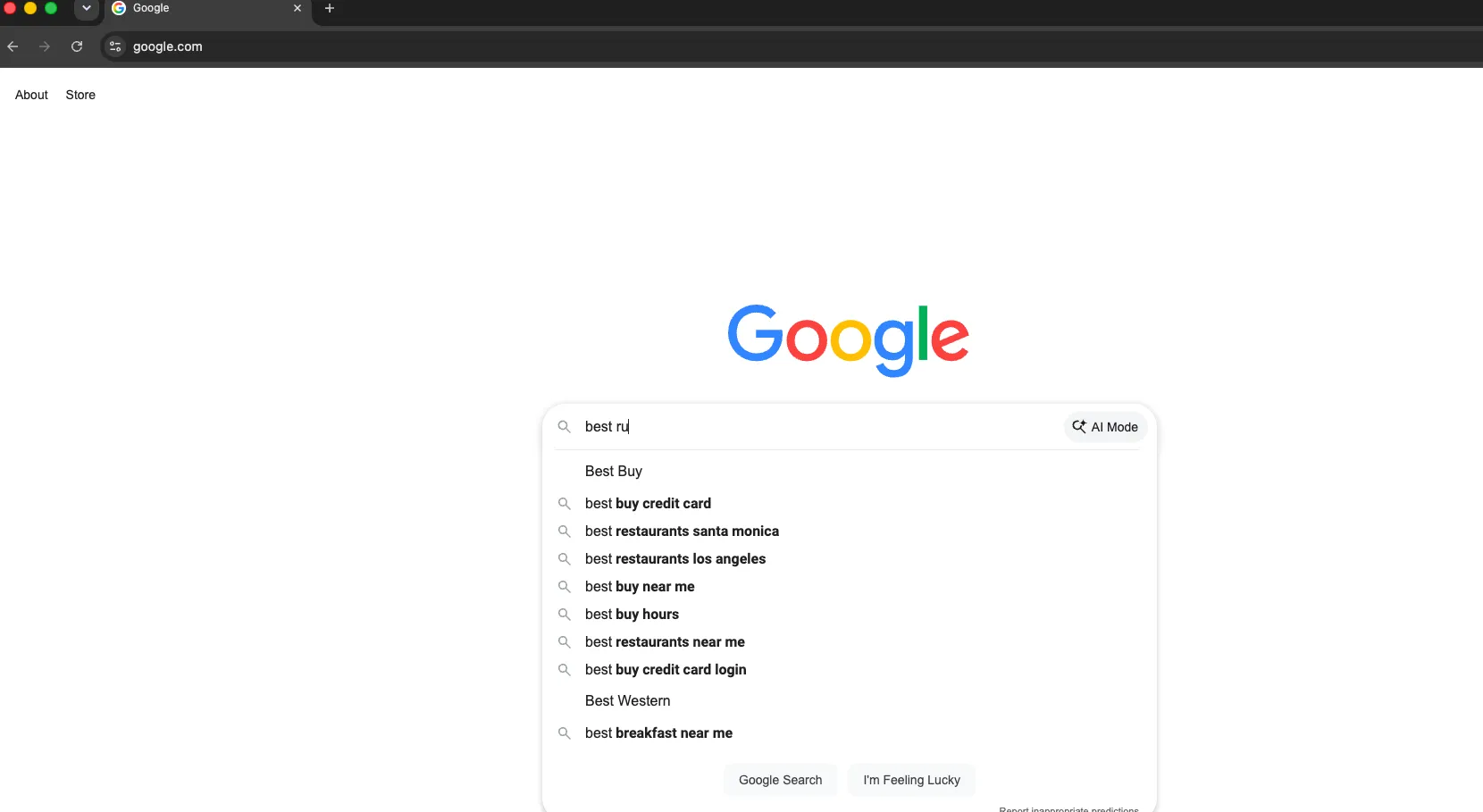
Why bother? Because a real person opens Google and types, whereas going straight to a search?q= URL is a classic bot tell. The delay argument spaces out the keystrokes so the query doesn't appear instantly, and the random pause before Enter mimics the beat where a person checks what they typed.
If the search box can't be found, which happens when Google serves a layout variant, the except block falls back to loading the search URL directly. It's less convincing, but a degraded result beats a crash.
Notice the CAPTCHA check right after. Google can block you at the very first search, before the results loop even starts, so we handle that case here too.
Step 8: Page Through the Results and Collect the Data
  for page_num in range(pages):
            if page_num > 0:
                start = page_num * 10
                url = (
                    f"https://www.google.com/search?q={quote_plus(query)}"
                    f"&hl={hl}&gl={gl}&start={start}"
                )
                page.goto(url, wait_until="commit")
                page.wait_for_timeout(2000)

            if is_captcha(page):
                if not wait_for_captcha_solve(page):
                    print(f"[page {page_num}] CAPTCHA not solved in time. Stopping.")
                    break
                if "/search" not in page.url:
                    url = (
                        f"https://www.google.com/search?q={quote_plus(query)}"
                        f"&hl={hl}&gl={gl}&start={page_num * 10}"
                    )
                    page.goto(url, wait_until="commit")
                    page.wait_for_timeout(2000)

            try:
                page.wait_for_selector("#search", timeout=15000)
            except Exception:
                print(f"[page {page_num}] No results found, skipping.")
                continue

            soup = BeautifulSoup(page.content(), "html.parser")
            data["organic"].extend(parse_organic(soup))
            if page_num == 0:
                data["people_also_ask"] = parse_people_also_ask(soup)
                data["related_searches"] = parse_related_searches(soup)

            time.sleep(random.uniform(3.0, 6.0))  # pause like a human

        browser.close()
    return data
This is the loop that walks the pages and hands each one to the parsers. It's also where the &num=100 removal bites, since every pass bumps start by 10, so pulling the full top 100 now costs ten requests instead of one.
The rest of the loop is defensive. Here's a simple breakdown.
- The CAPTCHA check runs on every page, and if a solve leaves you on the homepage instead of your results, the script reloads the search it wanted
- wait_for_selector("#search") waits for the results container to exist rather than trusting a fixed timer, since pages load at different speeds through a proxy
- People Also Ask and related searches are only parsed on page 1, since that's the only place Google shows them
- The random sleep at the end of each pass keeps your pacing irregular, because requests arriving on a clean interval are a pattern, and patterns are what get scored
Step 9: Export the Results to a CSV File
Once the ranking data is collected, the final step is to save it to a CSV file. Why is it necessary if the output is already displayed in the terminal? CSV makes the data structured and organized. Plus, you get to analyze, share, or feed it into another tool without any issues.
def brand_from_url(url):
   """Turn a result URL into a readable brand name.

   https://www.runnersworld.com/gear/... -> domain runnersworld.com,
   brand Runnersworld. Good enough to see at a glance who ranks.
   """
   domain = urlparse(url).netloc.lower()
   for prefix in ("www.", "m.", "shop.", "blog."):
       if domain.startswith(prefix):
           domain = domain[len(prefix):]
   brand = domain.split(".")[0].replace("-", " ").title()
   return brand, domain
We begin with a small utility that turns a result URL into a readable brand name. It strips common prefixes like www. and shop., then cleans up what's left, so https://www.runnersworld.com/gear/ becomes the domain runnersworld.com and the brand Runnersworld. Good enough to see at a glance who ranks.
def save_to_csv(results, keyword):
   """Write the scraped data to two CSV files.

   1. serp_results_<keyword>_<date>.csv - one row per organic ranking
   2. keyword_insights_<keyword>_<date>.csv - PAA questions and
      related searches, for content research
   Returns the two filenames.
   """
   stamp = datetime.now().strftime("%Y-%m-%d_%H%M")
   slug = keyword.lower().replace(" ", "-")[:40]
   scraped_at = datetime.now().strftime("%Y-%m-%d %H:%M")

   results_file = f"serp_results_{slug}_{stamp}.csv"
   with open(results_file, "w", newline="", encoding="utf-8") as f:
       writer = csv.writer(f, quoting=csv.QUOTE_ALL)
       writer.writerow(
           ["position", "keyword", "title", "brand", "domain", "url",
            "snippet", "scraped_at"]
       )
       for i, r in enumerate(results["organic"], start=1):
           brand, domain = brand_from_url(r["url"])
           writer.writerow(
               [i, keyword, r["title"], brand, domain, r["url"],
                r["snippet"], scraped_at]
           )

   insights_file = f"keyword_insights_{slug}_{stamp}.csv"
   with open(insights_file, "w", newline="", encoding="utf-8") as f:
       writer = csv.writer(f, quoting=csv.QUOTE_ALL)
       writer.writerow(["type", "keyword", "text", "scraped_at"])
       for q in results["people_also_ask"]:
           writer.writerow(["people_also_ask", keyword, q, scraped_at])
       for s in results["related_searches"]:
           writer.writerow(["related_search", keyword, s, scraped_at])

   return results_file, insights_file
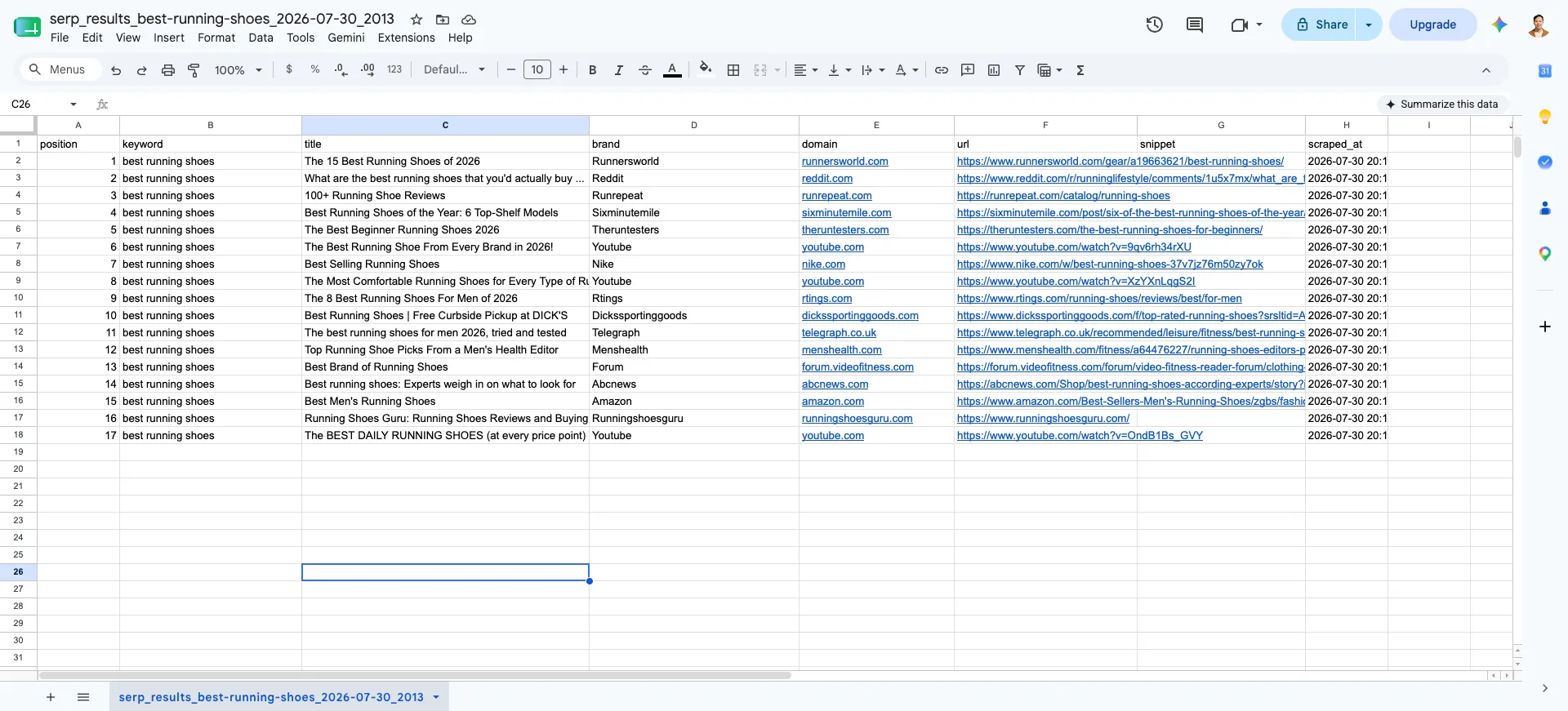
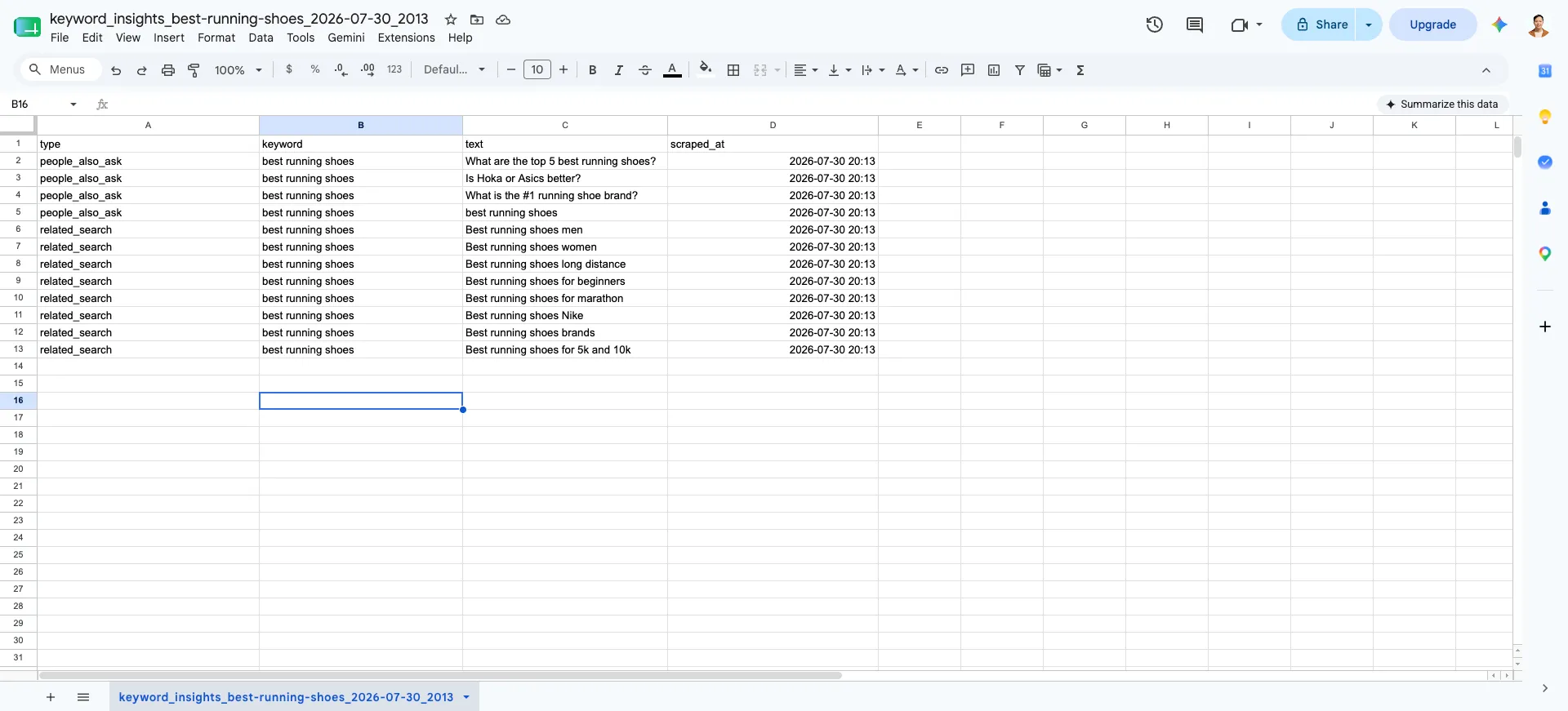
This function writes two files. The first, serp_results, holds one row per organic ranking with the position, keyword, title, brand, domain, URL, snippet, and a timestamp. The second, keyword_insights, holds the People Also Ask questions and related searches, each labeled by type, which is your content research file.
Why put the keyword and timestamp in every row and not just the filename? Because that's what makes the files stack. Run five keywords over a week, combine the CSVs, and you have a rank-tracking dataset where every row explains itself. The filenames carry the keyword and date too, so runs never overwrite each other. We use UTF-8 encoding to handle special characters.
Step 10: Run the Scraper
if __name__ == "__main__":
    keyword = "best running shoes"
    results = scrape_google(keyword, pages=2, gl="us")

    for i, r in enumerate(results["organic"], start=1):
        print(f"{i}. {r['title']}\n   {r['url']}")
    print("\nPeople Also Ask:", results["people_also_ask"])
    print("Related searches:", results["related_searches"])

    if results["organic"]:
        results_file, insights_file = save_to_csv(results, keyword)
        print(f"\nSaved: {results_file}")
        print(f"Saved: {insights_file}")
    else:
        print("\nNothing was scraped, so no CSV files were written.")
This is the final block that makes the function executable and saves both CSV files if anything was scraped. Swap in your own keyword, raise pages when you need to go deeper, and change gl to the country you're tracking.
To run the script, just input this command into your terminal:
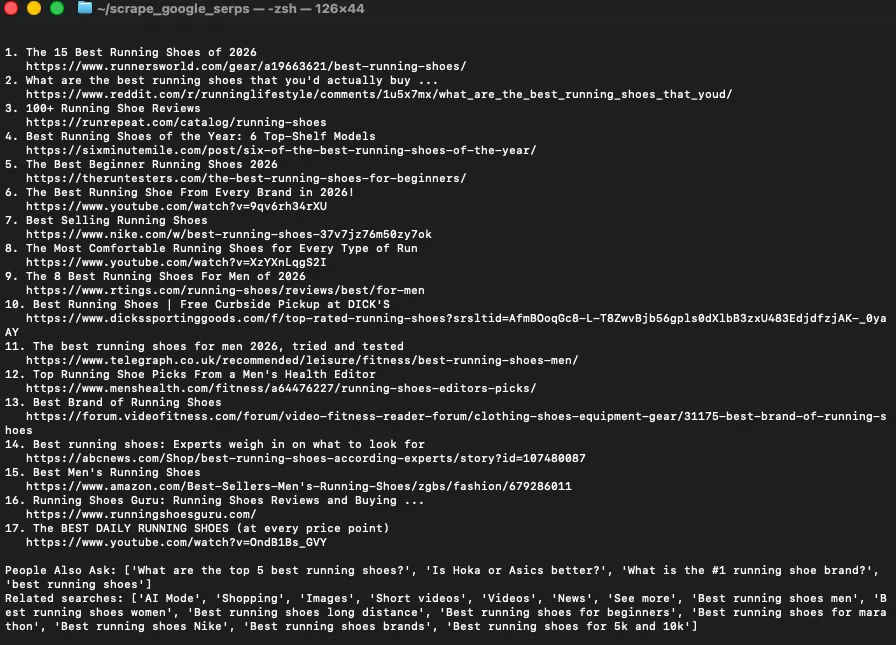
python3 scraper.pyWhen you execute the script, a browser opens, lands on Google, and types the query.
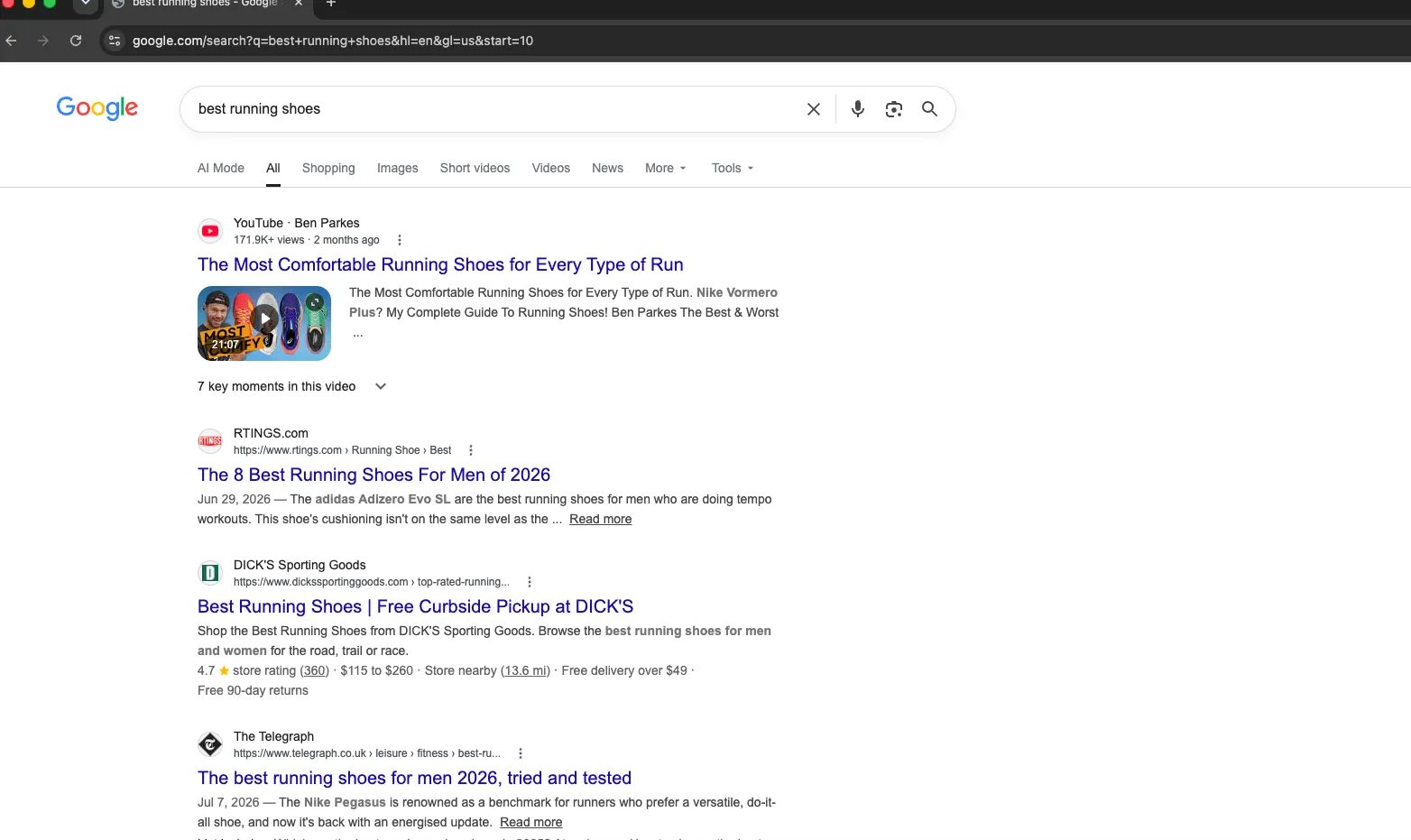
If the run stays clean, the results print straight to your terminal, and both CSV files are written.
But if Google serves a CAPTCHA instead, simply solve it manually in the browser window. Once you're through, the terminal prints a "Resuming..." message and the run continues from where it paused.
You'll then get the SERP data in the terminal, and both CSV files are created in your project folder automatically. And if nothing was scraped at all, no empty CSV gets written, and the terminal says so.
Excited to try the Google SERP Scraper? Here is the link to the complete code on GitHub Gist.
OUTPUT OPENED ON A SPREADSHEET :
Where it breaks
The script may work for a handful of queries, but there’s no guarantee of getting a hundred percent success rate with each of your requests. From the tests, after running the script a couple of times, Google CAPTCHAs may keep appearing. Here’s where the script falls short.
- You can get blocked even through a proxy. Stealth controls how your browser looks, but Google also scores your IP and your behavior together. So even on a clean residential IP, you can still hit a "your computer is sending unusual traffic" CAPTCHA once the browser starts to look automated. A good IP helps your odds. It just doesn't guarantee you a pass.
- One IP burns fast. A single address running every search builds a reputation with Google quickly, and once it's flagged, it stays that way. We tried swapping one static IP for another, and that only bought us a few minutes before the same wall showed up. So this is why rotation matters, and why a single proxy, however clean it is, isn't enough once you're doing volume. Your location is a suggestion, not a setting. Setting gl=us asks Google for US results, but Google still reads the IP behind the request. So to actually see what a searcher in Chicago sees, your IP has to be in Chicago too. If you're tracking local rankings, that gap matters a lot.
- Sometimes the fix becomes the tell. To get some proxies to connect at all, you have to force HTTP/1.1 with
--disable-http2. But real Chrome talks to Google over HTTP/2 or HTTP/3, so a browser claiming to be Chrome that will only speak HTTP/1.1 is itself a signal. It's a genuine bind: the flag that keeps you connected can also be what gets you flagged.
The pattern underneath all four is the same. Beating Google's detection is stacking several human signals at once (e.g., the right IP, sensible rotation, human-like behavior, and a fingerprint with no contradictions). Miss any single one, and you're back at the CAPTCHA.
So here's the honest ceiling of a self-built scraper: you can absolutely get it working for small, hands-on runs, but fully unattended, at scale, is hard. That's the point where a lot of people stop fighting Google directly and reach for a SERP API instead, which is the second method.
Method 2: Use a SERP API for structured output
By the end of Method 1, the script may work, but keeping it working is the actual job. Later down the line, Google might shift its layout, and your selectors may often stop matching. Your IP picks up a reputation, and you're back in a proxy dashboard. A CAPTCHA appears, and someone has to be sitting there to solve it.
A SERP API takes that entire job off your plate. You send it a keyword and your API key, and it sends back the results as clean JSON.
For example, providers like SerpApi run the same setup as what Method 1 is trying to build, just at a scale no single person can match. Large pools of residential IPs, browser farms that render JavaScript, CAPTCHA handling, and parsers they update whenever Google changes its markup. Paying for an API key rents you access to all of it. The blocks and layout changes still happen; they just happen on their servers, and fixing them is their job instead of yours.
That's what makes this a real second method rather than a shortcut. In Method 1, you own the whole pipeline, and every part of it is yours to repair. Here you own nothing but the query.
So it's a good fit when:
- You don't want to maintain anything. No selectors to rewrite every time Google shifts its layout.
- You want structured data without writing any parsing code.
- You want the hard stuff handled for you (proxy rotation, JavaScript rendering, AI Overview parsing).
Example code using SERP API
Before anything else, install the library and grab an API key.
pip install serpapiSign up at serpapi.com, and you’ll find your API key on your dashboard. The free tier gives you a small number of searches per month, which is plenty for testing.
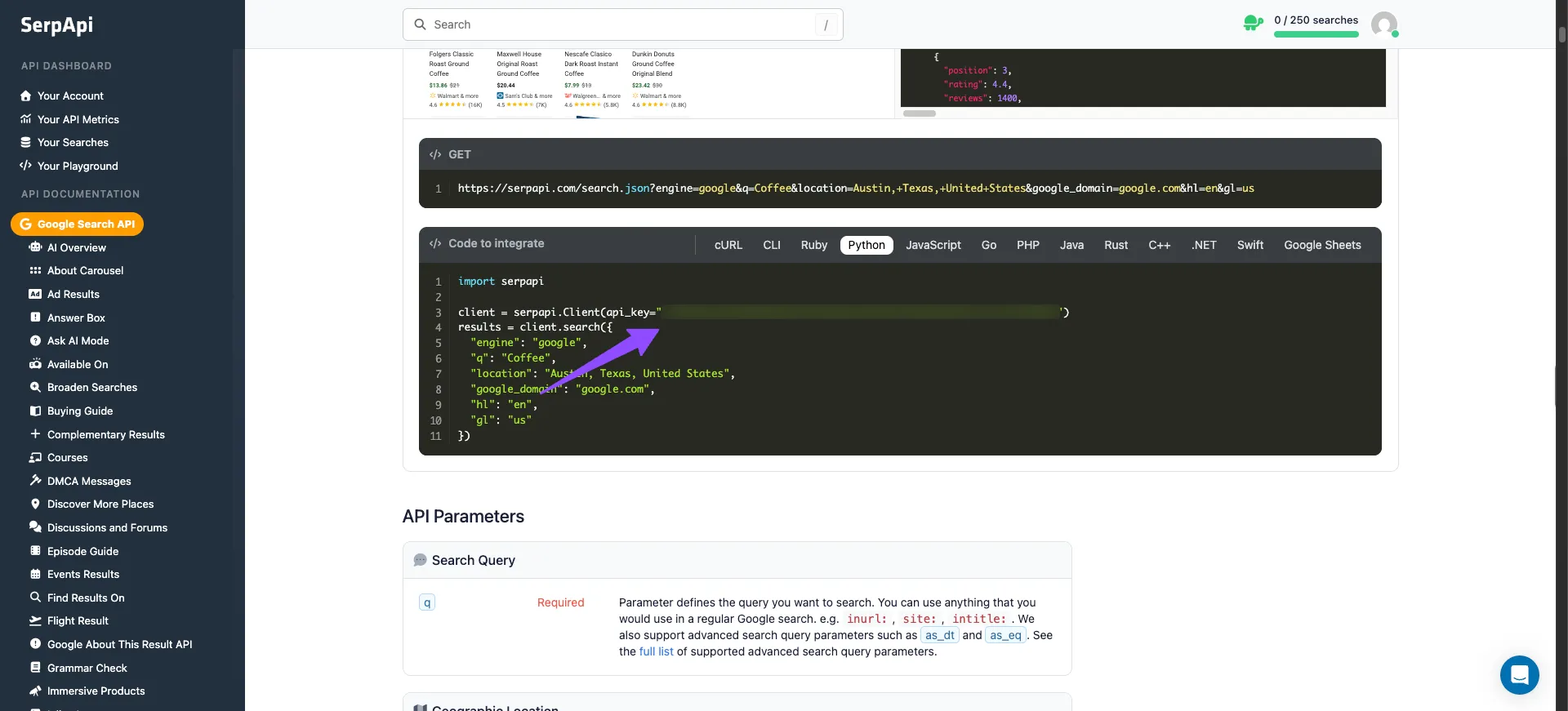
Now here's the whole scraper:
import serpapi

client = serpapi.Client(api_key="YOUR API KEY")
results = client.search({
 "engine": "google",
 "q": "Coffee",
 "location": "Austin, Texas, United States",
 "google_domain": "google.com",
 "hl": "en",
 "gl": "us"
})
for result in results["organic_results"]:
   print(result["position"], result["title"])
   print(" ", result["link"])
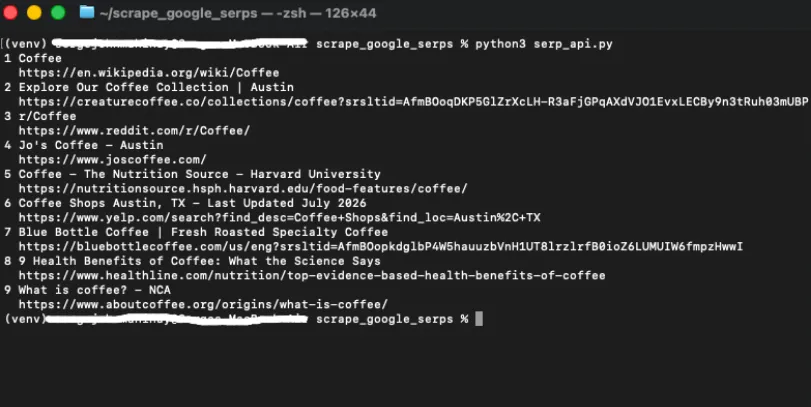
Simply run the code on your terminal, and that's it. No browser, no proxy, no parsing.
You describe the search you want in a plain dictionary, where engine is the search engine, q is your keyword, and hl and gl are the same language and country codes from the DIY method. Then you send it, and what comes back is a Python dictionary you can read straight away.
Notice the location parameter, because it solves a problem the DIY scraper couldn't. Earlier we saw that gl=us only asks for US results while Google still reads the IP behind the request, so seeing what an Austin searcher sees meant buying a proxy in Austin. Here, you just name the city in the request, and the provider routes it through the right location for you.
How this compares to the DIY approach
In the DIY path, our own code was doing the heavy lifting. We were the ones rotating proxies so Google wouldn't block us, waiting for JavaScript to render, hunting down the right CSS selectors, and re-parsing the HTML every single time Google nudged its layout. The bulk of that code existed just to fight the page into giving up its data.
Here, almost none of that shows up. As you can see, the code example really only runs basic functions. You set an API key, describe the search, and then read the response. That one api_key is quietly doing all the work the DIY version made us write by hand (e.g., the proxy rotation, the browser rendering, the JavaScript execution, the AI Overview parsing). It's all happening on someone else's servers instead of inside your script.
So simply put, the DIY method makes your code responsible for the mess; the SERP API method makes a paid key responsible for it. Same result, very different amount of stuff for you to maintain.
What’s the downside of using a SERP API
While SERP APIs handle the heavy lifting for you, that convenience comes with trade-offs. You're trading control for convenience, and since you're charged per request, costs scale linearly with volume. At high volume, that adds up fast.
So your budget should be considered right from the start when making your decision. If budget is your concern, the DIY approach can save you some costs, as your main cost is the proxies themselves, which usually works out cheaper at scale.
Byteful offers 1 GB of free residential data. With that, you can start and test your setup and scrape Google SERPs. However, as always said, even if you have clean proxy IPs, that doesn’t guarantee that you won’t get flagged and encounter CAPTCHAs, as other factors would affect how Google deals with your request.
That said, if your team would rather not maintain infrastructure, a SERP API is a fair pick. Meanwhile, if you want maximum control and better economics at scale, the DIY path with your own proxies wins.
Troubleshooting common blocks and errors
You can expect to see some errors and blocks along the way when scraping Google SERPs, and that's normal for anyone starting out. The good news is that Google's blocks tend to repeat, so once you recognize the handful of common ones, fixing them becomes easier.
- A redirect to /sorry/ or an "unusual traffic" page: This is Google's soft block. When you run your script or make a request, the page may load, but Google returns a CAPTCHA page instead of results and tells you your traffic looked automated. Try using mobile or residential proxies with IP rotation. That way, no single address builds a reputation, and make sure your browser looks human (e.g., stealth setup, realistic user agent, matching headers, etc.). Note that this doesn’t solve the overall problem, as Google may also look at browser behavior and other signals.
- 429 too many requests: This one shows up when you send requests too fast from a single IP, since real people don't quietly fire off searches at that pace. To address it, slow down and reduce the number of requests you run at once, add a short, random delay between them, and rotate to a fresh IP.
- The page hangs and times out: The connection stalls and never loads, and it happens most often when you're routing through a proxy. This is frequently an HTTP/2 problem. Some proxy networks often won't tunnel the HTTP/2 connection a browser opens to Google, so the request just sits there. Forcing HTTP/1.1 usually fixes it (in Playwright, launch with
args=["--disable-http2"]). Before you blame your code, confirm the proxy itself reaches Google with a quick curl test. If curl works but your scraper hangs, it's almost always this. - An empty page or a "turn on JavaScript" message: You're using plain requests, which can't run JavaScript, and Google now needs it to render results. If that happens, try switching to a headless browser like Playwright that executes the page's code.
- Empty or partial results, but the page loads fine: Either Google changed its layout, and your selectors no longer match, or the block you want is loaded by JavaScript and wasn't there yet when you grabbed the HTML. Re-inspect the live page and update what you're targeting. Remember that AI Overviews load a beat late, so wait for them before parsing.
- Wrong-location results: Your proxy is exiting from the wrong place. Set both the
glparameter and your proxy's location to the country or city you actually want, since Google reads the IP behind the request, not just the parameter.
