


If you need to follow, say, a couple of roles from different companies, you can do it manually, but it becomes impractical if you are following hundreds of vacancies across different companies, roles, or areas. You want to get public job details, follow individual listing pages, and move from one result page to another without repeating the process manually; that's where a Python scraper can help.
In this guide, we'll build a job-posting scraper in Python, handle pagination and JavaScript-loaded listings where needed, add proxies for repeated or location-specific collection, and export the results into a structured dataset that you can validate before using.
What Data Can You Scrape From Job Postings?
The fields you're able to gather vary based on the information published by the source. The listings page might provide you with only the job title, company, location, job ID, and link, while the job page itself may include a complete job description, employment type, salary range, required skills, posting date, and application deadline.
How far the scraper has to go depends on what you want to collect. If it's important to count the number of software positions a company is advertising, it might only need the listings page. Typically, salary analysis or skills-demand research will require opening each job page. Location data can also be used to distinguish between remote, hybrid, and on-site job opportunities or to compare hiring activity across regions.
Keep the original job ID and source URL in the dataset. They give you stable references for spotting duplicate or updated listings on later runs. If a salary, employment type, or expiry date isn't published, store a null value rather than guessing.
How Job Websites Serve Posting Data
You have to find out where the job data is actually located before building the scraper. The listings on two pages can be virtually the same in a browser but be vastly different under the hood, and that decides whether a simple HTTP request is enough.
HTML Job Listings
Some job sites embed listing information in the HTML the server returns. The elements already exist in the page response, such as the title, company, location, and job URL. The scraper can then ask for the page and extract these elements from the markup. This is the easiest configuration, and the first challenge is to identify selectors that can reliably be used to find the fields.
JobPosting Structured Data
Individual job pages may also expose structured data using JSON-LD with the JobPosting type. Instead of locating every value in the visible markup, the scraper can read the job title, description, hiring organization, location, employment type, and posting dates from the structured object when they are provided.
Structured data is typically easier to interpret because it comes in named fields. Use it as an option, since not all job pages include it and not all fields are published.
JavaScript-Loaded Listings
Other sites return only the page shell from the server, and load the actual vacancies once JavaScript runs in the browser. A request may then return 200 OK with no job records included in the HTML response.
The check is simple: compare the page source returned by your request with what appears in the browser after it loads. Where the listings only appear in the rendered page, the scraper must be able to deal with that before it starts extracting anything from the page.
How to Scrape Job Postings With Python
For the walkthrough, we'll use the public Python Job Board because its listings are available in server-rendered HTML, individual jobs have their own detail pages, and the board uses straightforward page-number pagination. The current template exposes classes for the listing title, company, location, posting date, and next-page controls, so we can focus on the workflow rather than an exceptionally complex target.
Prerequisites
Use Python 3.10 or higher, and install the packages requests (for getting pages) and BeautifulSoup (for parsing HTML), plus a directory for the downloaded data. The current releases of both requests and Playwright require Python 3.10 or higher.
python -m venv .venv
source .venv/bin/activate
pip install requests beautifulsoup4
mkdir -p output
On Windows PowerShell, run the .venv\Scripts\Activate.ps1 script to enable the virtual environment.
When considering automating another job source, check the Terms of Service, robots.txt, and any public documentation on access. Confirm the data you need is public, and don't collect login-gated or restricted data without permission. For our example, Python.org's current wildcard robots.txt rules do not disallow /jobs/.
Step 1: Inspect the Job Listings Page
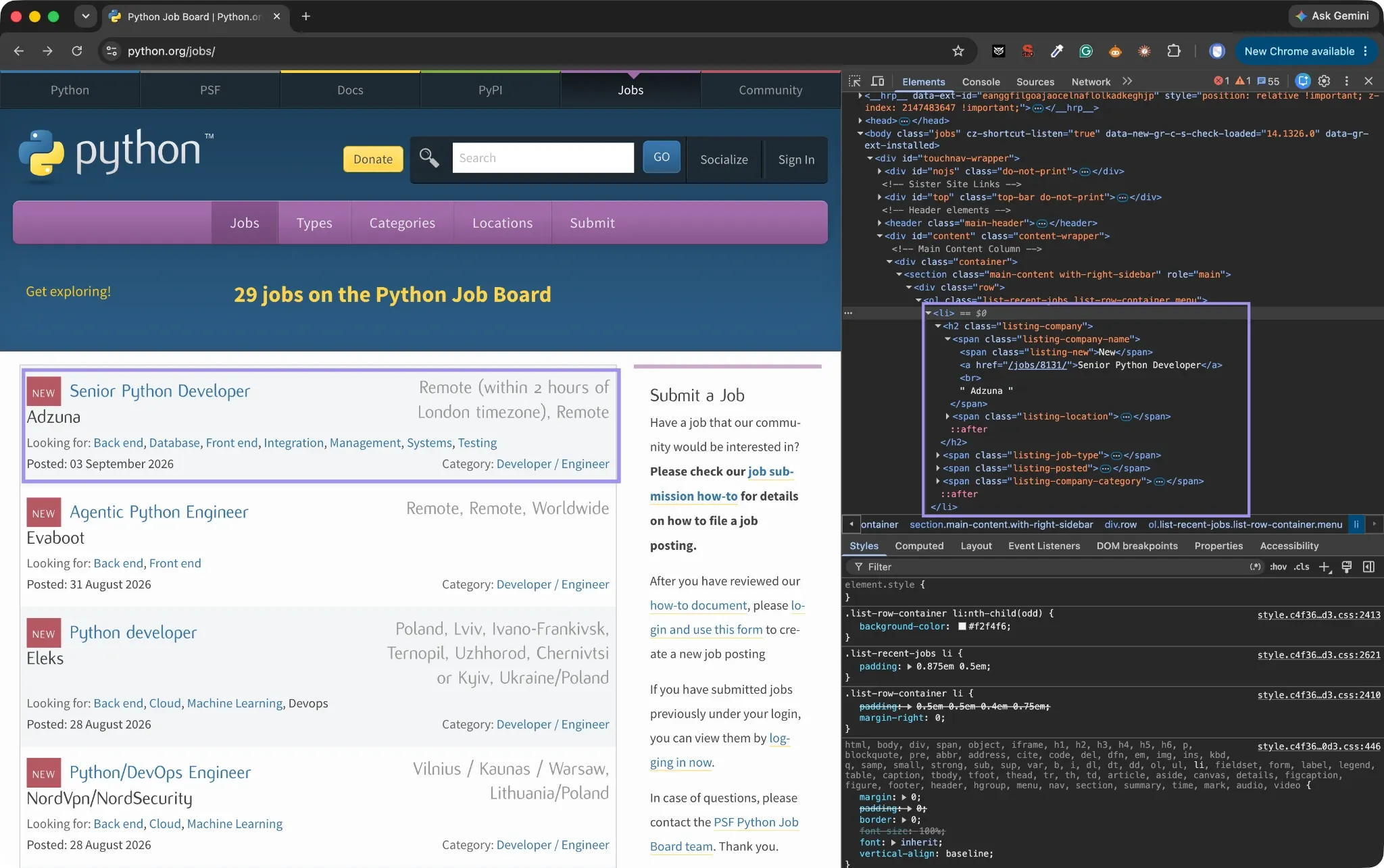
On the job board, right-click a job and select Inspect. Start with the outer element for one job entry, then find the elements with the job title, company, location, posting date, and link to the detail page.
Each listing is contained within ol.list-recent-jobs on Python.org, and there are classes like listing-company-name, listing-location, and listing-posted that allow us to extract fields. If there is another page, the pagination template also includes a Next link.
Choose selectors based on an element's meaning or structure. Class names that are used solely for style are more likely to change during a redesign and can cause a scraper to fail even if the job information itself hasn't changed.
Step 2: Send the First Request and Extract the Listings
The output structure will remain the same throughout. Fields that are not listed on the listings page will remain None until they are listed on a detail page.
import re
import time
from urllib.parse import urljoin

import requests
from bs4 import BeautifulSoup

BASE_URL = "https://www.python.org"
LIST_URL = f"{BASE_URL}/jobs/"

HEADERS = {
        "User-Agent": "Mozilla/5.0 (compatible; JobPostingResearch/1.0)"
}

FIELDS = [
        "job_id",
        "title",
        "company",
        "location",
        "salary",
        "employment_type",
        "date_posted",
        "description",
        "requirements",
        "job_url",
]

def parse_listings(html):
        soup = BeautifulSoup(html, "html.parser")
        jobs = []

        for card in soup.select("ol.list-recent-jobs > li"):
            title_link = card.select_one(".listing-company-name a")
            if not title_link:
                continue

            title = title_link.get_text(" ", strip=True)
            job_url = urljoin(BASE_URL, title_link.get("href", ""))

            company_block = card.select_one(".listing-company-name")
            strings = [
                text for text in company_block.stripped_strings
                if text not in {"New", "Removed"}
            ]
            company = next(
                (text for text in reversed(strings) if text != title),
                None,
            )

            location_el = card.select_one(".listing-location")
            posted_el = card.select_one(".listing-posted time")

            id_match = re.search(r"/jobs/(\d+)/", job_url)

            jobs.append({
                "job_id": id_match.group(1) if id_match else None,
                "title": title,
                "company": company,
                "location": (
                    location_el.get_text(" ", strip=True)
                    if location_el else None
                ),
                "salary": None,
                "employment_type": None,
                "date_posted": (
                posted_el.get("datetime") if posted_el else None
                ),
                "description": None,
                "requirements": None,
                "job_url": job_url,
            })

        return jobs

response = requests.get(
        LIST_URL,
        headers=HEADERS,
        timeout=20,
)
response.raise_for_status()

jobs = parse_listings(response.text)

print(f"HTTP status: {response.status_code}")
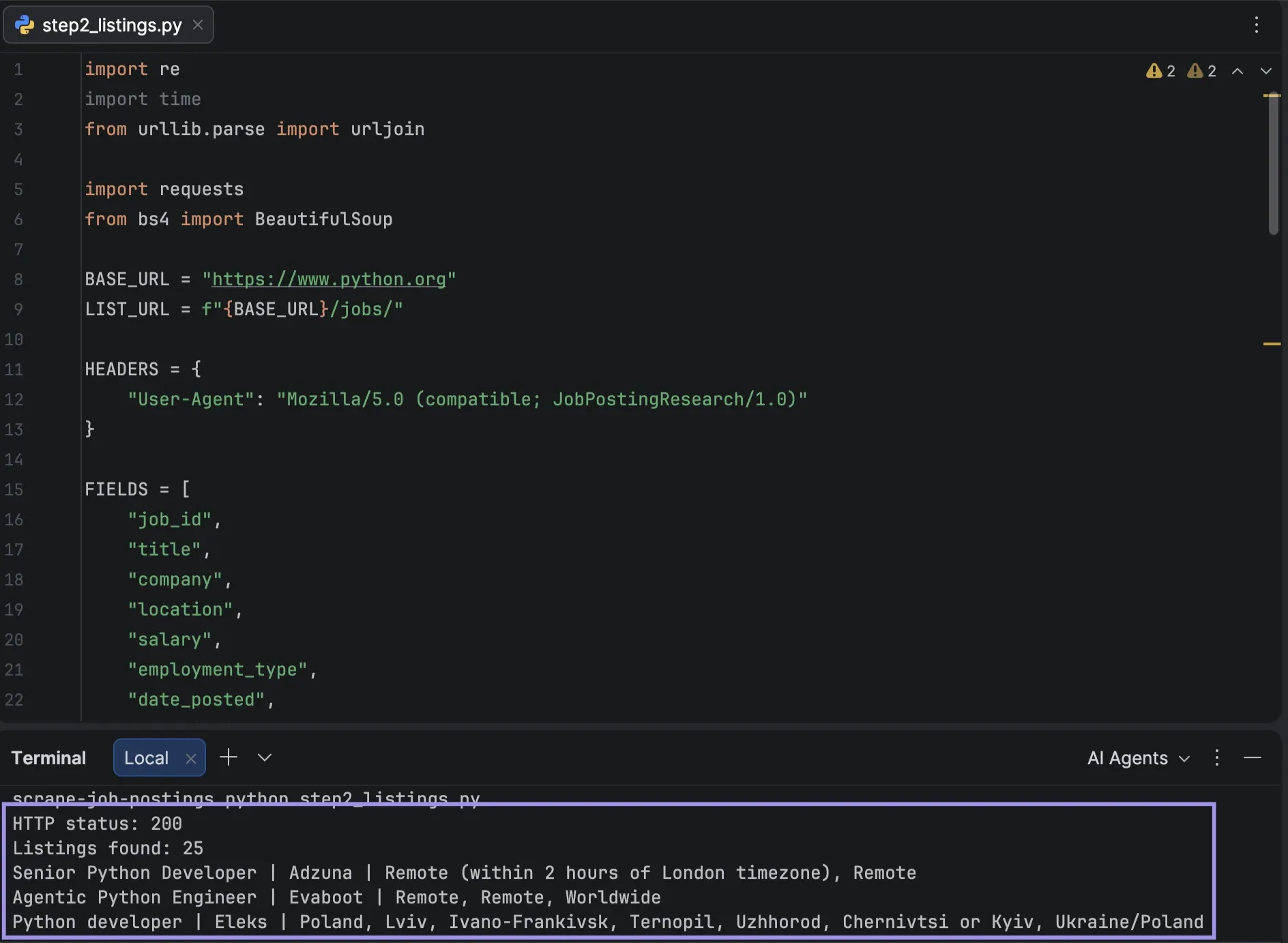
print(f"Listings found: {len(jobs)}")

for job in jobs[:3]:
        print(job["title"], "|", job["company"], "|", job["location"])
The timeout prevents the request from waiting indefinitely, while raise_for_status() stops the run when the server returns an HTTP error instead of passing an error page into the parser. We print three records just to make sure that the selectors are returning familiar jobs.
The one-second delay between requests keeps this test run polite. If the source publishes rate limits or starts rate-limiting the scraper, increase this interval.
Step 3: Open Each Job Page for More Details
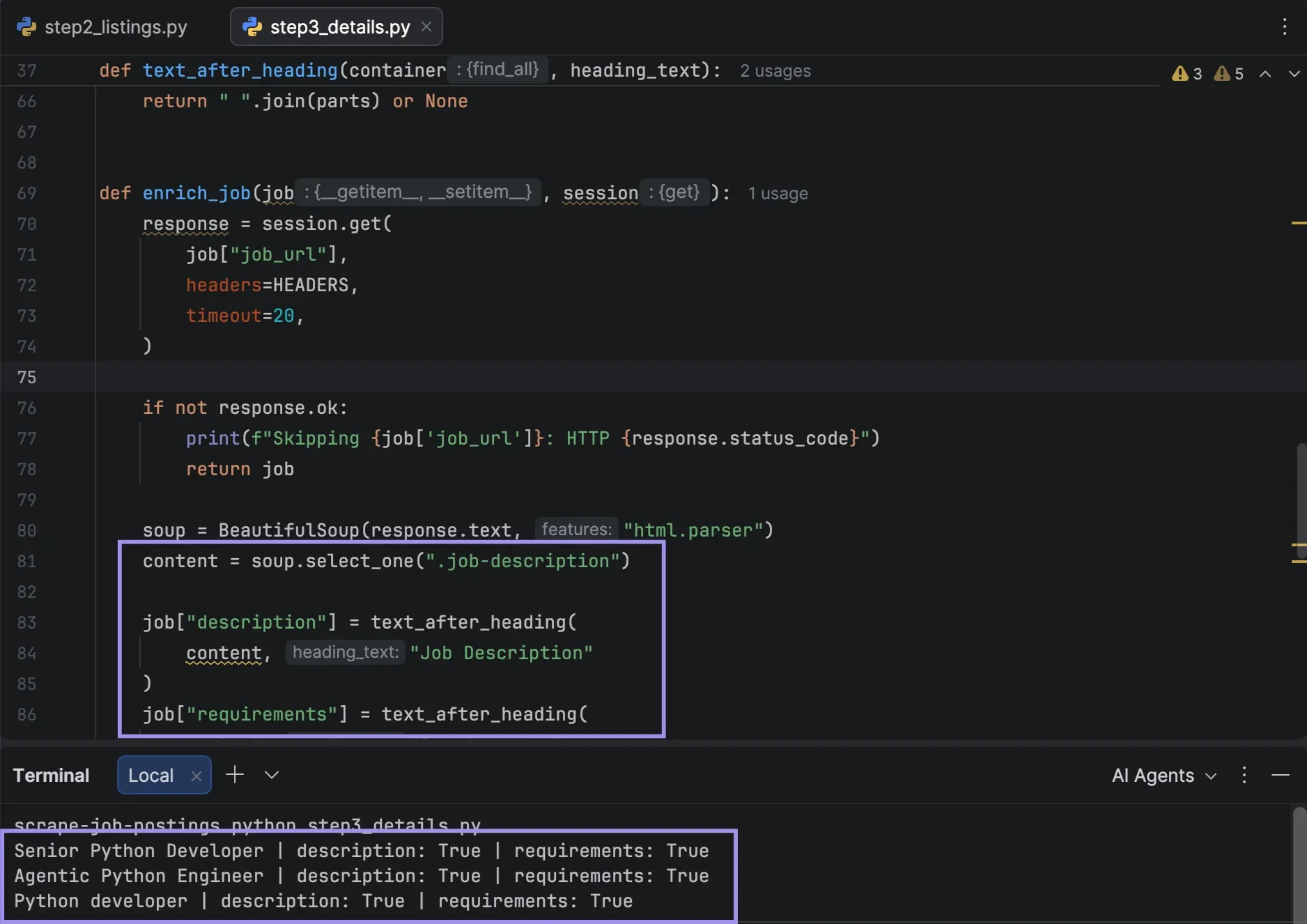
The listing cards contain useful data, but the individual Python.org job pages include the full description and, if provided by the employer, also an additional requirements section. The detail-page template also makes the post date available. Add a helper to read content after a header with a name:
def text_after_heading(container, heading_text):
        if not container:
            return None

        heading = next(
            (
                h2 for h2 in container.find_all("h2", recursive=False)
                if h2.get_text(" ", strip=True).startswith(heading_text)
            ),
            None,
        )

        if not heading:
            return None

        parts = []

        for node in heading.next_siblings:
            if getattr(node, "name", None) == "h2":
                break

            if hasattr(node, "get_text"):
                text = node.get_text(" ", strip=True)
            else:
                text = str(node).strip()

            if text:
                parts.append(text)

        return " ".join(parts) or None

def enrich_job(job, session):
        response = session.get(
            job["job_url"],
            headers=HEADERS,
            timeout=20,
        )

        if not response.ok:
            print(f"Skipping {job['job_url']}: HTTP {response.status_code}")
            return job

        soup = BeautifulSoup(response.text, "html.parser")
        content = soup.select_one(".job-description")

        job["description"] = text_after_heading(
            content, "Job Description"
        )
        job["requirements"] = text_after_heading(
            content, "Requirements"
        )

        posted = soup.select_one(".listing-posted time")
        if posted:
            job["date_posted"] = posted.get("datetime")

        return job

with requests.Session() as session:
        for job in jobs[:3]:
            enrich_job(job, session)
            time.sleep(1)

for job in jobs[:3]:
        print(
            job["title"],
            "| description:",
            bool(job["description"]),
            "| requirements:",
            bool(job["requirements"]),
        )
If a detail page returns an error, enrich_job logs the URL and status code and moves on without raising an exception. A single expired or malformed listing shouldn't cost you the rest of the jobs that follow it in the queue.
The fields salary and employment_type are not published separately by Python.org, so we leave both empty. Though most listings carry job type tags, these denote the technology area of the role (Back end, Machine Learning, etc.) and not whether the role will be full-time or part-time.
If a salary is listed, or if the description mentions a full-time label, that type of information will be contained within the free-text description and is not considered reliable enough to be used as a column component.
Step 4: Read JobPosting Structured Data When It Is Available
Some job sites add an application/ld+json script containing an object whose @type is JobPosting. It provides named fields when present and does not require a separate selector for each element that is present on the screen.
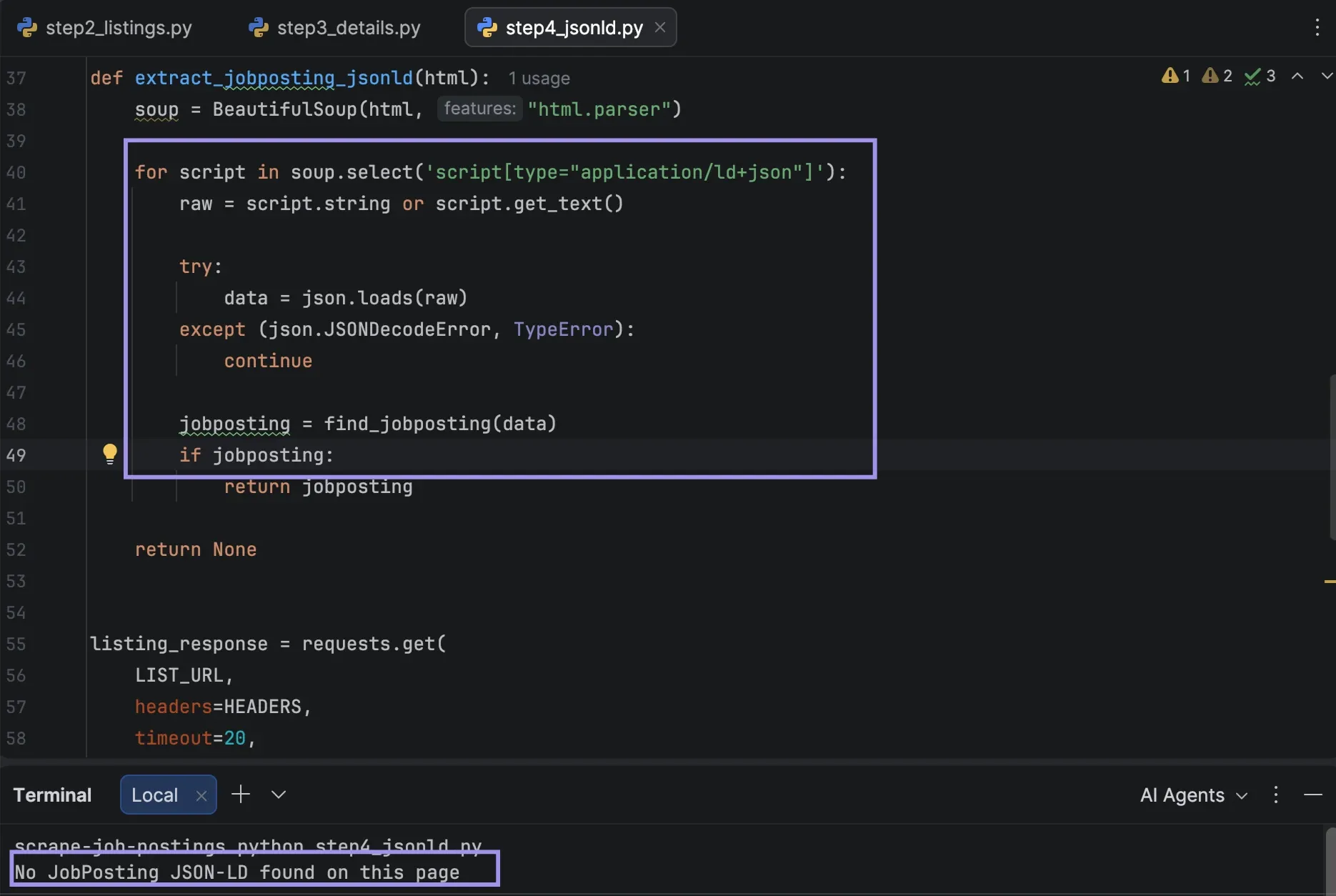
The check should be run on a job detail page and not the listings page, as the two templates do not have the same structured data. JobPosting JSON-LD is not in the Python.org job-detail template, so this is an optional branch.
import json

def find_jobposting(data):
        if isinstance(data, list):
            for item in data:
                result = find_jobposting(item)
                if result:
                    return result

        if isinstance(data, dict):
            item_type = data.get("@type")

            if item_type == "JobPosting":
                return data

            if isinstance(item_type, list) and "JobPosting" in item_type:
                return data

            if "@graph" in data:
                return find_jobposting(data["@graph"])

        return None

def extract_jobposting_jsonld(html):
        soup = BeautifulSoup(html, "html.parser")

        for script in soup.select('script[type="application/ld+json"]'):
            raw = script.string or script.get_text()

            try:
                data = json.loads(raw)
            except (json.JSONDecodeError, TypeError):
                continue

            jobposting = find_jobposting(data)
            if jobposting:
                return jobposting

        return None

detail_response = requests.get(
        jobs[0]["job_url"],
        headers=HEADERS,
        timeout=20,
)
detail_response.raise_for_status()

structured_job = extract_jobposting_jsonld(detail_response.text)

print(
        "JobPosting JSON-LD found"
        if structured_job
        else "No JobPosting JSON-LD found on this page"
)
The function also checks arrays and @graph, since structured-data blocks are not always arranged as one flat JSON object.
In the final script, we use this as a fallback: if a detail page exposes a JobPosting object, its baseSalary and employmentType values fill those columns when they are still empty. On Python.org this branch simply returns nothing, but it makes the same scraper usable on boards that do publish structured data.
Step 5: Scrape More Than One Page
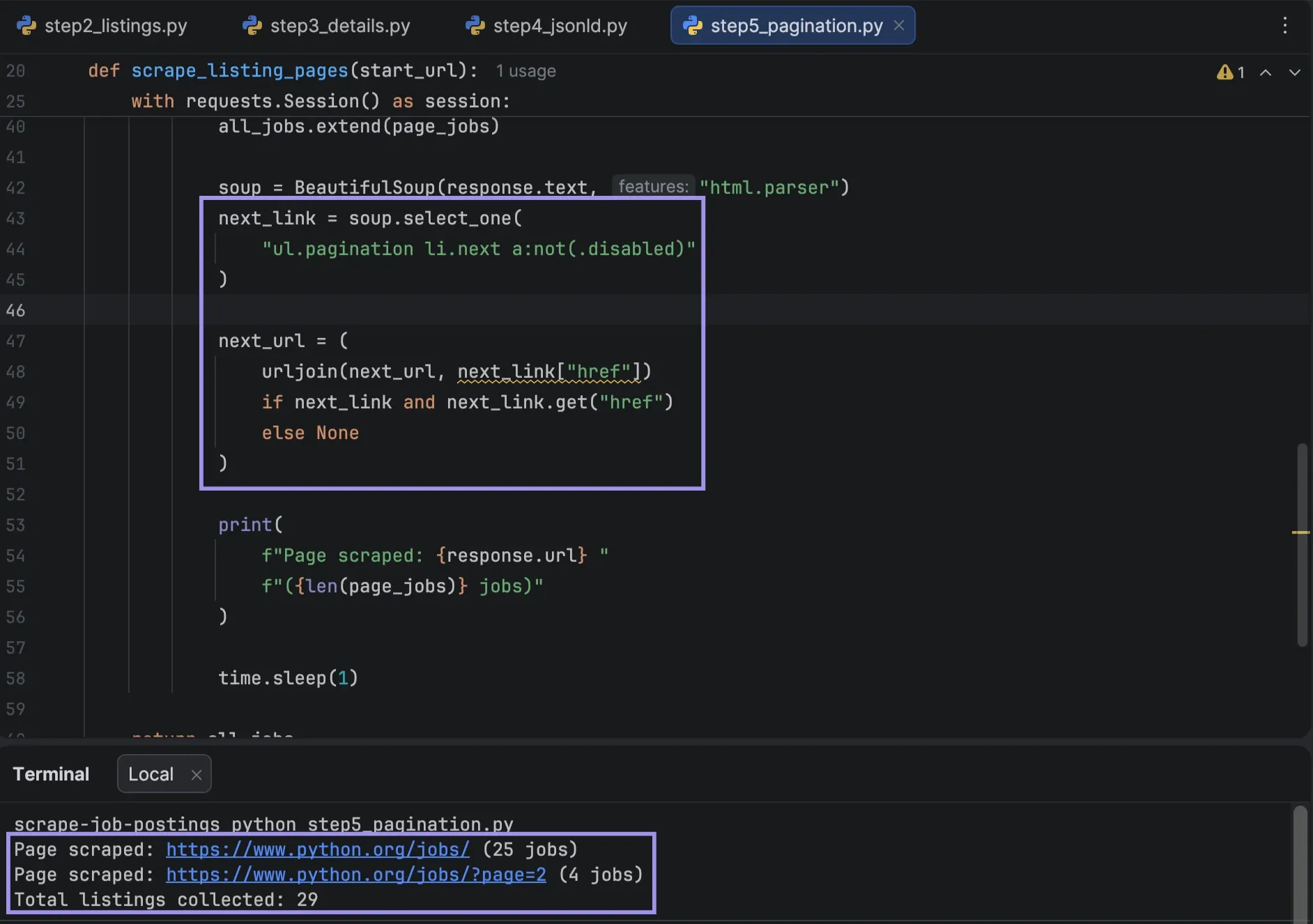
The current version of Python.org uses a ?page= parameter and displays a Next link while another results page is available. Rather than assuming how many pages exist, follow that link until it disappears.
def scrape_listing_pages(start_url):
        all_jobs = []
        visited_pages = set()
        next_url = start_url

        with requests.Session() as session:
            while next_url and next_url not in visited_pages:
                visited_pages.add(next_url)

                response = session.get(
                    next_url,
                    headers=HEADERS,
                    timeout=20,
                )
                response.raise_for_status()

                page_jobs = parse_listings(response.text)
                if not page_jobs:
                    break

                all_jobs.extend(page_jobs)

                soup = BeautifulSoup(response.text, "html.parser")
                next_link = soup.select_one(
                    "ul.pagination li.next a:not(.disabled)"
                )

                next_url = (
                    urljoin(next_url, next_link["href"])
                    if next_link and next_link.get("href")
                    else None
                )

                print(
                    f"Page scraped: {response.url} "
                    f"({len(page_jobs)} jobs)"
                )

                time.sleep(1)

        return all_jobs

jobs = scrape_listing_pages(LIST_URL)
print(f"Total listings collected: {len(jobs)}")
If a malformed or repeating pagination link is encountered, visited_pages will stop sending the scraper around the same pages indefinitely.
Step 6: Handle Listings That Load With JavaScript
For our example of Python.org, we don't need to render the job records since they are already included in the server response. Other sites are different. If jobs do show up in the browser but don't show up in the HTML returned in the request, check that out first before using another method.
For a page that genuinely needs JavaScript, you can render it in a browser with Playwright and wait for the content to appear. Install Chromium as well, since this example launches it in headless mode to execute the page's JavaScript:
pip install playwrightplaywright install chromium
Run both commands above in your terminal. Once Playwright and Chromium are installed, add the following code to your Python script:
import requests
from bs4 import BeautifulSoup
from playwright.sync_api import sync_playwright

def render_page(url, job_selector):
        with sync_playwright() as p:
            browser = p.chromium.launch(headless=True)
            page = browser.new_page()

            page.goto(
                url,
            wait_until="domcontentloaded",
                timeout=30000,
            )
            page.wait_for_selector(job_selector, timeout=15000)

            html = page.content()
            count = page.locator(job_selector).count()

            print(f"Elements found after rendering: {count}")

            browser.close()
            return html

if __name__ == "__main__":
        url = "https://quotes.toscrape.com/js/"
        selector = "div.quote"

        raw = requests.get(url, timeout=20)
        raw_count = len(
            BeautifulSoup(raw.text, "html.parser").select(selector)
        )
        print(f"Elements in the raw HTML: {raw_count}")

        render_page(url, selector)
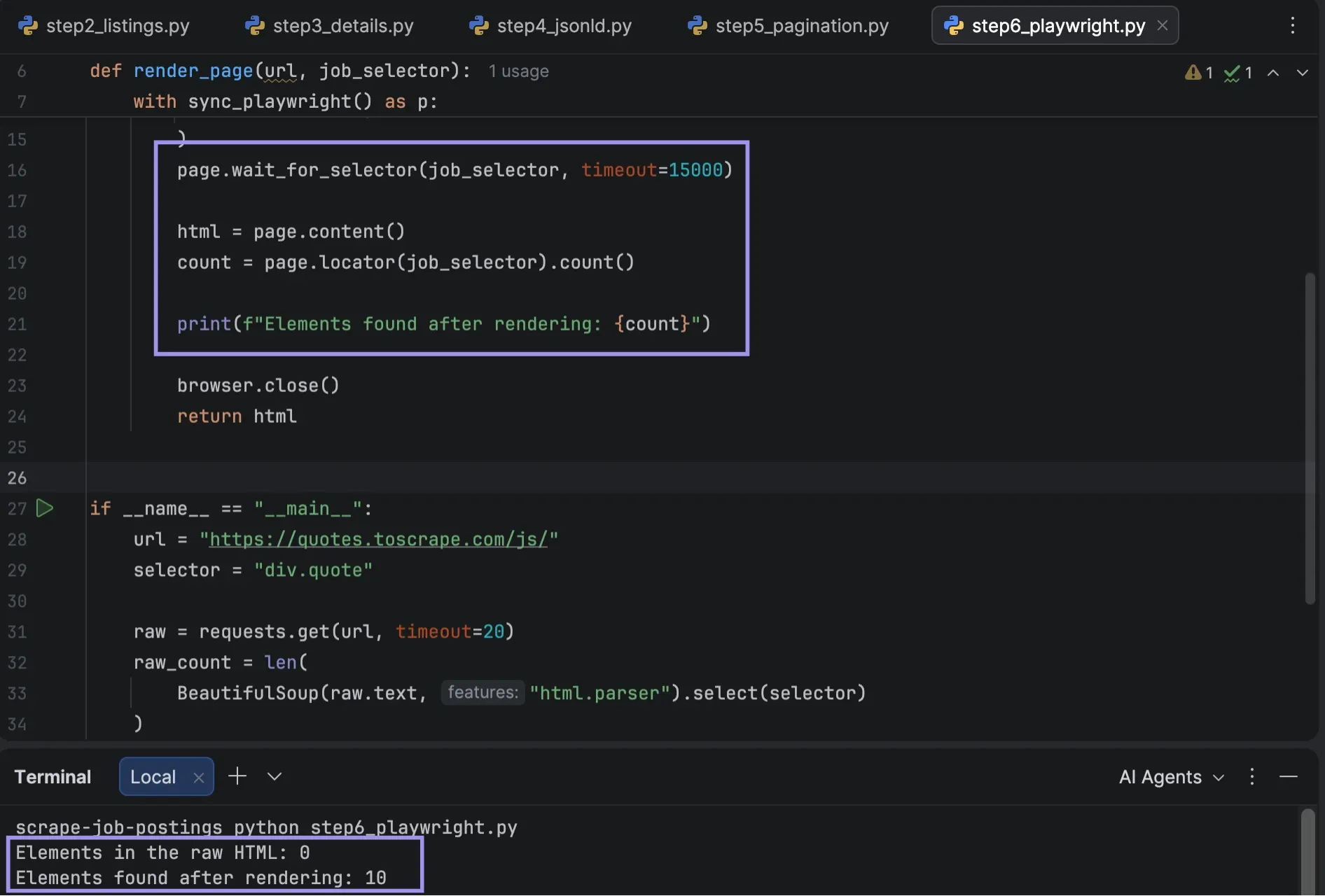
The block requests that URL twice, once with requests and once through the browser, and prints both counts. The raw HTML has no data to parse. The rendered version will return ten elements. That gap is why this step exists, so it's better to check it than to take it on faith. Once you've determined which URL and/or selector you need, replace those values with your target.
Rendering in a browser adds real overhead, so only use it when the data genuinely is not present in the plain HTTP response.
Step 7: Fill In Every Listing, Remove Duplicates, and Export
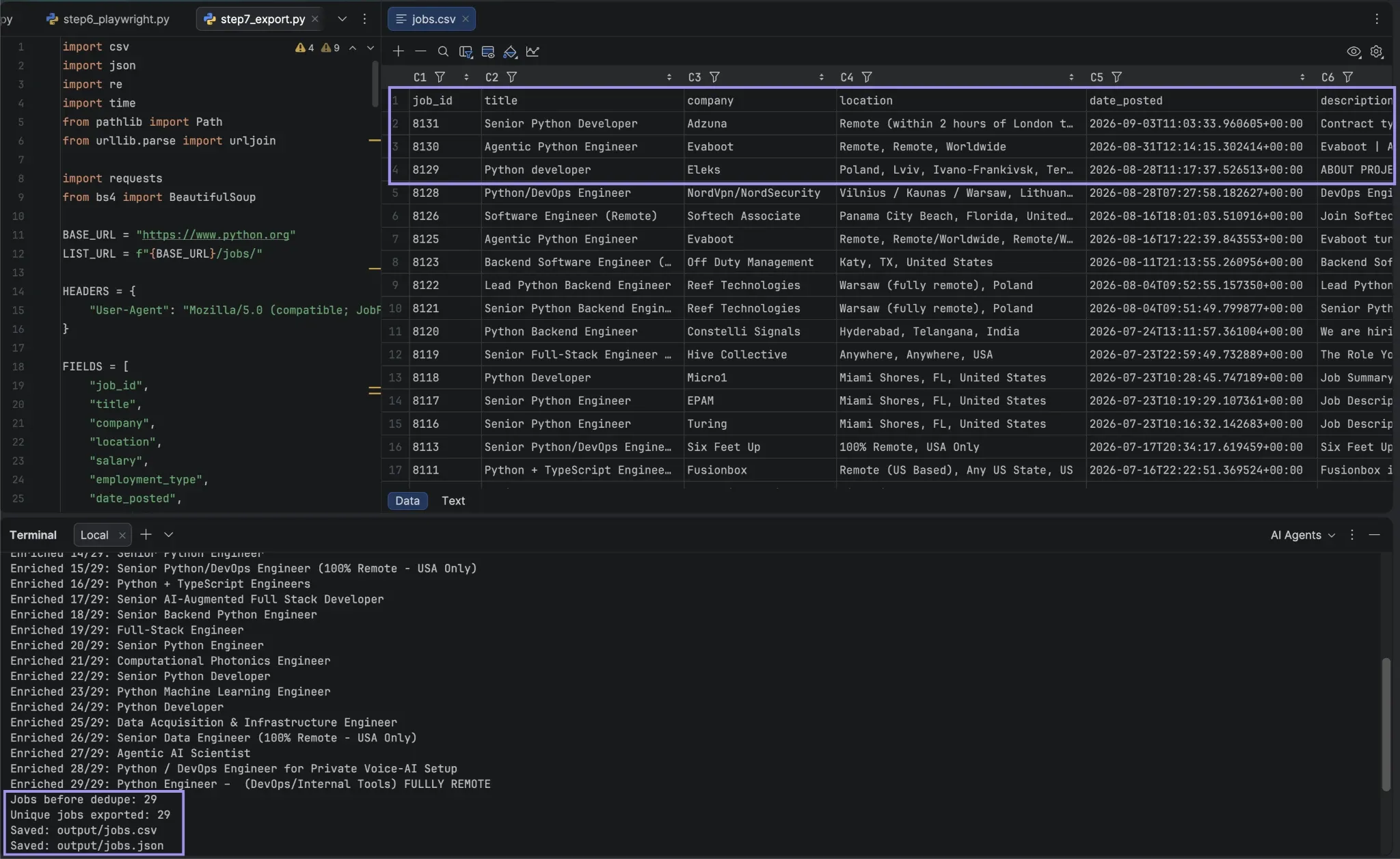
Before exporting, open every collected listing's detail page (the enrich_job function from Step 3). This fills the description and requirements columns for the full dataset, not just the sample records used during testing.
Next, delete any duplicate rows. They can be introduced by pagination or overlapping source pages. Firstly, use the source job ID, and then the detail URL. When both are not available, a combination of company, title, and location is a fallback, though two valid openings can still appear the same.
import csv
import json
from pathlib import Path

def dedupe_key(job):
        if job.get("job_id"):
            return ("id", job["job_id"])

        if job.get("job_url"):
            return ("url", job["job_url"].rstrip("/"))

        return (
            "fallback",
            (job.get("company") or "").casefold(),
            (job.get("title") or "").casefold(),
            (job.get("location") or "").casefold(),
        )

with requests.Session() as session:
        for i, job in enumerate(jobs, start=1):
            enrich_job(job, session)
            print(f"Enriched {i}/{len(jobs)}: {job['title']}")
            time.sleep(1)

unique_jobs = {}
for job in jobs:
        unique_jobs.setdefault(dedupe_key(job), job)

jobs = list(unique_jobs.values())

Path("output").mkdir(exist_ok=True)

with open("output/jobs.json", "w", encoding="utf-8") as file:
        json.dump(jobs, file, indent=2, ensure_ascii=False)

with open(
        "output/jobs.csv",
        "w",
        newline="",
        encoding="utf-8-sig",
) as file:
        writer = csv.DictWriter(file, fieldnames=FIELDS)
        writer.writeheader()
        writer.writerows(jobs)

print(f"Unique jobs exported: {len(jobs)}")
print("Saved: output/jobs.csv")
print("Saved: output/jobs.json")
The CSV is utf-8-sig, which adds a UTF-8 byte-order mark and better supports spreadsheet applications that use it as an encoding marker. Include the original job URL in both exports. This gives you an immediate reference for future validation and a more robust reference for repeated runs.
Step 8: Run the Full Scraper and Check the Results
Once the individual pieces are working, you can combine them into the complete scraper. If you want to try the full version, check out the Scrape Job Postings GitHub Gist.
After saving the complete scraper as job_scraper.py, run the following command in your terminal:
python job_scraper.py
Run the command from your project folder. The output directory is created from where you run the script, not from where the script is located.
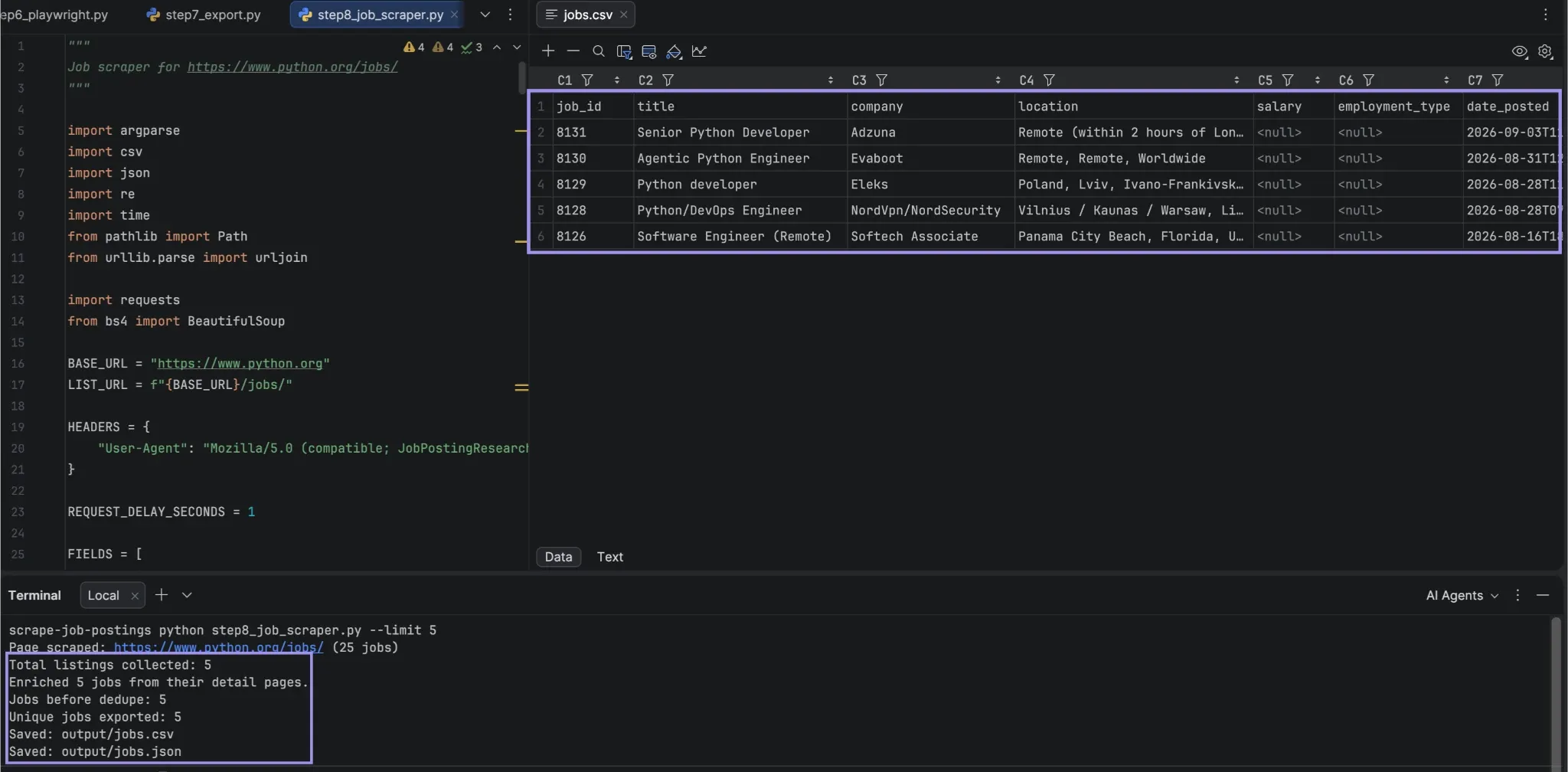
Review the results against the source before considering it a success. Make sure the number of your listings aligns with a manual count, that the titles and companies are correct, and check for unexpected empty fields across at least five saved job URLs. Compare the number of records before and after the deduplication.
After an exception-free script completes, it may still be returning bad data. If the listing count drops to zero without an explanation, then it's failed and should not replace the previous dataset.
Why Use Proxies for Repeated Job Scraping?
You don't need a proxy for every job-scraping task. From your regular connection, a limited run against a public careers page might be OK. Proxies become useful when you have multiple pages you want to collect the same data from, multiple scraping processes running at once, or when you want to compare listings returned from different locations.
They also let you control the exit IP used by the scraper, distinguishing automated requests from your own network. That does not replace sensible request pacing or validation.
Which Proxy Type Fits the Workflow?
You can choose a proxy based on what the job source actually requires rather than defaulting to the most expensive option, some of them are:
- Datacenter proxies: If you're looking for public listings that aren't tied to residential IPs or exact geographic targeting, start here. They're usually more cost-effective and typically faster than residential proxies, making them a great choice for crawling many career pages or job detail URLs. There are two limits to remember. Datacenter IPs have a datacenter autonomous system number (ASN), meaning a board that filters out proxy traffic can block and drop them, and the exit points are more restricted than a residential pool.
- Residential proxies: Use these when the job results vary based on location. A board might show local vacancies, display various regional inventories, or return regional pages depending on the request's IP address. By choosing an exit location, you may see what a user in that market sees. Use them where location really matters; residential traffic costs more.
- Static ISP proxies: These work for cases where the scraper needs to maintain the same exit IP address over a longer time period. A static connection removes IP changes as a variable when users navigate multiple pages of the same search, revisit detail pages, or make multiple comparisons from the same source. It is not necessary for independent requests.
For large sets of independent pages, rotating IPs spreads requests across multiple exits. For multiple requests that require the same workflow, keep the same IP for that sequence if consistency matters.
Add and Verify the Proxy
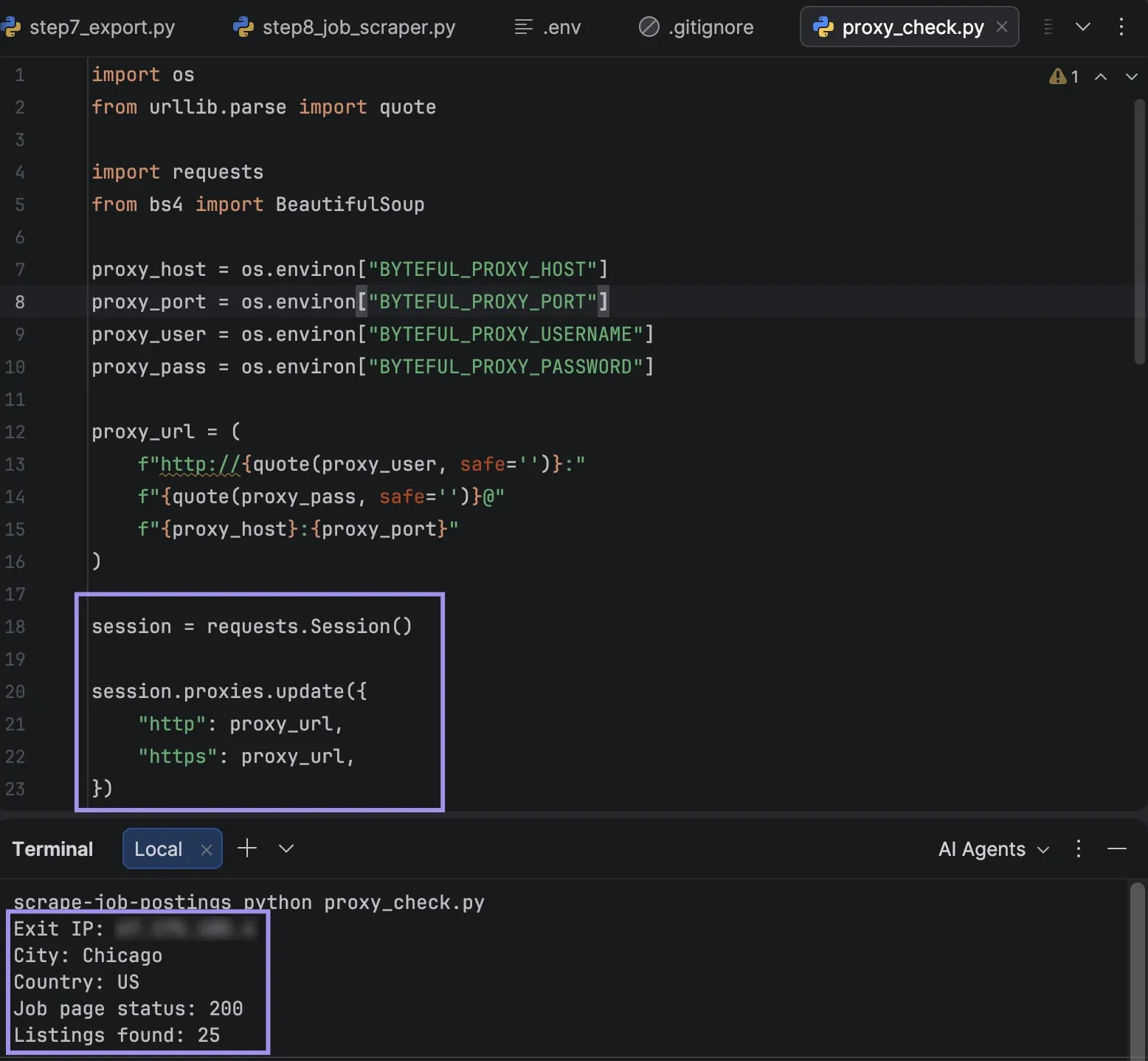
You can create proxy endpoints and set geographic targeting in our dashboard, if supported by the selected network. If you want to test the workflow first, you can start with Byteful's free 1 GB residential data. Don't embed credentials in your source code; instead, pass the proxy in the requests.Session used by the scraper.
import os
from urllib.parse import quote

import requests

proxy_host = os.environ["PROXY_HOST"]
proxy_port = os.environ["PROXY_PORT"]
proxy_user = os.environ["PROXY_USERNAME"]
proxy_pass = os.environ["PROXY_PASSWORD"]

proxy_url = (
        f"http://{quote(proxy_user, safe='')}:"
        f"{quote(proxy_pass, safe='')}@"
        f"{proxy_host}:{proxy_port}"
)

session = requests.Session()

session.proxies.update({
        "http": proxy_url,
        "https": proxy_url,
})

# Verify the network route
ip_check = session.get(
        "https://ipinfo.io/json",
        timeout=20,
)
ip_check.raise_for_status()

network = ip_check.json()

print("Exit IP:", network.get("ip"))
print("City:", network.get("city"))
print("Country:", network.get("country"))

# Verify the scraper through the same session
response = session.get(
        LIST_URL,
        headers=HEADERS,
        timeout=20,
)
response.raise_for_status()

jobs = parse_listings(response.text)

print("Job page status:", response.status_code)
print("Listings found:", len(jobs))
Use the same session for both checks. The exit city prints alongside the IP so you can confirm that location targeting actually took effect. In that session, then run the job request and make sure that the scraper still returns the expected listings.
In our five-listing test, the residential proxy run took about twice as long as the direct run. This is a result of this configuration, not a general expectation of speed. When switching locations, compare against a direct request, as the number of jobs may have shifted. The same symptom is exhibited if the selector fails.
Common Job Scraper Problems and How to Fix Them
A scraper can start returning incomplete results when the source changes how it loads or structures listings. The pattern of failure usually points to where to look, and these are the ones you'll hit most often:
- Empty results from a successful request: A 200 OK response indicates the server returned a page; it doesn't mean listings were present. If Beautiful Soup finds nothing but the jobs are visible in your browser, work out which case you have before changing anything. If elements appear only after JavaScript executes, use the rendering approach in Step 6. If elements are already present in the HTML, your selectors might be the issue.
- Fields filled with the wrong values: A scraper can fill in all the columns and still be incorrect. The company name here is derived from the text enclosed in the listing element, minus any text that matched the title element, so if the markup isn't exactly the same, you might get the title twice in a listing, or you might not get the company name at all. If the site changes, nothing in the run will flag this, so take a few records and compare them with their original URLs.
- Missing fields or a sudden drop in record count: A few blanks are expected for salary or employment type, since employers don't always publish them. A collapse across the dataset is different. When descriptions are missing on almost all records, or a run that normally returns hundreds of results returns 12, treat it as a validation failure and compare the live listings with the saved output before replacing any records.
- 429 and 403 responses: A 429 means the server is rate-limiting you, so lower the frequency and review any published limits. A 403 means the request was refused outright, which points to the access method or request configuration. Log the failed URL and status either way, and stop the run rather than exporting a partial dataset.