

Clash Verge Rev gives you fine-grained control over how traffic leaves your system. It lets you proxy the traffic of specific apps, domains, or your whole system, including tools that ignore proxy settings. But it also comes with some setup complexity.
This guide plainly explains the process of integrating proxies with Clash Verge Rev, TUN mode, proxy rules, proxy failover and rotation setup, along with troubleshooting some common problems.
Step 1: Set Up Clash Verge Rev
To install Clash Verge Rev, download the release for your system from Clash Verge’s official GitHub page.
Once downloaded, launch the installer and follow the on-screen prompts to complete the installation. When installed, here’s what the home screen will look like:
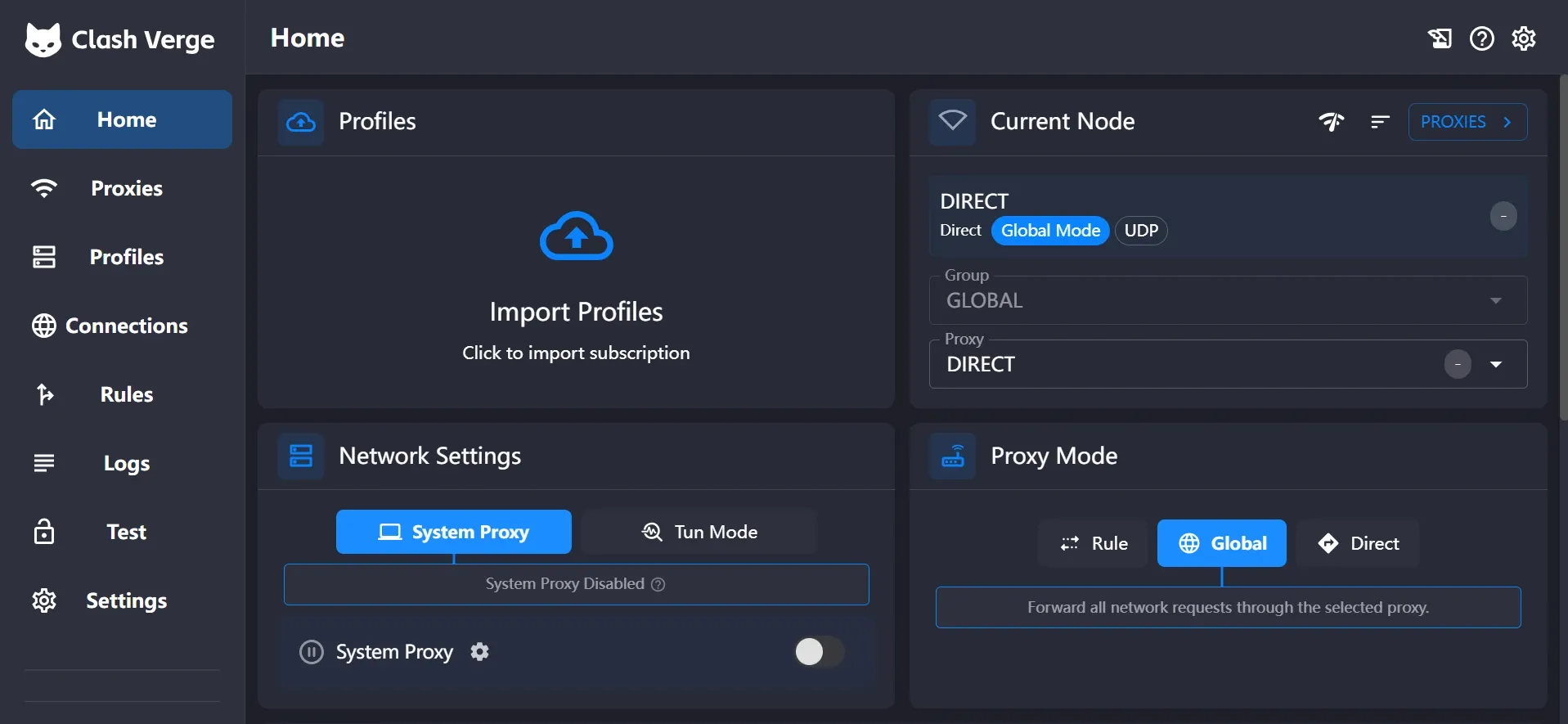
Note: To write this guide, we used Clash Verge Rev 2.5.6 on Windows 11. The software interface or some options might slightly differ if you are using a different version or on a different system.
Step 2: Add Your Proxies in a Local Profile
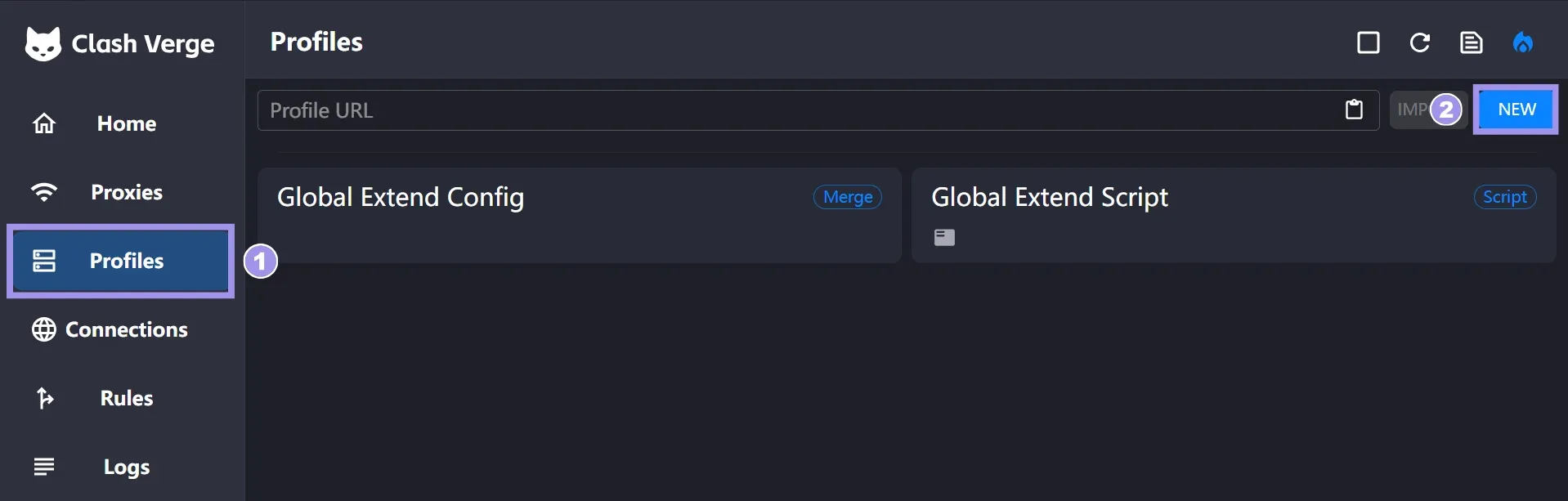
To add your proxies in a local profile, you first need to create a local profile. To create the profile, go to the “Profile” tab and click “New”.
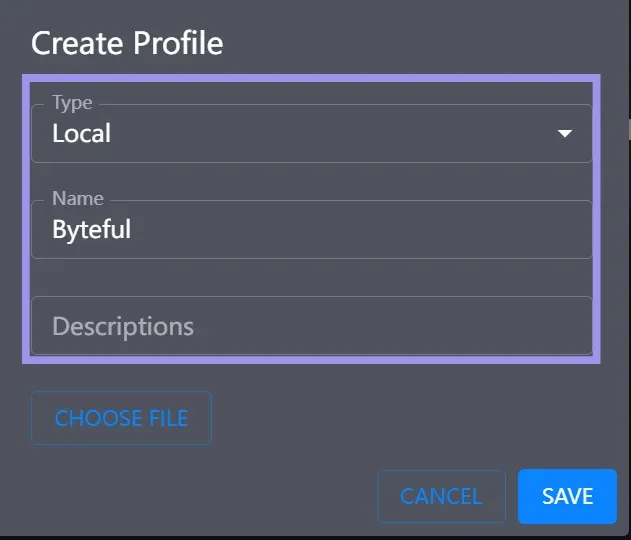
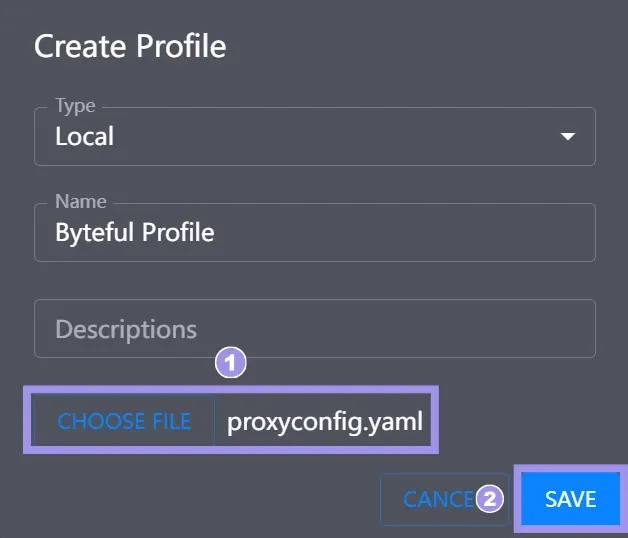
From the Create profile dialog box, select the profile type to be local and give the profile a name of your choice. You can also add any description to the profile if you want to.
Next, you need a YAML configuration file that defines three layers of your proxy configuration:
- proxies: Defines what your proxy nodes are.
- proxy-groups: Determines which node gets used.
- rules: Decides which traffic goes where.
The following YAML config file defines three proxy nodes: Byteful, Byteful1, and Byteful2. All three of these nodes are included in the proxy group named “PROXY” of type: select, which means that you will be selecting which configured proxy node to use for routing the traffic. The proxy group is then used in the rules to route only the specified traffic through the proxy. For demonstration purposes, we are only proxying the traffic of connections to the domain ifconfig.me.
mixed-port: 7890
allow-lan: false
mode: rule
log-level: info

proxies:
  - name: "Byteful"
    type: http
    server: PROXY_HOST
    port: PROXY_PORT
    username: "USER"
    password: "PASS"
    tls: false

  - name: "Byteful1"
    type: http
    server: PROXY_HOST
    port: PROXY_PORT
    username: "USER"
    password: "PASS"
    tls: true

  - name: "Byteful2"
    type: socks5
    server: PROXY_HOST
    port: PROXY_PORT
    username: "USER"
    password: "PASS"
    tls: false

proxy-groups:
  - name: "PROXY"
    type: select
    proxies:
      - Byteful
      - Byteful1
      - Byteful2
      - DIRECT

rules:
  - GEOIP,PRIVATE,DIRECT,no-resolve
  - DOMAIN,ifconfig.me,PROXY
  - MATCH,DIRECT
If using authenticated proxies, you will need to input your proxy credentials in the config file. This doesn't pose a security risk, as the file is saved and used locally on your own system. But if you do not want your credentials in the config file, you can use proxy IP whitelisting. Ask your provider if they support IP whitelisting. Byteful supports whitelisting for static ISP and datacenter proxies.
Once your public IP is whitelisted on the provider's dashboard, you will not need your credentials, and your connection to the proxy server will be authenticated based on the whitelisted IP addresses.
Note: When the “tls” field is set to true for a proxy node, it will use an HTTPS proxy. If you want to use HTTPS proxies, make sure that your proxy supports TLS tunneling. Byteful supports TLS tunneling across all the proxy offerings.
Save this configuration as a .yaml file with a name of your choice and with your own proxy details. Once done, follow the next steps to proceed with the proxy setup.
1. To add the config file to the profile, click on “Choose File” to upload your YAML config file. Finally, click on “Save” to create the profile.
2. After that, from the profile tab, right-click on the profile you just created and click “Select”.
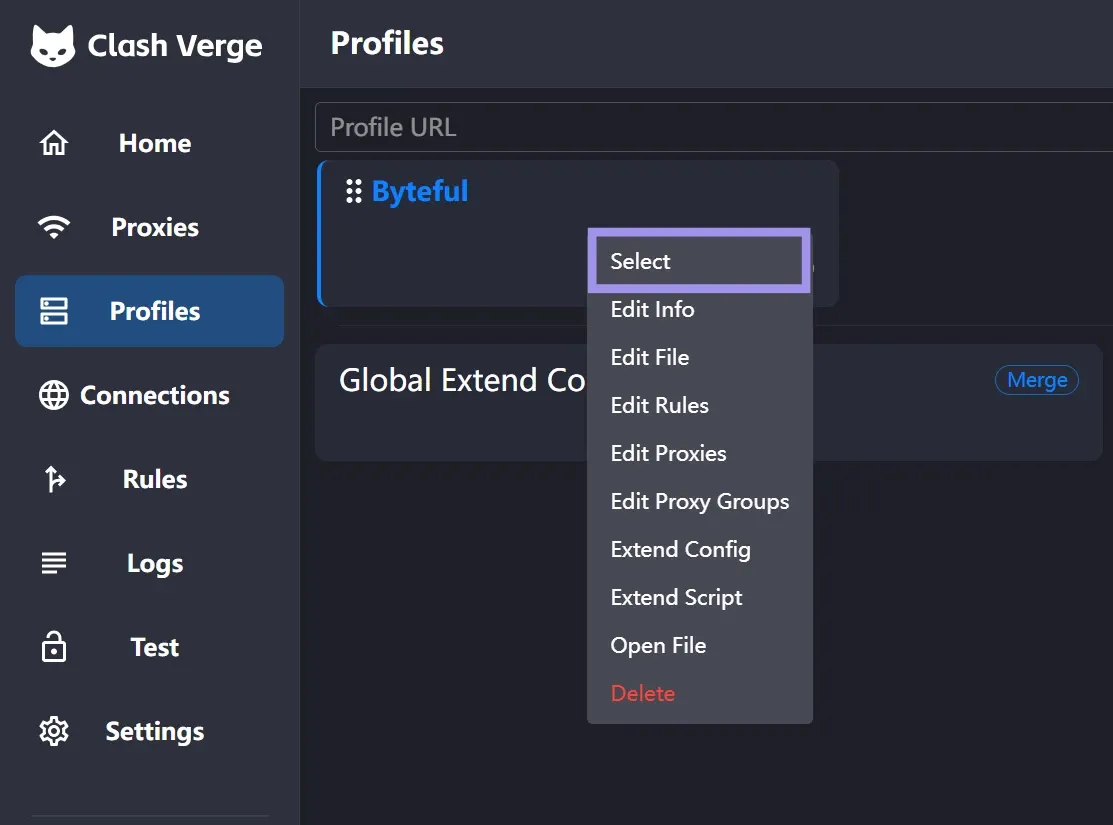
Doing so will mark your profile as active for use. If you skip this, the proxy nodes from this profile will not be displayed in the Proxies tab, and hence you will not be able to use the configured proxies.
3. Next, in the Proxies tab, you will see the proxy nodes configured in the profile. From here, select the proxy node to use for routing the traffic.
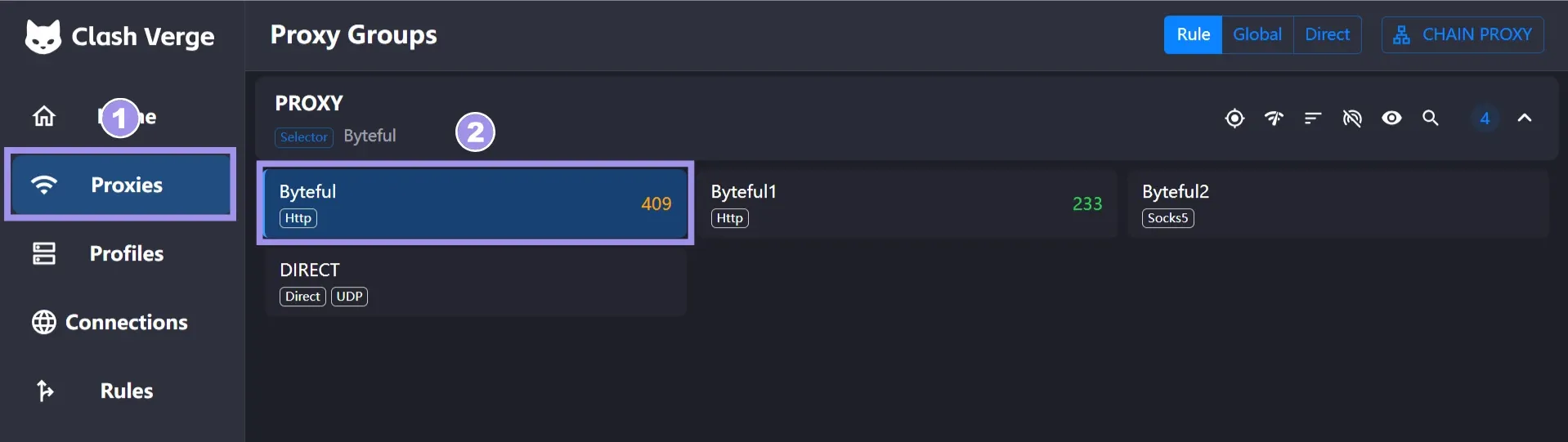
Finally, from the Home tab, turn the system proxy toggle on, and your selected proxy node is set to be used as a system-level proxy.
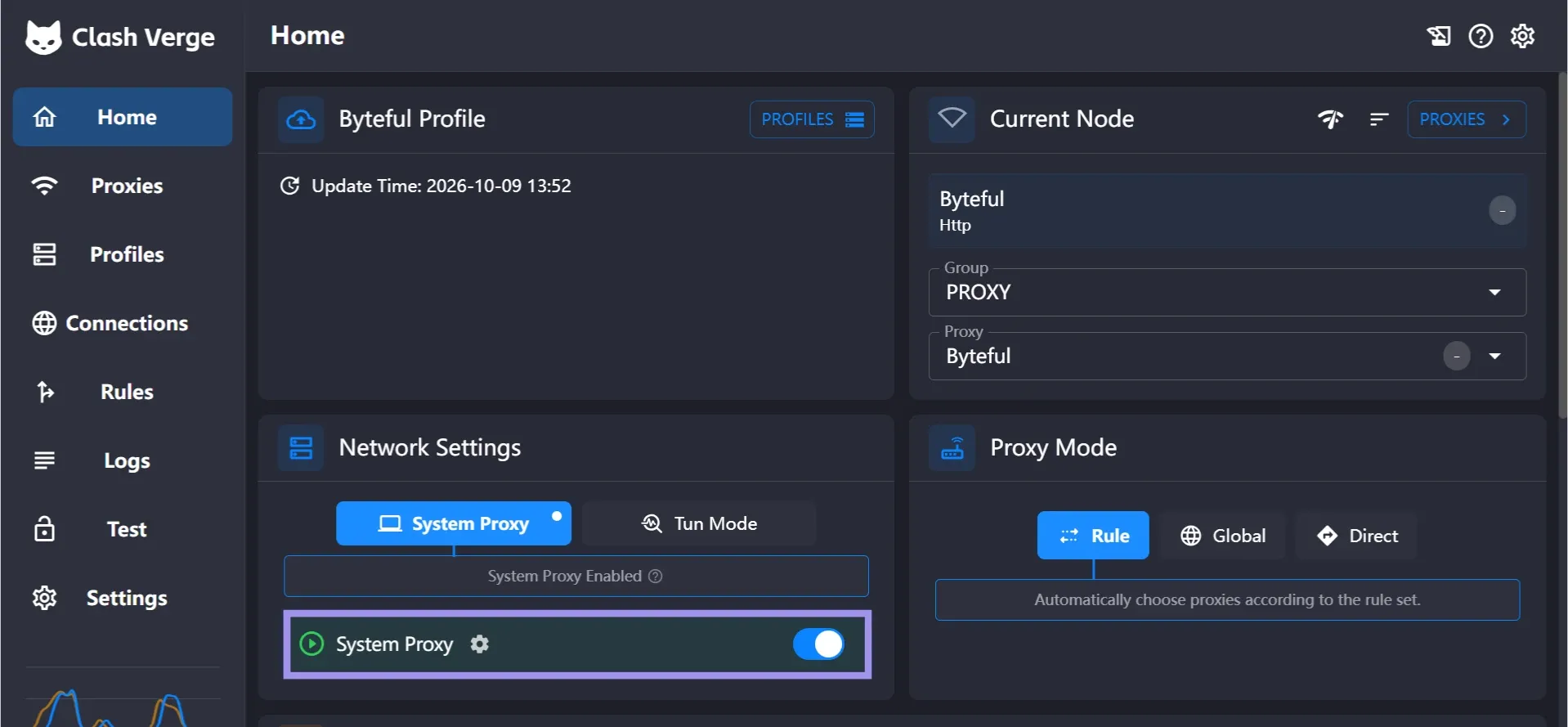
Verify It’s Working
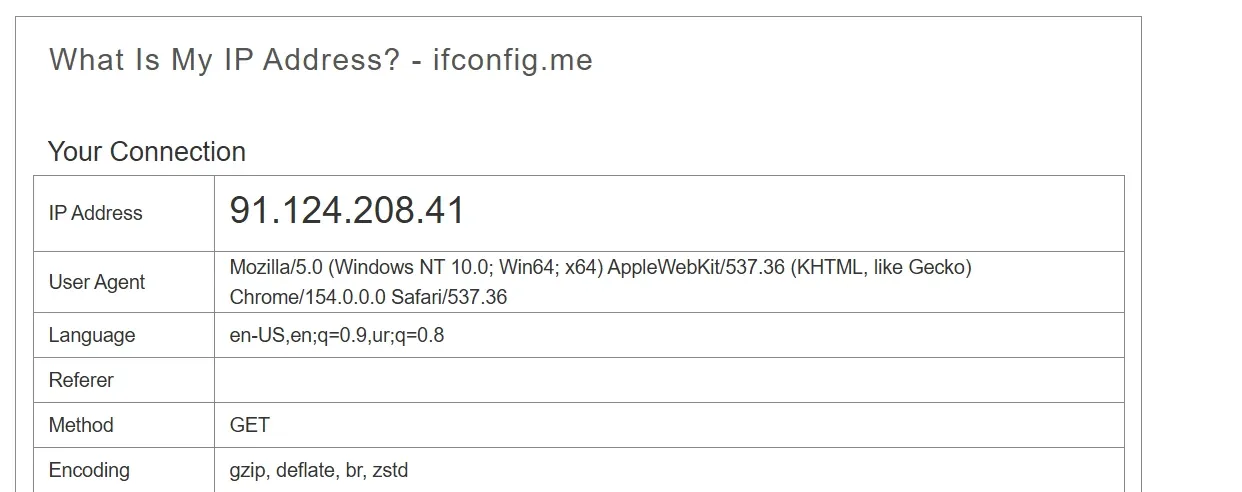
To verify if the configured proxy is working fine, open the site configured to use the proxy, i.e., ifconfig.me.
If the IP shown on that page matches your proxy IP or, if using a rotating proxy node, is different than your actual IP, the proxy configuration was successful.
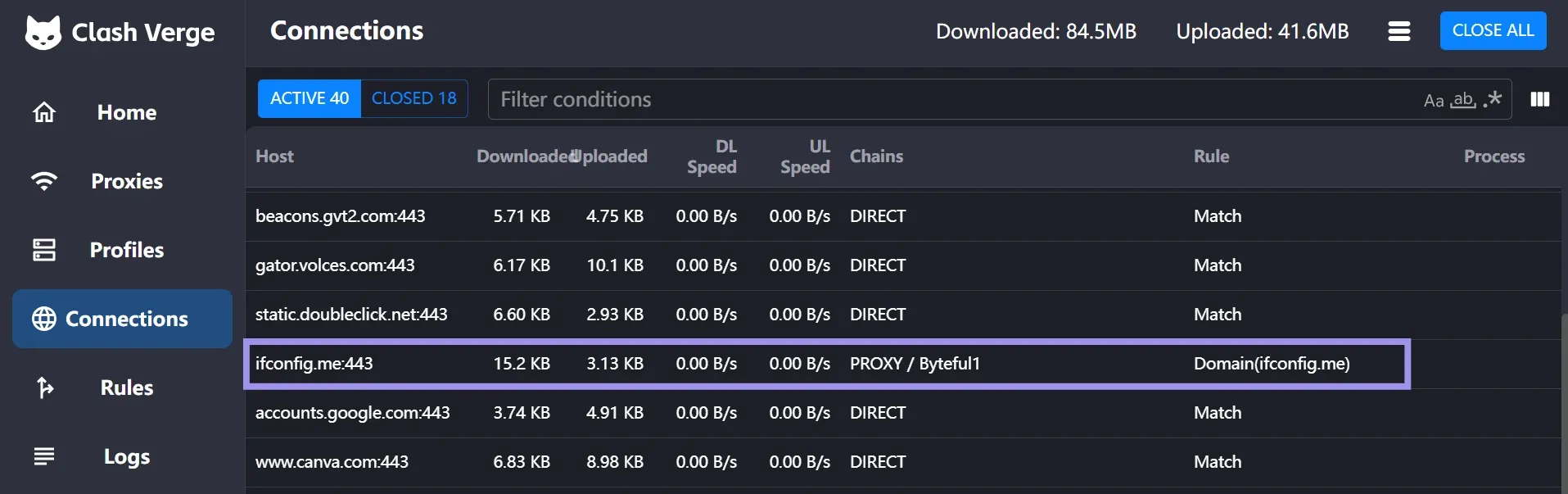
From the Connections tab, you can also see all the traffic passing through Clash Verge Rev, the proxy group, and the rule being applied to each connection.
Note: Byteful now allows proxy connections to domain names only, to prevent misuse of the network. If your setup resolves domain names locally before sending traffic to the proxy, requests may fail. Use the HTTP/HTTPS proxy option where possible, or enable remote DNS if using SOCKS5. You can unlock direct IP access after KYC verification, depending on your use case.
Step 3: Choose a Mode: System Proxy or TUN
Using the system proxy in Clash Verge Rev applies the selected proxy node and proxy rules system-wide. But not all apps and command-line tools obey the system-level proxy. To proxy the traffic from the apps that bypass the system-level proxy, you can use TUN mode.
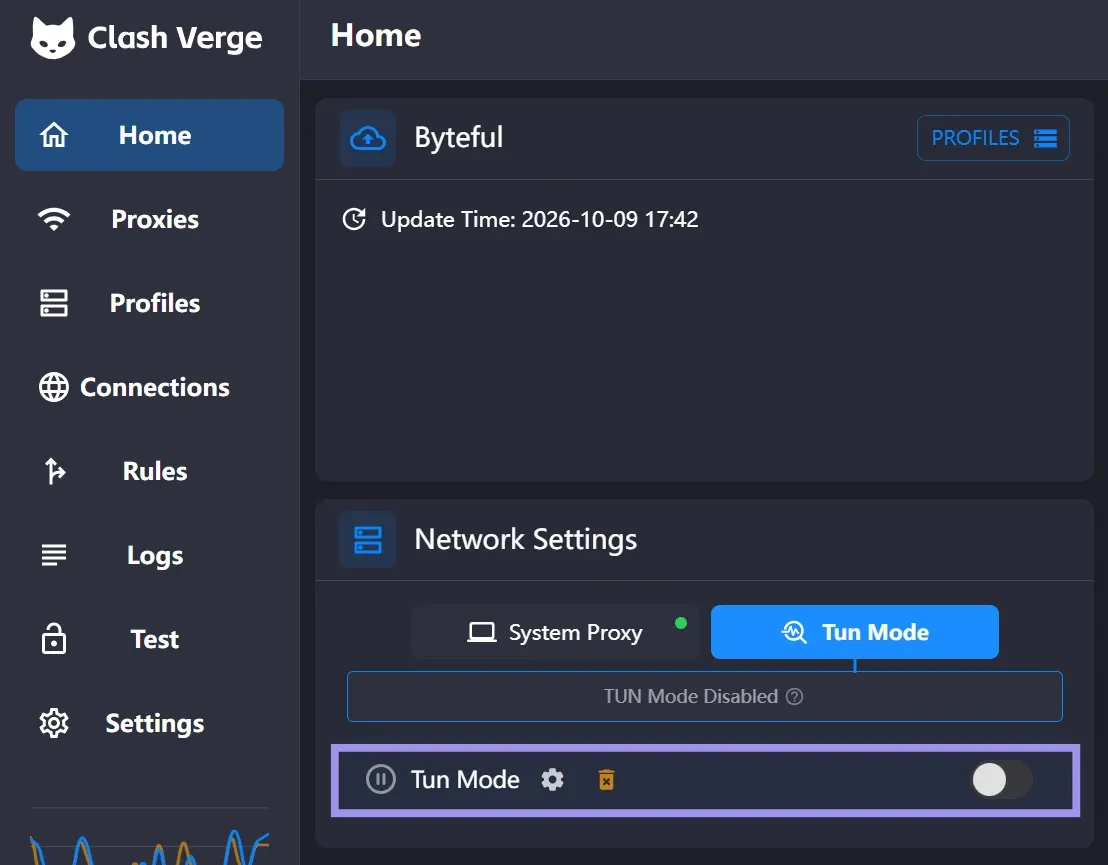
TUN Mode needs the system service. Once you click on the TUN mode toggle, you will be prompted to install the service.

Click “Install Service”; once installed, you can use TUN mode. When using TUN mode, all of the traffic, including the traffic from CMD tools, will be routed through Clash Verge Rev and proxied through the selected node depending on the proxy rules.
Step 4: Set Rules To Route Target Traffic Through the Proxy
Rules specify what traffic goes through which proxy group. You can define these rules in the YAML configuration file or from the Clash Verge Rev visual rule editor.
To set these rules via the visual rule editor, go to the Profiles tab, right-click your proxy profile, and click “Edit Rules”.
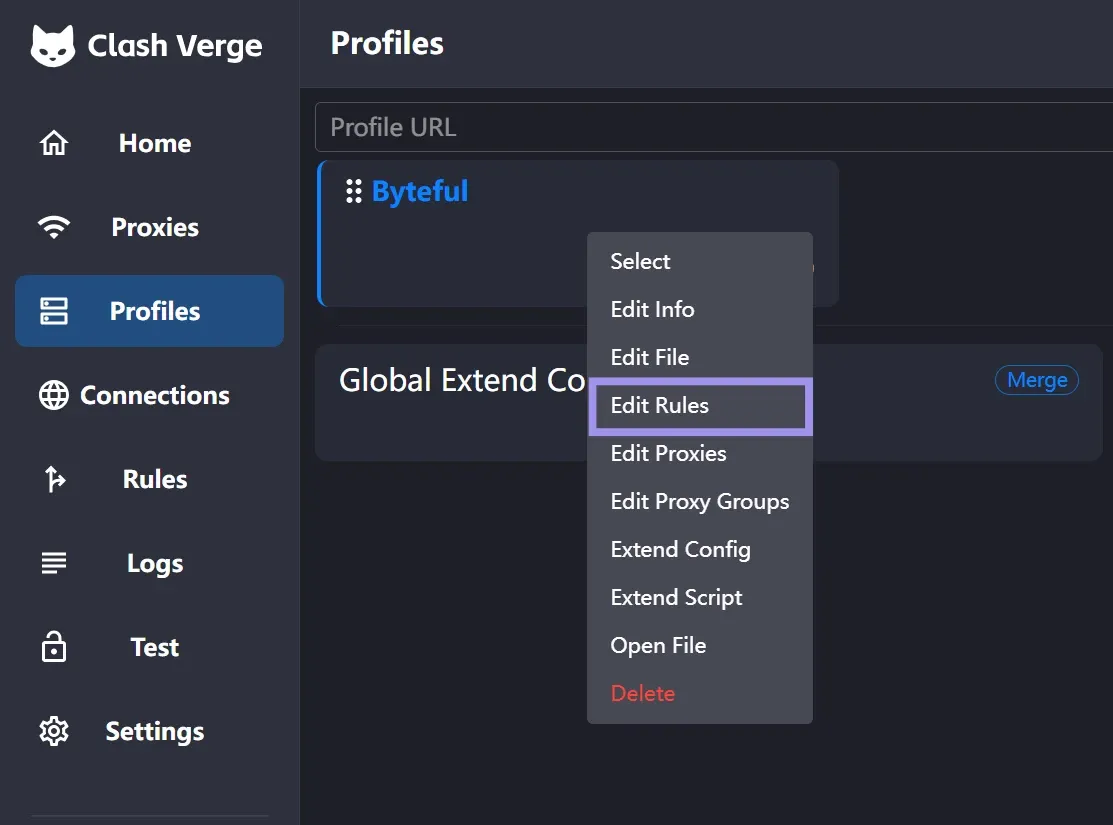
From the Edit Rules dialog box, you can define your rule by selecting the Rule Type, Proxy Policy, and writing the Rule Content.
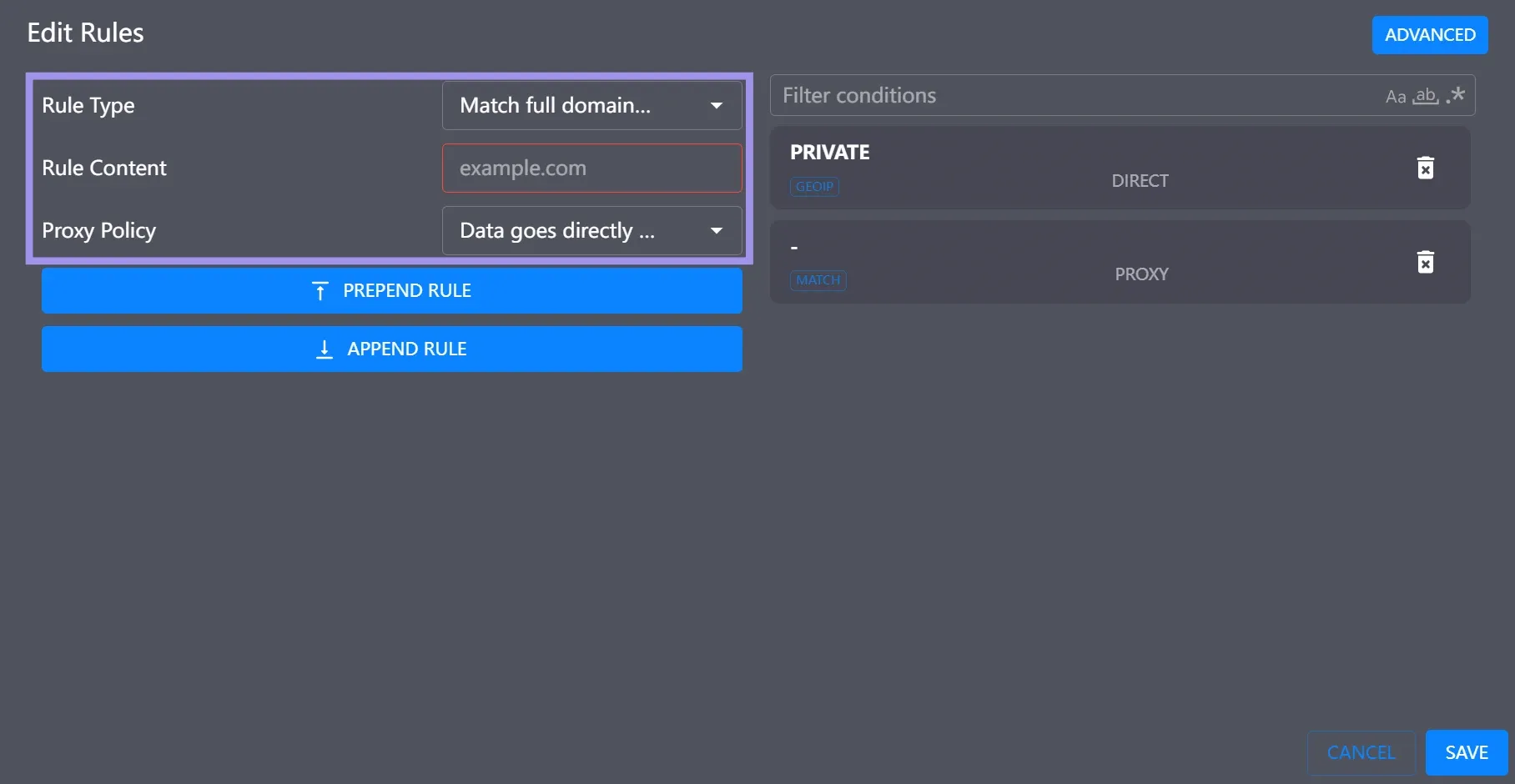
Once done, depending on how you want to route the traffic associated with that specific rule, you can either prepend the rule or append the rule.
Prepending will add the rule on top of the rule list, and appending will add the rule to the end of the rule list. The choice here matters because the rules are matched with the traffic from top to bottom. It picks the first rule that matches, skips the rest of the rule list, and routes the traffic based on that first rule match.
To add the rules in a YAML configuration file, the format is “RuleType,RuleContent,ProxyPolicy”. You can define the rules using this format and add the rule line at the end, in the rule section of the YAML file.
rules:
  - GEOIP,PRIVATE,DIRECT,no-resolve
  - DOMAIN,ifconfig.me,PROXY
  - MATCH,DIRECT
Step 5: Add Proxy Groups for Fallback and Rotation
With the proxy setup explained so far, you have one proxy group; each connection you configure the proxy for goes through a proxy node defined in that group and is manually selected by you for use.
If your selected proxy node is down, you will manually have to select another node for use. To address this problem, you can add proxy groups of type “fallback”.
The proxy group of “type: fallback” will health-check the proxy nodes, and if the current node times out, the next available node will be used in the order of proxies.
You can also add a proxy group of type “load-balance” which will distribute the proxied traffic across multiple proxy nodes. The “strategy” field defined in this proxy group picks the algorithm for traffic distribution. The strategy field has three valid values:
- round-robin: Spreads the requests across all the proxy nodes included in the group.
- consistent-hashing: Routes all requests for the same target through the same proxy node.
- sticky-sessions: Routes requests with the same source and target addresses through the same proxy node, subject to a session timeout.
Here’s how you can actually add these groups of type fallback and load-balance in your proxy config YAML file.
proxies:
  - {name: "Byteful",  type: http, server: PROXY_HOST, port: PROXY_PORT, username: "USER", password: "PASS", tls: false}
  - {name: "Byteful1",  type: http, server: PROXY_HOST, port: PROXY_PORT, username: "USER", password: "PASS", tls: false}
  - {name: "Byteful2",  type: http, server: PROXY_HOST, port: PROXY_PORT, username: "USER", password: "PASS", tls: false}

proxy-groups:
  - name: "Pick-Yourself"
    type: select
    proxies: [Byteful, Byteful1, Byteful2]

  - name: "Backup-Chain"
    type: fallback
    url: "https://www.gstatic.com/generate_204"
    interval: 300
    proxies: [Byteful, Byteful1, Byteful2]

  - name: "Rotating"
    type: load-balance
    strategy: round-robin
    url: "https://www.gstatic.com/generate_204"
    interval: 300
    proxies: [Byteful, Byteful1, Byteful2]
After defining your proxy groups in the config file, add rules to redirect specific traffic to specific proxy groups. If any traffic uses the “type: select” group, you will be in charge of choosing the proxy node to use. For “type: fallback” and “type: load-balance”, you don’t have to make that decision, and the proxy group will handle it for you.
Step 6: Merge Your Proxies into an Existing Profile
If you are already using Clash and now want to use proxies, you can do so with your existing profile by merging your proxies into it.
To merge the proxies into an existing profile, right-click your profile and click “Edit Proxies”. From the next dialog box, you can add your proxies in the format “http://USER:PASS@PROXY_HOST:PROXY_PORT”.
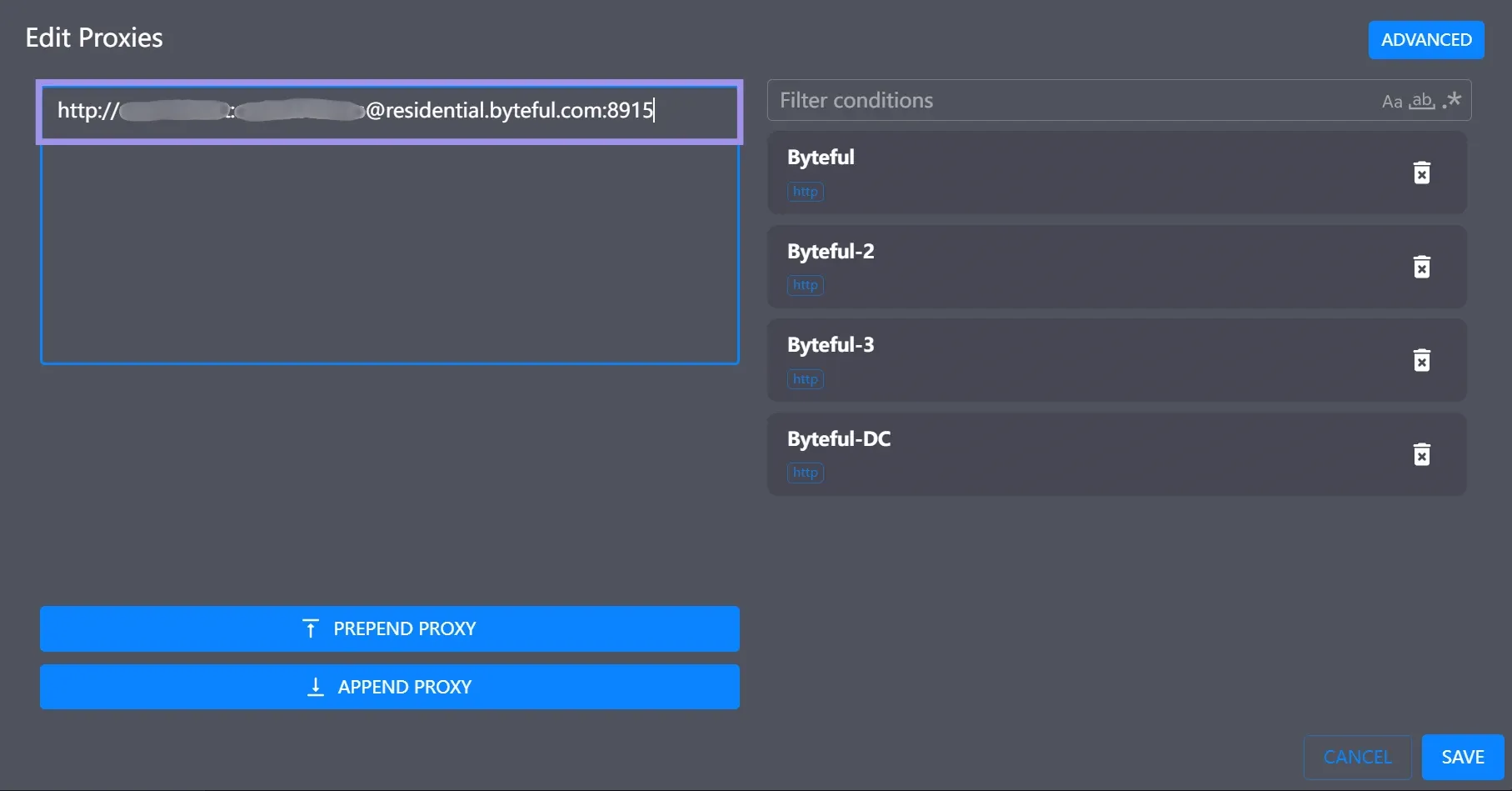
If you need to use HTTPS or SOCKS5 proxies, change the protocol field of the URL, and it will work perfectly.
Note: Before using HTTPS proxies, make sure your provider supports TLS tunneling for your proxies.
After entering the proxy URL, you can prepend or append the proxy, then click “Save”. The new nodes will not work until they belong to a proxy group, and the visual editor can only put them in a new group, not an existing one. So you have two options. To create a new group for them, right-click the profile and click “Edit Proxy Groups”.
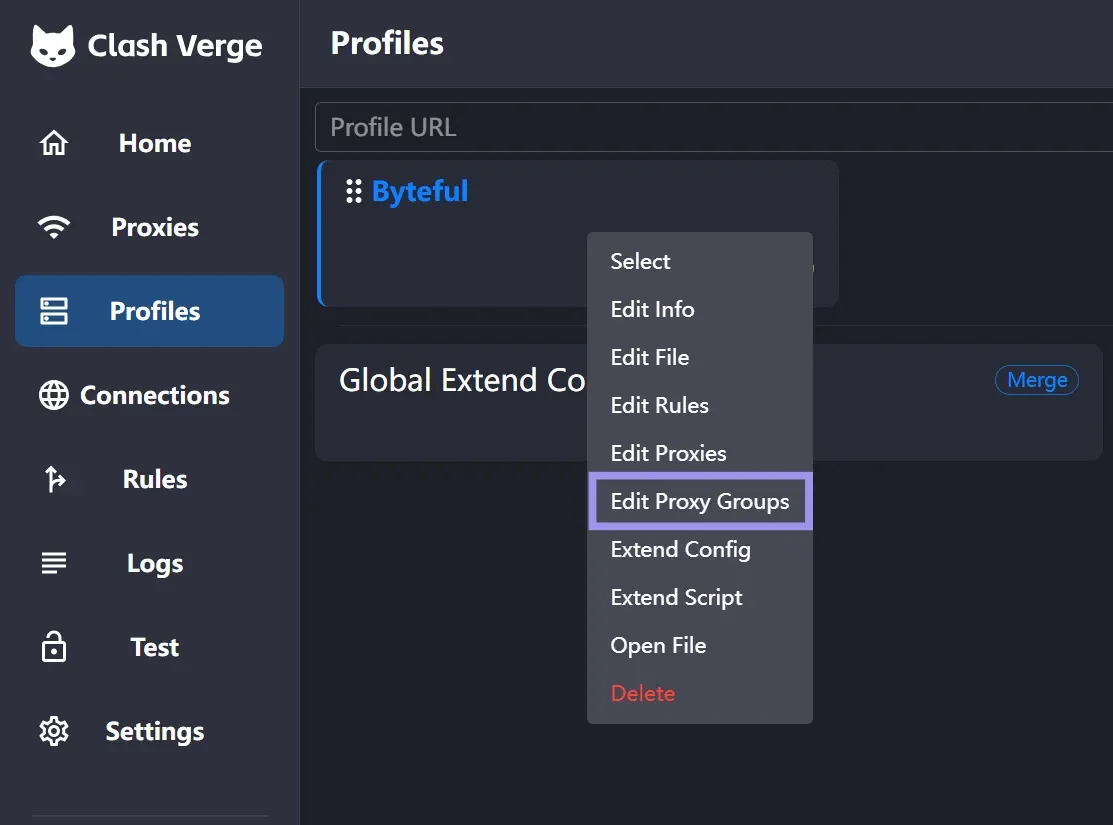
If you want to use the new proxies with an existing group, you can add the new proxies directly into the config file by right-clicking the profile and then choosing “Edit File”.
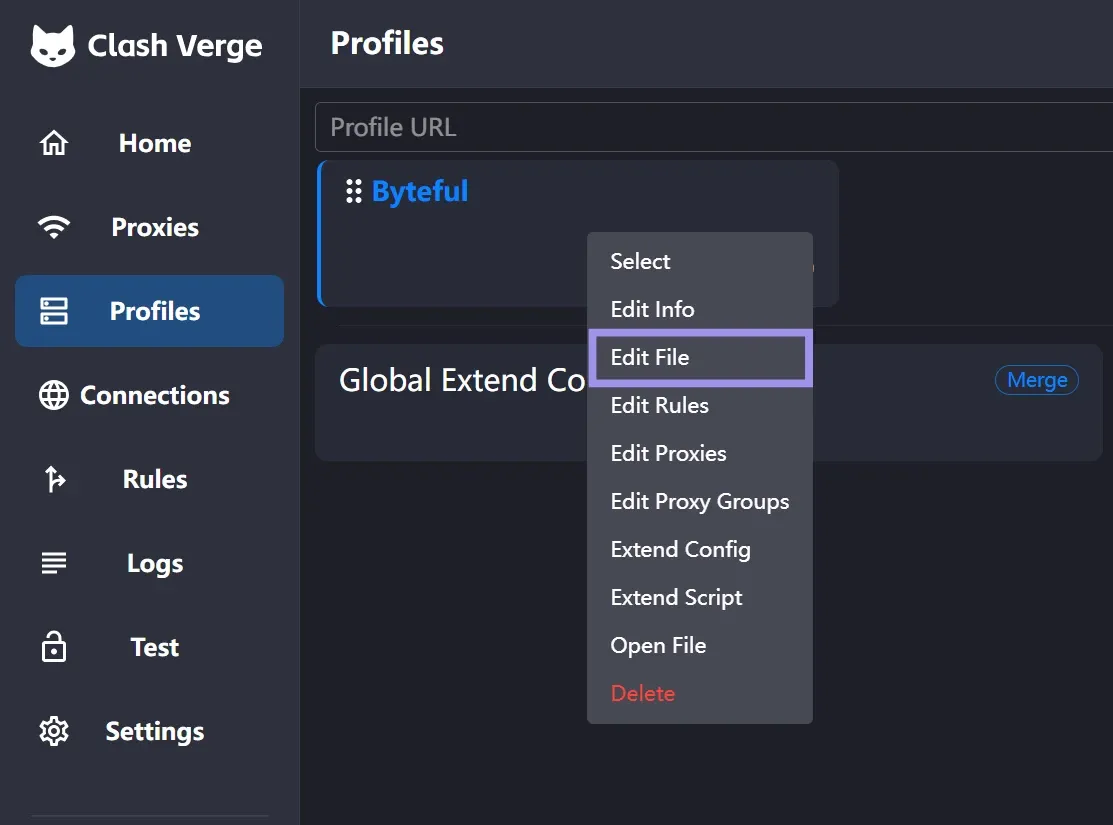
Once done adding the proxies in the config file, make sure to modify the proxy groups to include the new proxies.
Fix Common Clash Verge Rev Proxy Problems
You may face several problems when configuring proxies in Clash Verge Rev, and this section lists the most common ones users face along with the possible solutions:
- Everything is going through the proxy: This happens when your rule list has a MATCH,<proxy-group> rule in it. This rule routes every connection that gets matched with it through the specified proxy group and can lead to increased bandwidth cost. To avoid this, specify your traffic proxying rules and keep MATCH,DIRECT as the last rule. This way, only the specified traffic goes through the proxy group, and the rest goes directly through your system’s connection, bypassing the proxy.
- Configured proxy nodes in the config file, but the Proxies tab shows nothing: This can happen if you created the proxy profile but didn’t select it for active use. To address this problem, go to your Profile tab, right-click your proxy profile, and click on Select. Doing so marks this profile active for use, and the proxy nodes defined in the profile’s config file will then be shown in the Proxies tab.
- Node shows timeout or unavailable: This can happen for several reasons. First, make sure that your proxy node is active and working fine. You can use a tool like Byteful’s Proxy tester for this purpose. Second, make sure you entered the correct proxy details, which include the proxy host, port, and login credentials. If you are not using credentials with authenticated proxies, make sure that your IP is whitelisted in the provider’s dashboard. If using “tls: true” in the config file, make sure that your provider supports TLS tunneling for the proxies in use.
- CMD tools are not using the configured proxy: This will happen if you are using System Proxy mode. Command-line tools don’t honor system-level proxy settings and use the system’s direct connection for routing the traffic. To address this problem, use TUN Mode instead. You will also need to install Service Mode. Refer to step 3 for more details.
- Logged-in sessions keep dropping: The main reason for that can be if you are using a rotating proxy node or load-balanced round-robin. For logged-in sessions, use a sticky residential session or an ISP proxy in a select or fallback group. If you need load balancing on top, use the sticky-sessions strategy instead of round-robin.
- The traffic is using the direct connection instead of the configured proxy: You will face this problem if your proxy mode is set to direct. In the Home tab of Clash Verge Rev, you will find a setting called “Proxy Mode”. Make sure that the proxy mode is set to “Rules” and not to direct. Additionally, selecting “Global” proxy mode will route all of the traffic through the proxy, ignoring the rules.
Which Proxy Type to Use with Clash Verge Rev
Each proxy type differs in how it is sourced, routes traffic, and costs. To use different proxy types effectively while staying on budget, you need to know what each type is for.
- Datacenter Proxies are usually the cheapest of all types and are sourced from data centers. This sourcing makes them fast but easy to detect. Use these when speed is the priority, and the target has little to no restriction on datacenter IPs.
- Static residential ISP proxies are registered under the ASNs of real ISPs and are hosted in data centers. This combination of sourcing and hosting gives them datacenter speed with residential reputation. Use these proxies when speed and reputation are both concerns. These proxies can work against targets with moderate anti-bot detection, but they struggle against stricter detection systems.
- Residential proxies route traffic through real home networks, making them hard to block, but they can be expensive. These proxies are more reliable when the target has a strict bot detection system and success rate matters more than speed.
- Mobile Proxies are the hardest to block because mobile carriers use Carrier-Grade NAT (CGNAT) to place thousands of real users behind shared IP addresses, so blocking one IP means blocking legitimate customers along with it. These proxies are a great choice for highly protected targets or for testing mobile web experiences through carrier IPs.
Byteful offers all four types of proxies. Our proxies are ethically sourced, have the fastest mobile response time globally (0.48s), the fastest residential proxy response time (0.41s), and the best residential success rate (81.23%) against real-world targets. These numbers are taken from Proxyway's Proxy Market Research 2026, where they tested our proxies alongside 12 other well-known proxy providers.
You can also test our proxies with our no-credit-card 1 GB of free, non-expiring residential data. You can get the trial data after signing up on the dashboard and completing a short KYC. We KYC every user to ensure that everyone sharing the pool is a legitimate user, which translates to cleaner, less-abused IPs for every user.
Note: If you have a per-GB pricing model for your proxies, leverage the Clash Verge Rev’s proxy configuration rules to make sure only the traffic that needs a proxy is using the proxy. This helps you save on proxy bandwidth costs.