
DuoPlus Proxy Integration: How Do Proxies Support Cloud Phones



Anti-detect cloud phones simplify mobile platform management and offer a practical alternative to anti-detect browsers. They simulate real mobile environments so you can run apps, automate workflows, and manage multiple accounts. DuoPlus is among the few solutions that offer authenticity and flexibility for mobile operations. But on its own, that’s just part of the equation.
You can still use the tool for basic needs. However, it is essential to pair the tool with proxies to use some of its advanced features. Proxies can improve your privacy and help you strengthen account security, but if you don’t know how to set up proxies with DuoPlus, there’s no need to worry. This guide provides a detailed, step-by-step look at DuoPlus proxy integration so you can make the most of its features.
How to Generate Proxies for DuoPlus?
Some DuoPlus features, such as unattended live streaming, operation synchronization, and robotic process automation (RPA), rely on proxies to function effectively. These tools expand what you can actually do with DuoPlus. In fact, they can also help you reduce manual intervention across workflows.
Residential proxies are typically the top choice as they are generally considered to be more authentic and have lower detection rates than other types of proxies. However, the outcome still depends on the quality of the proxy pool and the provider.
The process for generating proxies can vary depending on your proxy provider, but Byteful simplifies this process with simple steps and easy-to-follow instructions. Here's how you can generate residential proxies for DuoPlus with Byteful:
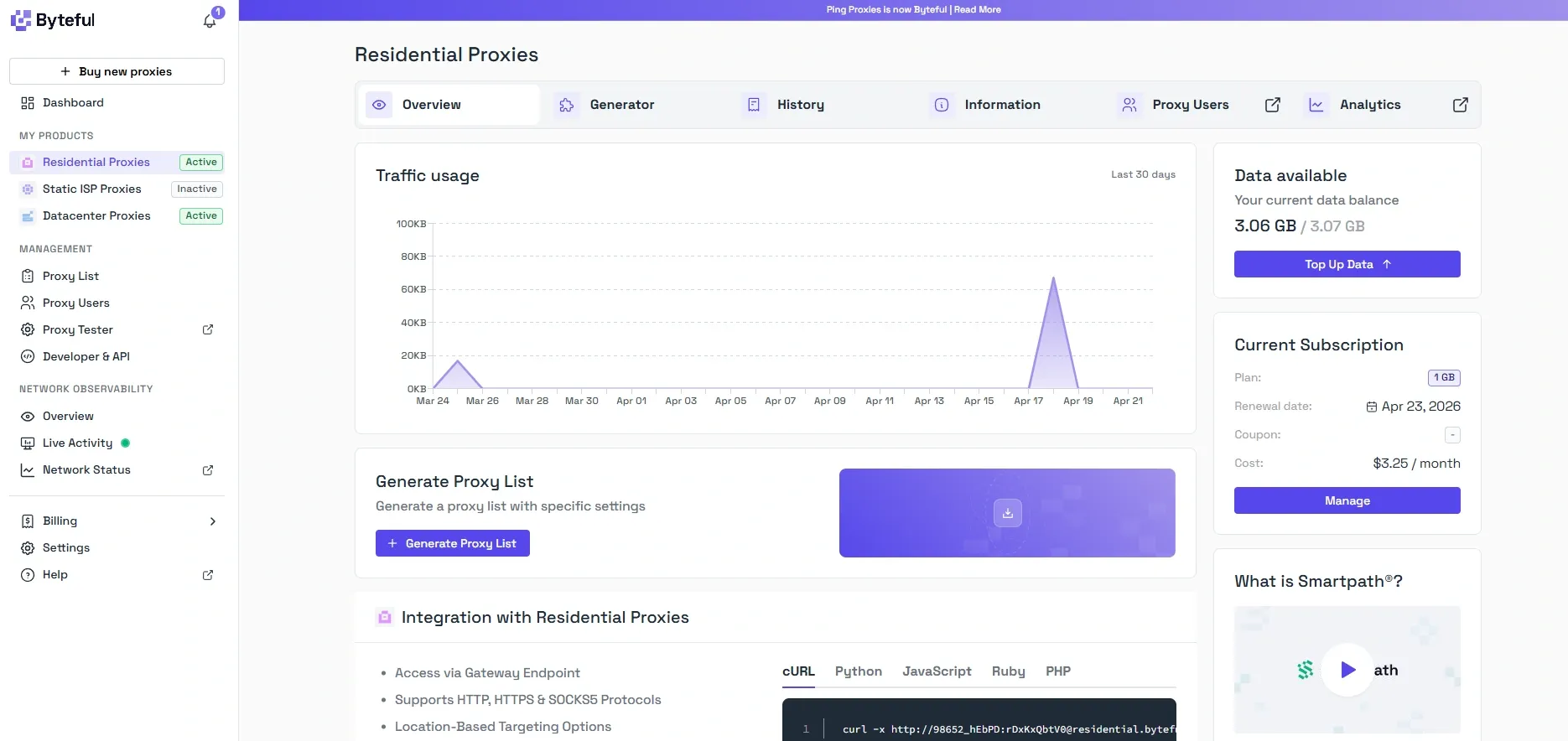
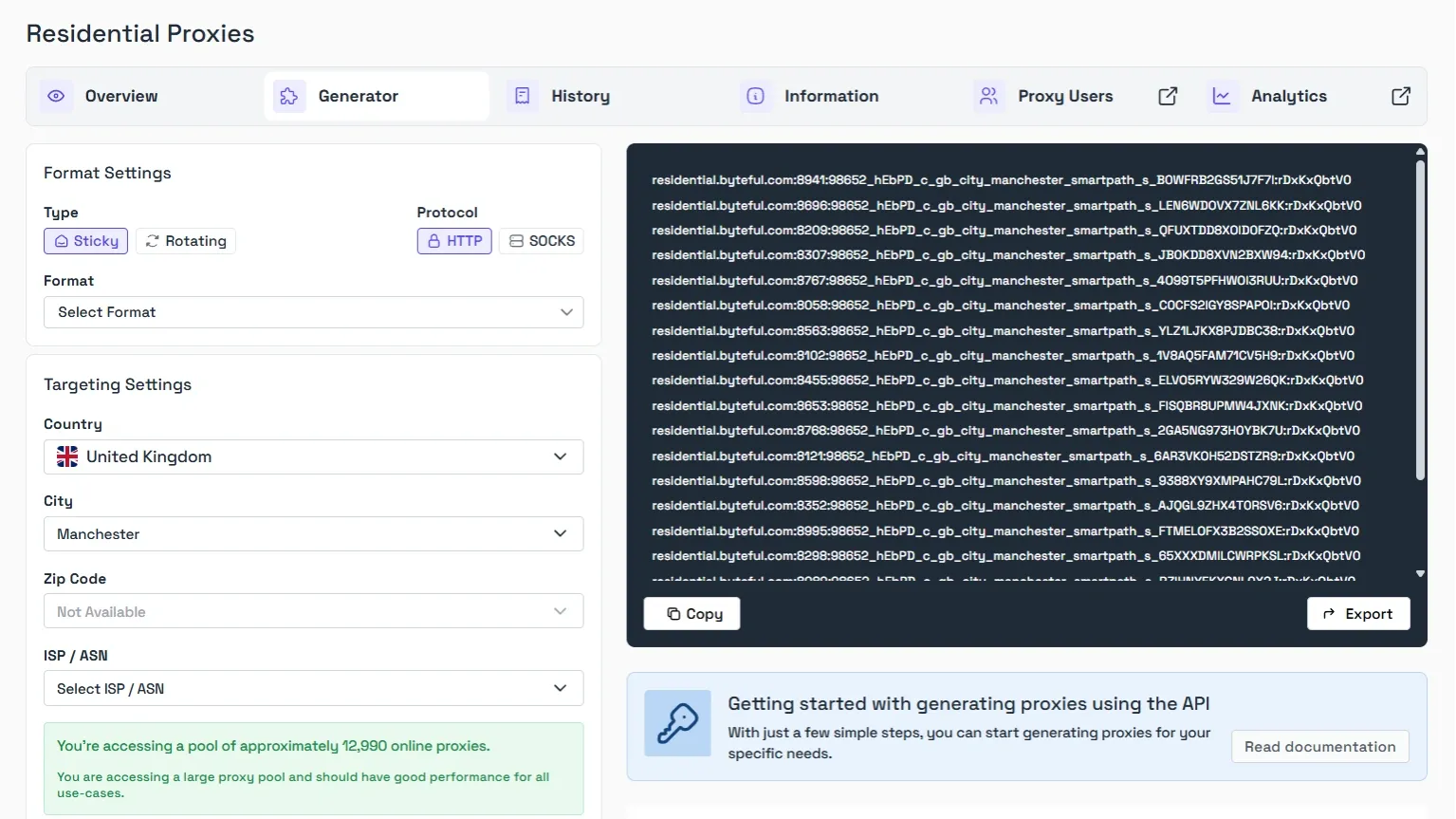
1. Select Residential Proxies from the dashboard and click the Generate Proxy List button.
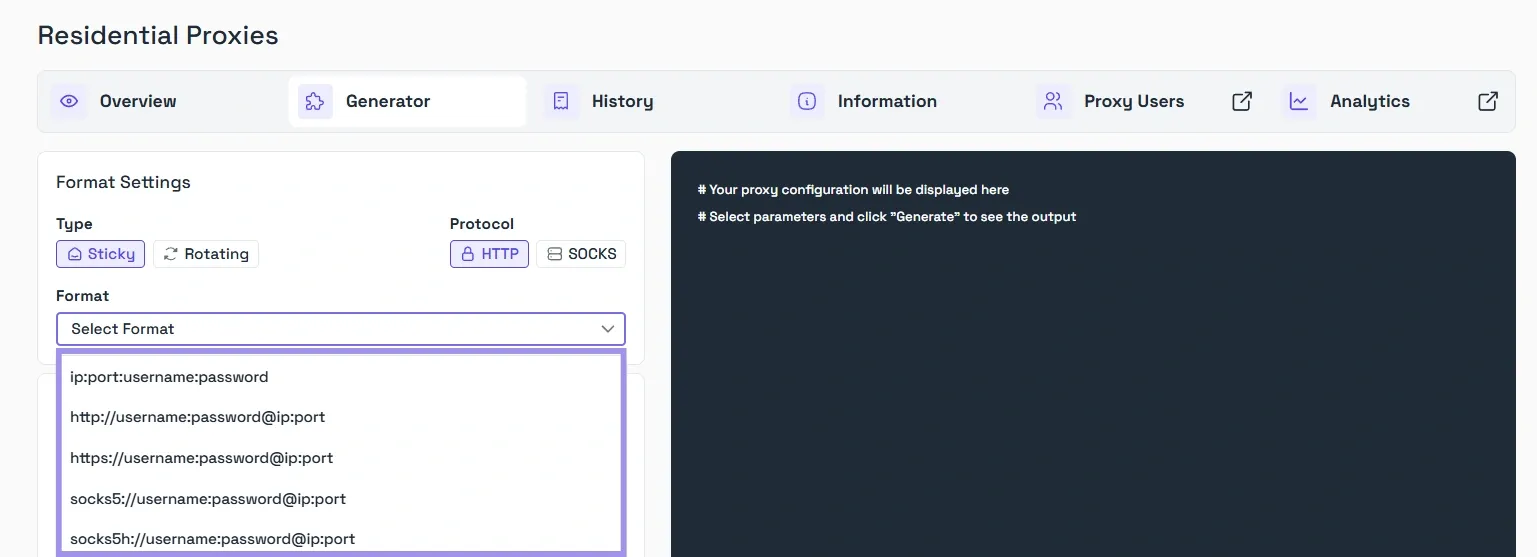
2. Under the Format Settings, select the proxy Type and Protocol. Then, select a format from the list.
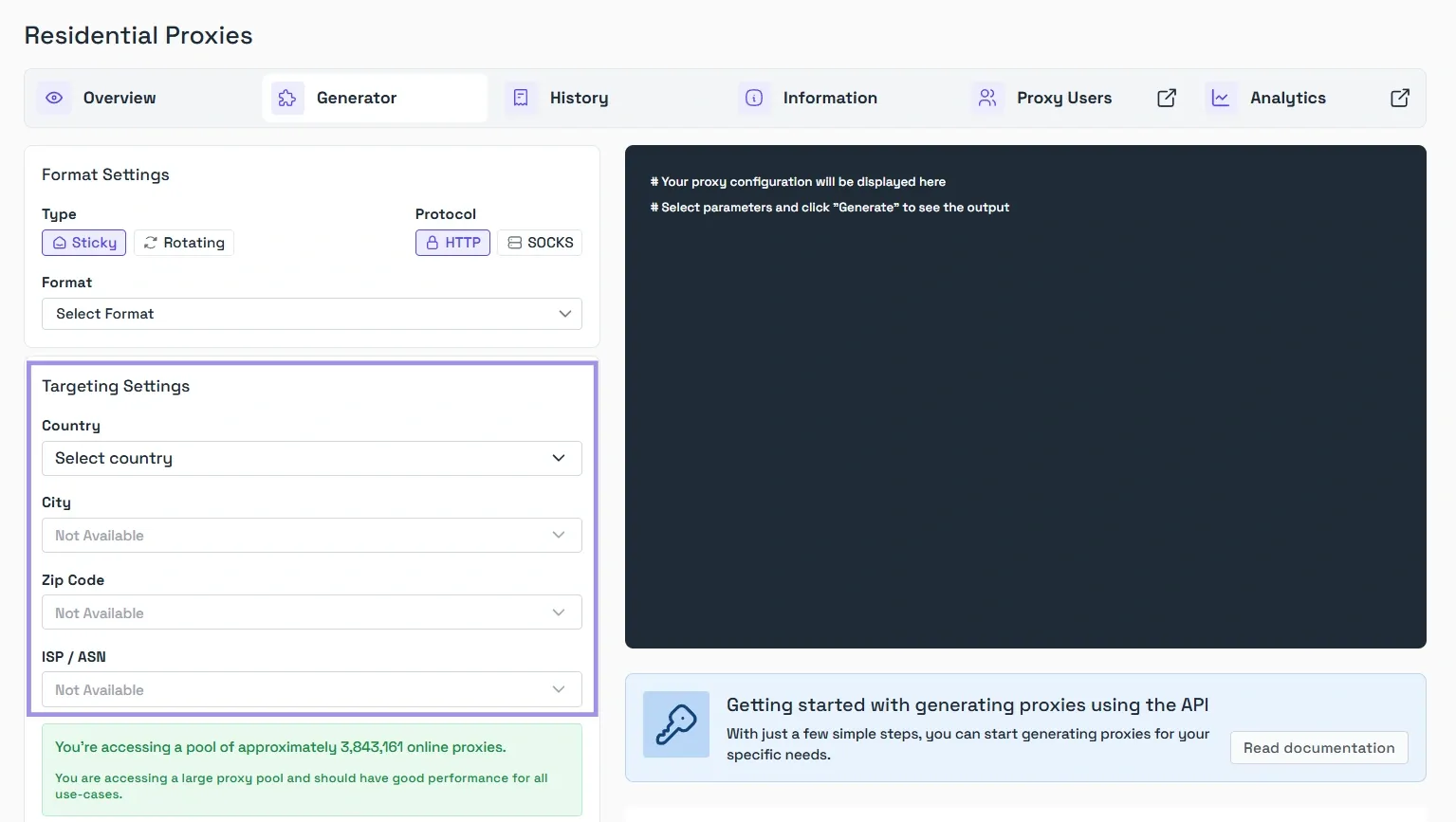
3. Now, choose your intended Country, City, Zip Code, and ISP/ASN from Targeting Settings.
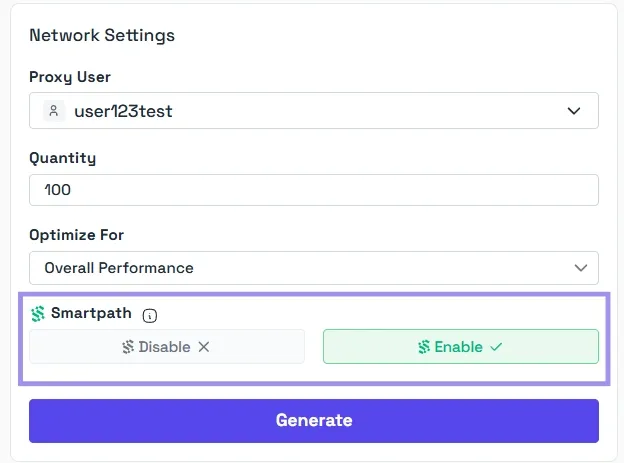
4. Select Proxy User, Quantity, and choose proxy optimization under the Optimize For option. Also, you can set Smartpath to Disabled or Enabled based on your requirements.
Note: Smartpath is a free in-house AI routing system that sends non-essential traffic via datacenter IPs. Enable it to reduce residential bandwidth and costs for general scraping workloads.
5. Finally, you will see the generated proxies. You can click the Copy button to copy them all, or click Export to save them to your device. Either way, you can now configure the generated proxies in DuoPlus.
Residential proxies are suitable for many use cases, especially when you need to appear as a real user. But at Byeful, we also offer datacenter and ISP proxies. These options can be very useful for tasks where you need to prioritize speed and costs.
DuoPlus supports these proxy types as well. This means you can easily integrate them using the same steps above.
How to Add a Proxy in DuoPlus?
DuoPlus’s cloud phone is a smart way to manage multiple accounts and mobile workflows. Also, you can get 1 month of free cloud phone as a new user via the DuoPlus and Byteful collaboration.
First, download DuoPlus and install it on your device. Create a new account or log in with your Gmail account. Then, follow these steps to add a proxy in DuoPlus:
1. Select Cloud Phone from the left panel to open the dashboard. Now, create a new device and choose your preferred Android version and configuration. Click Get it now when done.
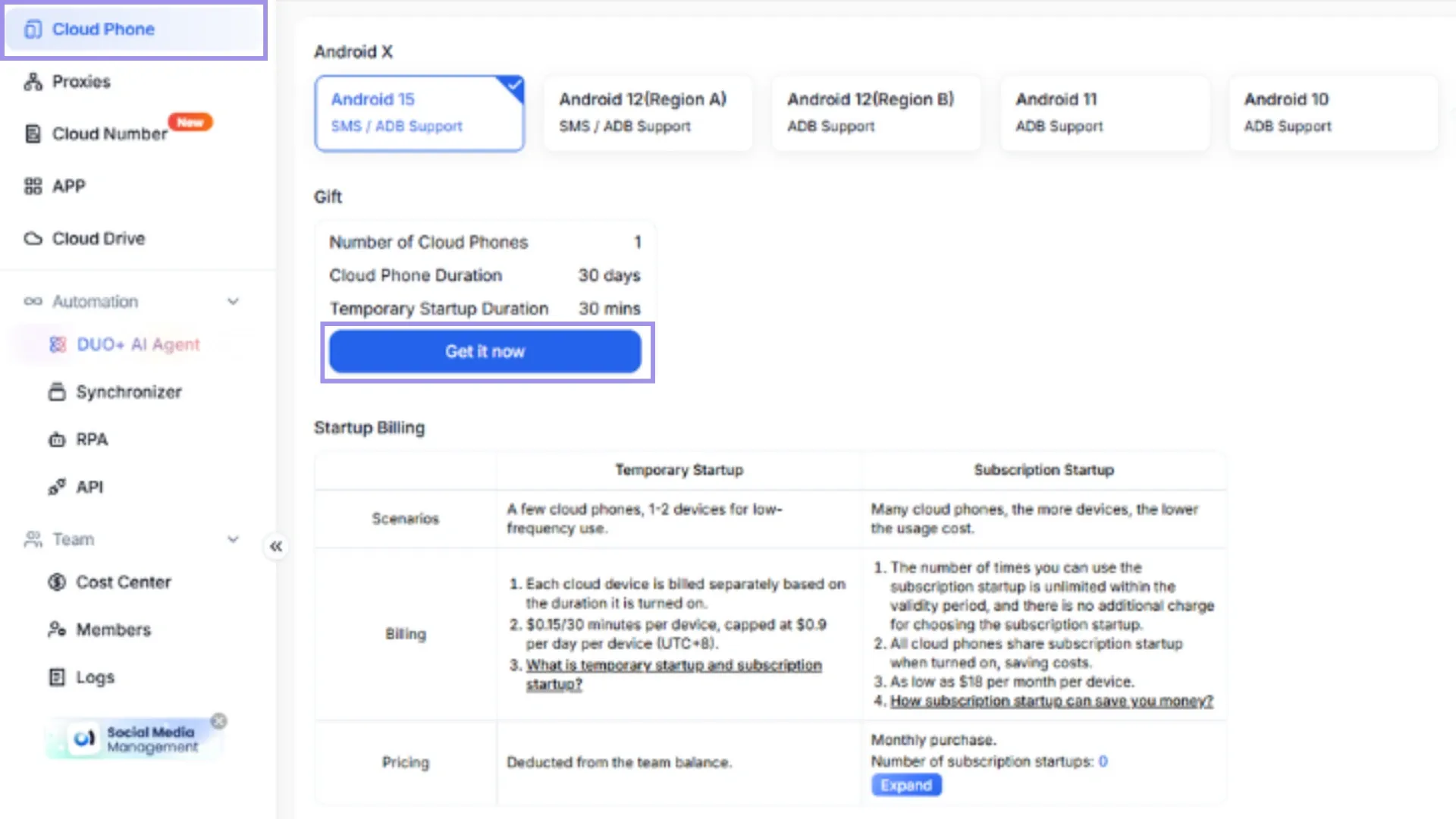
2. Then, enter Cloud Phone Name and select Group.

3. Choose Custom Proxy under the Network tab to manually enter your proxy details. Fill in the required fields, such as IP address, username, and password. DuoPlus supports SOCKS5 proxies, ensuring compatible integration with Byteful.
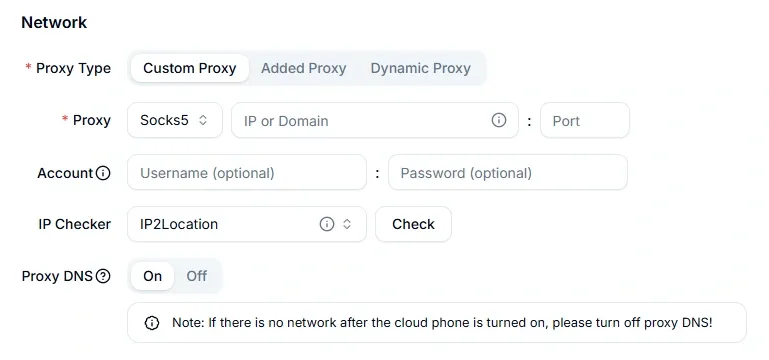
4. Now, click Check to see if the proxy details are correct. If everything matches, click Finish to finalize proxy addition.
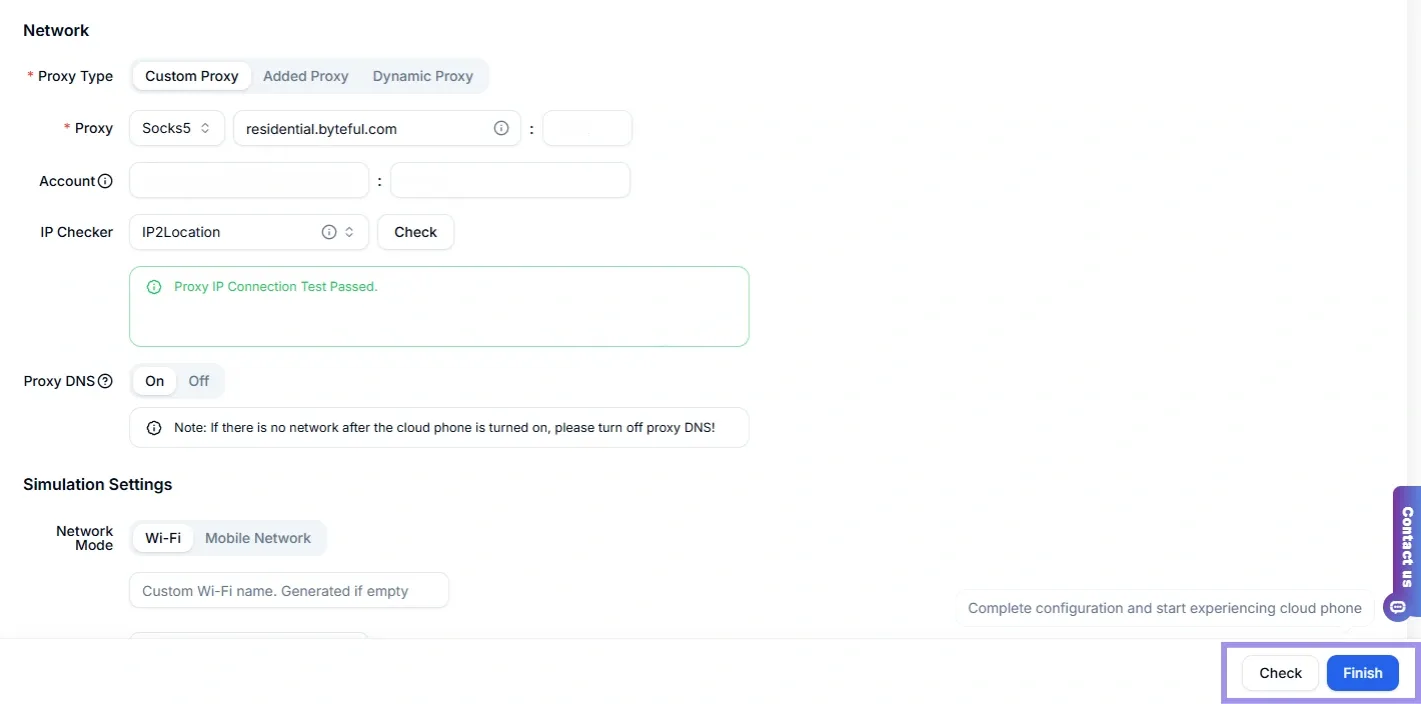
5. You will now be redirected to the proxy list on DuoPlus. Click Power On to turn it on when you want to use it.

Similarly, you can access all the added proxies from the Proxies tab on the left. Here, you will see the list of all proxies you have integrated in DuoPlus. You can select multiple proxies at once to perform batch operations such as Check, Delete, or Add to Group.
Does DuoPlus Allow Adding Proxies in Batches?
Yes, DuoPlus supports batch proxy addition. This feature can be really beneficial if you want to save time and effort required for manual entry. Here’s how the batch proxy addition works:
1. Navigate to the Proxies page from the left panel and click Batch Add at the top.

2. Now, you have to compile your proxy details in the DuoPlus required format (host:port:username:password or username:password@host:port).
Note: You can also download the template to see the file format.
3. Lastly, click the Import button and select the file you want to upload. Click Check to verify your uploaded file and finalize the process.
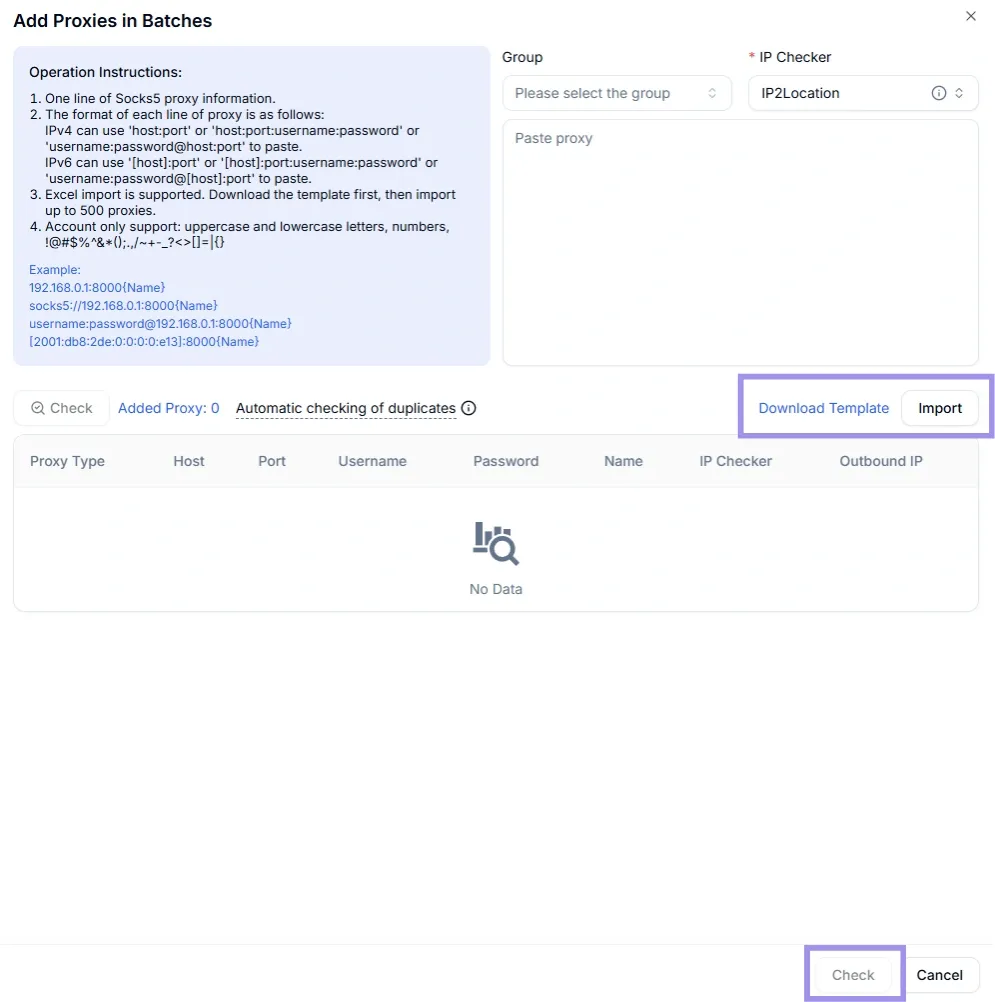
Then, you can assign proxies to individual cloud phones or group them for specific tasks. Moreover, batch proxy addition can streamline operations and enable you to manage multiple proxies efficiently.
How to Validate Proxy Integration on DuoPlus?
You can easily ensure your proxies are correctly integrated into DuoPlus. The platform has a Check button that allows you to verify the functionality of each proxy before finalizing the setup.
You will see the Check option after entering your proxy details. It is available for both individual integration and batch imports. It tests the proxy’s connection and confirms its readiness for use. This feature is really useful if you are working with free proxy servers, where reliability can vary.
You can also take an extra step and use the Byteful Proxy Tester. It allows you to validate proxies even before you add them to DuoPlus, saving your time. The tester provides insights into your proxy’s IP address, geographical location, and operational status.
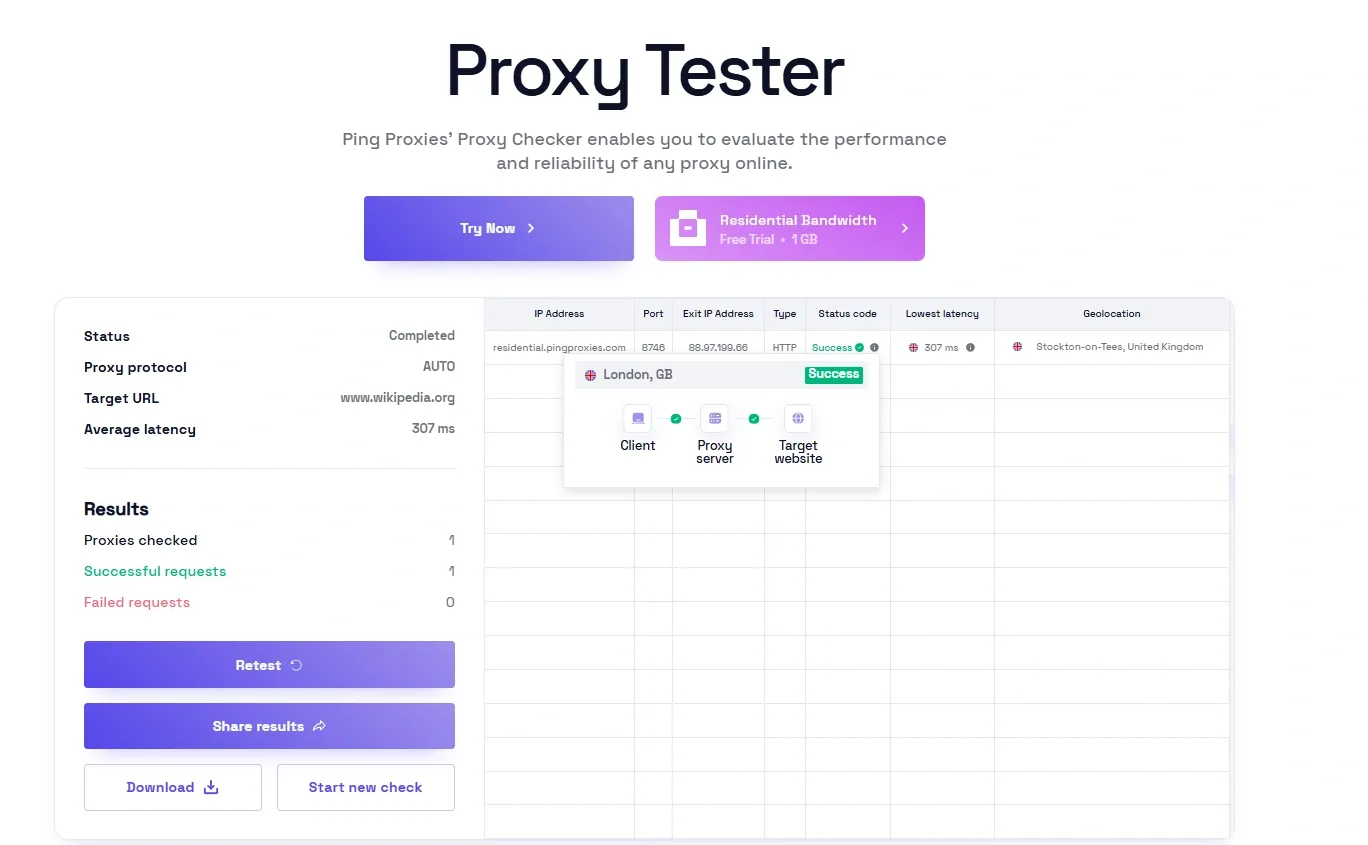
With this layered testing approach, you can make sure that the proxy is capable of reaching its intended target and identify any issues early on.
