
How to Scrape With Scrapling: A Step-by-Step Python Tutorial



TL;DR
Scrapling is an open source Python framework that fetches and parses web pages in one library, with no separate tools to glue together. This tutorial takes you from install to a working scraper on Scrapling 0.5.1: extracting data with CSS selectors, rendering JavaScript pages with StealthyFetcher when a plain fetch returns nothing, recovering a broken selector after the HTML changes, and routing requests through a Byteful residential proxy. By the end, you have a tested script that scrapes multiple pages and saves the results to a CSV file.
Scraping a web page is easy until the data is dynamically loaded using JavaScript or an HTML change affects a selector your scrapes rely on. Scrapling can help with both. It is a Python web scraping tool that can extract static HTML, render JavaScript-driven web pages, and adjust the element selection if the website's content structure changes, though this recovery is not guaranteed for every change.
We're going to show you how to scrape with Scrapling using Python, starting from a very simple scraper and then gradually adding CSS selectors, location-specific requests with a proxy, and JavaScript rendering. We'll also test its adaptive selectors; data will be gathered from several pages, and the results will be output as a CSV file.
What is Scrapling and how does it work?
Scrapling is an open-source web scraping framework for Python that provides a toolkit for fetching web pages and parsing HTML. It has a class called Fetcher that fetches HTML without a browser for static websites. Scrapling provides browser-based fetching options for sites that fetch content via JavaScript, performing the same process of rendering the page before extracting data.
After loading, you can identify any element on the page using CSS or XPath selectors, and retrieve the text, links, or other attributes of the extracted elements. Through its adaptive selectors, Scrapling saves information about the elements you select to help relocate them if the corresponding HTML structure changes on a website. This minimizes the need to manually adjust selectors, but does not ensure recovery following any change.
Unlike Beautiful Soup, which parses HTML, Scrapling has built-in support for getting webpages. You don't have to merge several libraries to get simple fetching and extraction. It also offers the option to make lightweight HTTP requests or use browser rendering, depending on how the site provides its content.
How to scrape websites with Scrapling in Python
We'll be building and testing a Python scraper using Quotes to Scrape, a practice website for web scraping. We'll start with the simplest setup and expand it as we go, testing along the way so you can follow along and catch any mistakes as you go.
Step 1: Set Up Python and Install Scrapling
Scrapling needs Python 3.10 or higher. We're using PyCharm for this tutorial, but you can follow the same steps in any terminal or Python IDE. We'll use a separate project and virtual environment to ensure its dependencies are not mixed in with other Python projects.
Verify the version of Python. In the terminal or PyCharm's built-in terminal, run:
Windows:
python --versionmacOS/Linux:
python3 --versionIf you are using an older version, install a supported version of Python. Make your virtual environment and project. Run the following commands for your operating system.
Windows (PowerShell):
mkdir scrape-with-scrapling
cd scrape-with-scrapling
python -m venv .venv
.\.venv\Scripts\Activate.ps1Note: If PowerShell blocks the activation script, run Set-ExecutionPolicy -ExecutionPolicy RemoteSigned -Scope CurrentUser once, then run the activation command again.
macOS/Linux:
mkdir scrape-with-scrapling
cd scrape-with-scrapling
python3 -m venv .venv
source .venv/bin/activate
You can create the project with the same name in PyCharm, and PyCharm will automatically create the virtual environment.
Install Scrapling and dependencies. When the virtual environment is enabled, run:
python -m pip install "scrapling[fetchers]"
scrapling install
The first command installs Scrapling and its required fetching dependencies. The second downloads the browser components used for JavaScript-rendered pages. The browser components are not needed when making basic HTTP requests.
Verify the installation. In your project directory, write a Python file called scraper.py, with the following:
from scrapling.fetchers import Fetcher, StealthyFetcher

print("Scrapling is ready.")
Run the script from your terminal:
python scraper.pyIf the installation is successful, the script prints "Scrapling is ready." without import errors. Leave this file open, as we will use it to download our first webpage in the next step.
Step 2: Fetch a Webpage With Scrapling
Once Scrapling is installed, we'll use its Fetcher class to get the HTML from Quotes to Scrape. It sends HTTP requests without launching a browser, and thus can be used for websites that deliver their content directly in HTML.
Open up scraper.py and change out the installation test in Step 1 with the Python code below:
from scrapling.fetchers import Fetcher

url = "https://quotes.toscrape.com/"
page = Fetcher.get(url)

print(f"HTTP status: {page.status}")

if page.status != 200:
        raise RuntimeError(f"Failed to fetch {url}")

print("HTML preview:")
print(page.body[:250].decode("utf-8", errors="replace"))
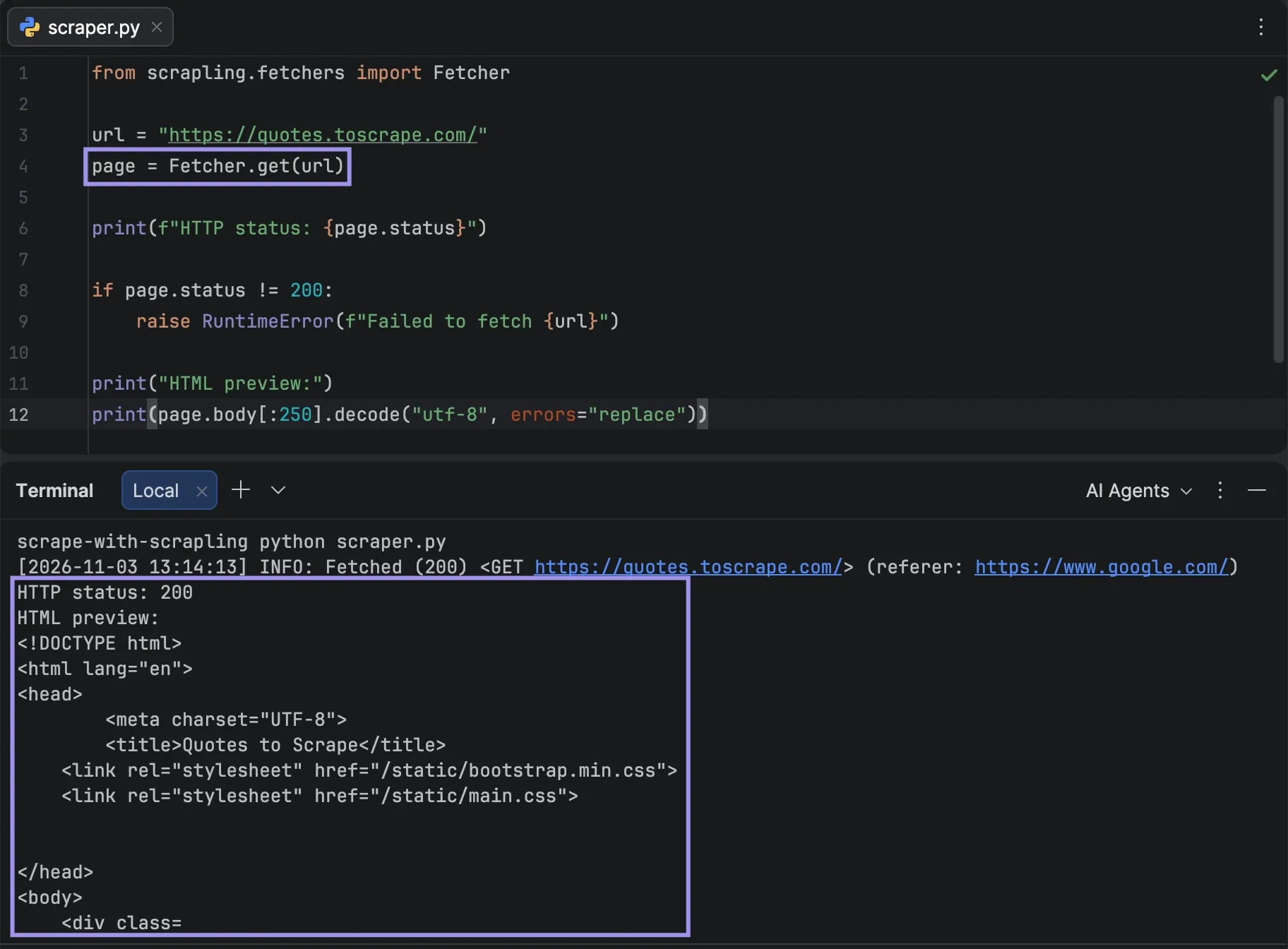
In this example, Fetcher.get() is used to make a GET request to the given URL; it returns a response object. The page.status property returns the HTTP status code; the page.body property returns the retrieved HTML as a stream of bytes. The first 250 bytes are decoded and displayed as a preview.
Run the script from your terminal:
python scraper.pyIf the request is successful, it will return an "OK" (200) response followed by the start of the web page's HTML. Scrapling also logs each request above your output, such as INFO: Fetched (200) <GET https://quotes.toscrape.com/> (referer: https://www.google.com/). It also prints this above your output. If the server returns another status, then the script will throw an error, rather than continuing.
Step 3: Extract Data Using CSS Selectors
Now that we can retrieve the HTML, we need to find out which elements in the HTML contain information we are interested in. Scrapling also works with CSS selectors, which enable us to select specific HTML elements based on their attributes, classes, and tags.
Check the HTML of the Web Page. Open Quotes to Scrape in your browser, right-click on a quote, and choose Inspect. Each quote will be in a div with the class quote, and will include:
- span.text: The content of the quote
- small.author: The author's name
- a.tag: Tags of the quote
Now make a new file called step3_css_selectors.py and add the following code to extract such fields:
from scrapling.fetchers import Fetcher

url = "https://quotes.toscrape.com/"
page = Fetcher.get(url)

print(f"HTTP status: {page.status}")
if page.status != 200:
        raise RuntimeError(f"Failed to fetch {url}")

records = []

for quote in page.css("div.quote"):
        text = quote.css("span.text::text").get()
        author = quote.css("small.author::text").get()
        tags = quote.css("a.tag::text").getall()

        records.append({
            "quote": str(text or ""),
            "author": str(author or ""),
            "tags": [str(tag) for tag in tags],
        })

for record in records[:2]:
        print(record)

print(f"Total quotes extracted: {len(records)}")
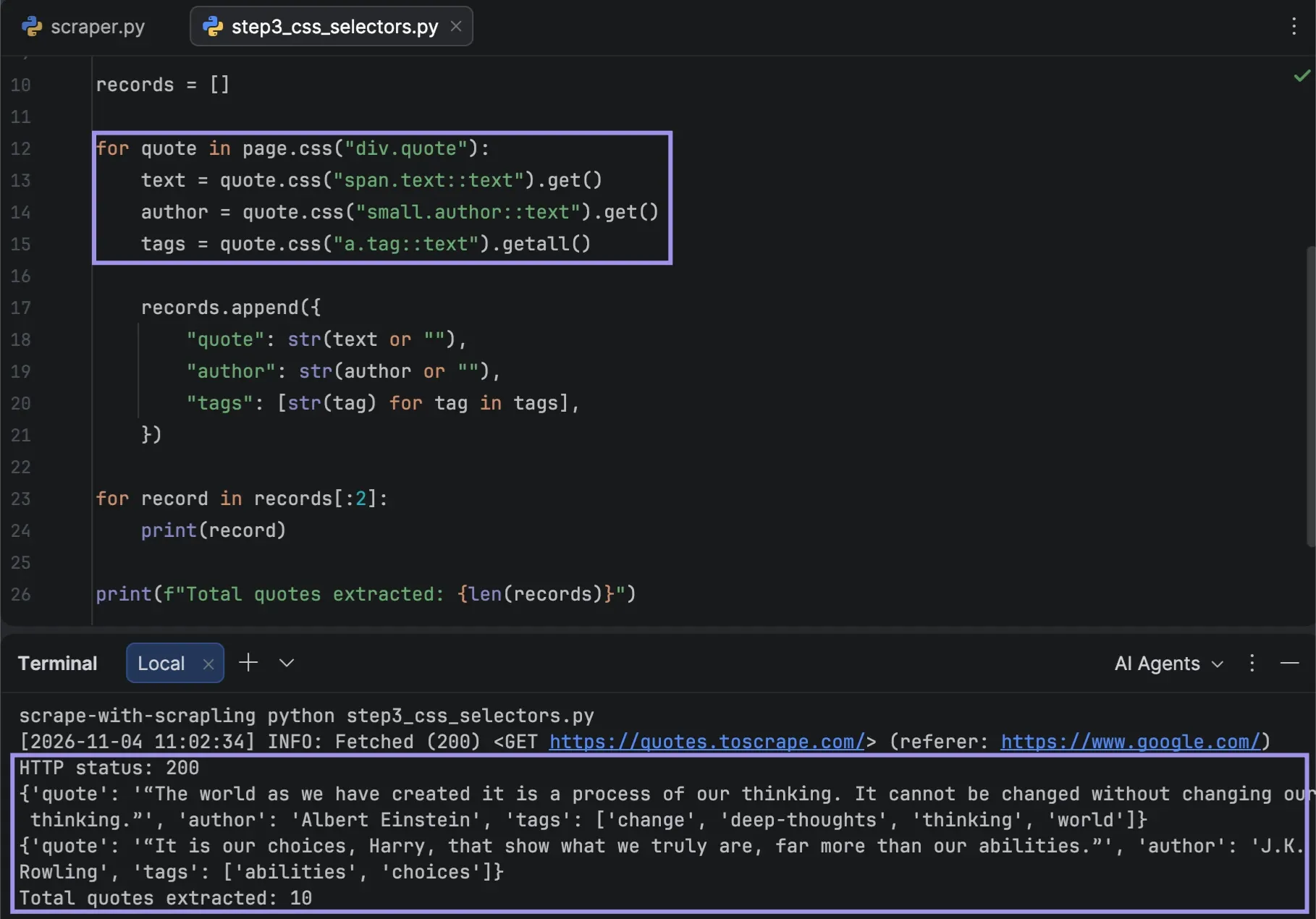
The selector page.css("div.quote") selects all of the quote containers. In each one, .get() returns the first occurrence of the matching text value; .getall() returns all text values that match a tag. These values are kept in dictionaries and added to the records list.
To run the updated version of the script, use:
python step3_css_selectors.pyEnsure the first two records displayed in the terminal include quotes, authors, and tags, and the total number of records extracted. This also verifies that the selectors are correct, prior to extending the scraper.
Step 4: Configure Proxies With Scrapling
When location-specific results are required, or when a larger workload needs to be distributed across multiple IP addresses, you can route requests through a proxy. You can choose the type based on your needs:
- Residential proxies: These use IP addresses from real home internet connections, which makes them the usual choice for location-specific data such as regional prices or search results. They support rotating or sticky sessions and generally cost more than datacenter proxies.
- Datacenter proxies: Hosted in datacenters rather than on home networks, these are typically faster and more affordable. That makes them a good fit for scraping public websites at scale, though some sites restrict datacenter IPs.
- ISP proxies: Registered to internet service providers but hosted on server infrastructure, these give you stable, long-term IPs. Pick them for tasks that need consistent sessions or repeated requests from the same address.
In this example, we'll be using a Byteful residential HTTP proxy to test location-based proxy routing.
You can generate your proxy credentials from the Byteful dashboard by going to My Products > Residential Proxies > Generator. Select HTTP, choose your preferred location and session type, then generate your proxy credentials. If you don't have an account, you can sign up and get 1 GB of free residential data.
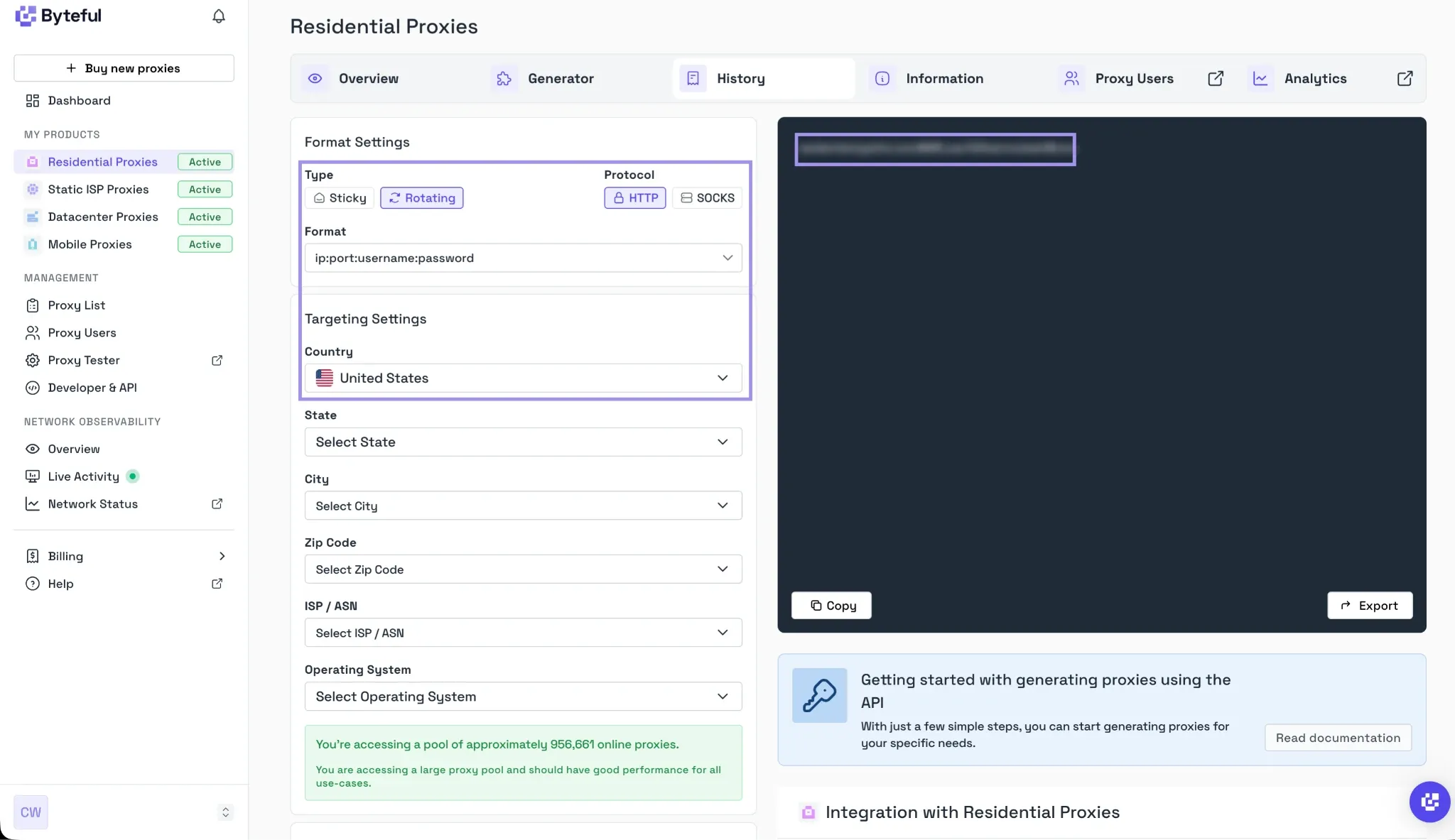
Note: Byteful proxies block requests sent directly to IP addresses by default, and residential proxies block all IP-based traffic. Nothing in this tutorial is affected, since every request here uses a domain name. Keep this in mind if you adapt the code to fetch a URL by its IP address.
Store your credentials outside the script. Install the python-dotenv package in the virtual environment of your project:
python -m pip install python-dotenvIn the scrape-with-scrapling folder, write your Proxy URL into a .env file:
BYTEFUL_PROXY_URL=http://USERNAME:PASSWORD@HOST:PORTFill in the placeholders with your own Byteful credentials, including any location and/or session identifiers in the generated username. To make sure that .env doesn't get accidentally committed to version control, be sure to add it to .gitignore.
Make step4_proxy.py for the proxy version. It reuses the extraction code in Step 3, and introduces the proxy setup at the beginning:
import os
from dotenv import load_dotenv
from scrapling.fetchers import Fetcher

load_dotenv()
proxy_url = os.getenv("BYTEFUL_PROXY_URL")

if not proxy_url:
        raise RuntimeError("Set BYTEFUL_PROXY_URL in .env")

check = Fetcher.get("https://ipinfo.io/json", proxy=proxy_url)

if check.status != 200:
        raise RuntimeError(f"Proxy check returned HTTP {check.status}")

info = check.json()
print("Proxy exit IP:", info["ip"])
print("Proxy country:", info.get("country", "Unavailable"))

url = "https://quotes.toscrape.com/"
page = Fetcher.get(url, proxy=proxy_url)

print(f"HTTP status: {page.status}")
if page.status != 200:
        raise RuntimeError(f"Failed to fetch {url}")

records = []

for quote in page.css("div.quote"):
        text = quote.css("span.text::text").get()
        author = quote.css("small.author::text").get()
        tags = quote.css("a.tag::text").getall()

        records.append({
            "quote": str(text or ""),
            "author": str(author or ""),
            "tags": [str(tag) for tag in tags],
        })

for record in records[:2]:
        print(record)

print(f"Total quotes extracted: {len(records)}")
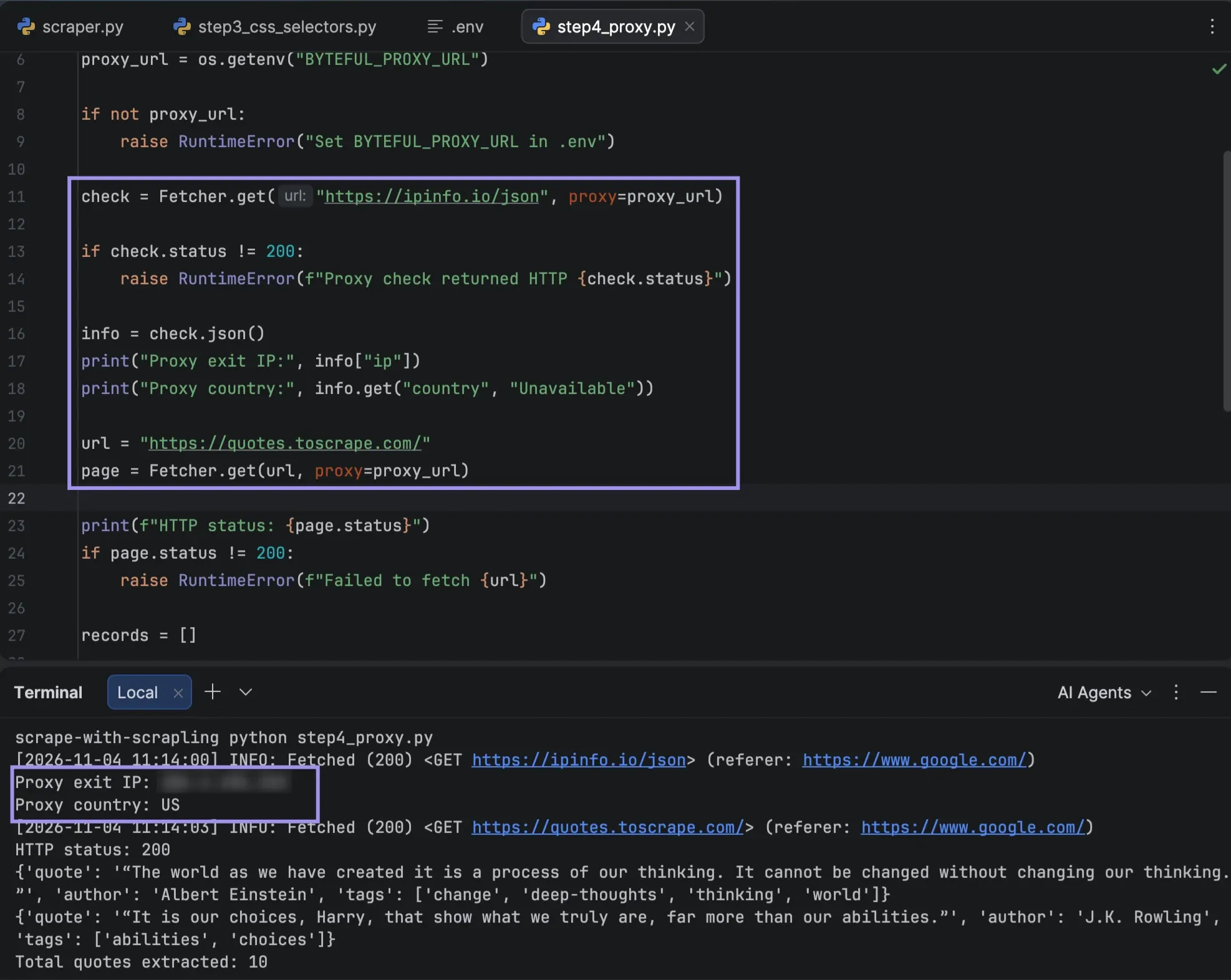
Each request with the proxy parameter goes through our proxy network. We use IPinfo to check the proxy's exit IP and country, and then fetch Quotes to Scrape using the same proxy configuration.
Run and verify the connection. Execute:
python step4_proxy.pyMake sure the exit IP address is not the same as the direct one and the country you see is the one you've chosen. Additionally, the script should be able to retrieve quotes successfully, demonstrating that Scrapling can retrieve data via the proxy.
Step 5: Scrape JavaScript-Rendered Pages
Some sites provide their content via JavaScript after the initial response. Because Fetcher doesn't run JavaScript, it can get the page but may still not be able to find what you're looking for.
We'll do this by testing it against the JavaScript version of Quotes to Scrape to see how it compares to Scrapling's StealthyFetcher, which uses a Chromium-based browser.
In your project, create a new file, javascript_test.py, and include the following code:
import os
from dotenv import load_dotenv
from scrapling.fetchers import Fetcher, StealthyFetcher

load_dotenv()
proxy_url = os.getenv("BYTEFUL_PROXY_URL")
proxy_args = {"proxy": proxy_url} if proxy_url else {}

url = "https://quotes.toscrape.com/js/"

# Try fetching without JavaScript rendering
http_page = Fetcher.get(url, **proxy_args)

if http_page.status != 200:
        raise RuntimeError(f"HTTP fetch returned {http_page.status}")

print("Fetcher status:", http_page.status)
print("Fetcher quote elements:", len(http_page.css("div.quote")))
print("Initial HTML preview:", http_page.body[:160].decode(
        "utf-8", errors="replace"
).replace("\n", " "))

# Fetch the same page with browser rendering
browser_page = StealthyFetcher.fetch(
        url,
        wait_selector="div.quote",
        wait_selector_state="visible",
        disable_resources=True,
        **proxy_args,
)

if browser_page.status != 200:
        raise RuntimeError(f"Browser fetch returned {browser_page.status}")

quotes = browser_page.css("div.quote")

print("StealthyFetcher status:", browser_page.status)
print("StealthyFetcher quote elements:", len(quotes))

for quote in quotes[:2]:
    print("Author:", quote.css("small.author::text").get())
    print("Quote:", quote.css("span.text::text").get())
The first request fetches the initial HTML, using Fetcher. It checks for div.quote and prints a short HTML preview. On this practice page, the quotes are added with JavaScript, so the first response does not have the quote elements rendered.
The second request performs the same operation, loading the same URL in a browser with StealthyFetcher.fetch(). The wait_selector parameter waits for a quote element to appear, and wait_selector_state="visible" ensures that the element is visible before it's extracted. The disable_resources=True parameter ignores unnecessary requests like fonts, images, and stylesheets. This can reduce loading time and prevent unnecessary resource requests (such as loading a web font from the proxy) from delaying the page. Some sites need those resources to finish loading, so turn it off if a page never completes.
If a credential is provided, the code will also use the Byteful proxy configuration you created in Step 4.
Run the comparison from your terminal. Fetcher should find no quote elements, while StealthyFetcher should retrieve the rendered quotes:
python javascript_test.py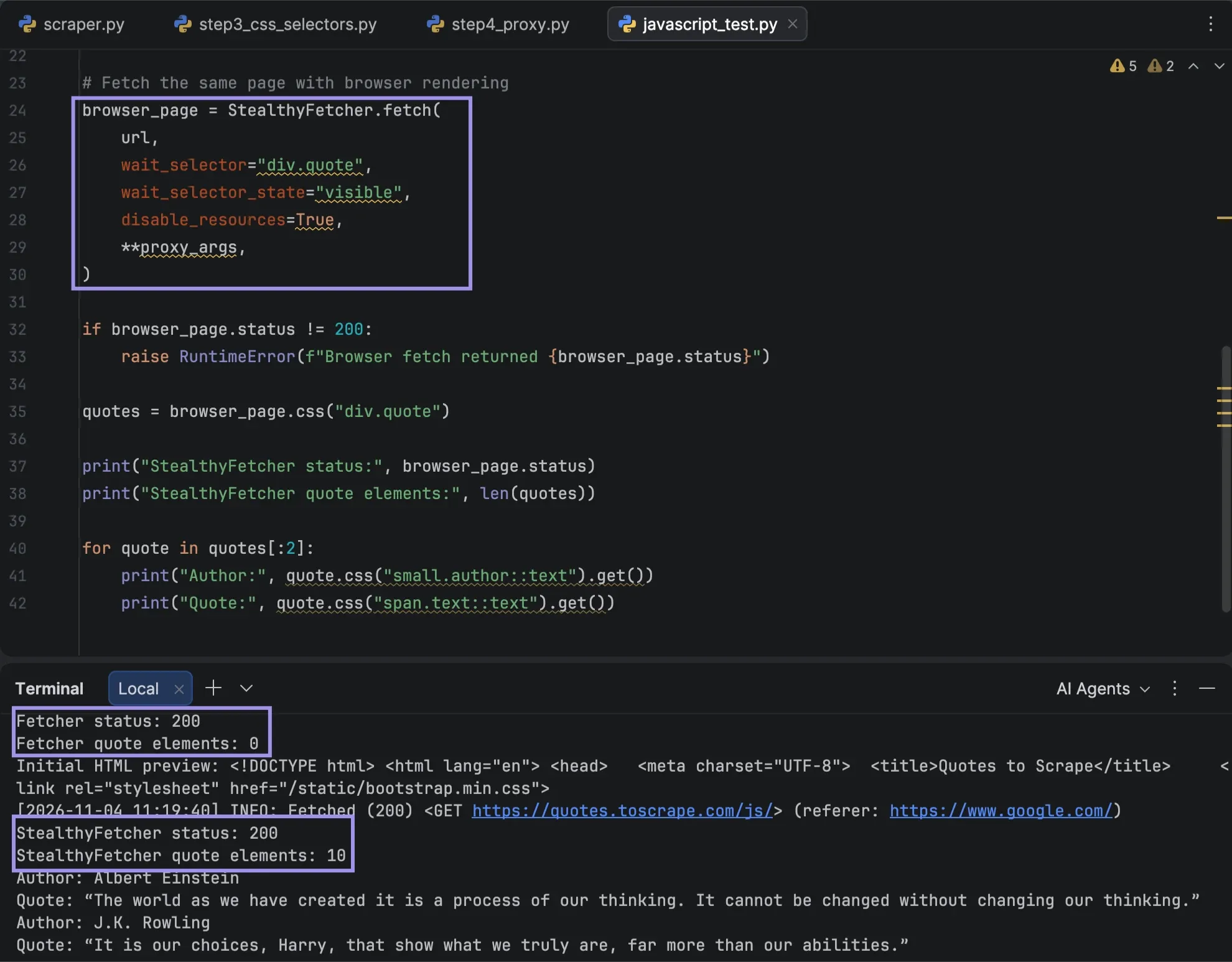
Step 6: Recover Broken Selectors With Scrapling
HTML structures are regularly modified on websites, which can cause the CSS selectors to fail if there's an ID change or a class or position change. To recover them, Scrapling stores their properties and compares them with the new page via the adaptive selectors.
Instead of waiting for a real site to change, we'll use two HTML samples and see how it works when we design a site to look different.
Make a file called adaptive_test.py in your project and put in the following code:
from scrapling import Selector

original_html = """
<main class="quotes">
  <article id="featured-quote" class="quote">
        <span class="text">A working scraper needs stable selectors.</span>
        <small class="author">Demo Author</small>
  </article>
</main>
"""

updated_html = """
<main class="quotes">
  <div class="quote-wrapper">
        <article class="quote updated">
          <span class="text">A working scraper needs stable selectors.</span>
          <small class="author">Demo Author</small>
        </article>
  </div>
</main>
"""

url = "https://example.com/quotes"

old_page = Selector(original_html, url=url, adaptive=True)
original = old_page.css("#featured-quote", auto_save=True)
print("Original quote:", original[0].css("span.text::text").get())

new_page = Selector(updated_html, url=url, adaptive=True)
print("Regular selector matches:", len(new_page.css("#featured-quote")))

recovered = new_page.css("#featured-quote", adaptive=True)
print(
        "Adaptive recovery:",
    recovered[0].css("span.text::text").get() if recovered else "No match"
)
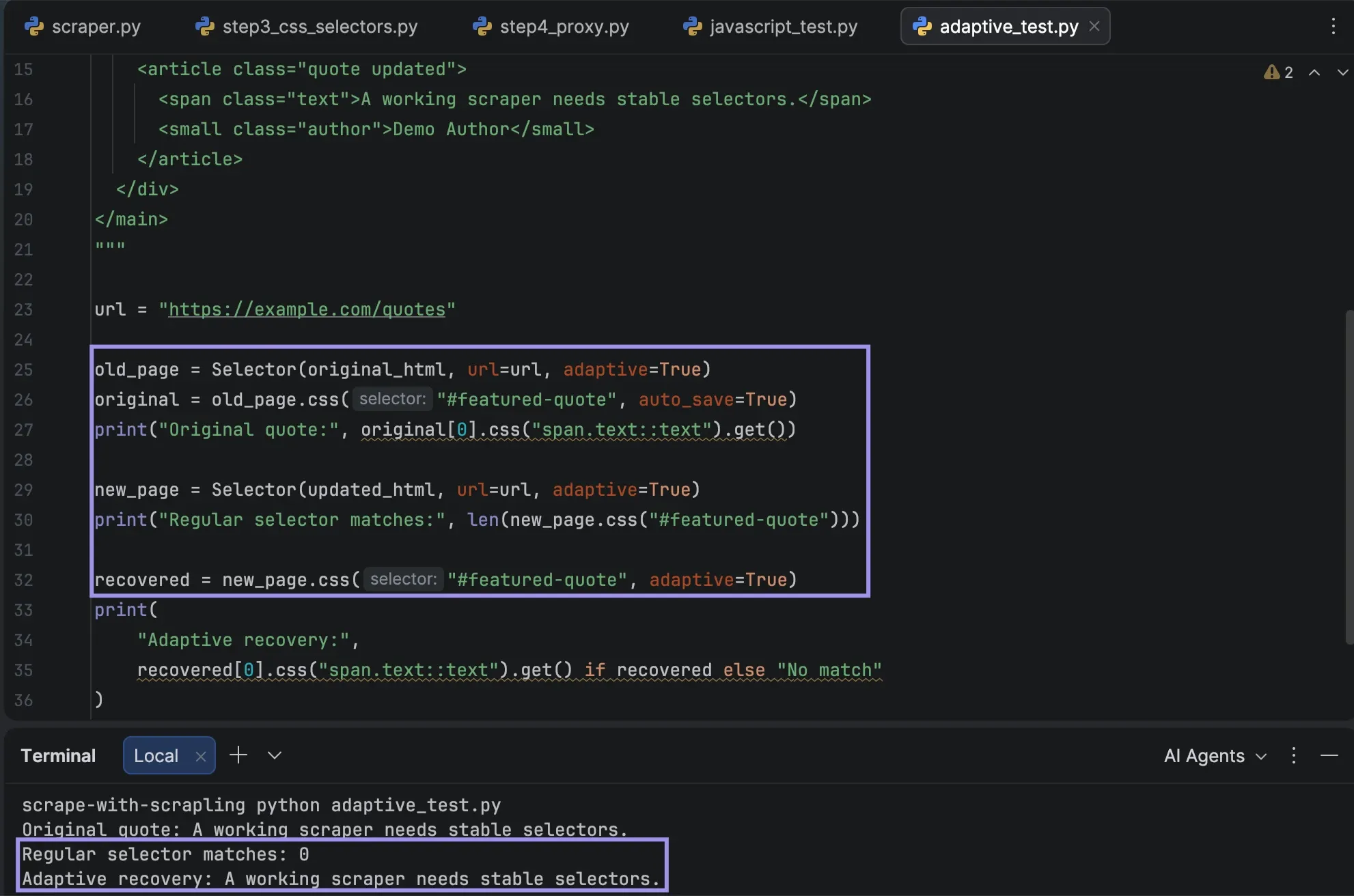
Understand the changes: The quote has the ID featured-quote in the original HTML. The updated one removes that ID and introduces a wrapper, which means that the original selector no longer works.
The adaptive=True option activates Scrapling's element-tracking feature, and auto_save=True will save the properties of the original element in its local SQLite database. Both page versions use the same example URL to help Scrapling correlate saved info with the URL.
If no element is found to match the selector, then adaptive=True will cause Scrapling to look for the closest element with the properties it has saved.
Run the test in your terminal:
python adaptive_test.pyCompare the original extraction against the regular selector count and the adaptive recovery result. Even if you change the HTML, you get the same quote after a successful recovery.
Although adaptive selectors can reduce upkeep when websites change, they are not guaranteed to recover all elements. There may be a need for manual selector updates for major redesigns or when elements are not similar.
Step 7: Scrape Multiple Pages and Save Your Data
We are processing quotes from one page with our scraper. Quotes to Scrape also has pagination, where URLs like /page/2/ are available and so on. This pattern can be used to retrieve records from several pages and store them in a CSV file.
Write a new file called step7_pagination.py with the following script. It's a combination of our CSS selectors, Byteful proxy configuration, pagination, and CSV export.
import csv
import os
import time
from pathlib import Path

from dotenv import load_dotenv
from scrapling.fetchers import Fetcher

load_dotenv()
proxy_url = os.getenv("BYTEFUL_PROXY_URL")
proxy_options = {"proxy": proxy_url} if proxy_url else {}

records = []

for page_number in range(1, 4):
        url = f"https://quotes.toscrape.com/page/{page_number}/"
        page = Fetcher.get(url, **proxy_options)

        if page.status != 200:
            raise RuntimeError(
                f"Page {page_number} returned HTTP {page.status}"
            )

        quotes = page.css("div.quote")

        if not quotes:
            raise RuntimeError(f"No quotes found on page {page_number}")

        for quote in quotes:
            text = quote.css("span.text::text").get()
            author = quote.css("small.author::text").get()
            tags = quote.css("a.tag::text").getall()

            records.append({
                "quote": str(text or ""),
                "author": str(author or ""),
                "tags": ", ".join(str(tag) for tag in tags),
            })

        print(f"Page {page_number}: {len(quotes)} quotes extracted")

        if page_number < 3:
            time.sleep(1)

output_file = Path(__file__).with_name("quotes.csv")

with output_file.open("w", newline="", encoding="utf-8-sig") as file:
        writer = csv.DictWriter(
            file, fieldnames=["quote", "author", "tags"]
        )
        writer.writeheader()
        writer.writerows(records)

print(f"Saved {len(records)} quotes to {output_file.name}")
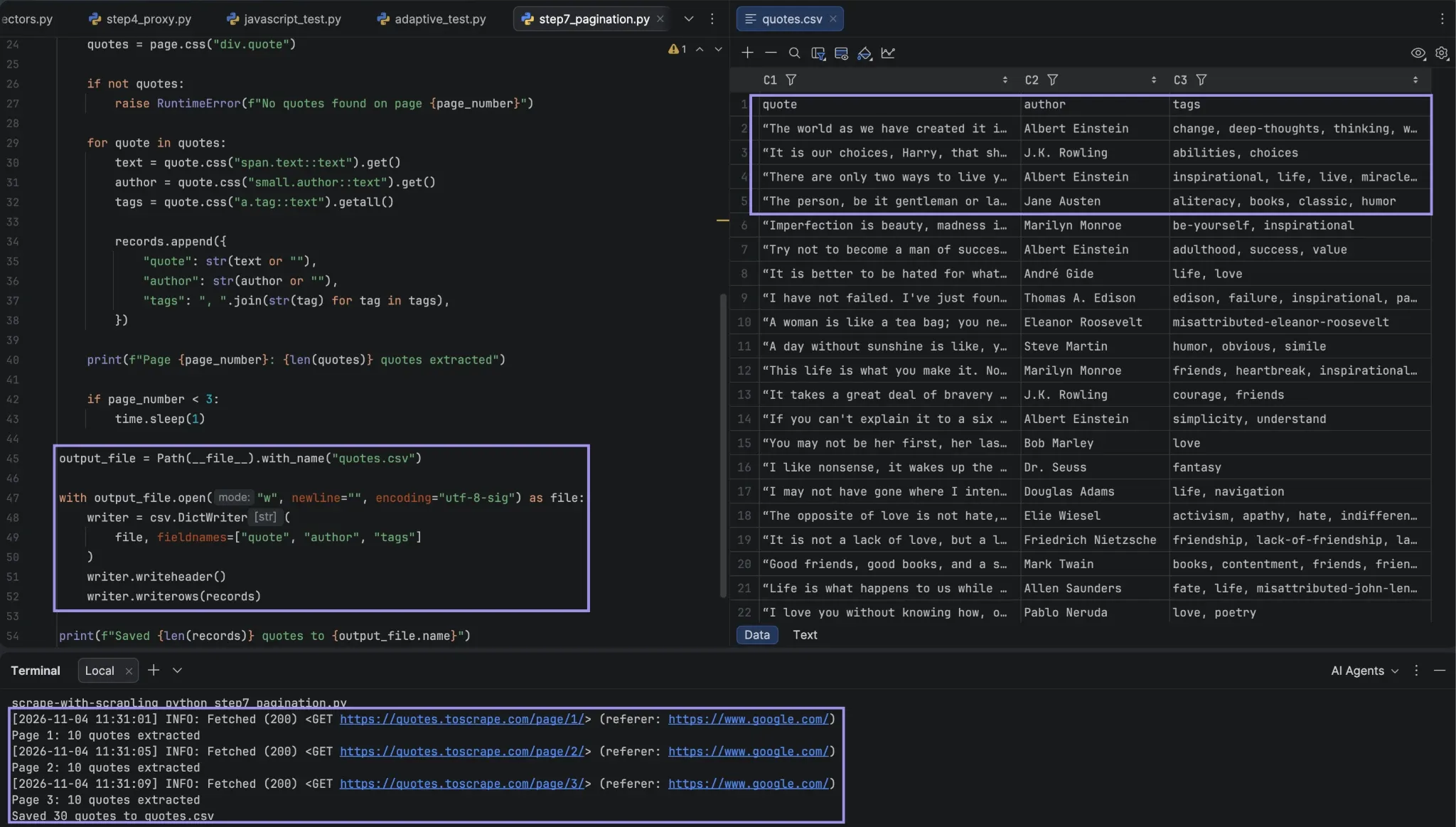
The range(1, 4) loop collects data from the first three pages. We introduce a one-second delay between requests to prevent requests from being sent consecutively. If you are using a .env proxy configuration for your Byteful proxy, Scrapling will request through this proxy for all requests; otherwise, it will connect directly.
Python's csv.DictWriter then stores the records in quotes.csv in columns separated by commas, containing the quote, author, and tags.
The higher the range, the more pages you will get. If you raise it, update the number in the sleep check too, so the one-second pause still applies between every page. To stop the loop cleanly once the content runs out, you can change the "No quotes found" error to a break.
Run the completed scraper from your project terminal:
python step7_pagination.pyLook at how many records are gathered on each page and the final records saved. If a page responds with a non-successful HTTP response, or there are no matching quote elements on that page, the script will terminate with an error.
Check the exported data: Open the quotes.csv file in Excel or a text editor in your project directory. Make sure that the extracted quotes, author names, and related tags are in the columns (records from all three pages).
Choosing the right Scrapling Fetching Method
A website can provide content in a variety of ways, and Scrapling has various ways to fetch it. The most important point is to select a method that gets the desired information without incurring much processing overhead.
Fetcher is lightweight, uses minimal resources, and is good enough for most pages with static content, where the content can be served in the initial HTML. If the content is only displayed after JavaScript runs, StealthyFetcher is a better option, but rendering pages in a browser takes more memory and processing power.
If you have multiple requests that require sharing cookies or settings, Scrapling has FetcherSession and StealthySession, which can be used to share connections or browser sessions between requests.
Selecting a method to use on a page, as in Step 5, begins with Fetcher, which can retrieve content present in the initial HTML. If this request returns the status code 200 and no elements are found, check the returned HTML. If it's missing from it but your browser shows it, then the page may use JavaScript to display content, and StealthyFetcher is a better choice.
The purpose of adaptive selectors is quite different. They help locate elements when their original CSS selectors stop matching, but they don't fetch webpages or execute JavaScript. They may be used in conjunction with either of the fetching approaches.
When Scrapling Fails: From Empty Results to Proxy Errors
Errors may arise while scraping due to dependency issues, selector mismatches, or connectivity issues. Double-check the HTTP response code and returned HTML before changing the code. A successful connection does not necessarily imply that the desired content is retrieved.
Here are some common Scrapling issues and how to fix them:
| Problem | Likely cause | Solution |
|---|---|---|
| Scrapling fails to install or import | Unsupported Python version or missing fetcher dependencies | Use Python 3.10 or later and install the scrapling[fetchers] package |
| No data is extracted | Incorrect selectors, changed HTML, or JavaScript-loaded content | Inspect the returned HTML, confirm the selectors, and use browser rendering when necessary |
| Browser fetching fails | Missing browser components or page-loading timeout | Run scrapling install and check whether the target elements load within the configured timeout. If pages time out through a proxy, pass disable_resources=True to skip fonts, images, and other non-essential resources |
| Proxy connection fails | Incorrect credentials, protocol, host, or port | Verify your Byteful proxy settings. Wrong credentials raise a ConnectionError containing CONNECT tunnel failed, response 407 |
| Requests return HTTP 403 or 429 | Access restrictions or excessive request frequency | Review the website's access rules, respect Retry-After headers, and reduce request frequency |
Pro Tip: For 403 responses, try sending your requests through a FetcherSession with impersonate="chrome" so they carry a real browser's TLS fingerprint and headers.
Getting Your Scrapling Scraper to Work Beyond a Three-Page Test
A scraper that can be successful on three pages may fail on larger scales. These are the practices that will help to maintain the quick and stable nature of your Scrapling projects:
- Always use the lightest fetcher that will work: Fetcher is to be used first, and then StealthyFetcher is to be used if the page is rendering its content using JavaScript.
- Reuse sessions for repeated requests: FetcherSession and StealthySession maintain connections or browser sessions to avoid having to start over with all the pages on the same site.
- Avoid unnecessary resources: If you need only the content of the page, skip images and fonts by passing disable_resources=True to the browser fetches.
- Save important selectors: Critical selectors using auto_save=True will contain saved data for adaptive recovery that can be used if the website changes.
- Set and track your request pacing: Include delays between requests, as we did in Step 7, and log failed URLs and response codes.
- Validate your data: Before exporting the data, ensure that no missing fields or duplicate records exist in your data.
- Secure credentials and abide by rules: Store proxy credentials in .env and respect the rules of the target website and any applicable data collection requirements.
If your project grows past a loop like ours, Scrapling also includes a Spider framework with concurrent requests, retries, and built-in JSON and CSV export, so the crawling logic is handled for you.
