
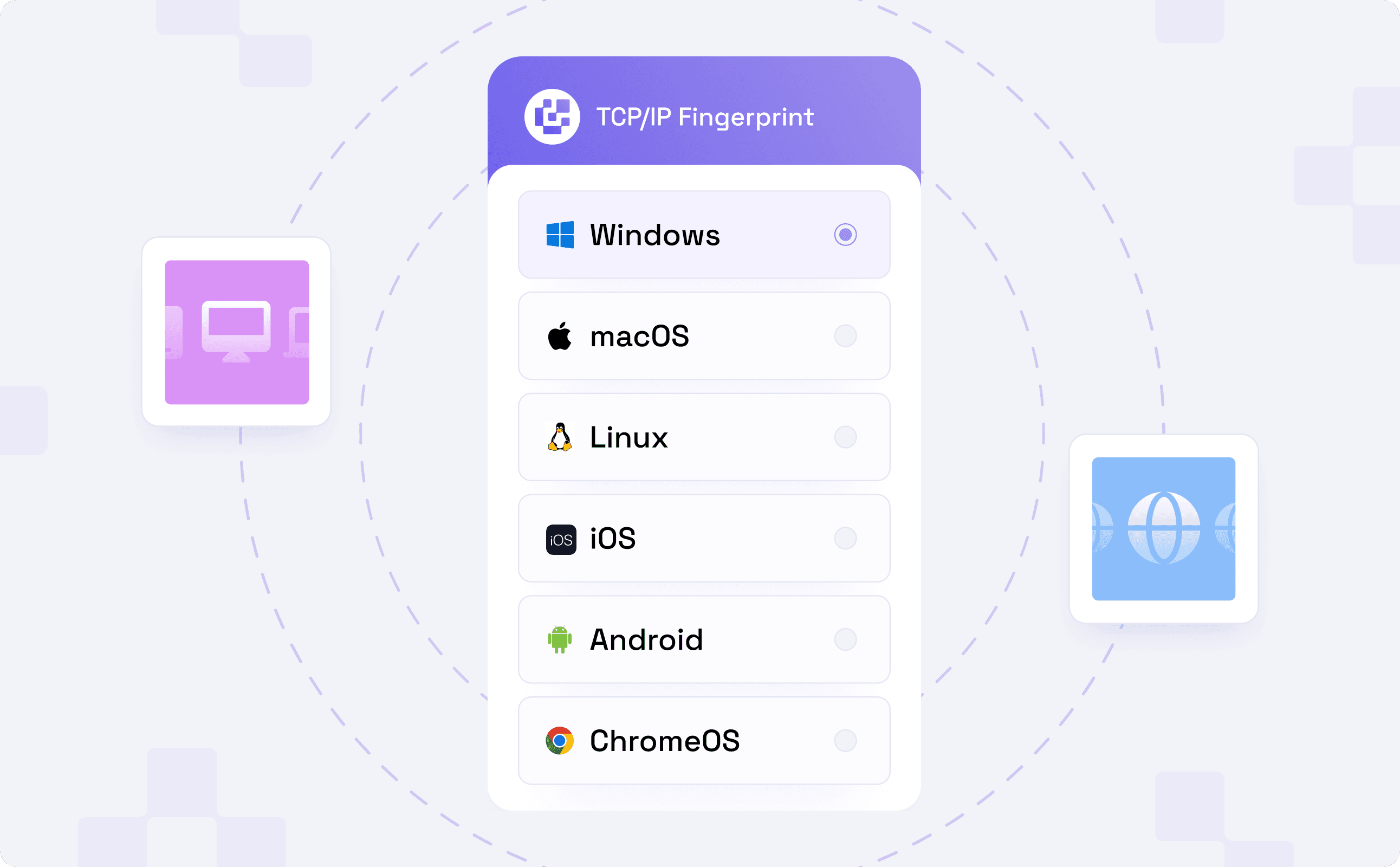
Byteful datacenter and ISP proxies can now emulate the TCP/IP fingerprint of Windows, macOS, Linux, Android or iOS, set per request or at export. It is live for every datacenter and ISP customer.
What gives a proxy away?
Detection has moved down the stack one layer at a time. First came IP bans, and proxies were the answer. Then the browser became the loose end, which led to anti-detect browsers. Eventually, the largest anti-bot providers caught up and are now checking TCP/IP fingerprints.
To put it briefly, a TCP/IP fingerprint is the way a connection behaves at the transport layer, before a single byte of HTTP is sent. That matters for proxies because proxy servers run Linux, and parts of the TCP handshake with the target server give that away.
For example, if your browser identifies as Windows and the underlying connection behaves like Linux, the two don't match. The request is describing a device that doesn't exist.
Why did we rebuild the TCP stack?
A proxy should emulate the device making the request, at every layer, not just the ones that are easy to set. Until now, our infrastructure set the TCP layer, and customers couldn't change it. We wanted that to be a customer choice.
So we built a user-space TCP stack. Instead of relying on the Linux kernel's TCP behaviour, our proxies can emulate the TCP stack of other operating systems, so you can change the fingerprint at will.
Note: TCP/IP Fingerprint Control is in beta. It is live and ready to use, but you may run into bugs, and we would rather hear about them than have you work around them. If something behaves unexpectedly, let us know at the support email or through the Byter AI Agent available on your dashboard.
What ships today?
- Five operating systems: Windows, macOS, Linux, Android, and iOS. Pick the one your client is actually running, and the TCP handshake will match it.
- Datacenter and ISP proxies: The fingerprint is available on both static proxy types. Residential and mobile are not included in this release.
- Set it per request: Add the operating system as a parameter in the proxy username, for example USER_os_windows. Each request can carry a different fingerprint, so one proxy can serve several setups.
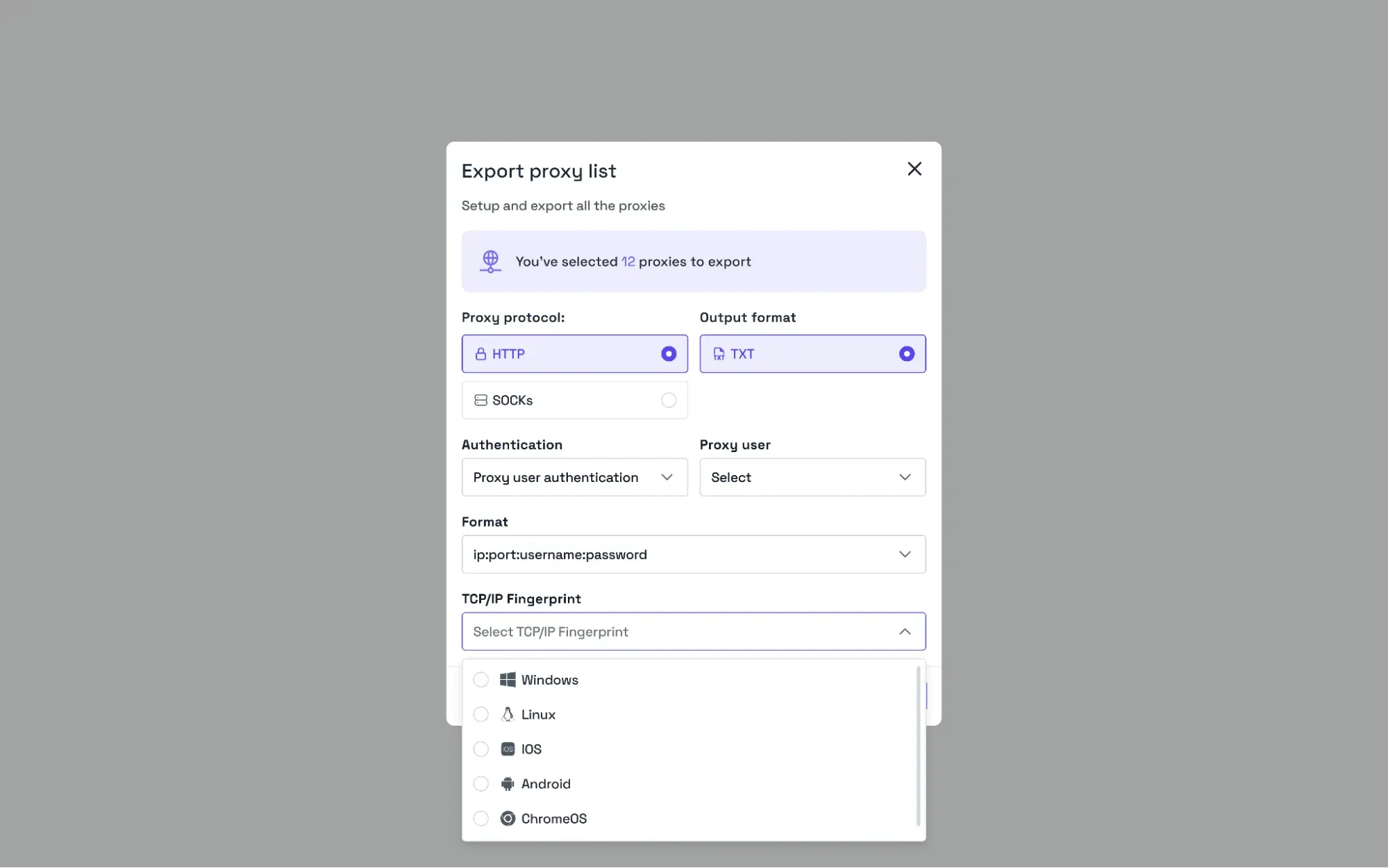
- Set it once at export: Choose a TCP/IP Fingerprint when you export your proxy list from the dashboard. Every proxy in the file carries it, with nothing to add to your own configuration.
We also offer OS Targeting, which lets you choose proxies based on the operating system they run on. TCP/IP Fingerprint is separate and changes how the connection itself behaves, so you can use the two together to keep every layer of a request pointing at the same device.
Pick an operating system on your next export and see the difference for yourself.