

Tried setting up a proxy server on your PS5, but failed? The lack of proxy authentication support (no username and password fields) is often the main reason. If you’re struggling with the same issue or can’t establish a proxy connection despite different approaches, IP Whitelisting is the workaround.
For this guide, we tested on a PlayStation 5 running the latest version - 26.06-14.00.00 (as of this writing). We’ve also covered fixes for different proxy setup issues on PS5, along with guidance on which proxies work best.
How to set up a Proxy on PS5 (Step-by-Step)
On the PS5 console, Settings is the only way to add proxies. There's no shortcut from the Control Center, the quick menu, or the Connection Status screen, and you can't set it during initial console setup either.
1. From the dashboard, select Settings (the gear icon) in the top-right corner.
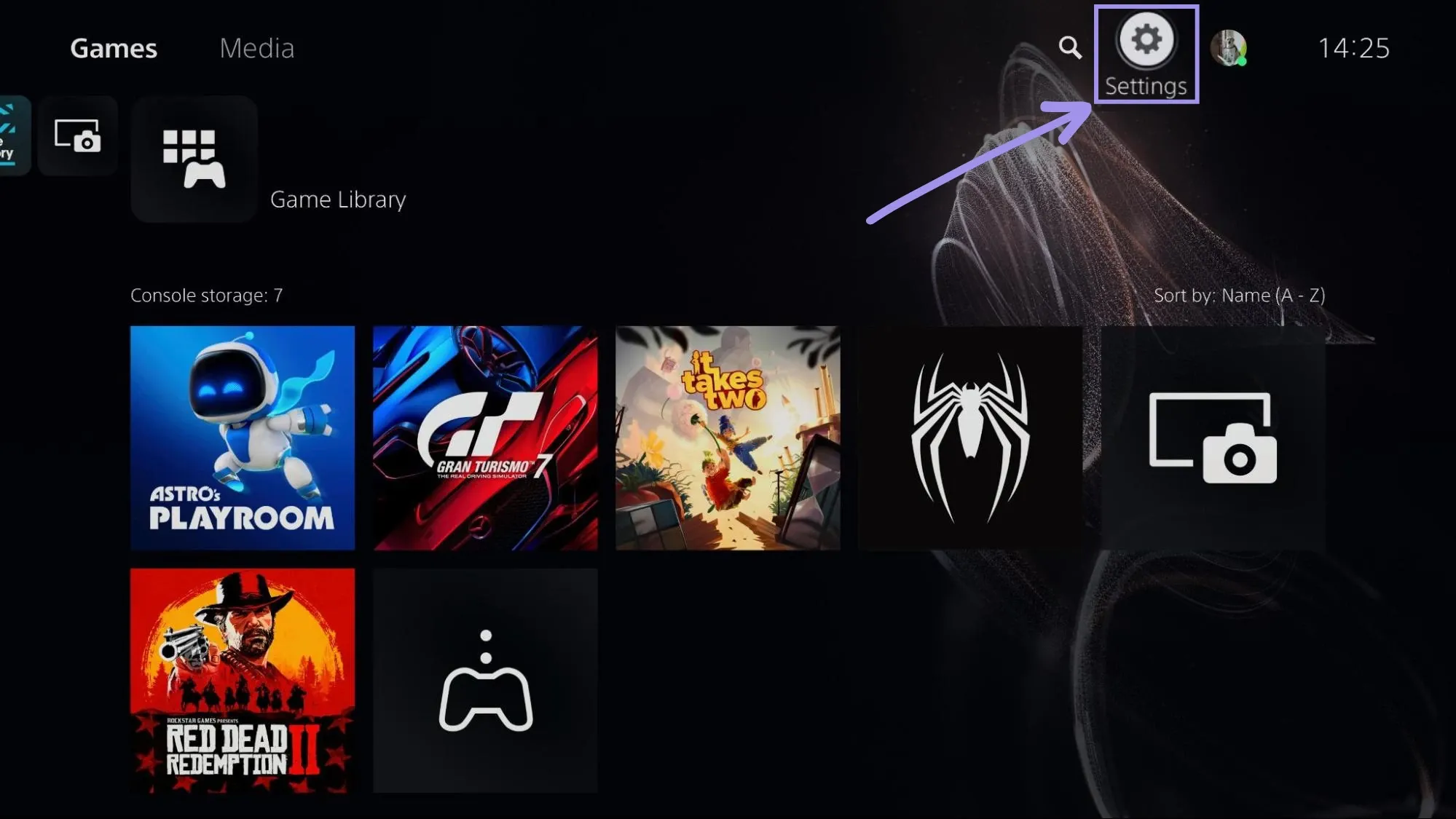
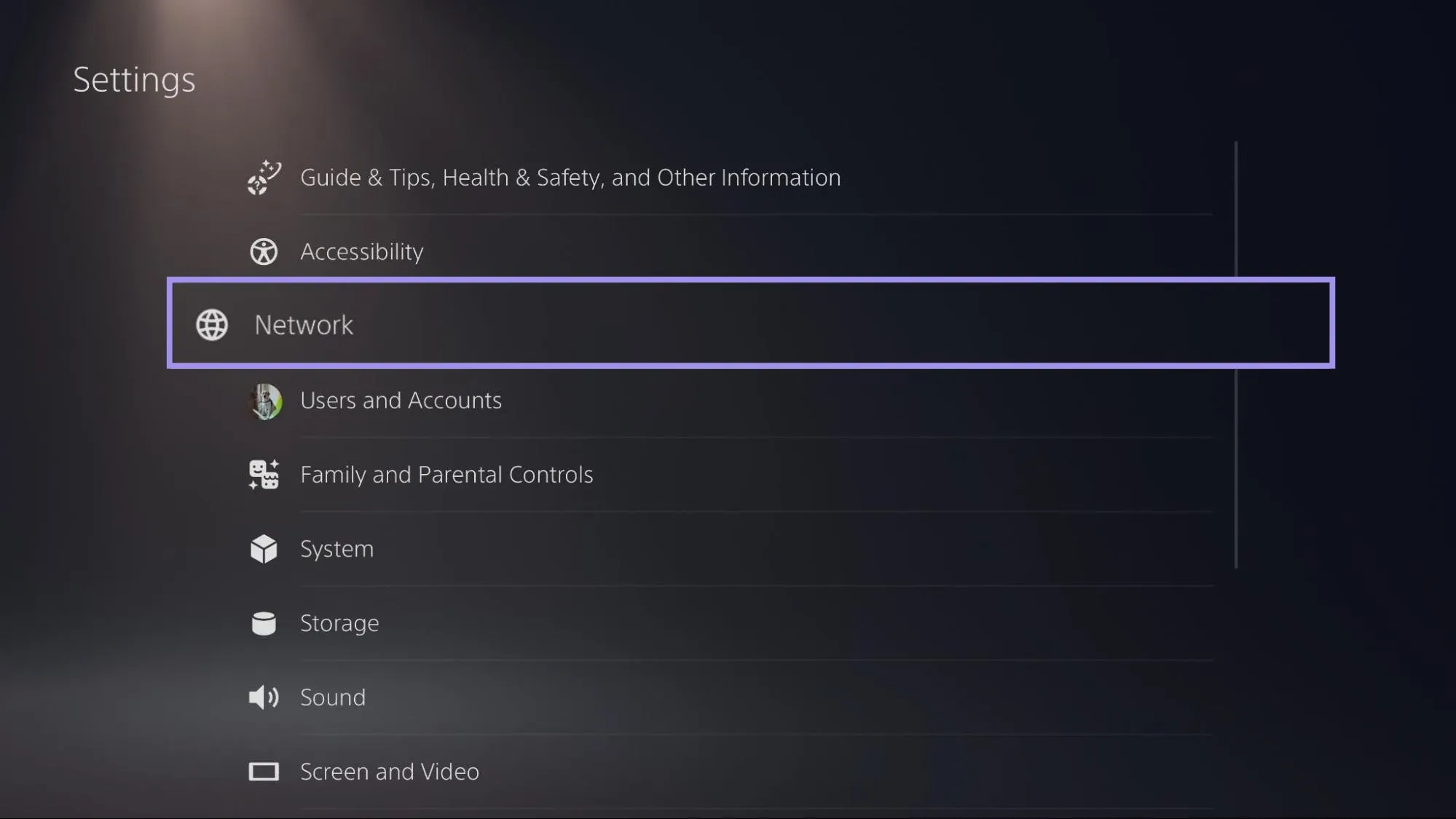
2. In Settings, select Network from the available options.
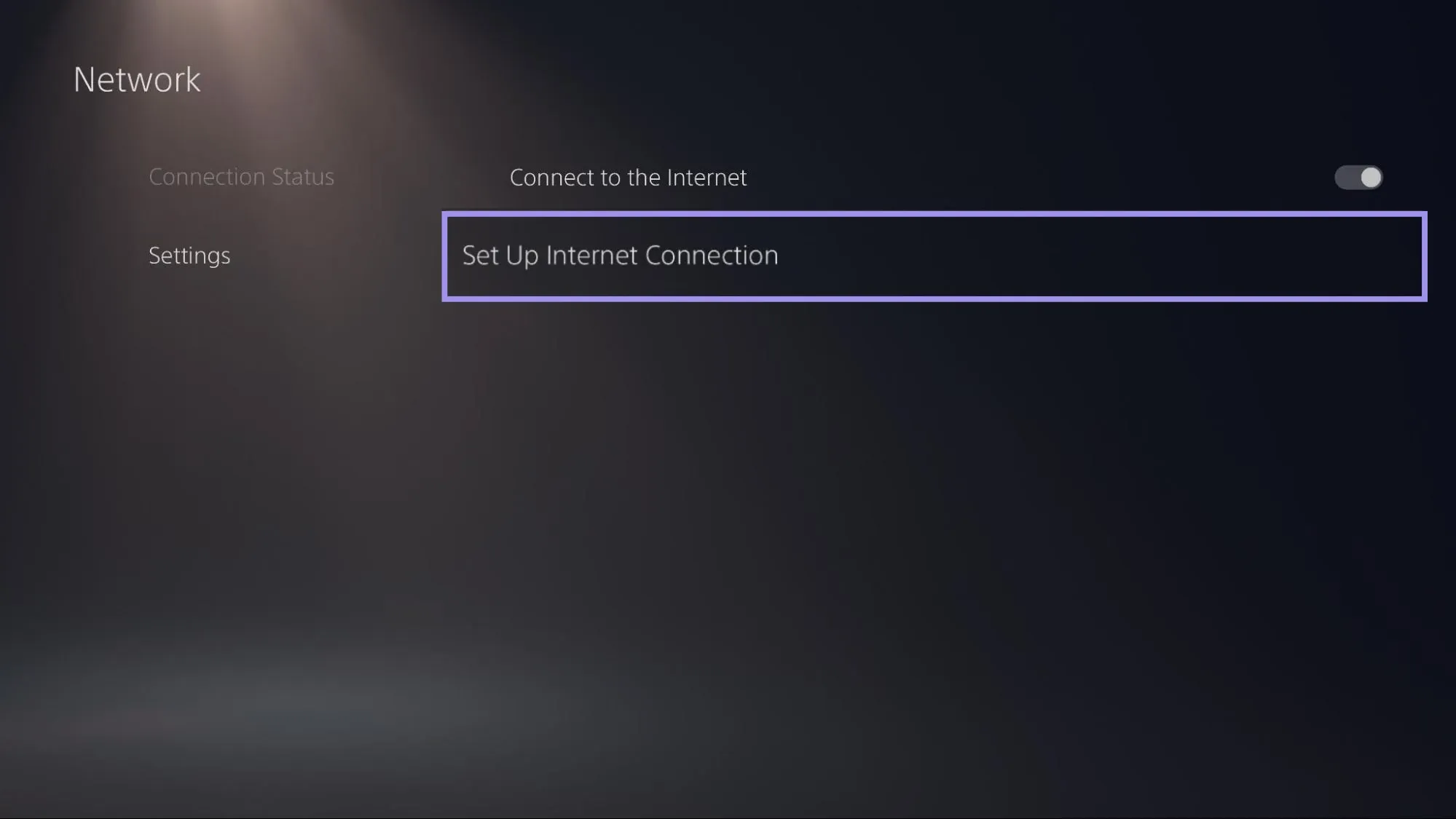
3. In Network options, select Settings, then Set Up Internet Connection.
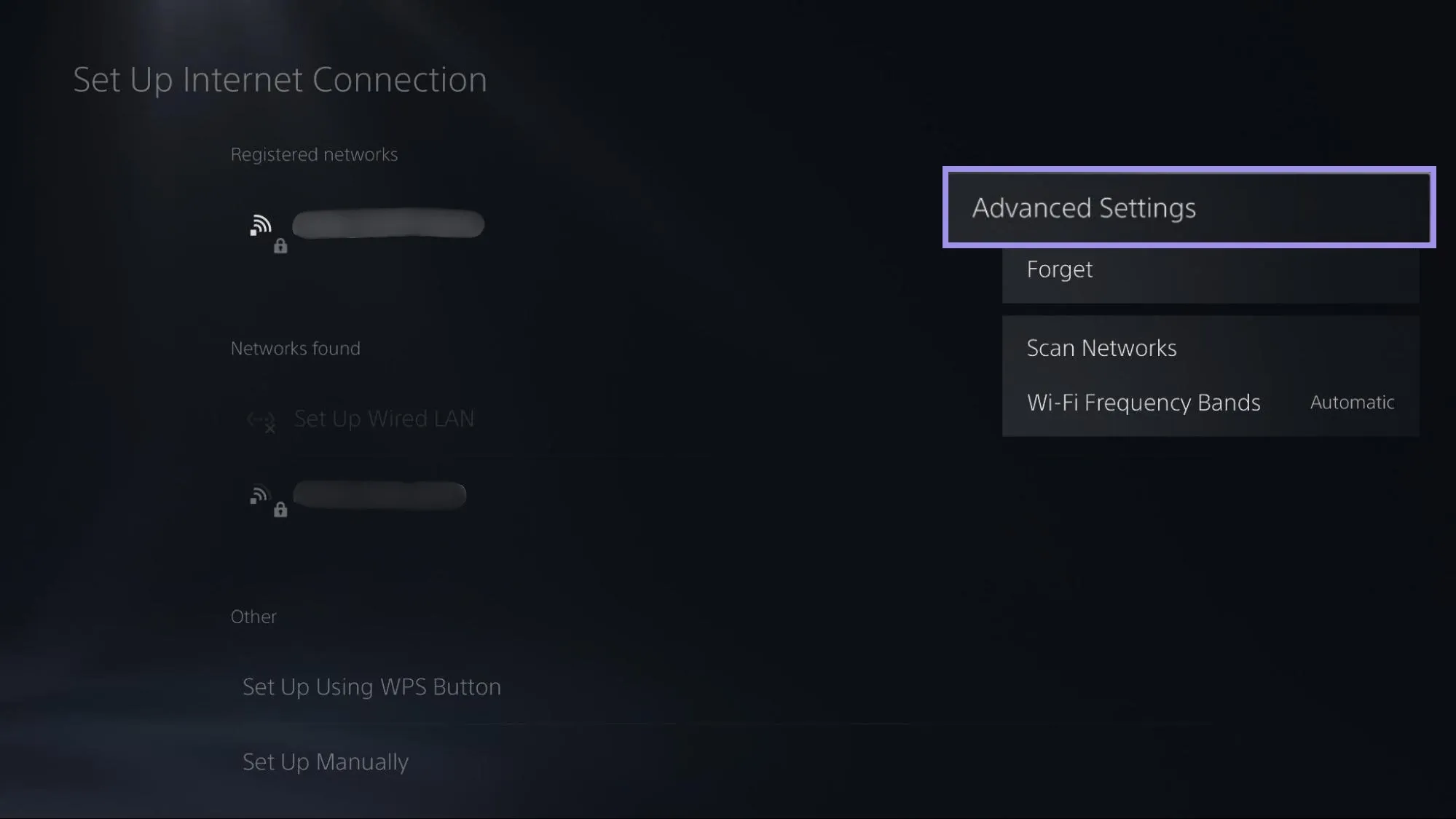
4. Doing so displays the list of available networks. Under Registered Networks, select the network you’re connected to, press the Options button on the controller, and select Advanced Settings.
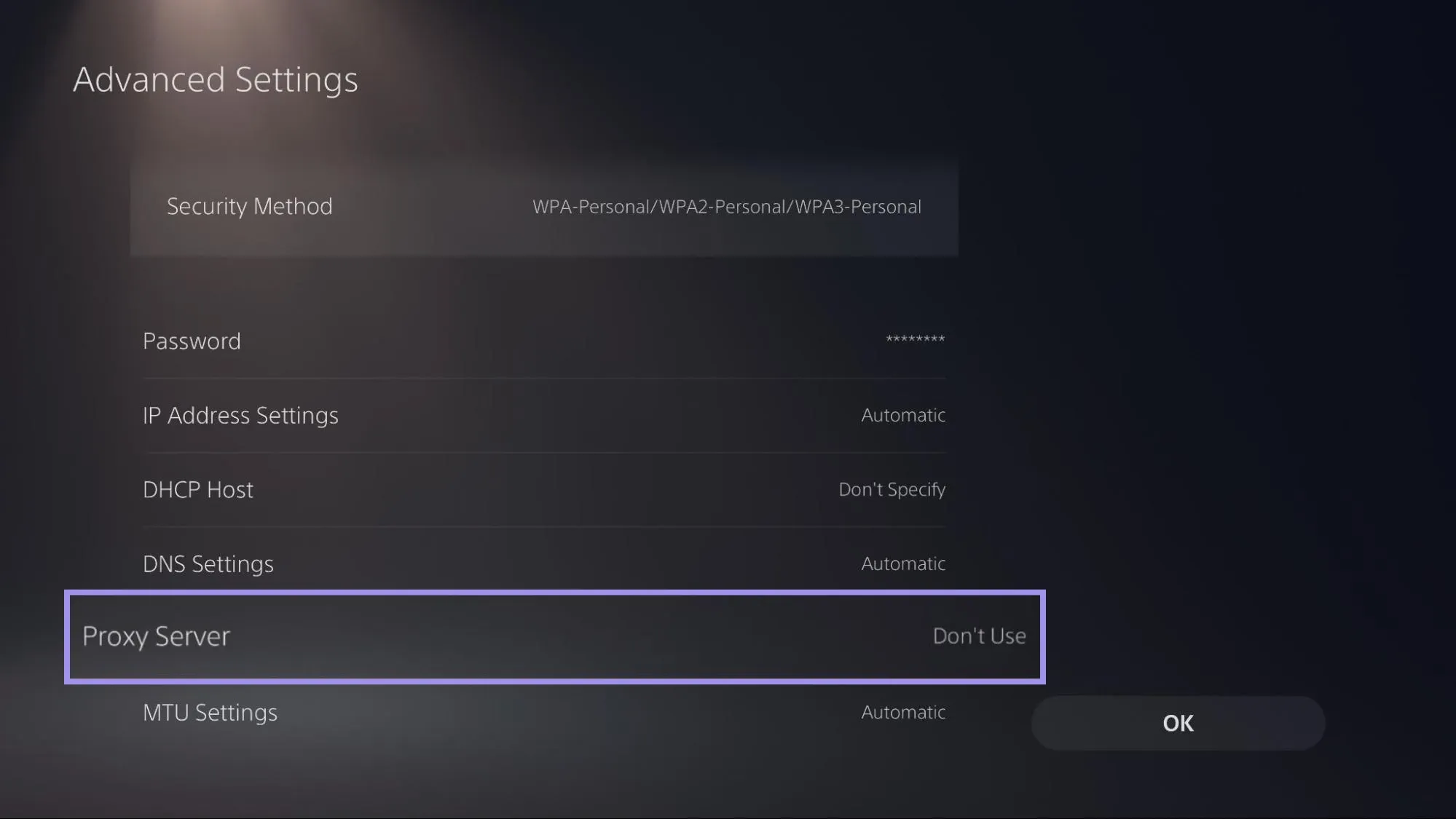
5. Look for the Proxy Server option, which is set to Don’t Use by default. Select it and set it to Use.
Why the PS5 needs IP whitelisting (and how to set it up)
A proxy string holds a username and password for authentication. However, the PS5 advanced network settings don't include these fields. You can enter only the Address and Port number, but that doesn’t complete the proxy string, so the connection fails.
IP whitelisting offers a workaround that grants access to the proxy service based on your IP address rather than requiring login credentials.
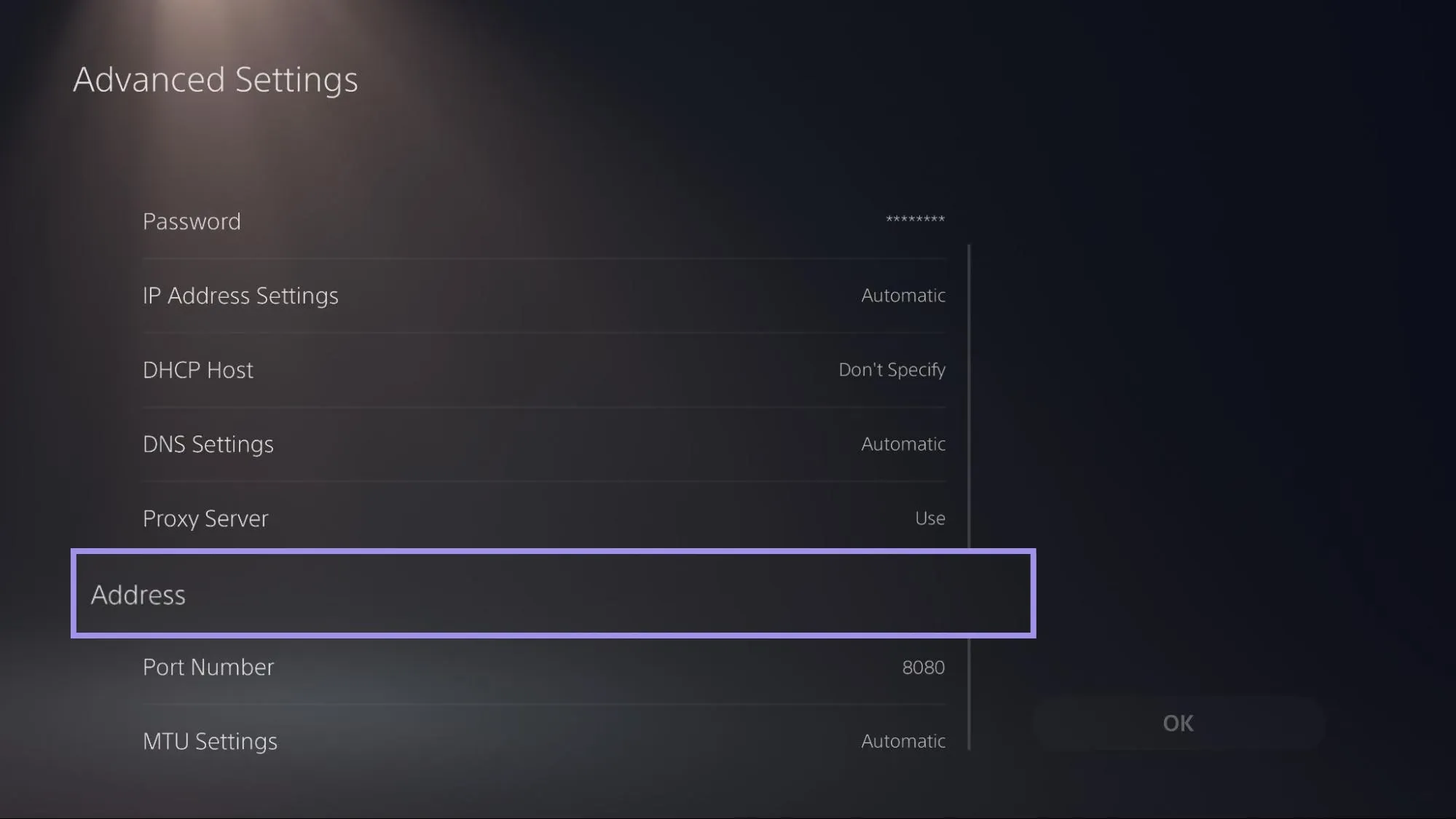
6. At Byteful, we offer a workaround through IP whitelisting. It is supported on our proxy offerings (ISP and Datacenter proxies). To enable it, create a new user in Proxy Users and set the Proxy User ID and Password. Don't forget to enter the public IP address in the Whitelisted IP field.
Note: The PS5's Connection Status screen shows only your local IP (you won’t find the public IP address), which won't work for whitelisting. Entering the local IP address doesn’t enable IP whitelisting. The quickest way to get it right is to visit whatismyip.com on a PC or smartphone connected to the same network as the PlayStation.
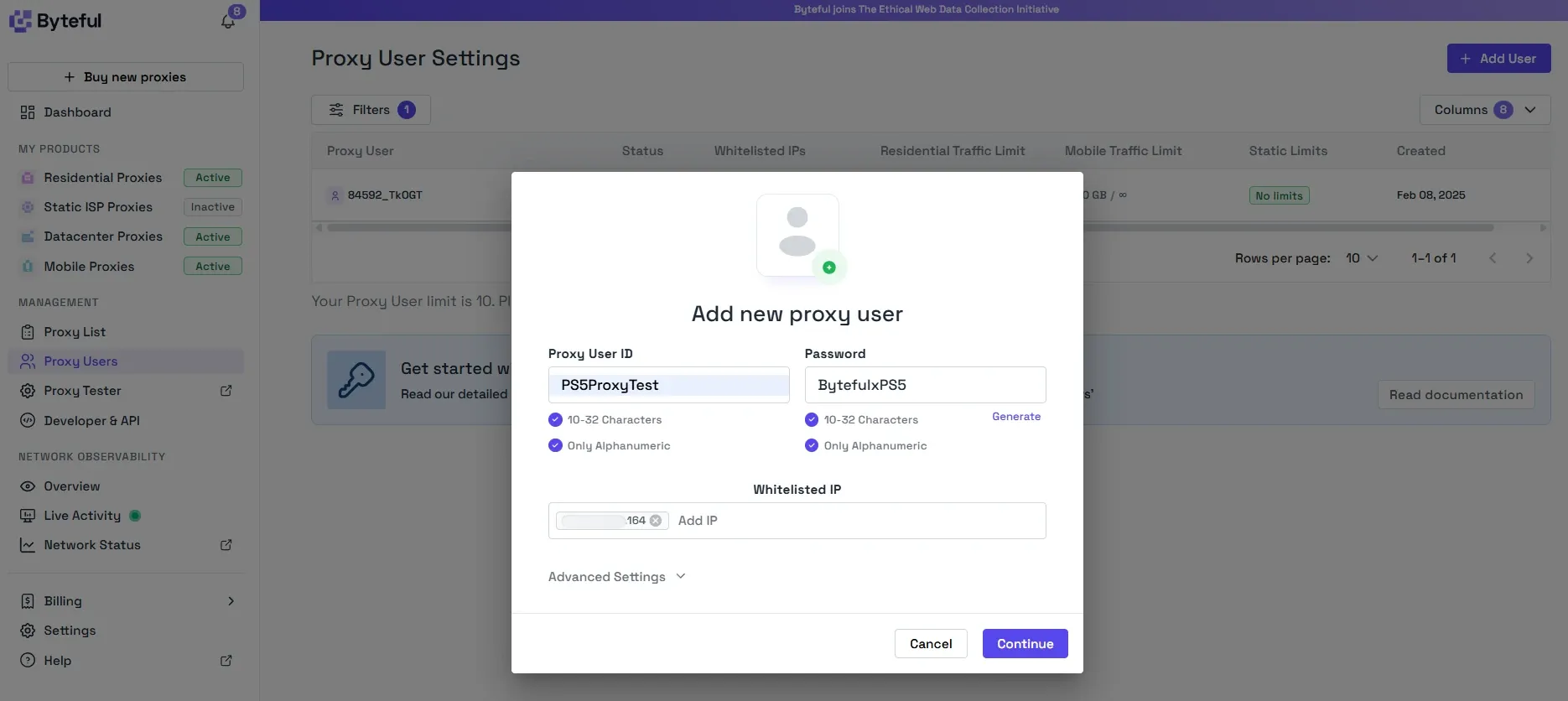
7. Once IP whitelisting is enabled, enter the Address and Port Number, and select OK. For demonstration, we’ve used a datacenter proxy.
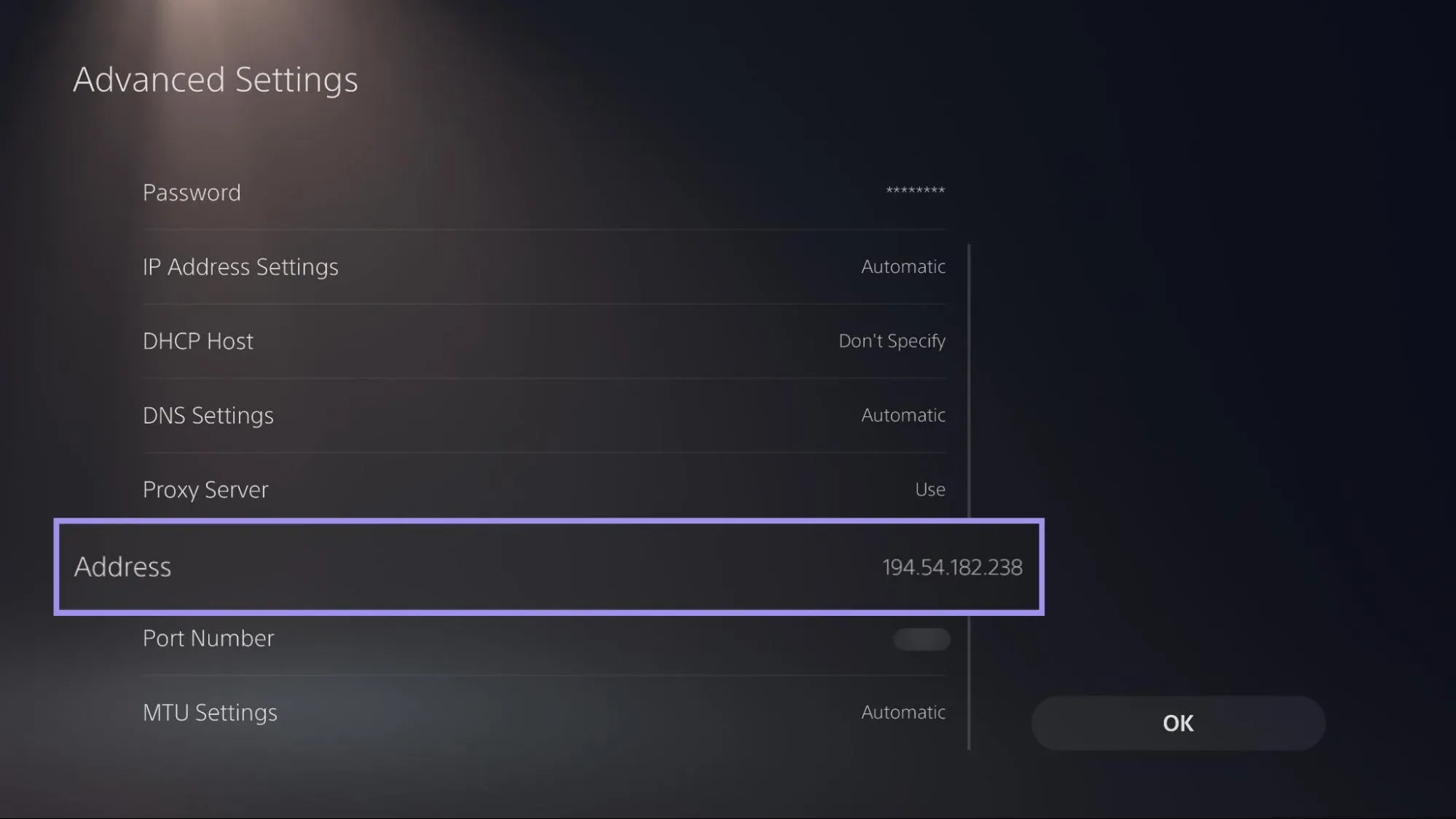
8. Now wait for the PS5 to connect to the internet. If IP whitelisting wasn’t set up properly or you entered the details incorrectly, you’ll see the message “Can’t connect to internet.”
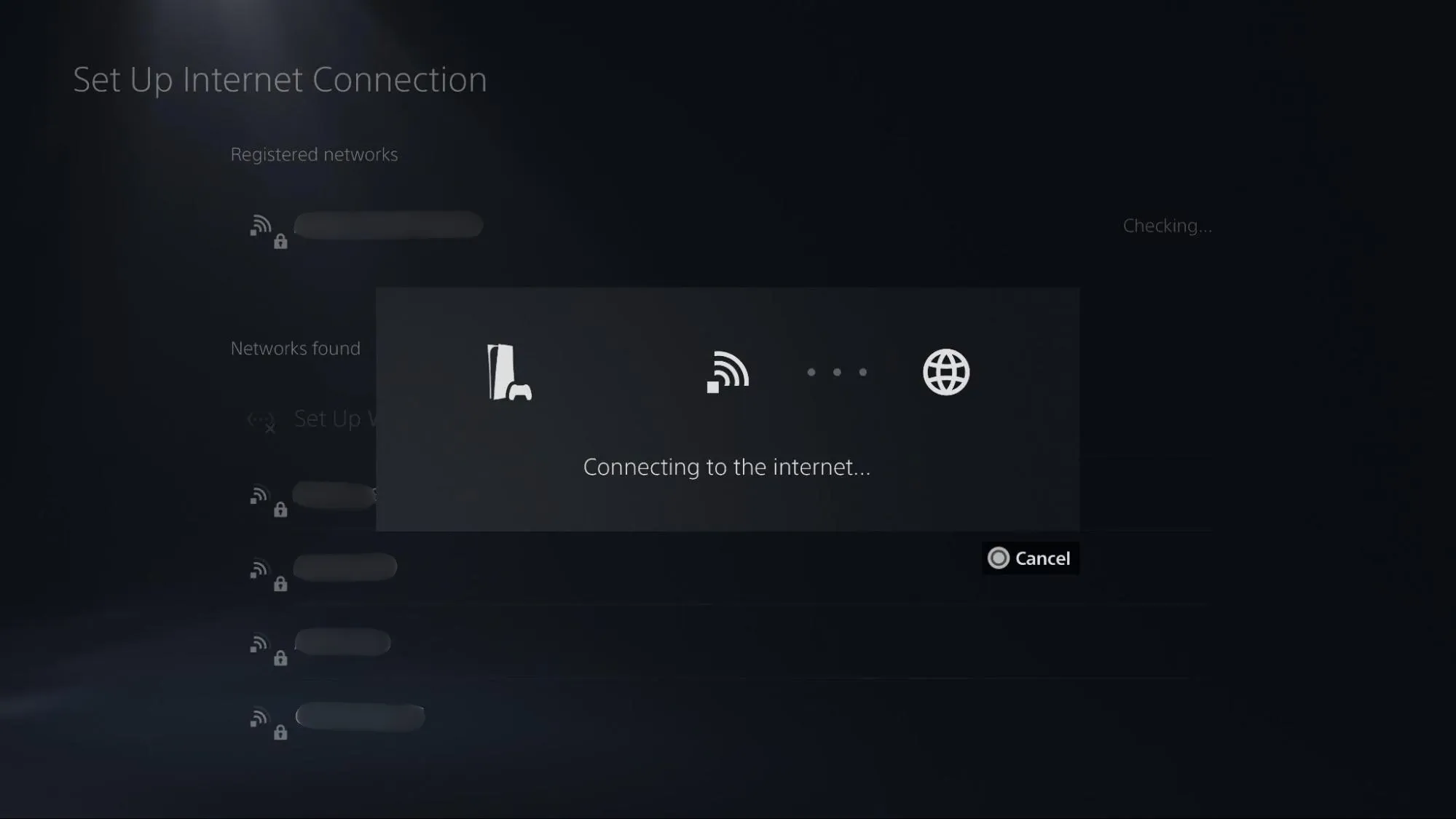
9. A simple public IP check in the browser can validate the proxy setup. Unfortunately, the PS5 lacks a standard browser, which can make this tricky. So we relied on Test Internet Connection (Settings > Network > Connection Status) while connected to the proxy server and tracked requests through Live Activity on our dashboard.
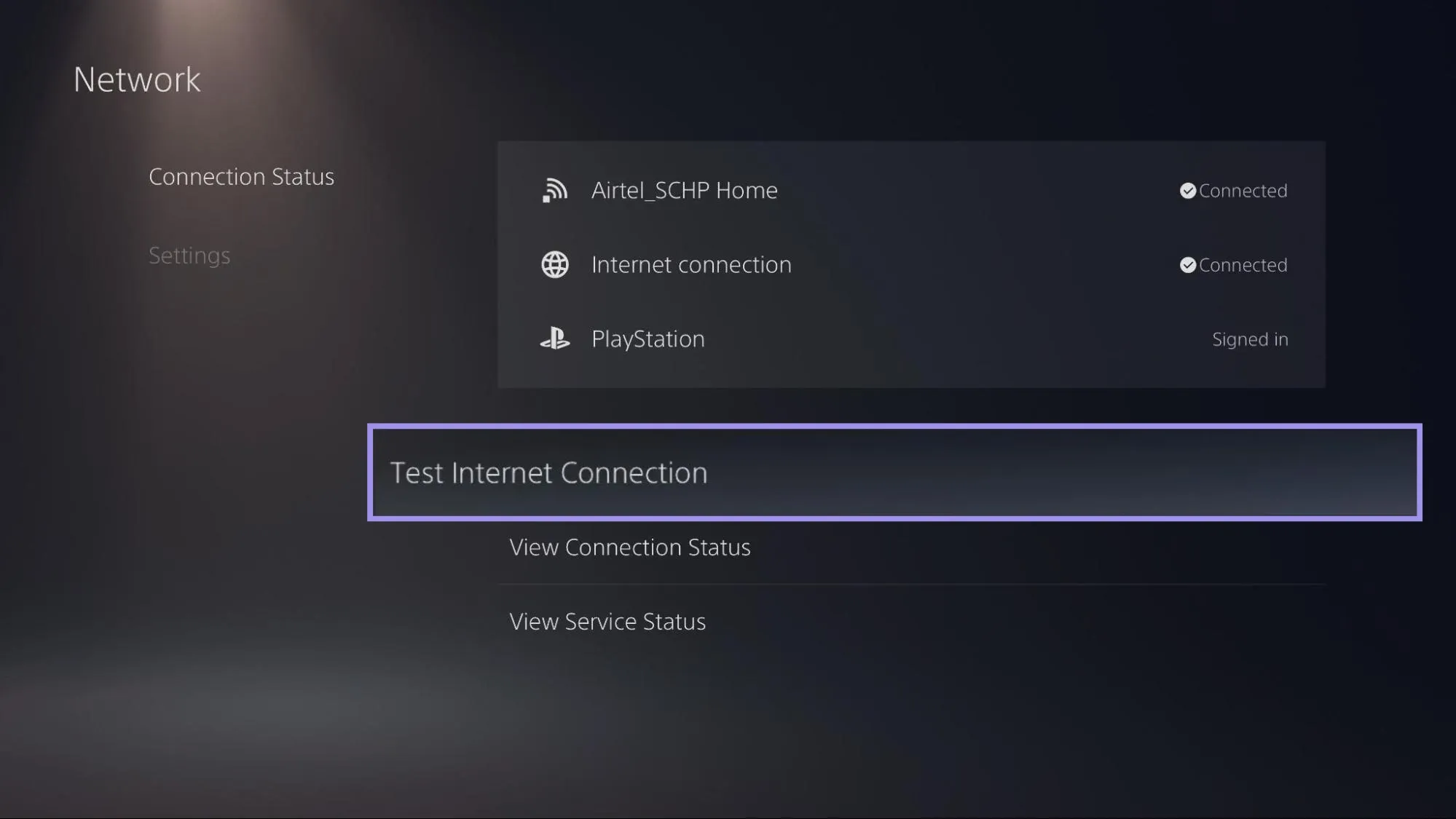
Validating Proxy Setup on PS5
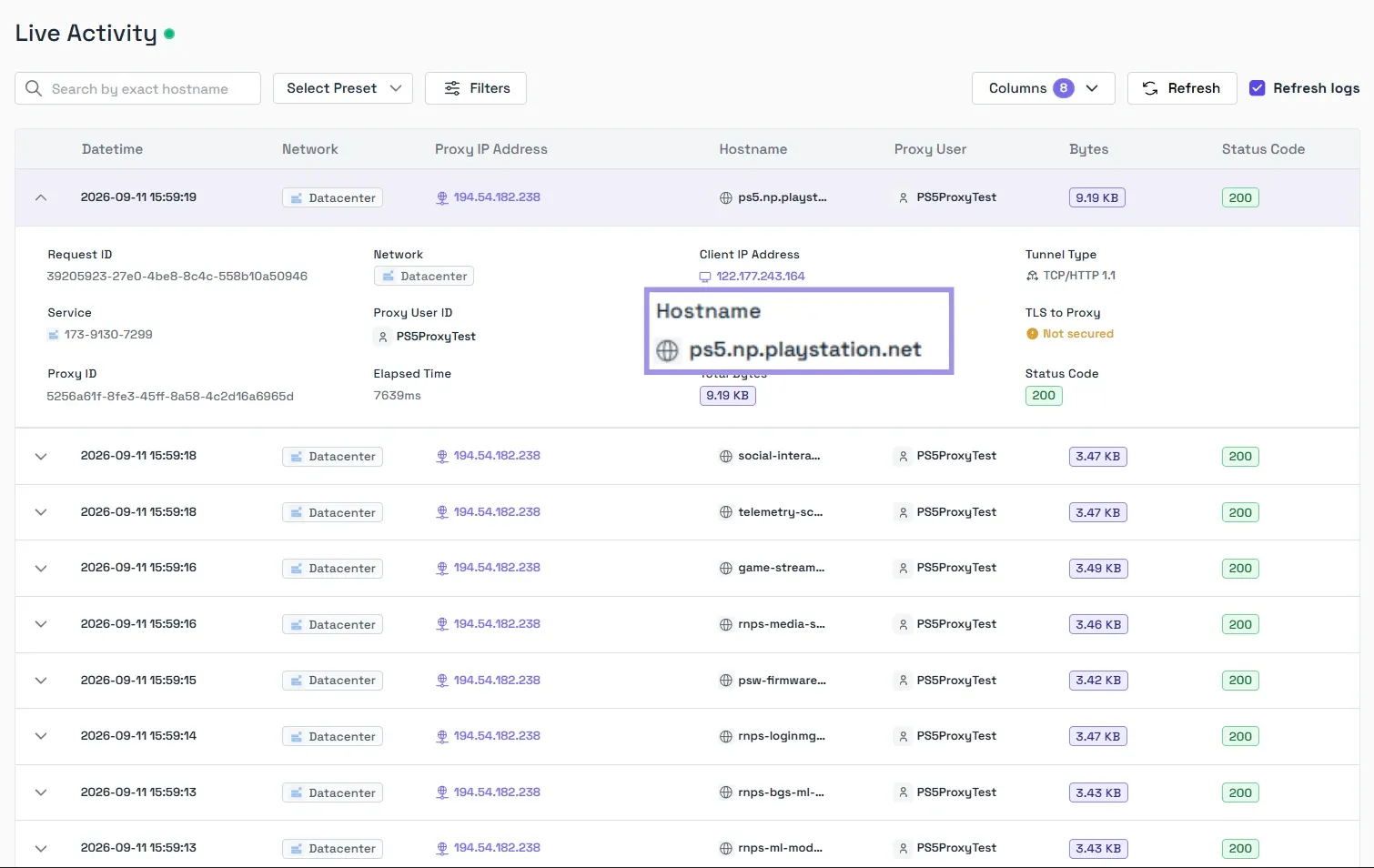
When we ran Test Internet Connection, our proxy's request log lit up with connections to PlayStation domains (ps5.np.playstation.net, social-interaction.rnps.dl.playstation.net, telemetry-schema-app.rnps.dl.playstation.net, game-streaming-preview.rnps.dl.playstation.net) and more. The console reached Sony's servers through the proxy, confirming the setup worked.
PS5 proxy not working? Common problems and fixes
The most common failure is the "Can't connect to internet" message straight after saving your proxy details. It means the Address or Port Number was entered incorrectly, or your public IP isn't on the whitelist yet.
Recheck both values against your provider dashboard, confirm the whitelisted IP matches whatismyip.com on a device on the same network, then run Test Internet Connection again.
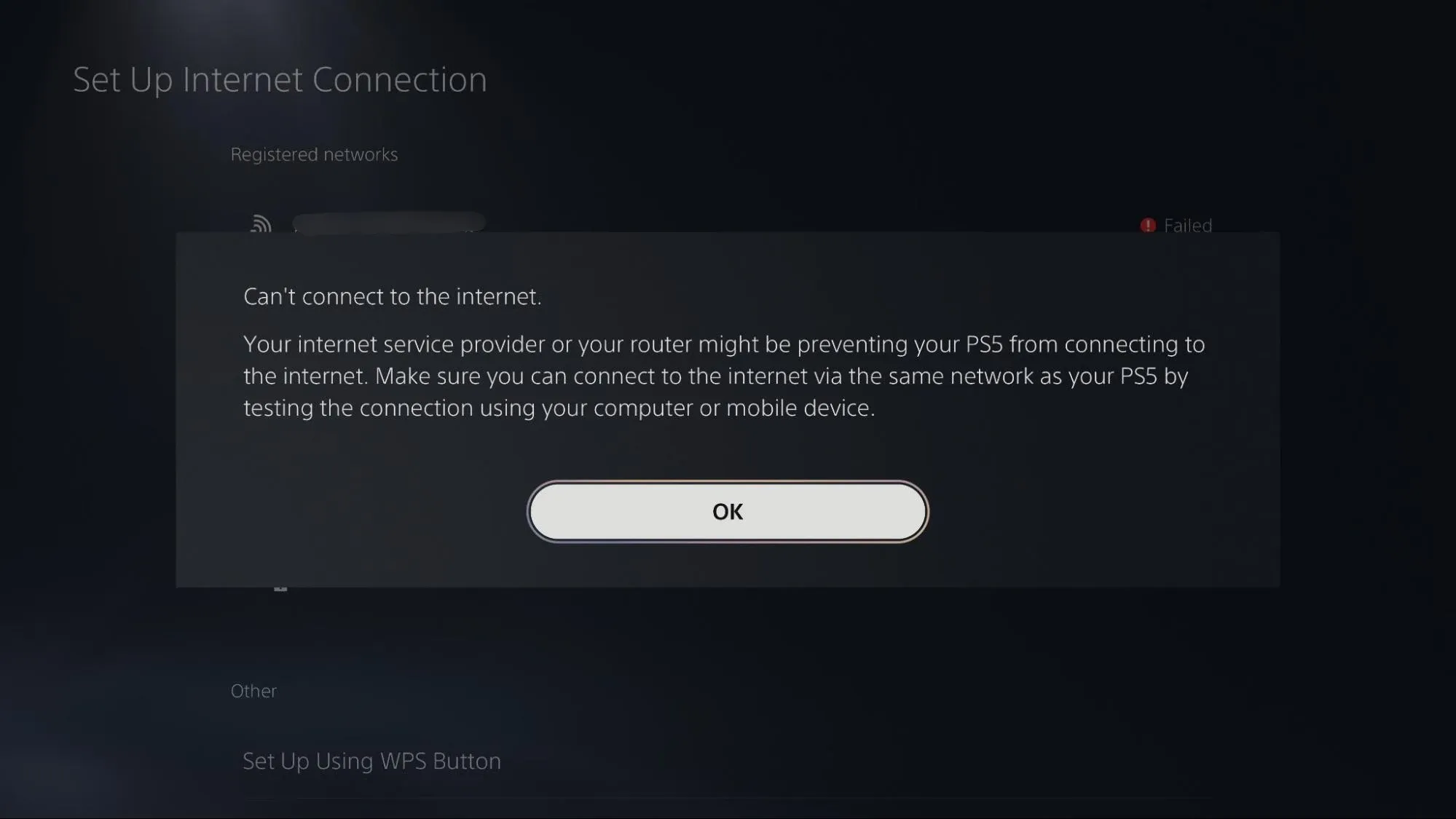
If the connection test passes but something else breaks, these are the other common issues:
- IP changed: Your ISP has rotated your public IP, so the whitelist no longer matches and the proxy rejects the connection. Check your current public IP, update the Whitelisted IP field in the dashboard, and test again. If this keeps happening, ask your ISP about a static IP.
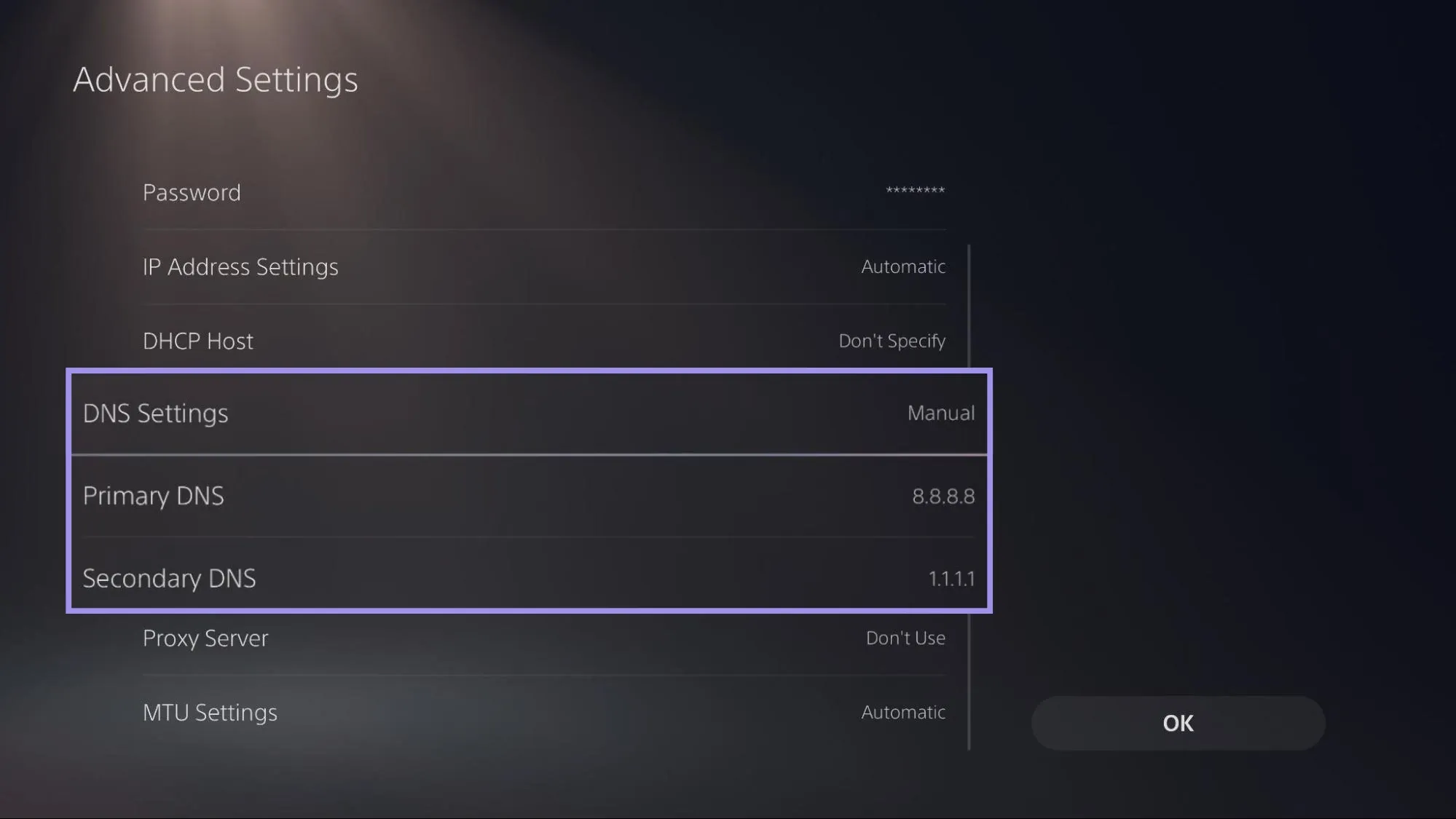
- PSN sign-in: DNS resolution is usually the problem. In Advanced Settings, set DNS to Manual with Primary 8.8.8.8 (Google’s public DNS server) and Secondary 1.1.1.1 (Cloudflare's public DNS server), as they are fast, free, and reliable for PSN. Once done, check connection status, then restart the console.
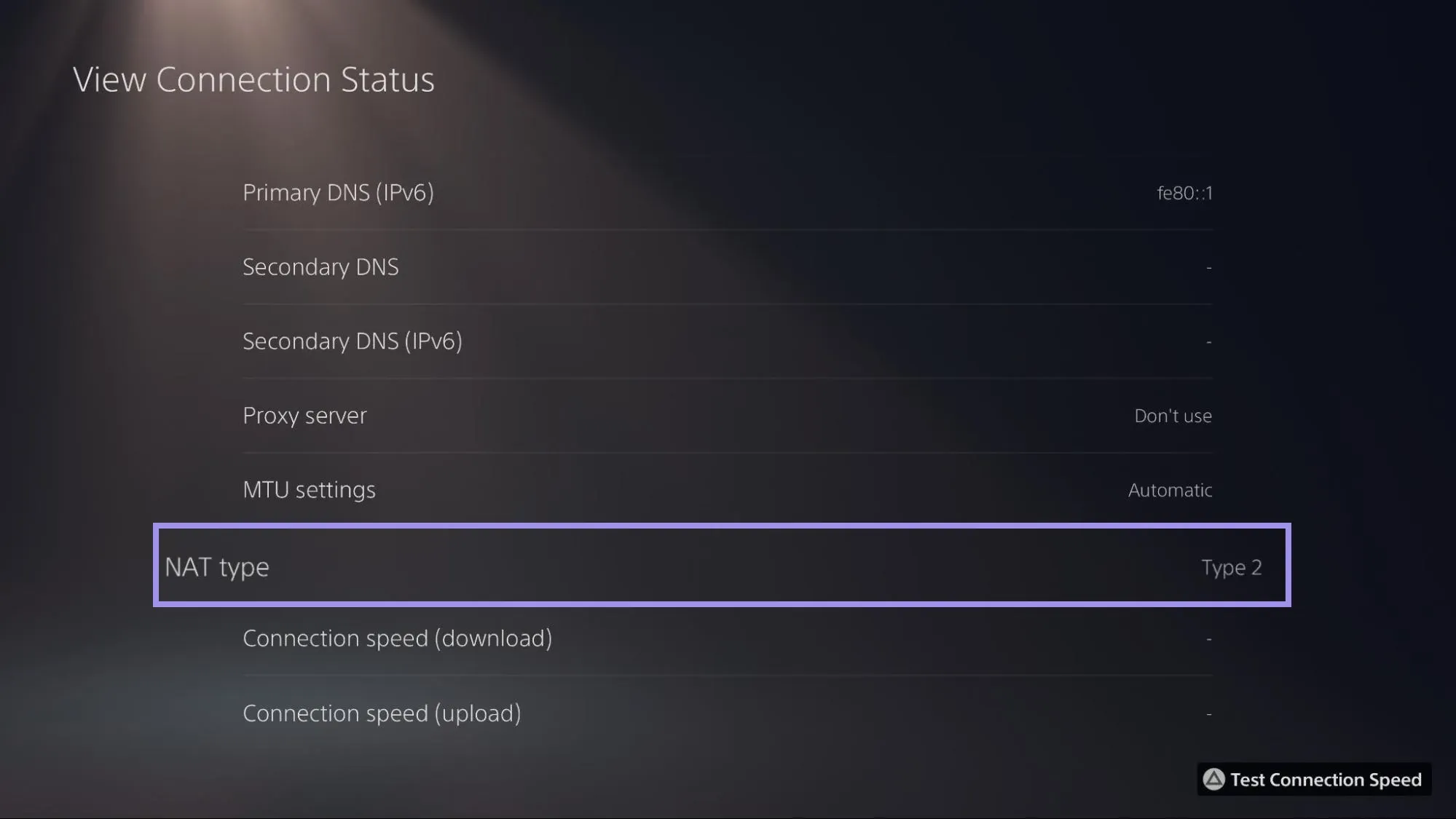
- Strict NAT: If your connection test reports NAT Type 3, first check that UPnP (a router setting that lets the PS5 open the ports it needs automatically) is enabled on your router, since that's the usual cause and unrelated to the proxy. If it's already on, set Proxy Server back to Don't Use, re-test, and if NAT returns to Type 2, the proxy is the cause. Keep it off for online play and re-enable it for store or download sessions.
- Slow speeds: The proxy server is too far from you or is a busy datacenter endpoint. Switch to a server in your own region, or move from a datacenter to an ISP proxy. A proxy adds a hop, so it won't lower gameplay ping.
- Unstable connection: Wi-Fi instability shows up faster once a proxy is in the path. Connect the console with a LAN cable and re-run the connection test.
Which proxy type is best for PS5?
Byteful proxies are gaming-ready, with IP whitelisting on ISP and datacenter plans (the authentication method the PS5 needs) and HTTP support (PS5's native proxy setting). The type you choose decides how the connection performs and how it looks to Sony's servers:
- ISP proxies: The ideal choice for PS5. You get a static IP registered to a real internet provider, so it reads as a home connection to PSN while running on datacenter-grade hardware, and it stays the same for the length of your session. Pick this for steady, long gaming sessions and downloads.
- Datacenter proxies: The cheapest and fastest for large downloads, and what we used for this guide. The trade-off is detection, since game servers and anti-cheat systems recognize datacenter IP ranges and may block or flag them. Fine for store and download sessions, less suited to long online play.
While we also offer residential and mobile proxies, neither is a natural fit for a console. Residential IPs rotate from a shared pool by design, and a PS5 holds a single address in its settings with PSN tied to it, so a changing IP can cause sign-in prompts and dropped sessions. Mobile proxies are built for apps that expect a carrier IP, and a PS5 gains nothing from one. Hence, for PS5, an ISP or datacenter proxy is the sensible choice.