

PowerShell is a practical choice for small scraping jobs, especially when you already use it for Windows automation. You can fetch, parse, and export web data in one script, making it useful for scheduled reports and monitoring.
In this guide, you will download 250 country listings and export them to a CSV file. You will also learn how to troubleshoot common problems and add a Byteful authenticated proxy when needed.
Before you scrape a website with PowerShell
Use PowerShell to handle smaller scraping jobs, automation of reports that can be scheduled, monitoring of public pages, and projects that are automated with PowerShell. If you need to handle larger crawling jobs or browser automation jobs, consider choosing different tools.
If you prefer Python, the equivalent workflow pairs the Requests library (fetching) with BeautifulSoup (parsing). The same download-then-parse split described below.
The actions of "download" and "parse" are distinct in PowerShell:
- Invoke-WebRequest downloads the response and gives you its status, headers, and content.
- PSParseHTML turns the HTML into a document object model (DOM), a searchable representation of the page.
- When an official API is available, Invoke-RestMethod turns JSON and XML responses into PowerShell objects.
Windows PowerShell 5.1 also exposed an Internet Explorer-based ParsedHtml property, but PowerShell 7 no longer includes that feature.
| Target | Recommended approach | Why |
|---|---|---|
| Static HTML | Invoke-WebRequest + PSParseHTML | The required data is present in the initial response |
| JSON or XML API | Invoke-RestMethod | PowerShell turns supported responses into objects automatically |
| JavaScript-rendered page | Official API, maintained browser automation, or managed rendering service | Invoke-WebRequest doesn't run page JavaScript |
Before making any requests, check to see if there is an official API, export, or downloadable dataset. Read the site's terms, access limitations, and robots.txt.
The Robots Exclusion Protocol provides rules that crawlers should honor, but does not provide permission to access a site. A page being publicly visible does not automatically mean that you can collect its contents freely.
How to scrape a website with PowerShell
This example uses Scrape This Site's Countries of the World page.
It's a static practice page with all 250 items in one response, so we can focus on the main steps instead of browser automation.
Step 1: Install PowerShell 7 and PSParseHTML
Use PowerShell 7.6.x. To check the currently installed version of PowerShell, run the following command:
$PSVersionTable.PSVersionThe output starts with 7.6. Install and import PSParseHTML with the following commands:
Install-PSResource -Name PSParseHTML
Import-Module PSParseHTML
Install-PSResource installs PowerShell modules and scripts. The PSParseHTML module provides ConvertFrom-Html and supports two parsing engines:
- HtmlAgilityPack (default)
- AngleSharp.
This guide selects AngleSharp with -Engine AngleSharp, which provides the DOM methods QuerySelector() and QuerySelectorAll().
Step 2: Analyze the target page and select CSS selectors
To see an example of a CSS selector, open up the country page in your browser, right-click on any country as shown on the page, and select Inspect.
Open the Elements panel and locate the .country container for each record. The child fields of each record are .country-name, .country-capital, .country-population, and .country-area, respectively.
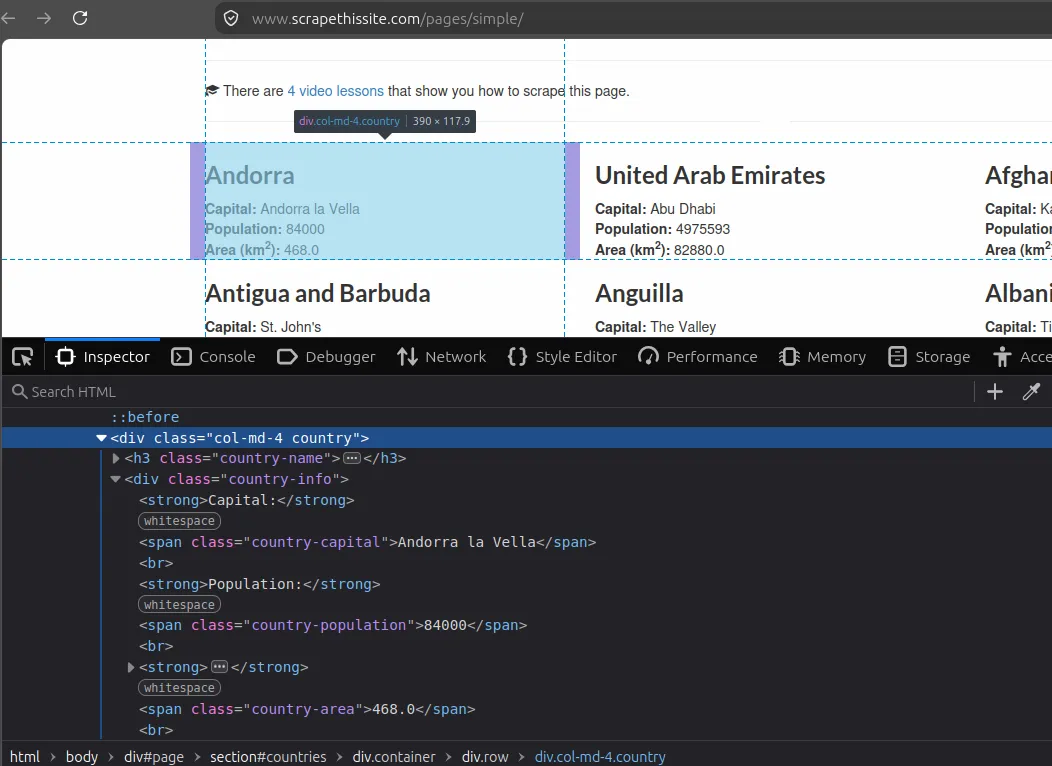
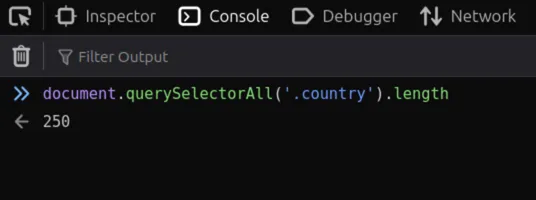
Test the repeating container by opening the DevTools console and entering the following:
document.querySelectorAll('.country').lengthThe expected output is 250.
Selectors should be based on the HTML you inspected and not based on guesses. Prefer using short and descriptive selectors within each country block. Long selectors based on a tag's exact position tend to break when the layout changes.
Step 3: Fetch the page with Invoke-WebRequest
To fetch the page, set a timeout, and call Invoke-WebRequest as follows:
$url = 'https://www.scrapethissite.com/pages/simple/'

$response = Invoke-WebRequest `
-Uri $url `
-ConnectionTimeoutSeconds 15 `
-OperationTimeoutSeconds 30 `
-ErrorAction Stop

$response.StatusCode
The expected status is 200. You are also expecting some HTML in $response.Content. To inspect the response metadata, for example, the Content-Type or caching headers, look at $response.Headers.
This command sets two separate timeouts:
- ConnectionTimeoutSeconds (15) limits how long the request can wait between being sent and receiving response headers.
- OperationTimeoutSeconds (30) limits how long the command waits between successive data reads while downloading the body. It catches stalled connections rather than capping total download time.
The practice page has no need for a custom user agent. If your team will run this scraper on a regular basis, use a consistent user agent that identifies it instead of copying a browser fingerprint.
Step 4: Parse the HTML with PSParseHTML and AngleSharp
Pass the fetched HTML from $response.Content into ConvertFrom-Html, select the AngleSharp engine, and then select every country container:
$document = ConvertFrom-Html `
-Content $response.Content `
-Engine AngleSharp

$countryNodes = $document.QuerySelectorAll('.country')
$countryNodes.Length
Keeping the fetch and parse steps separate makes problems easier to isolate. QuerySelector() returns the first match or $null, while QuerySelectorAll() returns all matches. The expected output is 250. If it is zero, inspect $response.Content and retest the selector before changing unrelated code.
Step 5: Extract the country data into PowerShell objects
The following transforms each container into an object with stable property names.
$countries = $countryNodes | ForEach-Object {
[PSCustomObject]@{
Country = $_.QuerySelector('.country-name').TextContent.Trim()
Capital = $_.QuerySelector('.country-capital').TextContent.Trim()
Population = $_.QuerySelector('.country-population').TextContent.Trim()
AreaKm2 = $_.QuerySelector('.country-area').TextContent.Trim()
}
}
Each query is a child of the current node .country, and as such, keeps the values of each country within the same record. The value .TextContent represents the text of the element, whereas the value .Trim() removes leading and trailing whitespace as well as any carriage returns. The command PSCustomObject gives each record the same properties for further processing and export.
The tutorial retains the population and area as strings. Convert to a number if you plan to do calculations and ensure the value is a number (and not a string). Also ensure that an optional selector did not return $null before accessing .TextContent.
Step 6: Preview and export the results to CSV
Inspect a few objects before writing the file:
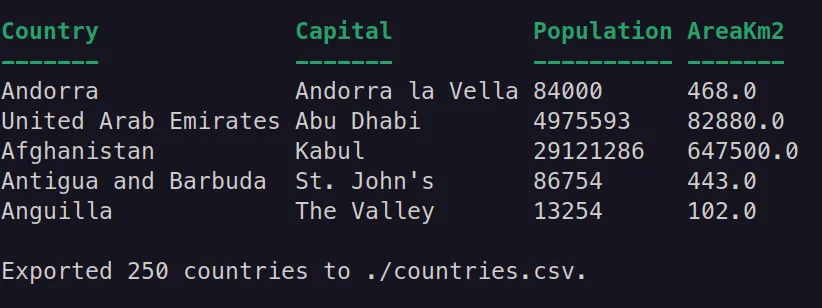
$countries | Select-Object -First 5 | Format-Table -AutoSize
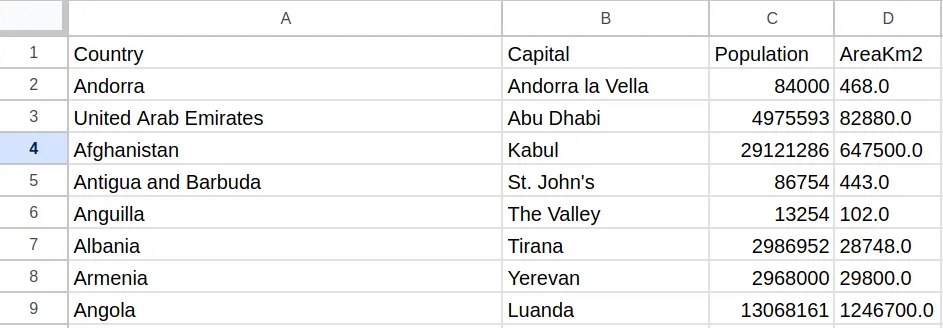
$countries | Export-Csv -Path './countries.csv' -Encoding utf8
The first line of the file should read Andorra, Andorra la Vella, 84000, and 468.0. The resulting UTF-8 file contains one header line and 250 data lines.
Since PowerShell 6, Export-Csv now omits type information automatically. CSV is a convenient and flexible format.
However, for more complex and/or repeated data, consider using JSON or a database.
Step 7: Put the complete PowerShell scraper together
Keep the installation command outside the script. Save the following as scrape-countries.ps1 so the import, request, checks, parsing, extraction, preview, and export run together:
Import-Module PSParseHTML

$url = 'https://www.scrapethissite.com/pages/simple/'
$outputPath = './countries.csv'

try {
$response = Invoke-WebRequest `
-Uri $url `
-ConnectionTimeoutSeconds 15 `
-OperationTimeoutSeconds 30 `
-ErrorAction Stop

if ($response.StatusCode -ne 200) {
throw "Unexpected HTTP status $($response.StatusCode)."
}

if ([string]::IsNullOrWhiteSpace($response.Content)) {
throw 'The response body was empty.'
}

$document = ConvertFrom-Html `
-Content $response.Content `
-Engine AngleSharp

$countryNodes = $document.QuerySelectorAll('.country')

if ($countryNodes.Length -eq 0) {
throw "Selector '.country' returned no results."
}

$countries = $countryNodes | ForEach-Object {
[PSCustomObject]@{
Country = $_.QuerySelector('.country-name').TextContent.Trim()
Capital = $_.QuerySelector('.country-capital').TextContent.Trim()
Population = $_.QuerySelector('.country-population').TextContent.Trim()
AreaKm2 = $_.QuerySelector('.country-area').TextContent.Trim()
}
}

$countries | Select-Object -First 5 | Format-Table -AutoSize
$countries | Export-Csv -Path $outputPath -Encoding utf8
Write-Host "Exported $($countries.Count) countries to $outputPath."
}
catch {
Write-Error "Failed to scrape ${url}: $($_.Exception.Message)"
exit 1
}
Run it from its directory with ./scrape-countries.ps1.
A successful run ends with Exported 250 countries to ./countries.csv. The count check prevents a changed page from silently producing an empty file.
How PowerShell web scraping uses proxies
This practice page doesn't use a proxy. A trusted proxy service in an approved production project would allow a user to make requests to public web pages, scrape content from a chosen location, maintain the same IP across multiple related requests, and route traffic through a connection that the user controls.
Choose the type from the list below based on the circumstance:
- Datacenter proxies are fast and affordable, making them suitable for many public pages. However, protected sites can identify and block their IP ranges more easily.
- Residential proxies use IPs from real consumer connections. They offer broad location coverage and are less likely to be blocked.
- Static ISP proxies combine datacenter hosting with IPs registered to consumer ISPs. They provide a stable IP for longer sessions.
Pro tip: Rotation controls how proxy IPs are assigned. Rotating sessions change the IP between requests or at set intervals, while sticky sessions keep the same IP for related requests such as pagination or authenticated workflows.
Add a trusted proxy to Invoke-WebRequest
Only the request code will change. Create a Proxy User on the Byteful dashboard (Get 1GB residential data free), then use Get-Credential to enter the proxy password:
$proxyUri = 'http://residential.byteful.com:8000'
$proxyCredential = Get-Credential -UserName "<proxy-user-id>"
$response = Invoke-WebRequest -Uri $url -Proxy $proxyUri -ProxyCredential $proxyCredential -ConnectionTimeoutSeconds 15 -OperationTimeoutSeconds 30 -ErrorAction Stop
-ProxyCredential needs a PSCredential, so the password won't show up in the template. This keeps the endpoint and the proxy credentials separate. Importantly, never include username:password in a saved proxy URL. Byteful supports authentication with all proxy types. However, in case of an issue with authentication in your script, you can still use IP whitelisting to use proxies.
PowerShell scraping problems
Identifying if the request, proxy, or selector failed is the first step to troubleshooting. During development, save the first unexpected response body. This prevents developers from wasting time changing selectors when they are parsing an error page.
| Symptom | Likely cause | Recommended response |
|---|---|---|
| Selector returns $null or zero nodes | Selector is incorrect, markup has changed, or an error page was returned | Inspect $response.Content and verify status. Rest selector in DevTools. |
| Browser shows data, but the response doesn't | Page renders data with JavaScript | Find an official API or use a maintained browser automation tool |
| HTTP 403 | Access is denied, or the request violates an access condition | Stop and review permission and site rules. Do not blindly rotate IPs |
| HTTP 407 | The proxy rejected authentication | Check the proxy URI, Proxy User credentials, and -ProxyCredential |
| HTTP 429 | The request rate is too high | Honor Retry-After. Send fewer requests at once and less often. Cache results and retry only within the permitted workflow. |
| Connection or operation timeout | DNS, network, proxy, or target response is slow | Set timeouts, log the URL, and retry temporary failures with a limited, increasing delay |
Retry temporary network, timeout, or server errors. Additionally, set a limit to both the number of retries and the maximum delay between retries. Do not retry permanent 403 or 404 responses. For Byteful requests, a 407 response indicates invalid proxy credentials. The response also includes a request ID you can use to investigate the failure.
Use try and catch blocks and proper error messages instead of utilizing -ErrorAction SilentlyContinue to hide failures. Avoid overlooking certificate checks by concealing TLS errors. Resolve certificate, hostname, proxy, or trusted certificate settings-related issues.
Ethical web scraping best practices
Use this checklist before you develop your project fully and move on to your target:
- If an official API, dataset, export, or feed means you don't have to write a scraper, use that instead.
- Review the site's terms, robots.txt, access control, and applicable laws. Obtain permission scraping activities that are extensive.
- Gather only publicly available fields necessary for the purpose. Avoid gathering information that is private and/or sensitive.
- Limit your request rate, and limit the number of concurrent requests. Cache pages that don't change, instead of downloading pages yet again.
- If your team is running a scraper on a regular basis, identify the scraper and provide contact information.
- Honor the header Retry-After, and wait the designated amount of time after a 429 (Too Many Requests) response before sending the next request.
- If you encounter authentication, CAPTCHAs, access controls, or an explicitly stated denial of your activity, stop and do not attempt to design around them.
- Keep proxy credentials out of logs, screenshots, and error reports.
- In your logs, capture the request time, target URL, status, and the number of results. This helps show failures and unexpected high volume.
Byteful's Acceptable Usage Policy forbids the collection of non-public data or sensitive data through our services. Proxies only change how your traffic is routed, they do not grant any rights you do not already have.
