
How to Scrape Websites With Pydoll Using Python


TL;DR
Pydoll is an open-source Python library that automates Chrome and Edge directly over the Chrome DevTools Protocol, with no WebDriver to install or maintain. This tutorial uses Pydoll 3.0.1 on the TestingURL.dev practice site to scrape pages that load their content through JavaScript, where a plain HTTP request returns the page but misses the data, waiting for elements to appear instead of relying on fixed delays. Requests can route through a Byteful residential proxy with one launch argument, and every script exports its results to CSV or JSON and reads the file back to verify it. By the end, you have working scrapers for a single page, six pages of numbered pagination, and an infinite scroll feed.
Standard Python HTTP requests can return a page successfully and still miss the data you're trying to scrape. This often happens with websites that load content through JavaScript after the initial HTML arrives. Pydoll addresses this by controlling a Chromium-based browser directly through the Chrome DevTools Protocol (CDP), allowing your script to interact with the rendered page and wait for the elements it needs.
In this guide, we will show you how to set up Pydoll, how to extract data from a website that is rendered with JavaScript, and how to export the results. We'll also cover how to set up a proxy. Learn how to scrape JavaScript-rendered websites with Pydoll and Python. Extract data, export CSV or JSON, configure proxies, and handle pagination and infinite scrolling.
What Is Pydoll and How Does It Work?
Pydoll is an open-source Python library for automating Chrome and other Chromium-based browsers, including Microsoft Edge. It uses the Chrome DevTools Protocol (CDP) communications interface, as do Chrome's developer tools. This eliminates the necessity of installing and maintaining a separate WebDriver executable.
When connected, Pydoll can navigate websites, click buttons, fill out forms, and extract content once the JavaScript has finished rendering. It also has built-in element waiting, which means that your script can wait for elements to appear rather than waiting for a set amount of time, which can be either too long or too short.
Pydoll can be used for both synchronous and asynchronous Python code. It has an asynchronous API, which allows multiple browser tabs to be managed at the same time, and this is helpful for a workflow of multiple pages. It also facilitates configuration of proxies and isolation of browsing contexts (cookies and session data for each context).
As opposed to Requests, which fetches HTTP responses without running JavaScript, Pydoll runs inside a real browser. Selenium also offers browser automation, but traditionally uses WebDriver, whereas Playwright has its own driver-based architecture. CDP is the mechanism used to communicate directly with the browser by Pydoll.
How to Scrape a Website With Pydoll Using Python
In this tutorial, we're going to be using a site created for practicing web scraping specifically: testingurl.dev. We'll write a Python script to scrape data from pages that render JavaScript and store the data in a CSV or JSON file. We’ll then expand the script to support pagination and infinite scrolling and test as we go. When you scrape other websites, follow their terms of service and applicable laws.
Step 1: Set Up Your Python Environment and Install Pydoll
You’ll need to install Google Chrome or Microsoft Edge, and Python 3.10 or higher on your computer before you can begin. Unlike other tools, Pydoll doesn’t require downloading a separate WebDriver; it directly communicates with the browser. The examples use Pydoll's Chrome class. If you're using Microsoft Edge, import Edge from pydoll and replace Chrome(options=options) with Edge(options=options).
PyCharm is used throughout this tutorial, but you can repeat the steps below in VS Code or any terminal you prefer.
Open PyCharm and create a new project called “scrape-with-pydoll”. PyCharm will usually automatically create a virtual environment for the new project, which keeps its dependencies separate. If you're using a regular terminal, create the project folder and virtual environment manually. The commands differ slightly by system, because many macOS and Linux installations provide only python3 outside a virtual environment. Use the set for your system to create and activate the environment:
Windows (PowerShell):
mkdir scrape-with-pydoll
cd scrape-with-pydoll
python -m venv .venv
.venv\Scripts\Activate.ps1
macOS/Linux:
mkdir scrape-with-pydoll
cd scrape-with-pydoll
python3 -m venv .venv
source .venv/bin/activate
Next, confirm that the environment uses Python 3.10 or newer by running:
python --versionIf the version is older than 3.10, install a newer release from python.org, delete the .venv folder, and create the environment again. Once the version is correct, install Pydoll with pip:
python -m pip install pydoll-pythonAfter installation, run the following command to test if the library can be imported by Python:
python -c "from pydoll import Chrome; print('Pydoll imported successfully')"If it works, you’ll get the following text in the terminal: Pydoll imported successfully. We tested this tutorial with Pydoll 3.0.1; now we can proceed to set up the browser.
Step 2: Configure Pydoll and Launch the Browser
With Pydoll installed, let's set it up to open Chrome and our test website.
In PyCharm, right-click your project folder and choose New > Python File > step2-launch-browser.py. Each step will be in its own file so that the previous examples stay intact.
Pydoll uses ChromiumOptions to configure browser settings before launch. We'll set the window size and use Pydoll's asynchronous methods to open TestingURL.dev.
A proxy can also be set up if necessary for a project. For example, if you are using Byteful, you can create the credentials for your HTTP proxy from our dashboard and then use BYTEFUL_PROXY_URL as the environment variable in the PyCharm terminal before running the script.
On macOS and Linux, execute the command export BYTEFUL_PROXY_URL="http://USERNAME:PASSWORD@HOST:PORT".
On Windows PowerShell, execute the command $env:BYTEFUL_PROXY_URL="http://USERNAME:PASSWORD@HOST:PORT".
The variable stays active for the current terminal session. If you’re new to Byteful, you could get 1 GB of free residential data.KYC verification required, no credit card. If this variable is set, the script will use the proxy; otherwise, it will connect directly.
Note: Byteful proxies block requests sent directly to IP addresses by default, and residential proxies block all IP-based traffic. Nothing in this tutorial is affected, since every request here uses a domain name. Keep this in mind if you adapt the code to fetch a URL by its IP address.
Add the following code to step2-launch-browser.py:
import asyncio
import os

from pydoll import Chrome, ChromiumOptions

async def main():
        options = ChromiumOptions()
        options.add_argument("--window-size=1280,800")

        proxy_url = os.getenv("BYTEFUL_PROXY_URL")
        if proxy_url:
            options.add_argument(f"--proxy-server={proxy_url}")

        async with Chrome(options=options) as browser:
            tab = await browser.start()
            await tab.go_to("https://testingurl.dev/scraping")
            await tab.wait_for_script(
                "document.readyState === 'complete'", timeout=15
            )
            print(f"Page title: {await tab.title()}")

            if proxy_url:
                response = await tab.request.get("https://httpbin.org/ip")
                print(f"Exit IP: {response.json()['origin']}")

        print("Browser closed")

if __name__ == "__main__":
        asyncio.run(main())
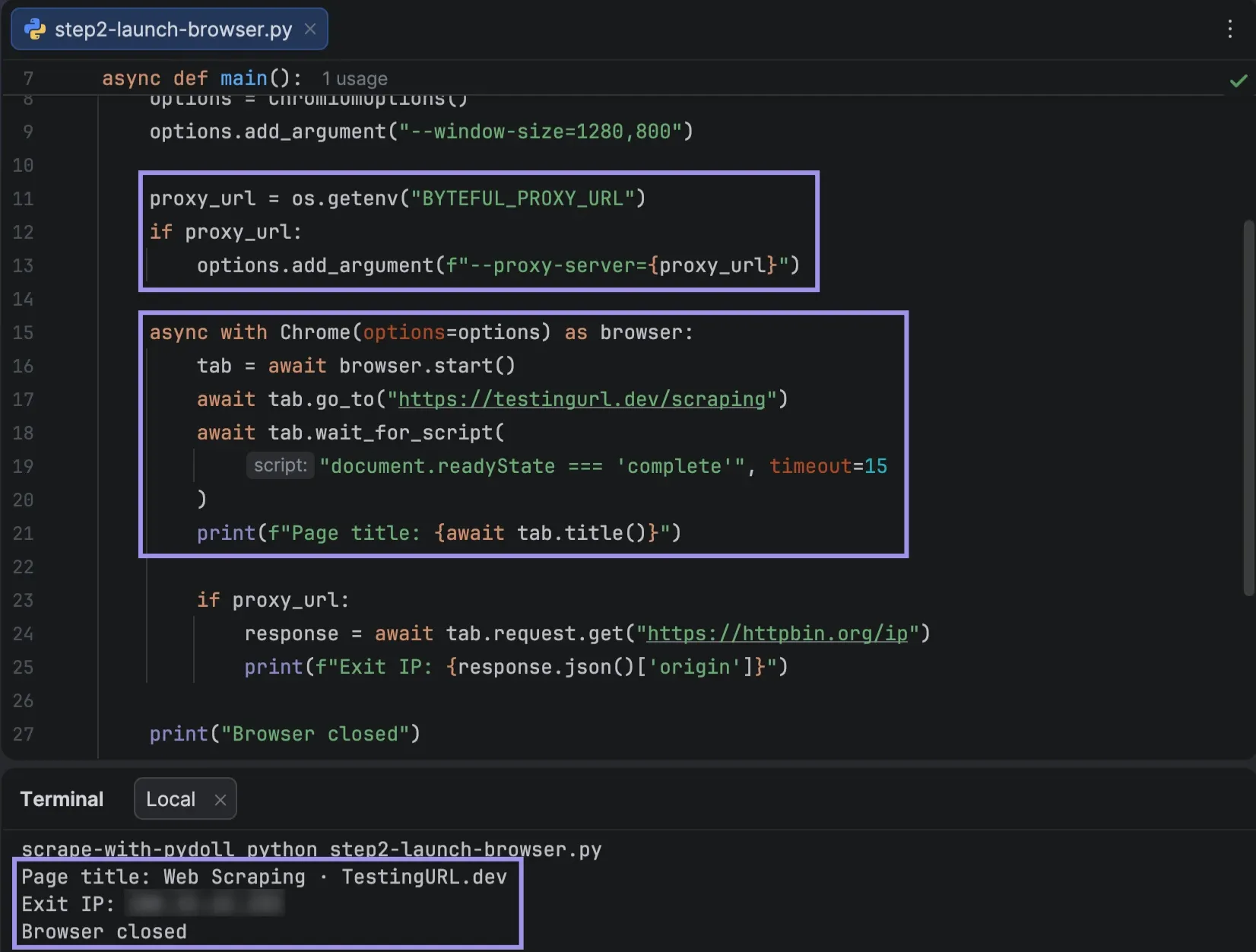
Use python step2-launch-browser.py to run the file from PyCharm's terminal. Chrome should open TestingURL.dev, and the terminal should show the page title followed by Browser closed. If a proxy has been set, the script also asks for your public exit IP to determine if there is traffic coming through the proxy.
The tab.go_to() call opens the website, while wait_for_script() confirms that the document has finished loading before reading its title. The async with statement automatically closes the browser when the script finishes.
Step 3: Navigate to the Website and Wait for JavaScript Content
Let's now see if Pydoll can see content that loads after a website has been opened. TestingURL.dev has a product page that uses JavaScript to render product listings that are fetched and dynamically added to that page.
Open PyCharm and create a new Python file called step3-wait-for-content.py and paste the following code:
import asyncio
import os

from pydoll import Chrome, ChromiumOptions

TARGET_URL = "https://testingurl.dev/scraping/js-rendered"

async def main():
        options = ChromiumOptions()
        options.add_argument("--window-size=1280,800")

        proxy_url = os.getenv("BYTEFUL_PROXY_URL")
        if proxy_url:
            options.add_argument(f"--proxy-server={proxy_url}")

        async with Chrome(options=options) as browser:
            tab = await browser.start()
            await tab.go_to(TARGET_URL)

            # Wait for JavaScript to finish loading the products
            await tab.query('#app[data-loaded="true"]', timeout=15)

            cards = await tab.query(
                "#app .card",
                find_all=True,
                timeout=10,
                raise_exc=False
            )

            if not cards:
                raise RuntimeError("No product cards appeared on the page.")

            first_title = await cards[0].find(tag_name="h3")

            print(f"Page: {await tab.current_url()}")
            print(f"Product cards found: {len(cards)}")
            print(f"First product: {await first_title.text()}")

if __name__ == "__main__":
        asyncio.run(main())
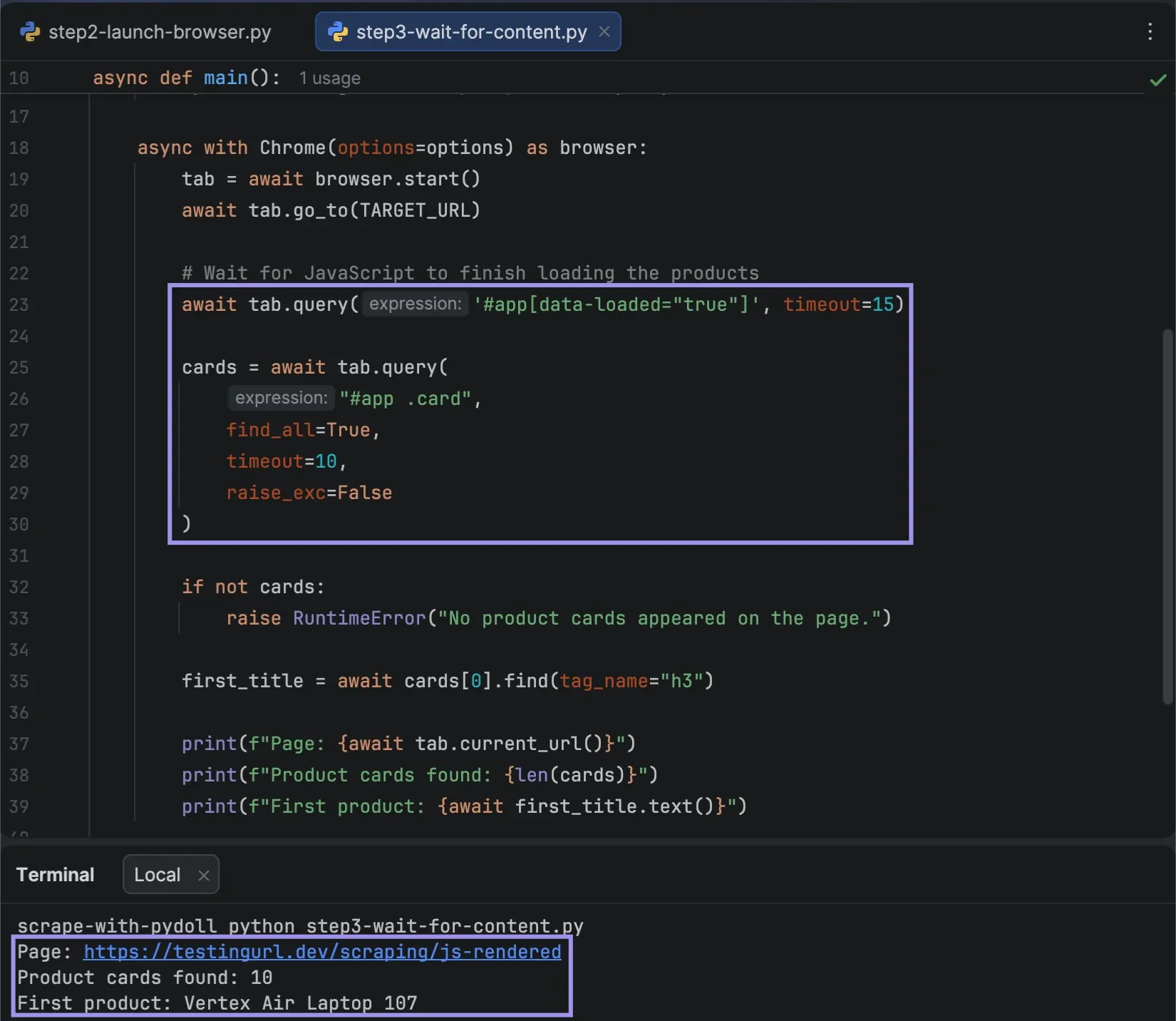
In this case, tab.go_to() will open the page you are trying to navigate to, and tab.query() will wait for the #app container to report that the content in the app's JavaScript environment is done loading. It will wait for up to 15 seconds (timeout=15) for the element that it expects to find, and raise an error if it does not find it.
It then locates the product cards based on the #app .card CSS selector and prints the number of product cards, along with the name of the first product. This proves that Pydoll can access the rendered content, not just the initial HTML. Since the raise_exc=False argument is used, query() will return None and not raise its timeout exception if no cards are found within 10 seconds, so the script will terminate with a more understandable message.
With a timeout specified, query() keeps checking for the element until it appears or the time runs out. This means you don't need time.sleep(). However, if the structure of the page changes, you will have to look at the HTML and adjust the selectors.
Run python step3-wait-for-content.py from PyCharm’s terminal to see the result.
Step 4: Locate Elements and Extract Website Data
Once the product listings are loaded, you can begin to gather information about the products. Open a JavaScript-generated product page in Chrome: Right-click on a product listing and select Inspect to view the HTML structure of the product.
All products are contained within a #app .card element. The product name is in the h3 tag, and the category and price are in the p tag. These CSS selectors will be used to extract the data and create Python dictionaries.
In PyCharm, make a new file called step4-extract-products.py and enter the following code:
import asyncio
import os

from pydoll import Chrome, ChromiumOptions

URL = "https://testingurl.dev/scraping/js-rendered"

def clean_product(name, details):
    name = name.strip()
    parts = [part.strip() for part in details.split("·", 1)]

    if not name or len(parts) != 2 or not all(parts):
        return None

    return {
        "name": name,
        "category": parts[0],
        "price": parts[1]
    }

async def main():
        options = ChromiumOptions()
        options.add_argument("--window-size=1280,800")

        proxy_url = os.getenv("BYTEFUL_PROXY_URL")
        if proxy_url:
            options.add_argument(f"--proxy-server={proxy_url}")

        async with Chrome(options=options) as browser:
            tab = await browser.start()
            await tab.go_to(URL)

            await tab.query('#app[data-loaded="true"]', timeout=15)
            cards = await tab.query(
                "#app .card", find_all=True, timeout=10
            )

            products = []
            seen = set()

            for card in cards:
                title = await card.query("h3", raise_exc=False)
                details = await card.query("p", raise_exc=False)

                if title is None or details is None:
                    continue

                record = clean_product(
                    await title.text(),
                    await details.text()
                )

                if record is None or record["name"] in seen:
                    continue

                seen.add(record["name"])
                products.append(record)

            if not products:
                raise RuntimeError(
                    "No complete products found. Check the page selectors."
                )

            print(f"Cards located: {len(cards)}")
            print(f"Valid products: {len(products)}")
            print(
                f"Skipped incomplete or duplicate cards: "
                f"{len(cards) - len(products)}"
            )

            for product in products[:3]:
                print(
                    f"{product['name']} | "
                    f"{product['category']} | {product['price']}"
                )

if __name__ == "__main__":
        asyncio.run(main())
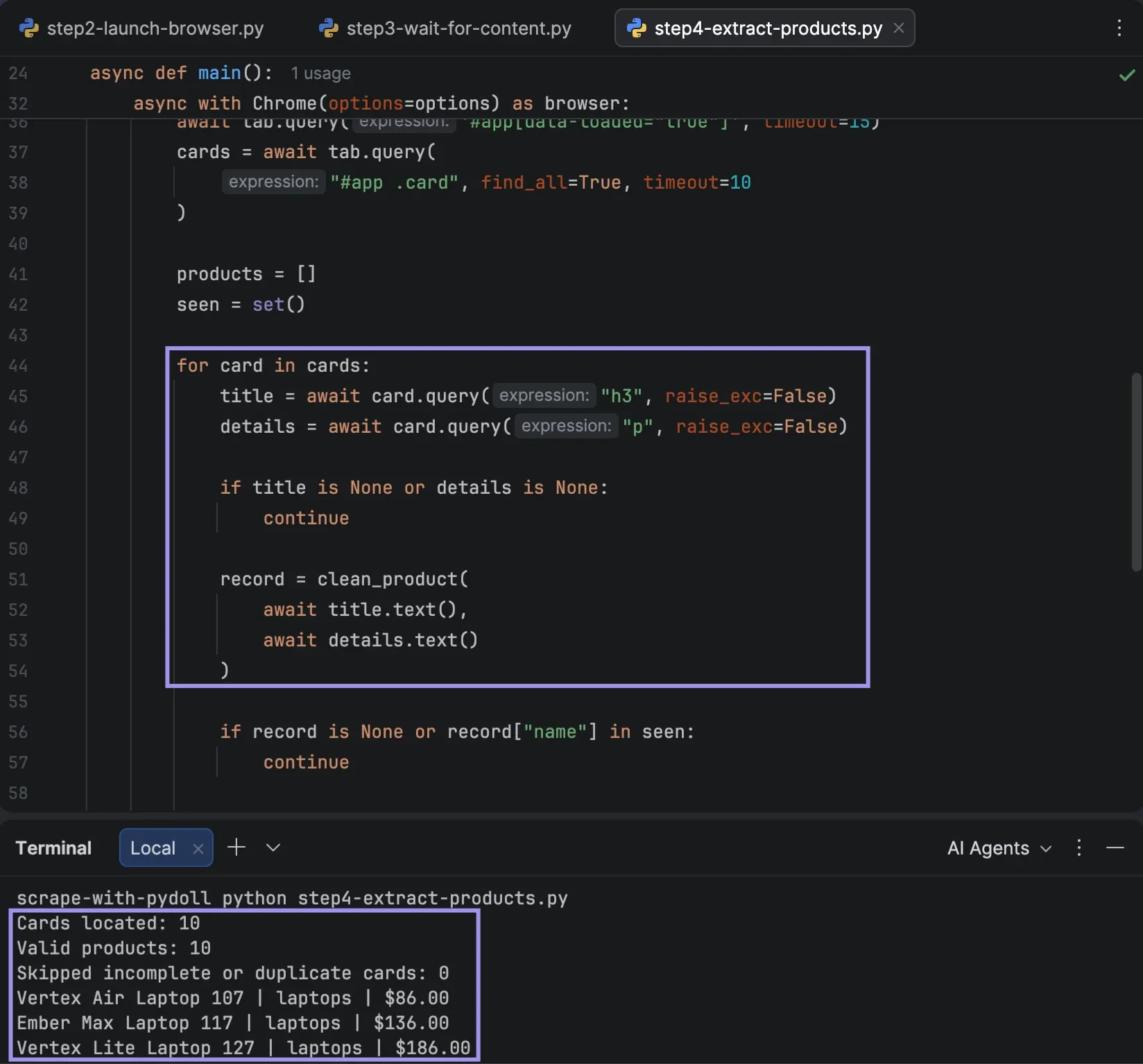
tab.query() is used here to get the product cards, and then other queries are used to parse individual fields from each card. The clean_product() function will clean any unnecessary whitespace (tabs and spaces) and will not accept any product that is missing data. Product names are also stored in a set to avoid duplicate product names.
Run python step4-extract-products.py from PyCharm’s terminal. The output will display the number of cards found and the number of valid records extracted, and the first three products. Compare the number of records found to the number of cards to ensure that there is no missing data.
Step 5: Export the Scraped Data to CSV or JSON
We have been able to get all the product information; now let's store it for later use. CSV files suit spreadsheets or data analysis, while JSON files can be used with Python applications or APIs that require structured data.
In PyCharm, create a new file called step5-export-products.py. No additional packages are required, as we'll be using the csv and json modules that are built into Python.
Add the following code:
import asyncio
import csv
import json
import os
from pathlib import Path

from pydoll import Chrome, ChromiumOptions

TARGET_URL = "https://testingurl.dev/scraping/js-rendered"
OUTPUT_DIR = Path(__file__).resolve().parent

def clean_product(name, details):
        name = name.strip()
        parts = [part.strip() for part in details.split("·", 1)]

        if not name or len(parts) != 2 or not all(parts):
            return None

        return {
            "name": name,
            "category": parts[0],
            "price": parts[1]
        }

def export_products(products):
        if not products:
            raise ValueError("No products to export.")

        csv_path = OUTPUT_DIR / "step5-products.csv"
        json_path = OUTPUT_DIR / "step5-products.json"

        with csv_path.open("w", newline="", encoding="utf-8") as file:
            writer = csv.DictWriter(
                file, fieldnames=["name", "category", "price"]
            )
            writer.writeheader()
            writer.writerows(products)

        with json_path.open("w", encoding="utf-8") as file:
            json.dump(products, file, indent=2, ensure_ascii=False)

        return csv_path, json_path

async def main():
        options = ChromiumOptions()
        options.add_argument("--window-size=1280,800")

        proxy_url = os.getenv("BYTEFUL_PROXY_URL")
        if proxy_url:
            options.add_argument(f"--proxy-server={proxy_url}")

        async with Chrome(options=options) as browser:
            tab = await browser.start()
            await tab.go_to(TARGET_URL)

            await tab.query('#app[data-loaded="true"]', timeout=15)
            cards = await tab.query(
                "#app .card", find_all=True, timeout=10
            )

            products = []
            seen = set()

            for card in cards:
                title = await card.query("h3", raise_exc=False)
                details = await card.query("p", raise_exc=False)

                if title is None or details is None:
                    continue

                product = clean_product(
                    await title.text(), await details.text()
                )

                if product is None or product["name"] in seen:
                    continue

                seen.add(product["name"])
                products.append(product)

        csv_path, json_path = export_products(products)

        print(f"Saved {len(products)} products")
        print(f"CSV: {csv_path}")
        print(f"JSON: {json_path}")
        print(f"First record: {products[0]}")

if __name__ == "__main__":
        asyncio.run(main())
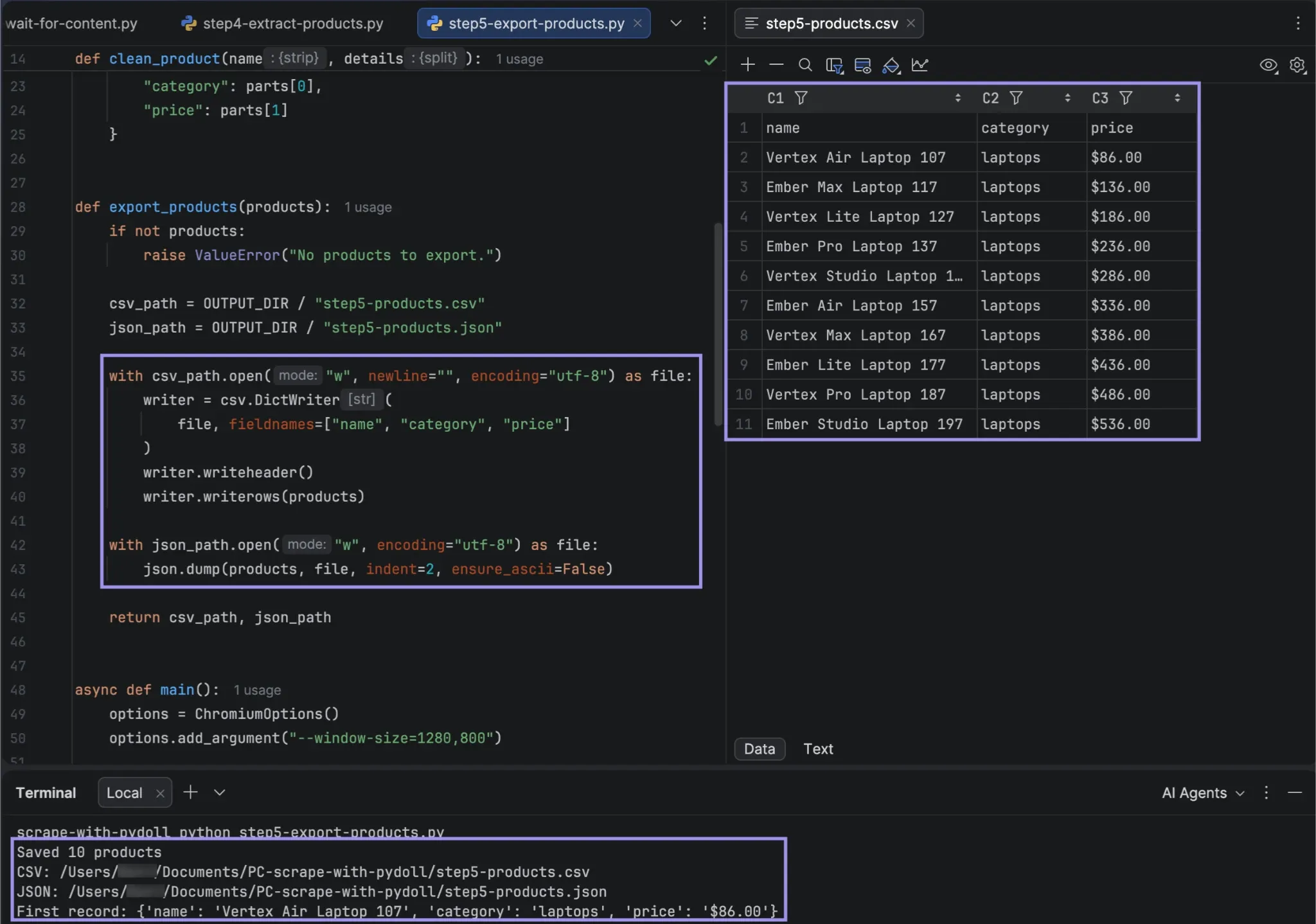
The csv.DictWriter class creates a spreadsheet-format file in three columns: name, category, price. Meanwhile, the json.dump() function dumps the same records, indenting them for readability as a list of JSON objects.
Run python step5-export-products.py from PyCharm’s terminal. After it has completed, you should have step5-products.csv, step5-products.json, and the Python file in your project folder. Open these two files to check the exports and see how they match up with the products on TestingURL.dev.
Step 6: Run the Complete Scraper and Verify the Results
Now let's run the full scraper and see if it gathers and stores the desired information. TestingURL.dev's demonstration has 10 products, so we'll use that number to determine what an incomplete extraction is.
In PyCharm, open a new file called step6-complete-scraper.py and type the following code:
import asyncio
import csv
import json
import os
from pathlib import Path

from pydoll import Chrome, ChromiumOptions

TARGET_URL = "https://testingurl.dev/scraping/js-rendered"
OUTPUT_DIR = Path(__file__).resolve().parent
EXPECTED_PRODUCTS = 10
FIELDS = ["name", "category", "price"]

def clean_product(name: str, details: str) -> dict[str, str] | None:
        name = name.strip()
        parts = [part.strip() for part in details.split("·", 1)]

        if not name or len(parts) != 2 or not all(parts):
            return None

        return {
            "name": name,
            "category": parts[0],
            "price": parts[1]
        }

async def collect_products():
        options = ChromiumOptions()
        options.add_argument("--window-size=1280,800")

        proxy_url = os.getenv("BYTEFUL_PROXY_URL")
        if proxy_url:
            options.add_argument(f"--proxy-server={proxy_url}")

        async with Chrome(options=options) as browser:
            tab = await browser.start()
            await tab.go_to(TARGET_URL)

            await tab.query('#app[data-loaded="true"]', timeout=15)
            cards = await tab.query(
                "#app .card", find_all=True, timeout=10, raise_exc=False
            )

            if not cards:
                raise RuntimeError(
                    "No product cards found. Check the page URL and selectors."
                )

            products = []
            seen_names = set()

            for index, card in enumerate(cards, start=1):
                title = await card.query("h3", raise_exc=False)
                details = await card.query("p", raise_exc=False)

                if title is None or details is None:
                    raise ValueError(
                        f"Card {index} is missing a title or details element."
                    )

                product = clean_product(
                    await title.text(), await details.text()
                )

                if product is None:
                    raise ValueError(
                        f"Card {index} contains incomplete product data."
                    )

                if product["name"] in seen_names:
                    raise ValueError(
                        f"Duplicate product found: {product['name']}"
                    )

            seen_names.add(product["name"])
                products.append(product)

        if len(products) != EXPECTED_PRODUCTS:
            raise RuntimeError(
                f"Expected {EXPECTED_PRODUCTS} products, "
                f"found {len(products)}. "
                "Check whether the demo page or selectors changed."
            )

        return products, len(cards)

def export_products(products):
        csv_path = OUTPUT_DIR / "step6-products.csv"
        json_path = OUTPUT_DIR / "step6-products.json"

        with csv_path.open(
            "w", newline="", encoding="utf-8"
        ) as csv_file:
            writer = csv.DictWriter(
                csv_file, fieldnames=FIELDS
            )
            writer.writeheader()
            writer.writerows(products)

        with json_path.open("w", encoding="utf-8") as json_file:
            json.dump(
                products, json_file, indent=2, ensure_ascii=False
            )

        return csv_path, json_path

def verify_exports(original, csv_path, json_path):
        with csv_path.open(
            newline="", encoding="utf-8"
        ) as csv_file:
            csv_records = list(csv.DictReader(csv_file))

        with json_path.open(encoding="utf-8") as json_file:
            json_records = json.load(json_file)

        if csv_records != original or json_records != original:
            raise RuntimeError(
                "Export verification failed: saved records do not match."
            )

        return len(original)

async def main():
        products, card_count = await collect_products()

        csv_path, json_path = export_products(products)
        verified_count = verify_exports(
            products, csv_path, json_path
        )

        print(f"Cards found: {card_count}")
        print(f"Valid products: {len(products)}")
        print(f"CSV rows verified: {verified_count}")
        print(f"JSON records verified: {verified_count}")
        print(f"CSV saved to: {csv_path}")
        print(f"JSON saved to: {json_path}")
        print(f"First record: {products[0]}")

if __name__ == "__main__":
        asyncio.run(main())
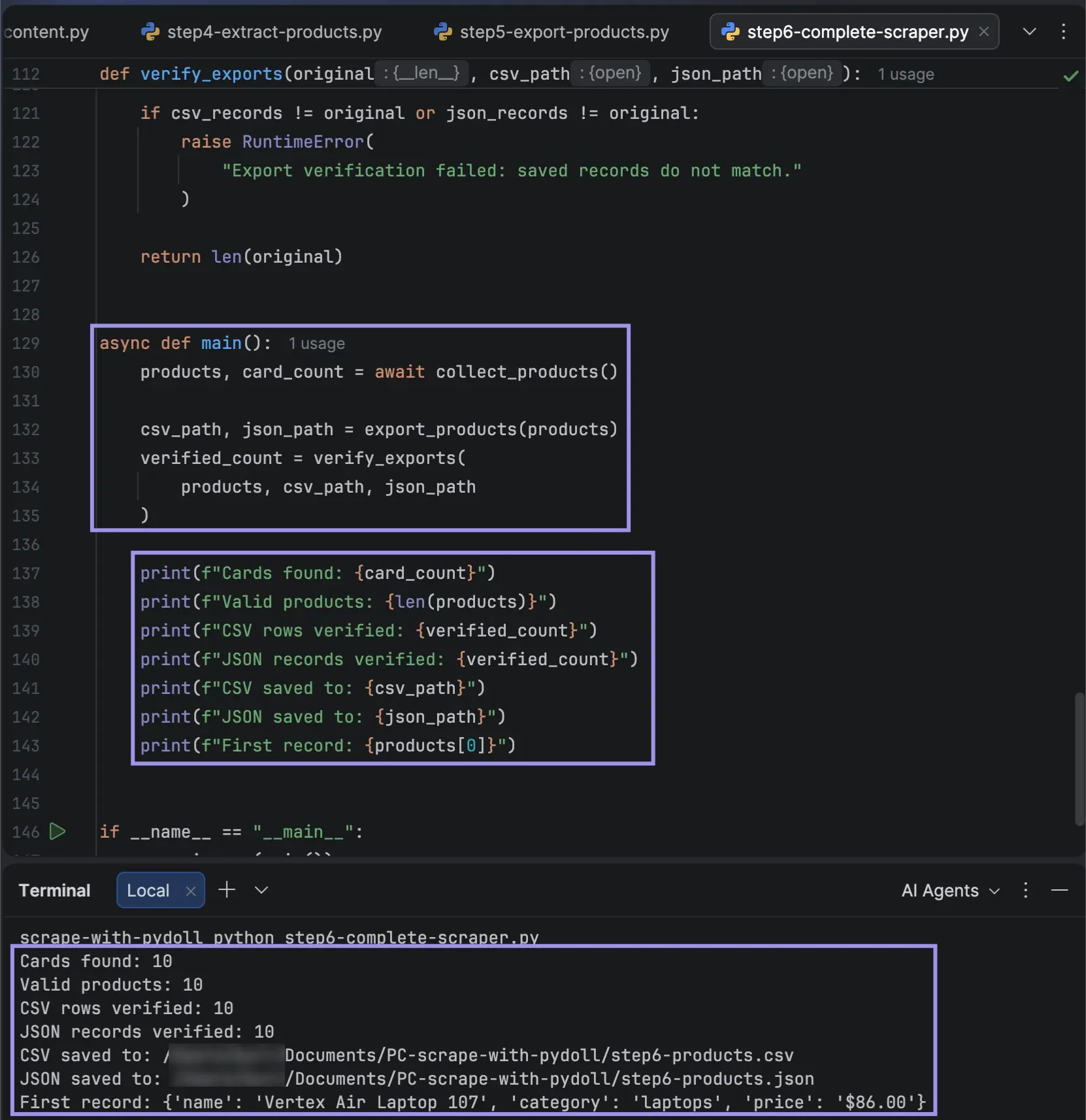
Execute the step6-complete-scraper.py script using the PyCharm terminal. The script will launch the demonstration page, capture the product records, and save them as step6-products.csv and step6-products.json.
Examine the terminal output to see how many cards are found, how many valid products, and how many records are verified within the files. If this is successful, it will be able to report 10 products and the same number of records in the CSV and JSON. It's also possible to launch both files in PyCharm for detailed examination.
If no product cards are located, a product is missing some information, a duplicate name is found, or the number of records does not match, the script will end with an error message. Before increasing the timeout, review your internet connection and the #app[data-loaded="true"] selector if it takes too long to load.
How to Scrape Multiple Pages With Pydoll
Scraping a single page works if all the information is available in one place. But a lot of sites split their listings over multiple pages, and your scraper needs to locate the other pages to download the other listings.
The example for numbered pagination on TestingURL.dev uses 10 products per page. We will follow a modified extraction strategy to locate the Next link, click it, and extract the products from each page until we reach the last page.
In PyCharm, write a new Python file named step7-scrape-multiple-pages.py and copy and paste the following code:
import asyncio
import csv
import os
from pathlib import Path

from pydoll import Chrome, ChromiumOptions

START_URL = "https://testingurl.dev/scraping/pagination/page/1"
OUTPUT_FILE = Path(__file__).with_name("step7-paginated-products.csv")
FIELDS = ["name", "category", "price"]

async def extract_page(tab):
        cards = await tab.query("div.card", find_all=True, timeout=10, raise_exc=False)
        if not cards:
            raise RuntimeError("No product cards found on this page.")

        products = []
        for card in cards:
            title = await card.query("h3", raise_exc=False)
            details = await card.query("p", raise_exc=False)
            if title is None or details is None:
                raise ValueError("A product is missing its name or details.")

            name = (await title.text()).strip()
            parts = [part.strip() for part in (await details.text()).split("·", 1)]
            if not name or len(parts) != 2 or not all(parts):
                raise ValueError("A product has incomplete details.")

            products.append({"name": name, "category": parts[0], "price": parts[1]})
        return products

async def main():
        products = []
        seen_products = set()
        visited_urls = set()

        options = ChromiumOptions()
        options.add_argument("--window-size=1280,800")

        proxy_url = os.getenv("BYTEFUL_PROXY_URL")
        if proxy_url:
            options.add_argument(f"--proxy-server={proxy_url}")

        async with Chrome(options=options) as browser:
            tab = await browser.start()
            await tab.go_to(START_URL)

            while True:
                url = await tab.current_url()
                if url in visited_urls:
                    raise RuntimeError("Pagination returned to an already visited page.")
                visited_urls.add(url)

                page_products = await extract_page(tab)
                for product in page_products:
                    key = tuple(product[field] for field in FIELDS)
                    if key not in seen_products:
                        seen_products.add(key)
                        products.append(product)

                print(f"Page {len(visited_urls)}: {len(page_products)} cards; "
                      f"{len(products)} unique products total")

                next_link = await tab.query(
                "//a[contains(normalize-space(.), 'Next')]",
                    raise_exc=False,
                )
                if next_link is None:
                    break
                if len(visited_urls) >= 20:
                    raise RuntimeError("Stopped after 20 pages to prevent a loop.")

                async with tab.expect_navigation():
                    await next_link.click()

        with OUTPUT_FILE.open("w", newline="", encoding="utf-8") as file:
            writer = csv.DictWriter(file, fieldnames=FIELDS)
            writer.writeheader()
            writer.writerows(products)

        with OUTPUT_FILE.open(newline="", encoding="utf-8") as file:
            saved = list(csv.DictReader(file))
        if saved != products:
            raise RuntimeError("CSV verification failed.")

        print(f"Saved and verified {len(saved)} unique products in {OUTPUT_FILE.name}")

if __name__ == "__main__":
        asyncio.run(main())
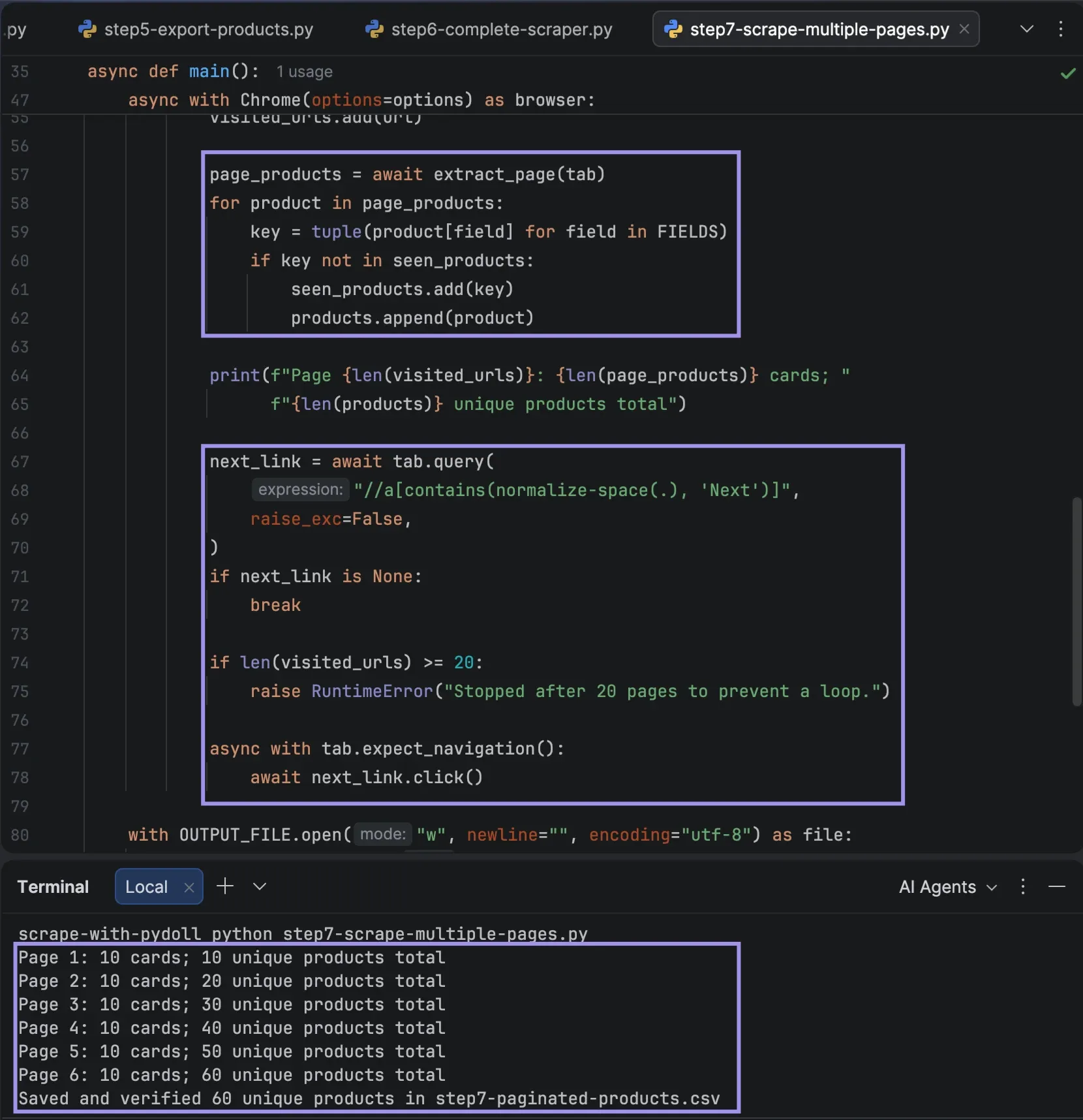
The extract_page() function gathers the information from the current page when it comes to products. Once Pydoll retrieves the data, it fetches the Next link information through XPath and clicks it. The expect_navigation() method waits for the next page to load before continuing with the extraction process.
A Python set stores unique values. Here, seen_products prevents duplicate product records, while visited_urls tracks pages already visited to detect pagination loops. When there's no Next link, the script saves the collected products to step7-paginated-products.csv and reads the file back to verify the export. If BYTEFUL_PROXY_URL is set, it uses your proxy, just like the earlier scripts.
Run python step7-scrape-multiple-pages.py in PyCharm’s terminal. Each page should report 10 products, with the running total reaching 60 unique products on page six. If no products appear, check the div.card selector. If pagination stops early, check whether the Next link still matches the XPath expression.
How to Scrape Infinite-Scroll Websites With Pydoll
Infinite scrolling differs from traditional pagination in that it fetches more content when you scroll down a page without clicking a Next button. A website is usually going to make additional requests via JavaScript to retrieve additional records, so your scraper must be aware of this.
For this demonstration, we'll use TestingURL.dev's infinite scroll page. The advantage of Pydoll is that it can track network responses and detect the arrival of new product cards, rather than relying on fixed delays between scrolls.
In PyCharm, create a new Python file called step8-scrape-infinite-scroll.py, and add the following code:
import asyncio
import csv
import os
from pathlib import Path

from pydoll import Chrome, ChromiumOptions, NetworkEvent
from pydoll.exceptions import WaitTimeout

URL = "https://testingurl.dev/scraping/infinite-scroll"
OUTPUT = Path(__file__).with_name("step8-infinite-scroll-products.csv")
FIELDS = ["name", "category", "price"]
MAX_SCROLLS = 12

async def collect_visible_products(tab, products, seen):
        cards = await tab.query("#items .card", find_all=True)

        for card in cards:
            title = await card.query("h3")
            details = await card.query("p")
            name = (await title.text()).strip()
            parts = [part.strip() for part in (await details.text()).split("·", 1)]

            if not name or len(parts) != 2 or not all(parts):
                raise ValueError("A product card has incomplete information.")

            key = (name, parts[0], parts[1])
            if key not in seen:
                seen.add(key)
                products.append(dict(zip(FIELDS, key)))

        return len(cards)

async def main():
        products = []
        seen = set()
        response_received = asyncio.Event()

        async def on_response(event):
            response = event["params"]["response"]
            if (
                response.get("status") == 200
                and "testingurl.dev" in response.get("url", "")
                and "json" in response.get("mimeType", "").lower()
            ):
                response_received.set()

        options = ChromiumOptions()
        options.add_argument("--window-size=1280,800")

        proxy_url = os.getenv("BYTEFUL_PROXY_URL")
        if proxy_url:
            options.add_argument(f"--proxy-server={proxy_url}")

        async with Chrome(options=options) as browser:
            tab = await browser.start()
            await tab.enable_network_events()
            await tab.on(NetworkEvent.RESPONSE_RECEIVED, on_response)
            await tab.go_to(URL)
            await tab.query("#items .card", timeout=15)

            previous_count = await collect_visible_products(tab, products, seen)

            for scroll_number in range(1, MAX_SCROLLS + 1):
                response_received.clear()
                await tab.execute_script(
                    "window.scrollTo(0, document.body.scrollHeight)"
                )

                try:
                    await asyncio.wait_for(response_received.wait(), timeout=6)
                    await tab.wait_for_script(
                    f'document.querySelectorAll("#items .card").length > {previous_count}',
                        timeout=6,
                    )
                except (asyncio.TimeoutError, WaitTimeout):
                    # No new response or cards may mean the final batch was reached.
                    pass

                current_count = await collect_visible_products(tab, products, seen)
                print(
                    f"Scroll {scroll_number}: {current_count} cards, "
                    f"{len(products)} unique"
                )

                if current_count <= previous_count:
                    break

                previous_count = current_count
            else:
                print(f"Stopped at the safety limit of {MAX_SCROLLS} scrolls.")

        if not products:
            raise RuntimeError("No products were extracted.")

        with OUTPUT.open("w", newline="", encoding="utf-8") as file:
            writer = csv.DictWriter(file, fieldnames=FIELDS)
            writer.writeheader()
            writer.writerows(products)

        with OUTPUT.open(newline="", encoding="utf-8") as file:
            saved_rows = list(csv.DictReader(file))

        if saved_rows != products:
            raise RuntimeError("CSV verification failed.")

        print(f"Saved and verified {len(saved_rows)} products in {OUTPUT.name}")

if __name__ == "__main__":
        asyncio.run(main())
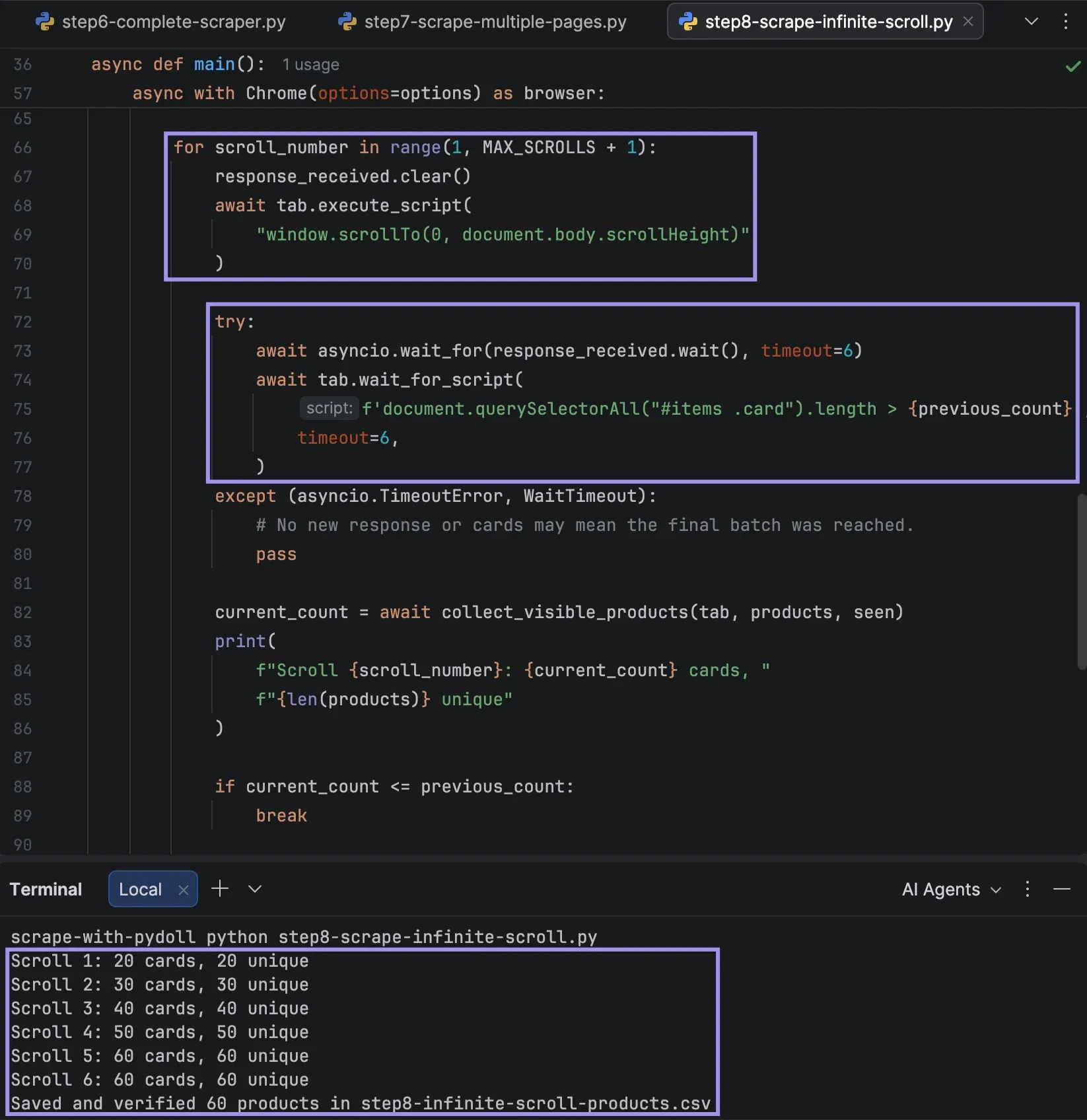
Here, NetworkEvent.RESPONSE_RECEIVED fires for each network response, and the callback on_response() filters the responses of TestingURL.dev for the type of JSON, and wait_for_script() waits for the product cards to increase because of the network responses. The script extracts each new batch and uses a set to remove duplicates.
If there are no additional cards when the script scrolls, the loop terminates. We also restrict the process to 12 scrolls to prevent it from running indefinitely, but that doesn't mean that every product was collected. When you set BYTEFUL_PROXY_URL, the script uses your proxy too, like the pagination script.
Run python step8-scrape-infinite-scroll.py in PyCharm’s terminal and check the product count after each scroll. The page initially loads 10 products, and the next five scrolls add 10 each, bringing the total to 60. The sixth scroll still runs, but no new products appear. After waiting briefly for new content, the script reports 60 products again before stopping. After this, check step8-infinite-scroll-products.csv to see the names, categories, and prices that have been pulled.
How to Fix Errors When Scraping With Pydoll
You may experience errors when you start your browser or your scraper, even if you have configured things correctly. Here are some common issues and how to solve them.
- python: command not found on macOS: There are some macOS installations that are using python3 instead of python. Try python3 --version and use python3 -m venv .venv when creating your virtual environment.
- Chrome not found: Pydoll's Chrome class needs Chrome to be installed. If you are using only Microsoft Edge, import Edge from pydoll, and replace Chrome(options=options) with Edge(options=options) in your script.
- PowerShell blocks Activate.ps1: Windows execution policies can prevent virtual environment activation. In PowerShell, run Set-ExecutionPolicy -Scope Process RemoteSigned and then attempt to activate the environment once again.
- net::ERR_ABORTED when using a proxy: Verify your proxy endpoint, credentials, and protocol. Make sure that the proxy connection is working, and then repeat the request.
- Proxy environment variable not detected: The variable settings that are made in the Run configuration settings in PyCharm cannot automatically be used in the terminal. You can set BYTEFUL_PROXY_URL directly in the terminal, or run the script with the corresponding Run configuration.
