


Traditional web scrapers work well when data sits in predictable HTML elements, but they become harder to maintain when layouts change or the same information appears in different structures. Gemini can interpret webpage content and return the fields you need in a structured format.
In this guide, we’ll build a Python scraper that fetches a webpage, cleans the HTML, prepares the relevant content for Gemini, validates the results, and exports the data. We’ll also cover Gemini’s URL Context feature and explain where proxies fit into the retrieval process. The focus is on using Gemini for webpage data extraction, not scraping the Gemini interface.
What Is Gemini Web Scraping and How Does It Work?
Gemini Web Scraping can refer to the process of extracting data or information from a web page using a Gemini model. Python fetches the page, and Gemini takes the content you'd like and returns the fields you've requested.
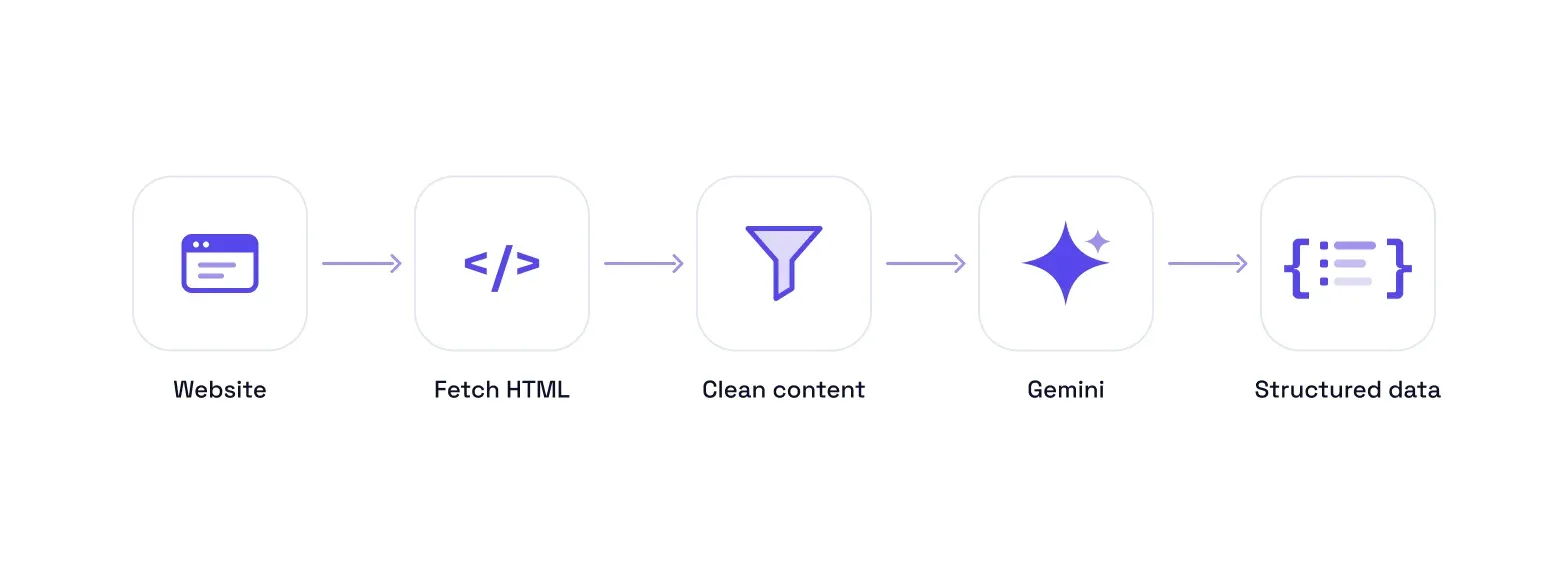
That separates retrieval, which is getting the HTML of the page, from extraction, which is finding values like product names and prices on the page.
The traditional method of scraping would be via the use of CSS selectors or XPath. This is fast and consistent until the markup is changed.
Then, with the information and directions given, Gemini can extract the data. We need it to return JSON in the next workflow in the browser, and we will also validate the saved response locally with Pydantic.
Selectors are still the easier method for pages that don't change their structure frequently. The more often information appears across different page structures or multiple locations within a page, the more useful Gemini becomes.
Ways to Scrape Web Data With Gemini
You can provide webpage content to Gemini in two ways: by providing a public URL using the URL Context feature, or by pulling and preparing the content yourself.
| Method | How It Works | Best Fit | Main Limitation |
|---|---|---|---|
| Gemini URL Context | Gemini retrieves the public URL | Simple extraction from supported pages | Less control over retrieval |
| Fetch the Page Yourself | Python retrieves and prepares content before Gemini processes it | Controlled, repeatable scraping workflows | More code to maintain |
In the URL Context mode, Gemini will retrieve the content, and the provided URL will be used as its source. It is not available in the browser-based workflow here, but is available via the Gemini API. Google supports publicly accessible webpages and some other content types, subject to access restrictions.
You get more control over timeouts, proxy routing, failed responses, and what's stripped away before it reaches Gemini when you fetch the page yourself, though it adds another stage. This is used below since it allows us to see each step of the pipeline and test retrieval, preprocessing, extraction, and output independently.
How to Build a Gemini Web Scraping Workflow With Python
We’ll use one Books to Scrape product page as a controlled test case, then reuse the same workflow across multiple pages. The product pages provide specific values we can compare against Gemini's answer, rather than assuming it's correct just because it looks convincing.
The A Light in the Attic product page begins with the book listed under Poetry at £51.77, 22 in stock, UPC a897fe39b1053632.
The workflow is partly automated. Python handles retrieval, cleaning, prompt setup, validation, and export. Gemini supports extraction via its browser interface: you paste the prepared content in and save the JSON reply yourself.
What You Need Before Building
Use Python 3.10 or newer. Requests officially supports Python 3.10+, which sets the baseline for this project.
You’ll need:
- Python 3.10+
- Requests
- Beautiful Soup
- Markdownify
- Pydantic
- Access to Gemini in your browser
- Books to Scrape as the test website
Use python -m pip install requests beautifulsoup4 markdownify pydantic to install the Python packages.
Beautiful Soup is for reading HTML; markdownify is for converting what we keep to Markdown. Pydantic runs after Gemini responds to ensure that the saved JSON contains the correct fields and data types.
Before running the extraction, open the test product page in your browser so that you have a reference of what the source is.
Step 1: Fetch the Webpage With Python
To start, use Requests to pull down the page. The same stage is then used later in the process to deal with other product URLs, maintaining the reusability of the stage.
import requests
from bs4 import BeautifulSoup

URL = (
    "https://books.toscrape.com/catalogue/"
    "a-light-in-the-attic_1000/index.html"
)

def fetch_page(url):
        try:
            response = requests.get(url, timeout=20)
            response.encoding = response.apparent_encoding
            response.raise_for_status()
            return response
        except requests.RequestException as exc:
            raise RuntimeError(
                f"Could not fetch {url}: {exc}"
            ) from exc

response = fetch_page(URL)

soup = BeautifulSoup(response.text, "html.parser")
title = soup.h1.get_text(strip=True)

print(f"HTTP status: {response.status_code}")
print(f"Page title: {title}")
print(f"Downloaded HTML: {len(response.content):,} bytes")
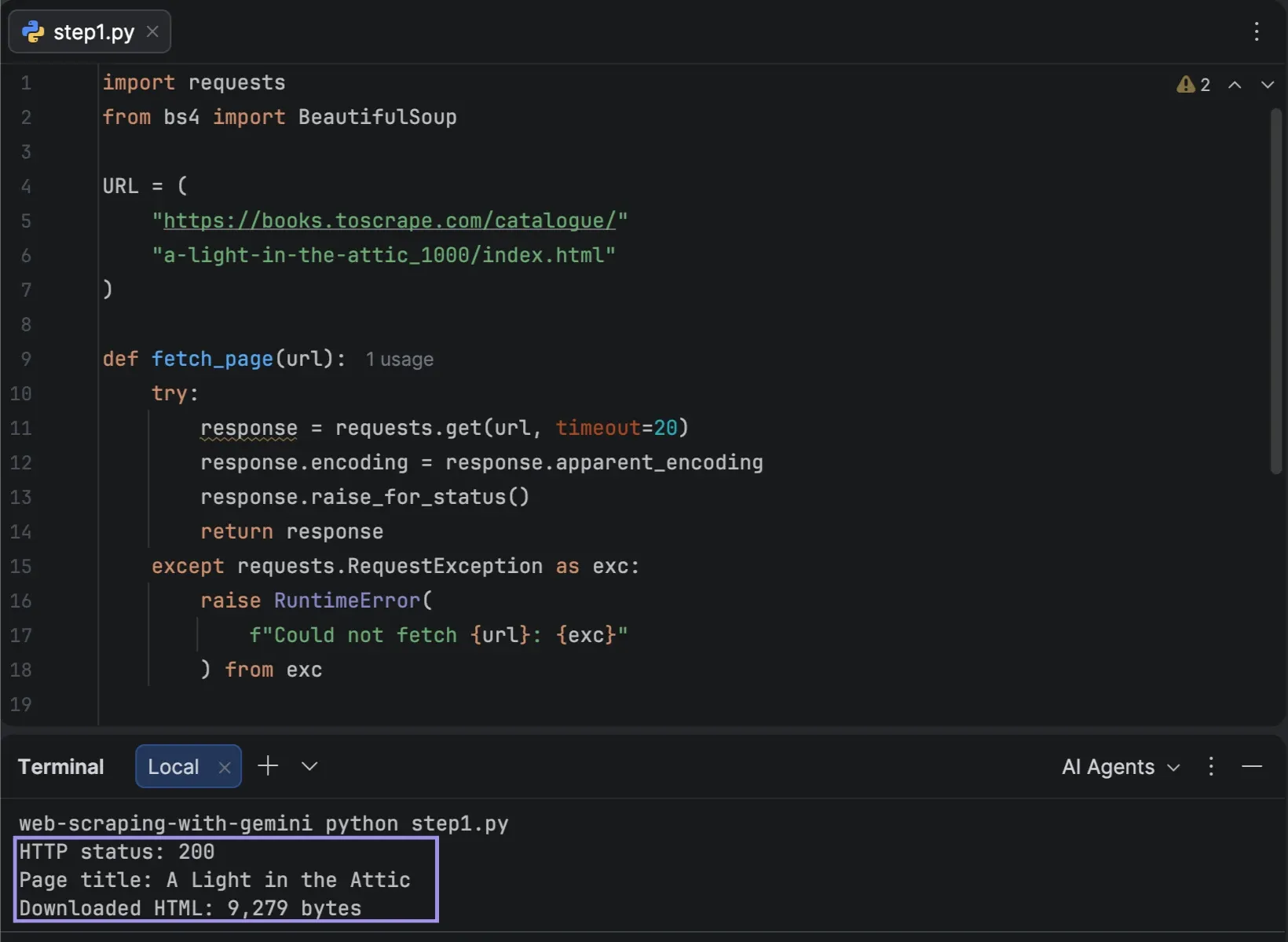
If the server stops responding, the timeout prevents the request from waiting forever. raise_for_status() catches HTTP errors such as 404 or 500 before invalid content proceeds further. When the server does not specify an encoding, Requests can fall back to ISO-8859-1, which can corrupt the £ symbol in all subsequent stages. apparent_encoding works the encoding out of the response bytes, instead.
We also validate the page title, not just the status 200. A 200 means it came back, and A Light in the Attic means that it is the page we wanted.
Before continuing, check that the terminal has reported back with HTTP 200 and the desired title.
Step 2: Clean and Prepare the Page Content
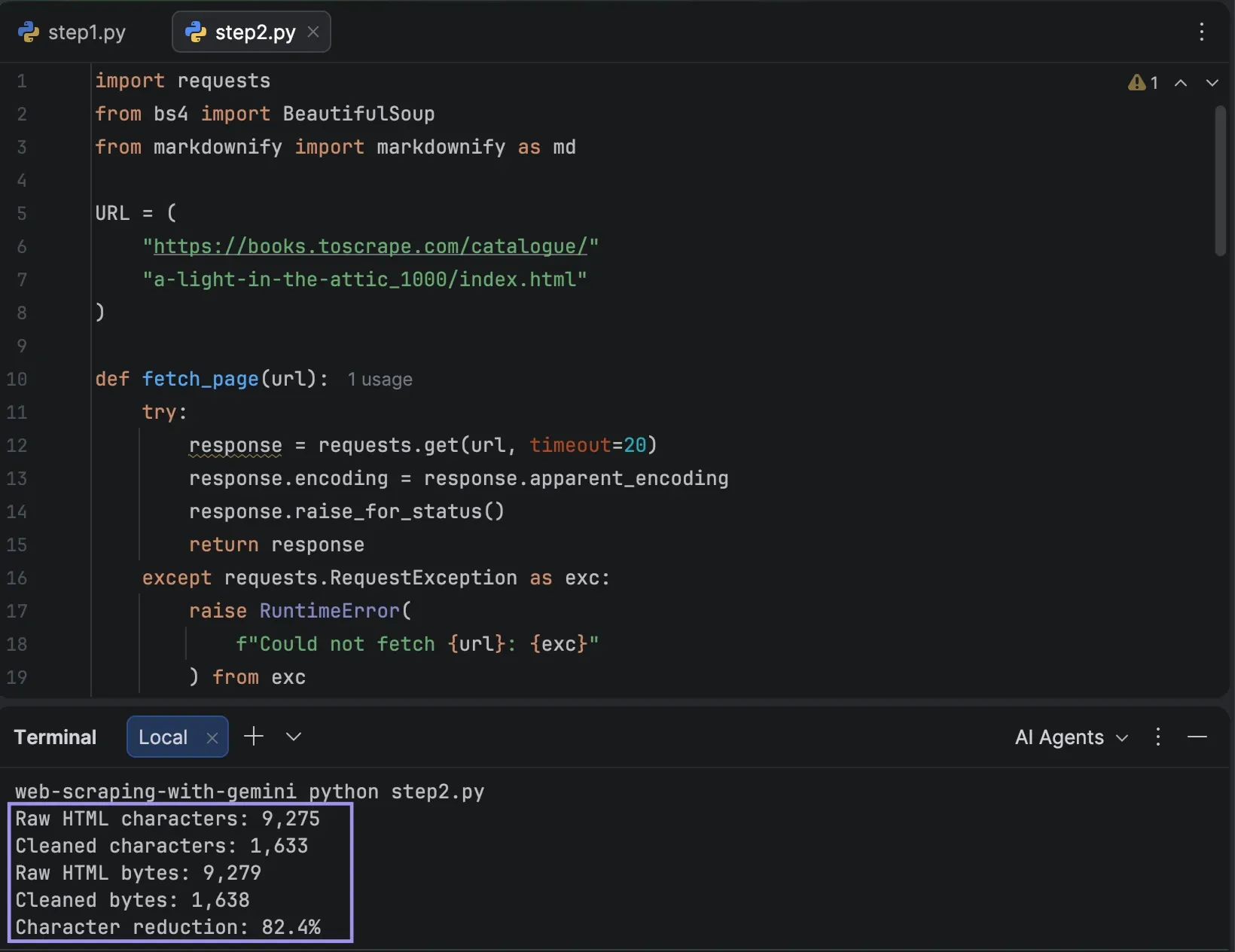
The response contains the whole HTML document, but the majority of this content is not relevant to the fields we need. We delete the scripts, styles, images, forms, and buttons, preserve the main page content, and convert the rest to Markdown.
from markdownify import markdownify as md

def clean_page(html):
        soup = BeautifulSoup(html, "html.parser")

        for selector in [
            "script",
            "style",
            "noscript",
            "svg",
            "img",
            "form",
            "button",
        ]:
            for tag in soup.select(selector):
                tag.decompose()

        main_content = (
            soup.select_one("div.page > div.page_inner")
            or soup.body
            or soup
        )

        return md(
            str(main_content),
            heading_style="ATX"
        ).strip()

cleaned_markdown = clean_page(response.text)

raw_characters = len(response.text)
clean_characters = len(cleaned_markdown)

raw_bytes = len(response.text.encode("utf-8"))
clean_bytes = len(cleaned_markdown.encode("utf-8"))

character_reduction = (
        1 - clean_characters / raw_characters
) * 100

print(f"Raw HTML characters: {raw_characters:,}")
print(f"Cleaned characters: {clean_characters:,}")
print(f"Raw HTML bytes: {raw_bytes:,}")
print(f"Cleaned bytes: {clean_bytes:,}")
print(
        f"Character reduction: "
        f"{character_reduction:.1f}%"
)
Books to Scrape will set the page_inner class twice: first to the site header, and second to the wrapper containing the page content. The div.page > div.page_inner selector targets the second one, which means that the breadcrumb, the price and availability, and the product table remain intact.
decompose() will remove all the tags that matched from the parse tree, so nothing they contained reaches the conversion. The conversion preserves headings, lists, and tables, and omits classes, inline styles, and nesting; heading_style="ATX" writes headings in the # style. The product information table is in Markdown format, and that's why we can request the UPC via the name.
These numbers represent characters and bytes rather than Gemini tokens and do not represent a claimed token saving.
Cleanup must also be tempered, as some valuable values are not in the visible text but in the HTML attributes. Books to Scrape stores the star rating as a CSS class, which the cleaned Markdown does not preserve, so we don't extract any fields that aren't present in the cleaned content.
Step 3: Define the Data You Want Gemini to Extract
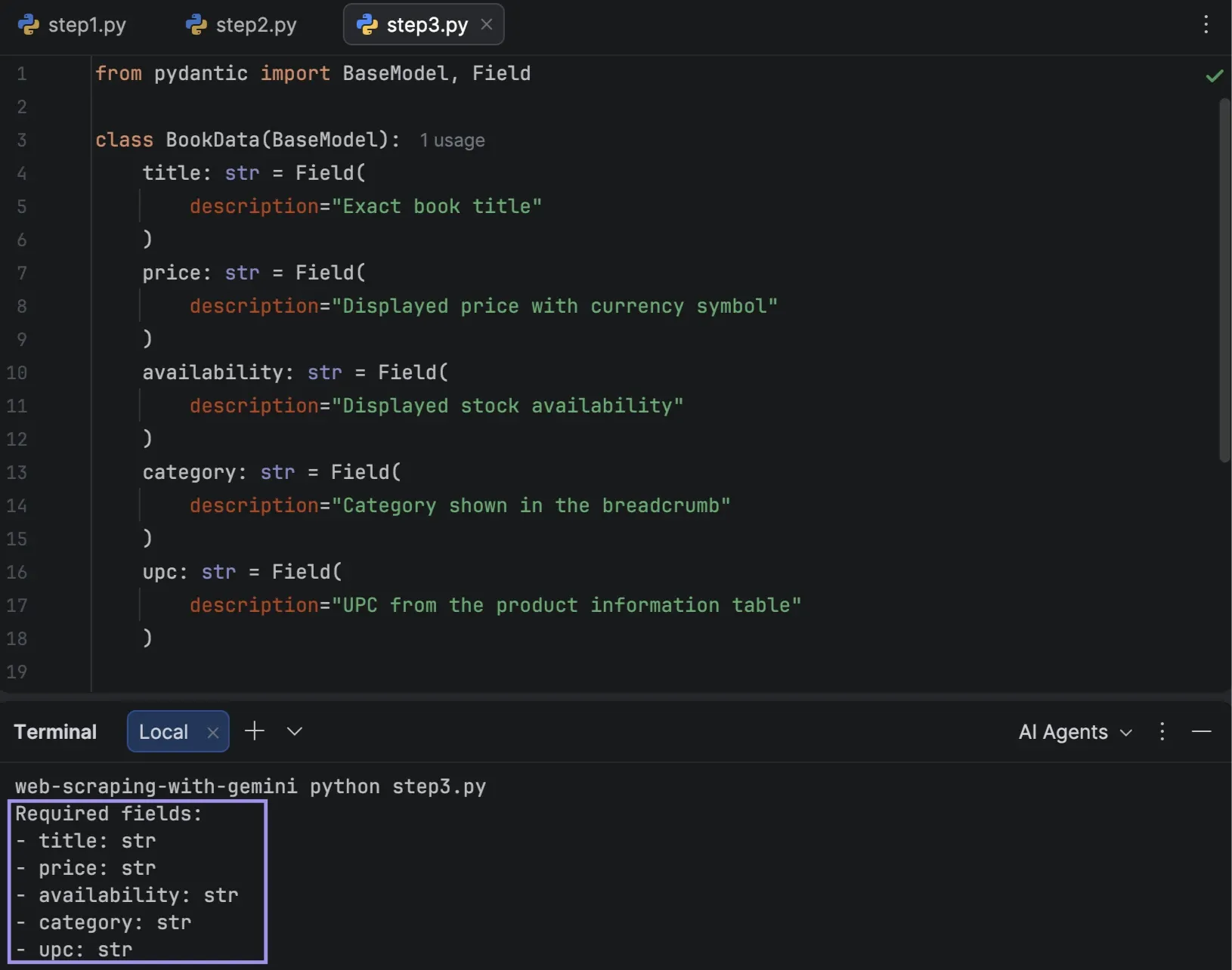
Specify the record that we want Gemini to extract: title, displayed price, availability, category, and UPC.
We can describe that structure locally simply with Pydantic:
from pydantic import BaseModel, Field

class BookData(BaseModel):
        title: str = Field(
            description="Exact book title"
        )
        price: str = Field(
            description="Displayed price with currency symbol"
        )
        availability: str = Field(
            description="Displayed stock availability"
        )
        category: str = Field(
            description="Category shown in the breadcrumb"
        )
        upc: str = Field(
            description="UPC from the product information table"
        )

print("Required fields:")

for name, field in BookData.model_fields.items():
        print(
            f"- {name}: "
        f"{field.annotation.__name__}"
        )
All the fields need to be typed as str instead of number or date. £51.77 and In stock (22 available) will appear as text on the page and should stay as strings so we can see whether Gemini returned the amount of money that the page displayed.
For each field, a description is provided of what the value should be. In an API workflow, these field descriptions can be included in the response schema sent with the request. They remain in our code as maintenance notes. The loop prints each field and its expected type, ensuring that the model was compiled correctly.
It's worth noting that Pydantic is not controlling what Gemini returns because we're not providing the schema via an API; we're just using the browser interface. It provides our workflow with a definition of what a valid record is, and if Gemini fails to return the UPC or returns the wrong type, this is addressed before we export.
Step 4: Prepare the Gemini Extraction Prompt
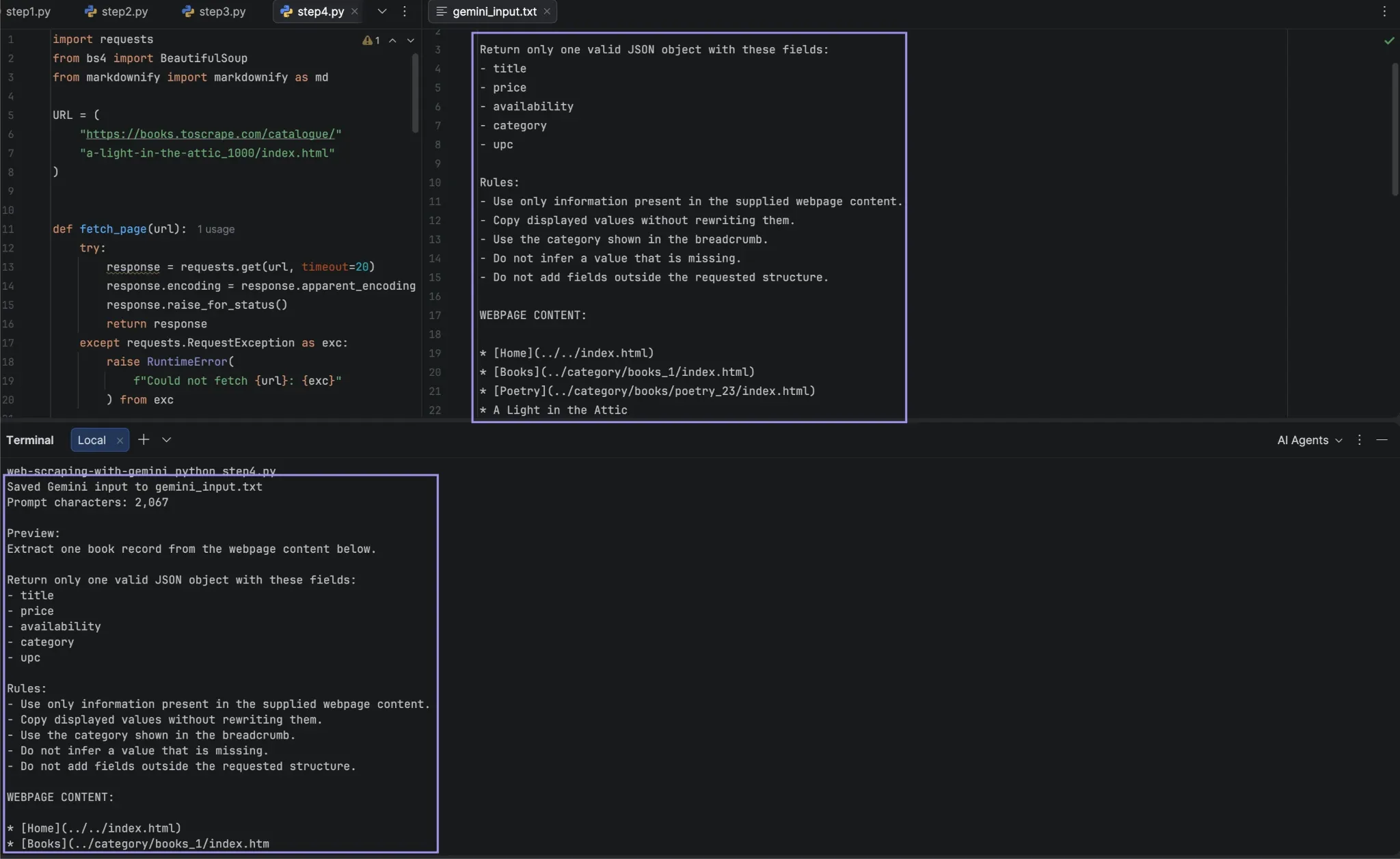
Pasting the prepared content into Gemini every time is tedious. Python can combine the instructions with the cleaned page content and save everything in one text file.
PROMPT = f"""
Extract one book record from the webpage content below.

Return only one valid JSON object with these fields:
- title
- price
- availability
- category
- upc

Rules:
- Use only information present in the supplied webpage content.
- Copy displayed values without rewriting them.
- Use the category shown in the breadcrumb.
- Do not infer a value that is missing.
- Do not add fields outside the requested structure.

WEBPAGE CONTENT:

{cleaned_markdown}
""".strip()

with open(
        "gemini_input.txt",
        "w",
        encoding="utf-8",
) as file:
        file.write(PROMPT)

print("Saved Gemini input to gemini_input.txt")
print(f"Prompt characters: {len(PROMPT):,}")
print("\nPreview:")
print(PROMPT[:500])
Every rule addresses a certain failure. By telling Gemini to use only the supplied content, it will not fill in the blanks of similar pages. Telling it to copy displayed values prevents reformatting, such as returning 51.77 without the currency symbol. Using the breadcrumb avoids alternative wording for the category. The extra fields are forbidden, so that the answer follows the form we're looking for.
Generating the prompt in Python keeps the instructions identical across every page we process. Open gemini_input.txt and check that it shows the Title, Price, Breadcrumb, and Product table. Fix the cleanup stage if a value was lost during cleanup; do not expect Gemini to recover it.
Step 5: Extract the Structured Data With Gemini
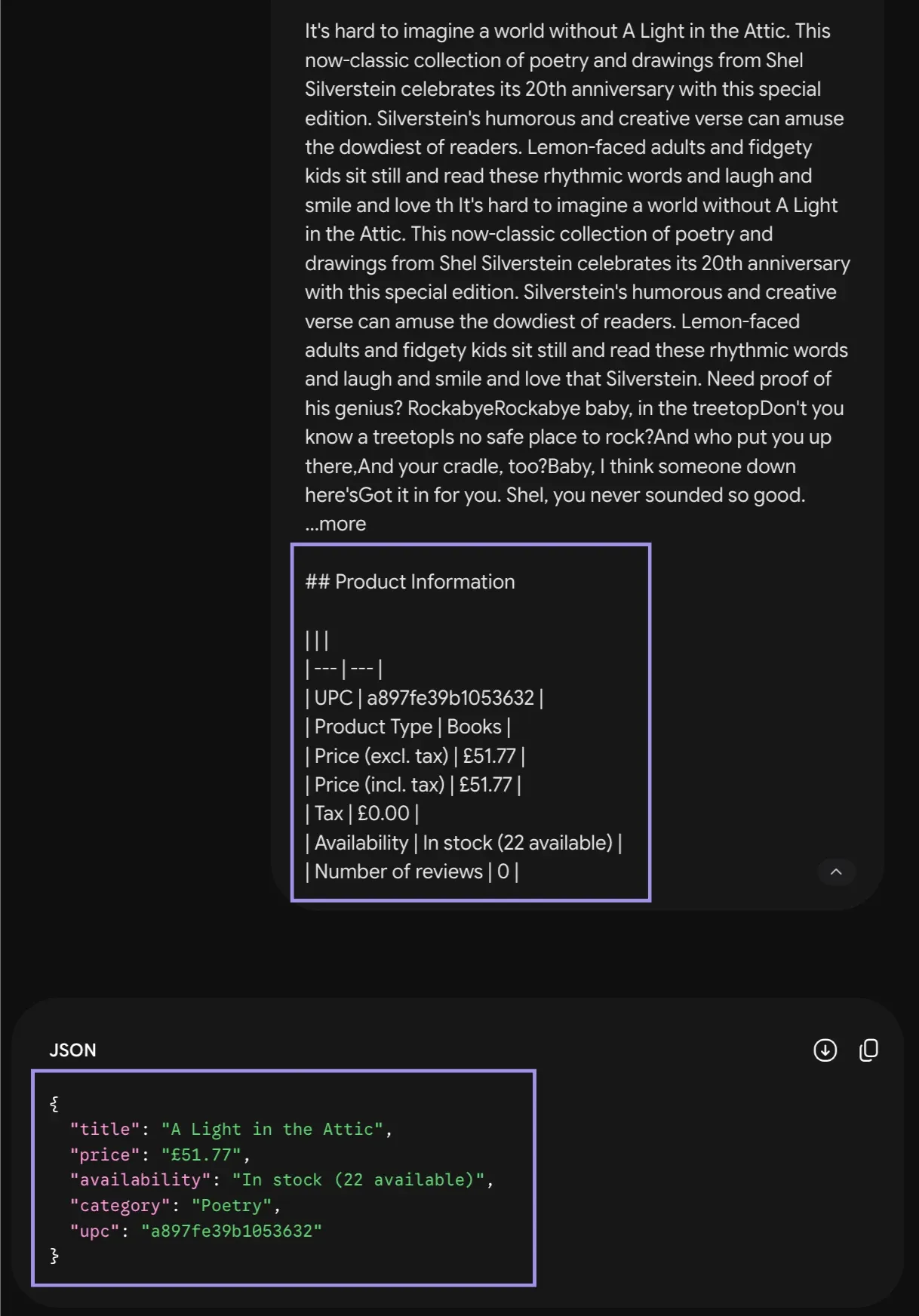
Paste the contents of gemini_input.txt into a new Gemini conversation. It should return one JSON object with five requested fields. Even if the JSON is well-formed, don't consider the response to be correct. Compare each value with the page you opened before.
For A Light in the Attic, the source gives us several direct checks:
• Title: A Light in the Attic
• Price: £51.77
• Availability: In stock (22 available)
• Category: Poetry
• UPC: a897fe39b1053632
If Gemini changes a part of the language, adds a new value, or misses a field, do not correct the result by editing, but change the prompt or prepared text. If the values match, copy only the JSON object into book.json.
Step 6: Validate Gemini's JSON With Python
Manual comparison tells us whether the values are correct, but it isn't repeatable. To make the check repeatable, load book.json against the Pydantic model:
import json
from pydantic import ValidationError

try:
        with open(
            "book.json",
            "r",
            encoding="utf-8",
        ) as file:
            raw_book = json.load(file)

        book = BookData.model_validate(raw_book)

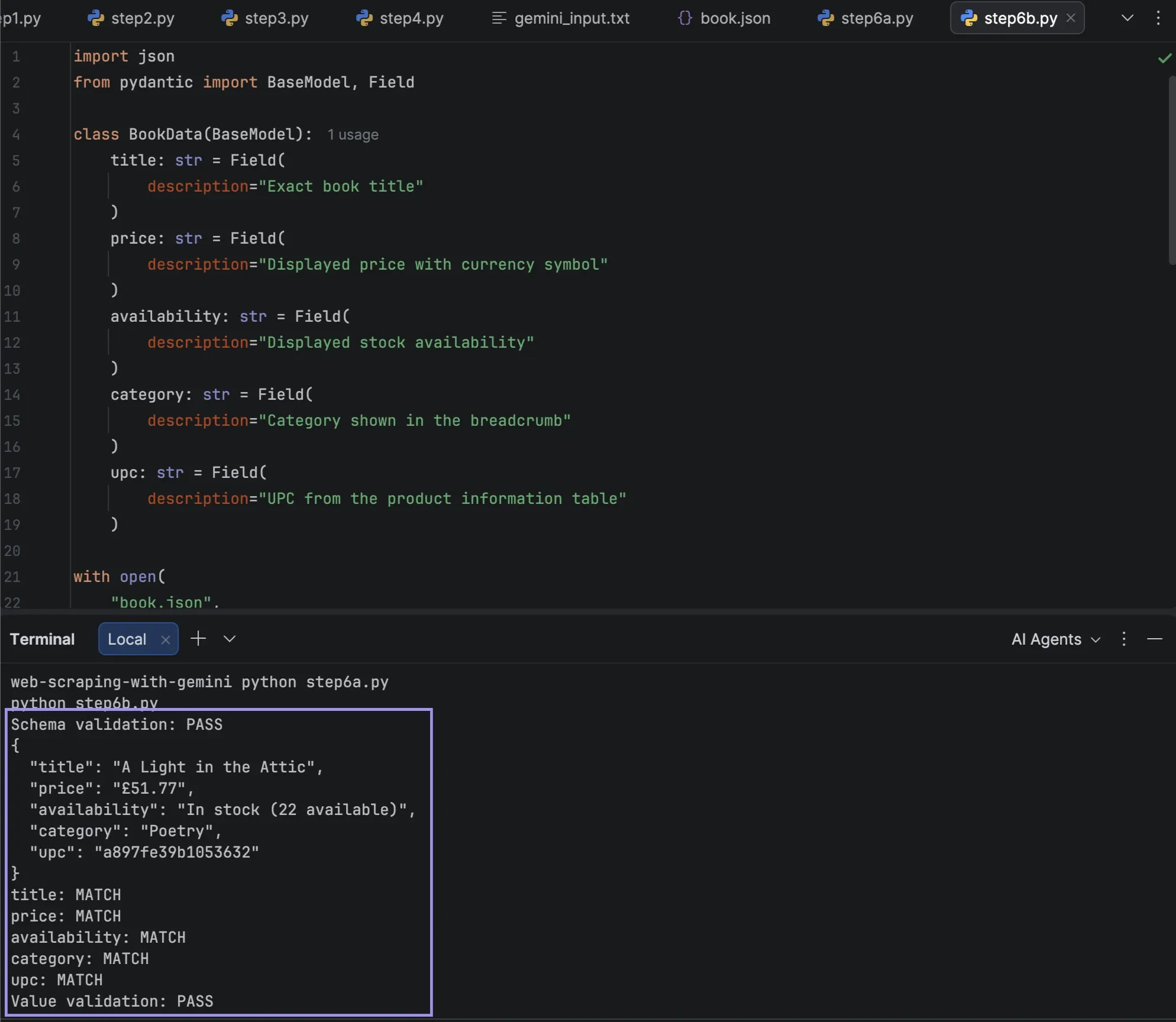
        print("Schema validation: PASS")
        print(book.model_dump_json(indent=2))

except (json.JSONDecodeError, ValidationError) as exc:
        print("Schema validation: FAIL")
        print(exc)
        raise SystemExit(1)
This is because model_validate() raises an exception rather than returning a result if the data does not fit; that's why the decoding and validating were combined in one try block. SystemExit(1) will break execution of the script before the next block executes on a book that was not assigned.
This answers a narrow question: Does the saved response match the structure our program expects? It does not confirm whether £51.77 was copied correctly.
For our controlled test page, add a second check against the source values:
EXPECTED_BOOK = {
        "title": "A Light in the Attic",
        "price": "£51.77",
        "availability": "In stock (22 available)",
        "category": "Poetry",
        "upc": "a897fe39b1053632",
}

all_match = True

for field, expected in EXPECTED_BOOK.items():
        actual = getattr(book, field)

        if actual == expected:
            print(f"{field}: MATCH")
        else:
            all_match = False
            print(
                f"{field}: CHECK "
                f"(expected {expected!r}, got {actual!r})"
            )

print(
        "Value validation:",
        "PASS" if all_match else "CHECK REQUIRED",
)
This separates structural validation from source validation, and a record should pass both before we treat it as evidence. If you have a larger set, you wouldn't hardcode all of the values you might expect, but you can validate fields and formats automatically and then sample records against the source pages.
At this point, the single-page extraction pipeline is complete; the next step is to reuse it across multiple URLs.
Step 7: Scale the Workflow to Multiple Pages
Once one page has passed, test a few more. While extraction remains manual, Python can automate retrieval and prompt preparation. The first step is to create one file for each URL that is "Gemini-ready":
from pathlib import Path

BOOK_URLS = [
        (
            "a-light-in-the-attic",
        "https://books.toscrape.com/catalogue/"
        "a-light-in-the-attic_1000/index.html",
        ),
        (
            "tipping-the-velvet",
        "https://books.toscrape.com/catalogue/"
        "tipping-the-velvet_999/index.html",
        ),
        (
            "soumission",
        "https://books.toscrape.com/catalogue/"
            "soumission_998/index.html",
        ),
]

input_dir = Path("gemini_inputs")
input_dir.mkdir(exist_ok=True)

for slug, url in BOOK_URLS:
        response = fetch_page(url)
        cleaned = clean_page(response.text)

        prompt = f"""
Extract one book record from the webpage content below.

Return only one valid JSON object with these fields:
- title
- price
- availability
- category
- upc

Use only information present in the supplied content.
Copy displayed values without rewriting them.
Do not infer missing values.

WEBPAGE CONTENT:

{cleaned}
""".strip()

        output_path = input_dir / f"{slug}.txt"
        output_path.write_text(
            prompt,
            encoding="utf-8",
        )

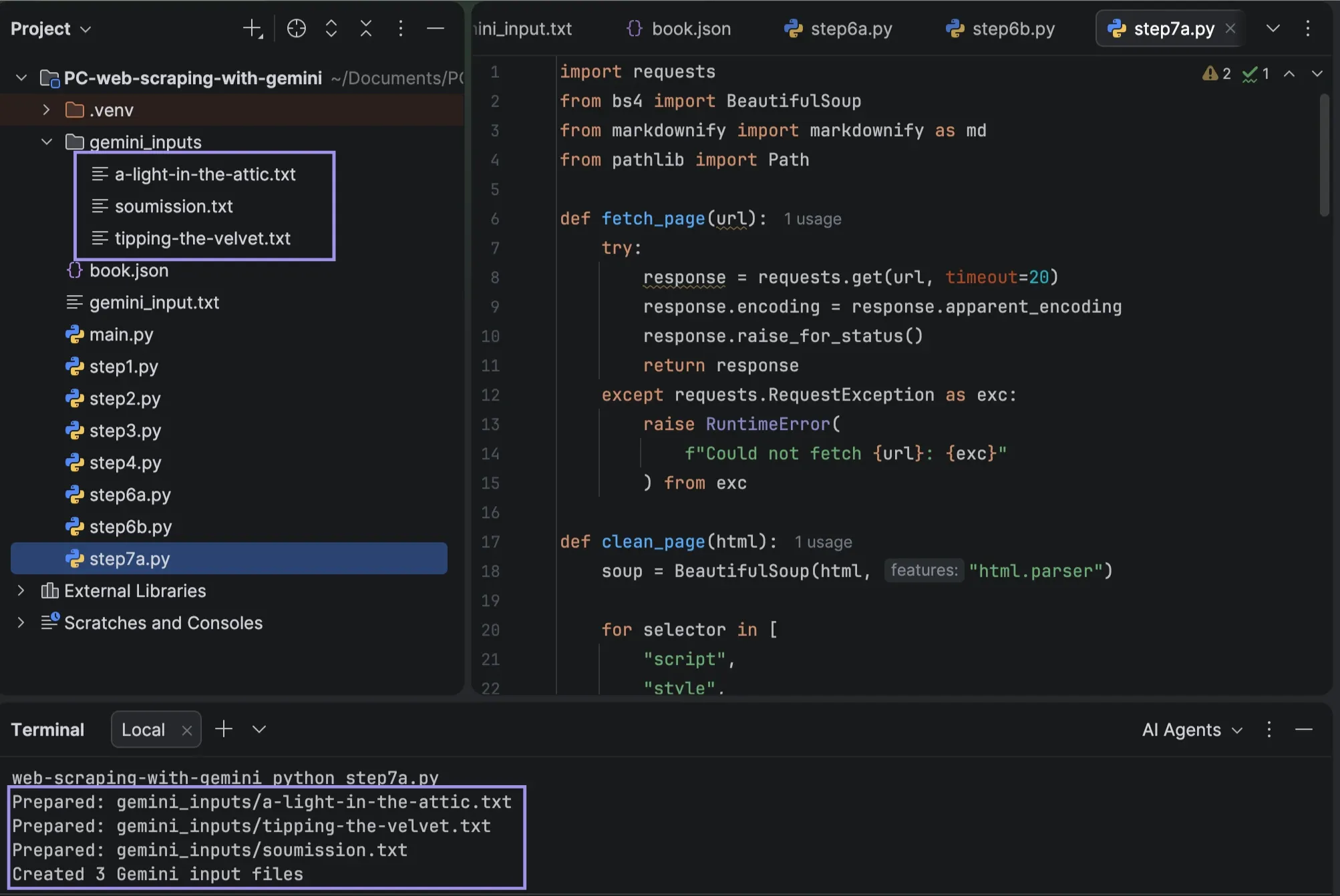
        print(f"Prepared: {output_path}")

print(
        f"Created {len(BOOK_URLS)} Gemini input files"
)
Now you can have three prepared inputs instead of having to fetch and clean each page manually.
For each of these files, process the file in the same way as Step 5, with the exception that you save the returned JSON file in a gemini_outputs folder, again with the same name as the input file, e.g., a-light-in-the-attic.json.
After all the answers are verified on their respective pages, Python can check and merge them:
import csv
import json
from pathlib import Path
from pydantic import ValidationError

output_dir = Path("gemini_outputs")
records = []

for json_file in output_dir.glob("*.json"):
        try:
            raw_data = json.loads(
            json_file.read_text(encoding="utf-8")
            )

            book = BookData.model_validate(raw_data)
            record = book.model_dump()
            record["source_url"] = dict(BOOK_URLS).get(json_file.stem, "")

            records.append(record)

            print(f"PASS: {json_file.name}")

        except (
            json.JSONDecodeError,
            ValidationError,
        ) as exc:
            print(f"CHECK: {json_file.name}")
            print(exc)

if records:
        Path("books.json").write_text(
            json.dumps(
                records,
                indent=2,
                ensure_ascii=False,
            ),
            encoding="utf-8",
        )

        with open(
            "books.csv",
            "w",
            newline="",
            encoding="utf-8",
        ) as file:
            writer = csv.DictWriter(
                file,
                fieldnames=records[0].keys(),
            )
            writer.writeheader()
            writer.writerows(records)

print(
        f"Exported {len(records)} "
        "schema-valid records"
)
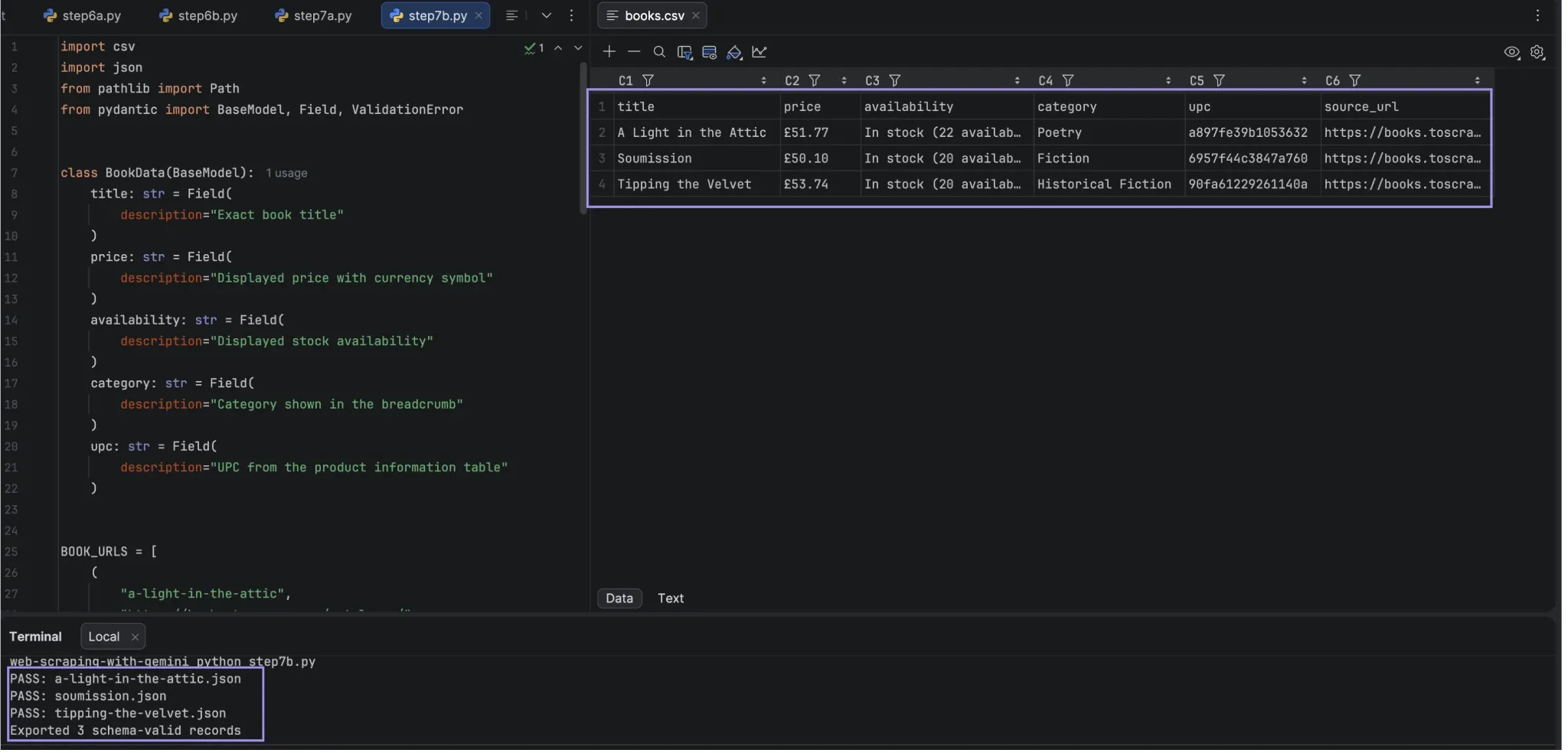
glob("*.json") reads everything in the folder so that everything that is saved there is validated. The inclusion of source_url maintains a connection of a row to the page it originated from, and consequently, allows a later spot check. The columns used by DictWriter come from the first record in the file; all records in the file must have the same keys.
Only responses that pass the Pydantic check reach the final files, and they should be checked for any suspicious values before they are considered safe.
Moving to the Gemini API for Full Automation
The browser workflow leaves one manual step: pasting the prepared content into Gemini and saving the reply. The Gemini API removes it. Everything else remains unchanged: the page-fetching and cleaning elements, the prompt, and the BookData model stay the same. The only difference is that Python now sends the prepared content to the model rather than you pasting it.
Using Python, install the client library: python -m pip install google-genai. You’ll also need a GEMINI_API_KEY, which you can create in Google AI Studio. Create a .env file in the project folder and add the key:
GEMINI_API_KEY=your-api-key
Add .env to .gitignore so the key is not committed with the project. Then load the file into your shell before running the script:
set -a
source .env
set +a
The model name list is likely to change over time as Google retires models; please consult the current model list in case the one below is not accepted.
from google import genai
from google.genai import types

client = genai.Client()

response = client.models.generate_content(
    model="gemini-3.8-flash",
    contents=PROMPT,
    config=types.GenerateContentConfig(
        response_mime_type="application/json",
        response_schema=BookData,
        automatic_function_calling=types.AutomaticFunctionCallingConfig(
            disable=True
        ),
    ),
)

book = response.parsed

if book is None:
    raise SystemExit("Gemini did not return a valid record")

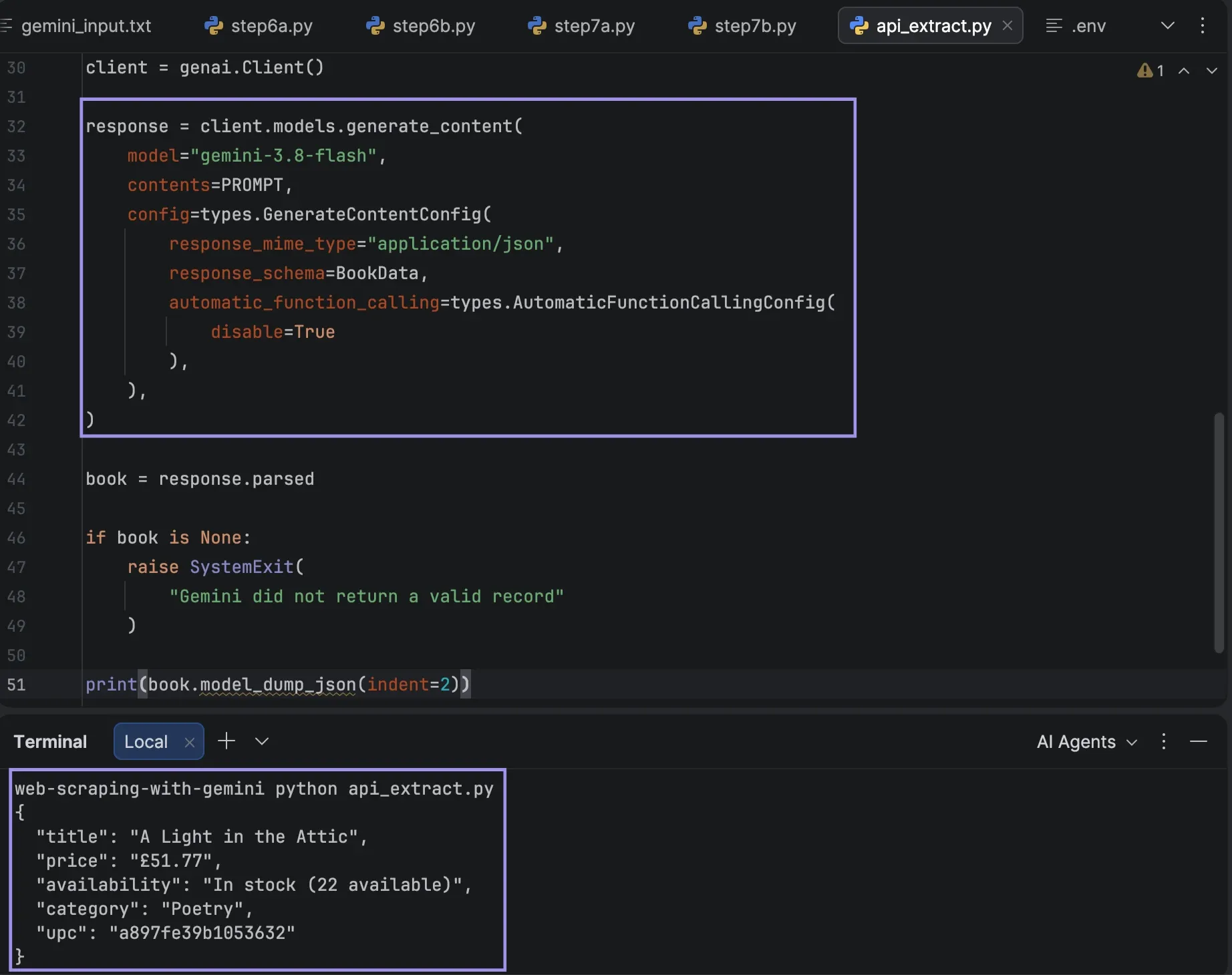
print(book.model_dump_json(indent=2))
Two things change compared with the browser workflow. First, the BookData model is now used twice: it is sent as a response schema in the API, and the field descriptions in Step 3 are now instructions Gemini actually reads, so the response is constrained to that structure rather than checked against it afterward.
Second, response.parsed returns a validated instance of BookData directly, so the extraction and the schema validation in Step 6 become a single operation. response.parsed returns None if the model generates malformed JSON or exceeds its output tokens. Keep the source-value check from Step 6 as well. A schema-constrained response can still contain a wrong value, and the structural-versus-source distinction applies to the API the same way it did to the browser.
The retrieval stage does not change. Python still fetches the page, so the proxy configuration described below applies to the API workflow unchanged, and the same cleaned content goes to the model either way.
Where Proxies Fit Into Gemini Web Scraping
A proxy should be in the retrieval phase. In Python, the request goes through the proxy to the target, and Gemini receives only the prepared content afterward.
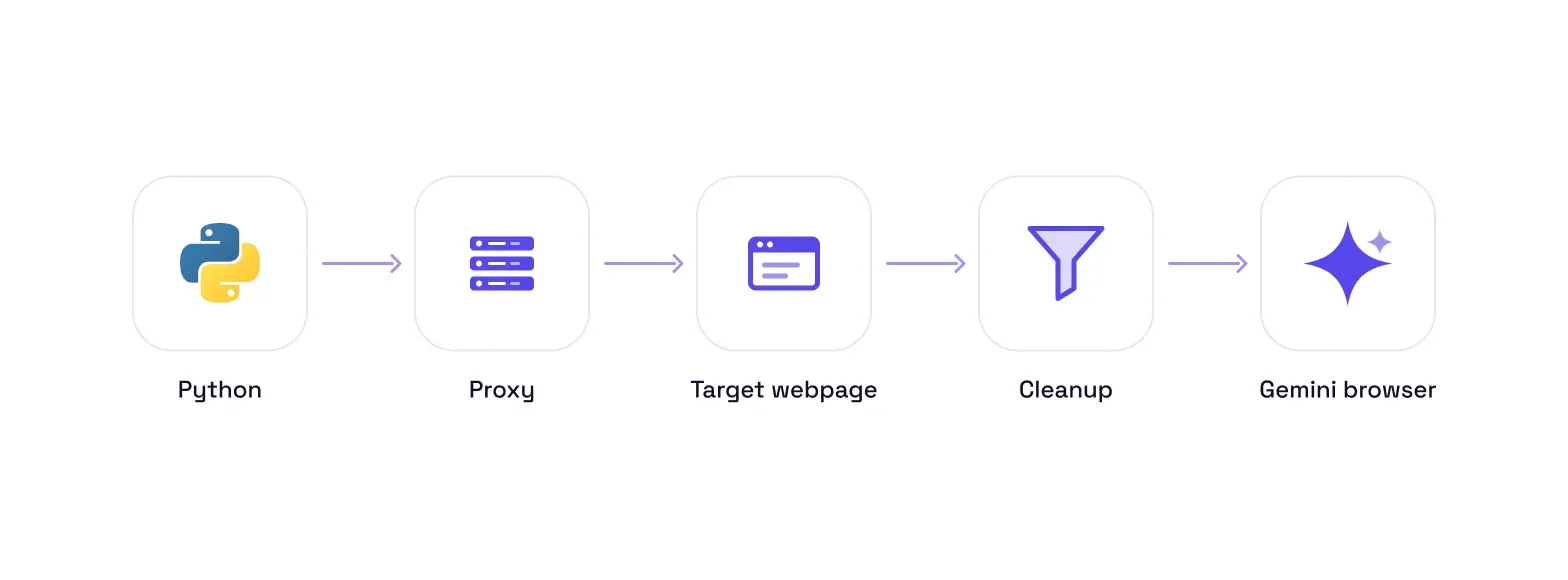
You don't need a proxy just because Gemini is part of it. For targets that allow direct requests, a proxy is unnecessary. Proxy routing helps when you need public content in a specific region, want to separate automated requests from regular requests, or need to rotate requests across multiple IPs.
Choose the proxy type based on the target:
- Datacenter proxies: These are proxies that are based on data center IPs instead of consumer ISP networks. In general, they are less expensive and a suitable starting point when the target accepts datacenter IPs.
- Residential proxies: These are proxies with IP addresses that are linked to residential ISP providers. They're ideal for targets when the identity of the residential IP or broader location coverage is important, and country and other location targeting options are available on this network.
- Static ISP proxies: These are IP addresses that are registered with the ISP and are hosted in a data center. They also offer a residential identity and a non-changing IP address, which is helpful when running for longer periods of time that may result in problems with changing addresses.
If you don’t have proxy credentials yet, you can generate them in the dashboard and use the 1 GB of free residential data for testing.
Add the Byteful proxy details to the same .env file:
BYTEFUL_PROXY_HOST=your-proxy-host
BYTEFUL_PROXY_PORT=your-proxy-port
BYTEFUL_PROXY_USER=your-proxy-username
BYTEFUL_PROXY_PASSWORD=your-proxy-password
After adding the proxy credentials, reload the .env file so that Python can read the new values:
set -a
source .env
set +a
import os
import requests
from bs4 import BeautifulSoup

PROXY_HOST = os.environ["BYTEFUL_PROXY_HOST"]
PROXY_PORT = os.environ["BYTEFUL_PROXY_PORT"]
PROXY_USER = os.environ["BYTEFUL_PROXY_USER"]
PROXY_PASSWORD = os.environ["BYTEFUL_PROXY_PASSWORD"]

proxy_url = (
 f"http://{PROXY_USER}:{PROXY_PASSWORD}"
        f"@{PROXY_HOST}:{PROXY_PORT}"
)

proxies = {
        "http": proxy_url,
        "https": proxy_url,
}

def fetch_page(url):
        response = requests.get(
            url,
            proxies=proxies,
            timeout=20,
        )
        response.encoding = response.apparent_encoding
        response.raise_for_status()
        return response

def mask_ip(ip):
        parts = ip.split(".")
        if len(parts) == 4:
            return ".".join(parts[:3] + ["xxx"])
        return ip

check = fetch_page("https://ipwho.is/")
location = check.json()

print(f"Proxy IP: {mask_ip(location['ip'])}")
print(
        "Proxy location: "
        f"{location['city']}, {location['country']}"
)

response = fetch_page(URL)
soup = BeautifulSoup(response.text, "html.parser")

print(f"Target status: {response.status_code}")
print(f"Page title: {soup.h1.get_text(strip=True)}")
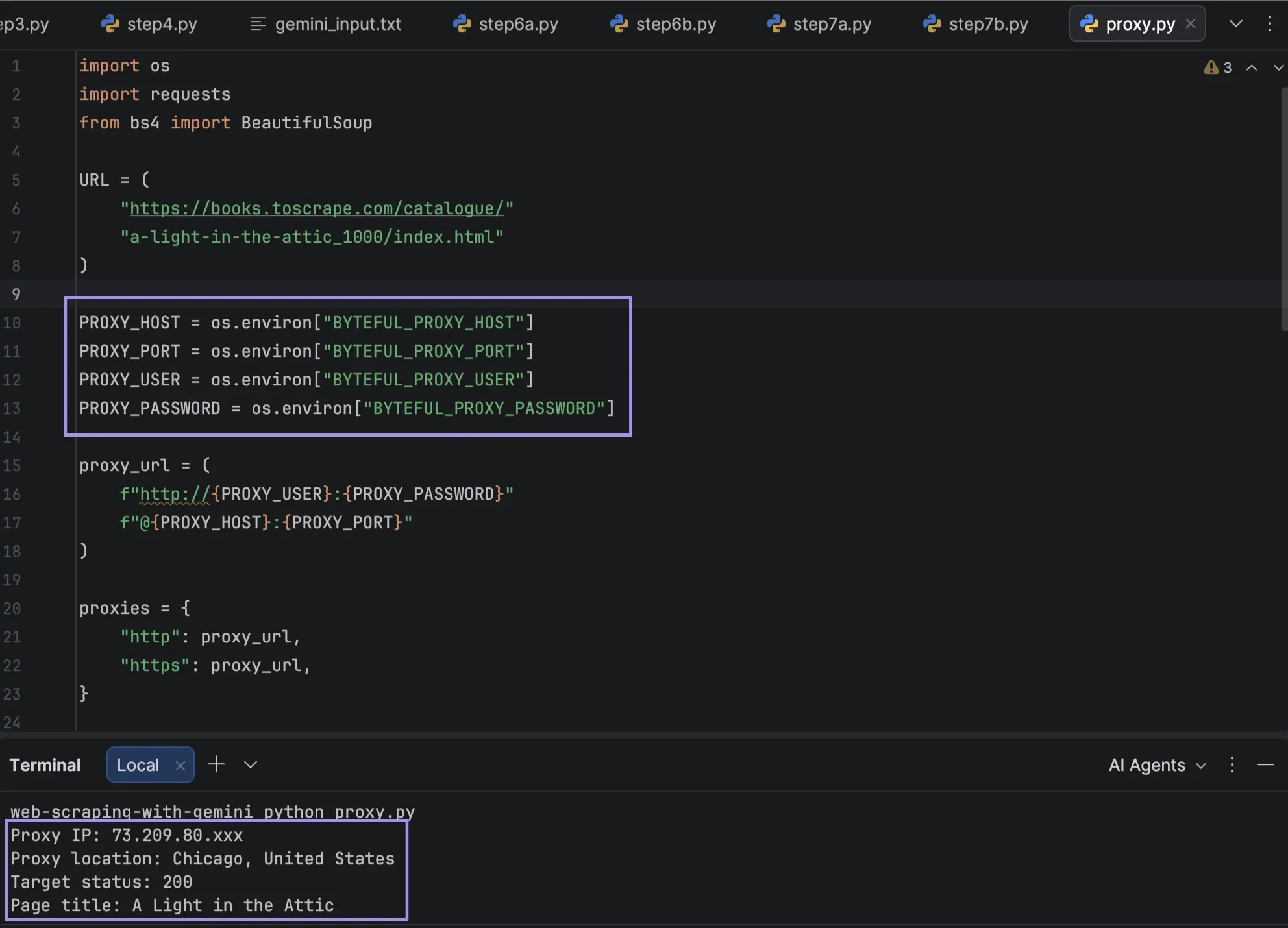
This version omits the error wrapper from Step 1 to keep the block short; in your script, keep the same try/except around the request. The IP-check request has the same proxy configuration as the subsequent Books to Scrape fetch.
ipwho.is returns the public IP and location without requiring an API key, so verify the proxy exit IP and location first. City-level results differ between providers, so a nearby city is not necessarily a failure when you're validating only the country or region.
The second request should return HTTP 200 and A Light in the Attic. Apply the same cleaning as before to response.text. The proxy doesn't change the Gemini prompt, since this applies to retrieval, not extraction.
How Gemini URL Context Handles Direct URL Retrieval
Google's URL Context tool provides you with the content of a webpage. Rather than downloading the page with requests, you provide the URL in the request to the Gemini API, and you activate the tool. Gemini checks its own index first and then falls back to a live fetch of the page.
Gemini 3 models can also combine URL Context with structured outputs, so an API-based scraper could retrieve a product page and request title, price, availability, category, and UPC in a defined JSON structure.
We are not demonstrating URL Context here because it hands the retrieval stage to Google. The difference is control. We change the timeouts, proxies, and preprocessing before Gemini reads the content with our Python setup. When using URL Context, Gemini fetches the page itself, so proxy settings in your local code will not be used.
URL Context accepts up to 20 URLs per request and up to 34 MB from each. URLs must be open to the public, and cannot be localhost, private networks, paywalled pages, Google Workspace files, YouTube videos, or audio or video files. The API includes retrieval status that can help confirm access.
Troubleshooting and Validating Your Gemini Scraping Workflow
Failures can happen when retrieving, cleaning, extracting, or validating. Identify the problem with the process before changing the rest of the scraper.
- The target returns 403 or 429: A 403 means the server refused the request; a 429 means too many requests arrived within a period. Check the site's access requirements, reduce the rate, and respect any retry guidance returned. Changing IPs is not a way around access controls.
- Expected page content is missing: Don't edit the prompt without first reading the downloaded HTML. If a value does not ever get to your script, then Gemini will not be able to get it. Verify the URL and make sure that the element wasn't removed during cleanup.
- JavaScript-rendered values are absent: Requests downloads the response from the server, but does not run the page JavaScript. If data are not captured until after scripts have run, then implement a rendering workflow (Playwright or Selenium) before preparing the content.
- Gemini omits or changes a field: Ensure it is possible to find the value in the prepared input, and then make it more specific. Keep source validation separate from schema validation (well-formed JSON can contain an incorrect value).
- The prepared input is unnecessarily large: Remove any navigation, page furniture or areas that are repetitive or not relevant (except for a field that you need).
- URL Context cannot retrieve a page: Check that the URL is complete and visible to the public. Unsupported sources include private networks, localhost, paywalled pages, Google Workspace files, YouTube videos, and audio or video files.
- The proxy location is wrong: Test the same proxy configuration against an IP-check endpoint, as in the proxy section above. Verify the exit IP and region prior to sending requests to the target, and inspect the credentials and endpoint in use.
Check whether the site offers an official API or export first. Check the terms and access rules, and only gather what the task requires that is public or accessible to the general public, and limit the number of requests made. A proxy changes the network route; it does not grant permission to access restricted content.