

Ten cloud phones may have separate device fingerprints, but what happens if they all connect through the same IP address? Platforms can still use network signals to associate those profiles, weakening the separation GeeLark creates at the device level.
A separate proxy for each profile helps solve this by giving every cloud phone its own IP address and location. However, GeeLark does not include built-in proxies, so you need to bring your own and configure them correctly.
In this guide, we cover what GeeLark is, how to add a proxy to a profile, which type to use, and check if it's routing correctly
How does GeeLark compare to an Android emulator?
Both GeeLark and Android emulators allow you to run an Android app without having a physical phone, but they do it in different ways.
- Android emulator runs a virtual Android device locally on your computer, using your own hardware resources for every instance.
- GeeLark hosts isolated Android cloud phones remotely, giving each profile its own device environment and fingerprint while managing everything from one dashboard.
This is what makes GeeLark more suitable for managing multiple mobile profiles without holding physical handsets or running every instance on your own hardware.
Is GeeLark another Antidetect Cloud Phone?
GeeLark combines hosted Android cloud phones with tools for managing, automating, and organizing multiple mobile profiles from one desktop client.
Like other cloud phone platforms such as DuoPlus, it runs Android environments remotely rather than on your local machine. The truly different feature of GeeLark is that each profile runs in a separate cloud phone with its own device info, but it is all still manageable from one dashboard. Its main features include:
- Hosted Android cloud phones: Maintain multiple Android environments without the need to purchase and maintain physical devices.
- Separate device information for every profile: To avoid account overlap at the device level, each cloud phone is assigned its own IMEI, MAC address, OS build, and other device identifiers.
- Built-in app marketplace: Install supported Android apps directly inside each cloud phone.
- Automation and synchronisation: Automate workflows and mirror actions between cloud phones.
- Team collaboration and API: Manage cloud phones with role-based permissions, activity logs, and API access.
- Proxy management: Save and assign HTTP, HTTPS, and SOCKS5 proxies to individual profiles, while purchasing the proxy service separately.
GeeLark supports saved and custom proxies, but the proxy service itself is purchased separately. You provide your own and assign each one to the cloud-phone profile that needs a distinct IP address or location.
HTTP, HTTPS, and SOCKS5 proxies can be entered directly or saved for reuse. Unlike a standard Android proxy setup, the proxy is assigned at the profile level, so different cloud phones can use different IP addresses and locations.
How to set up and use GeeLark?
GeeLark accommodates multi-instance Android use cases in isolated environments, along with social media account management and marketing, affiliate marketing & earning apps, ad verification tools, e-commerce and online shopping operations, airdrop workflows, and app testing. It runs these workflows on Android devices in the cloud, which means you can manage mobile environments without the need to keep up a physical phone farm.
First, create a GeeLark account and download the desktop client for your operating system. Download the app, sign in, and visit the Profiles page to create your first cloud phone.
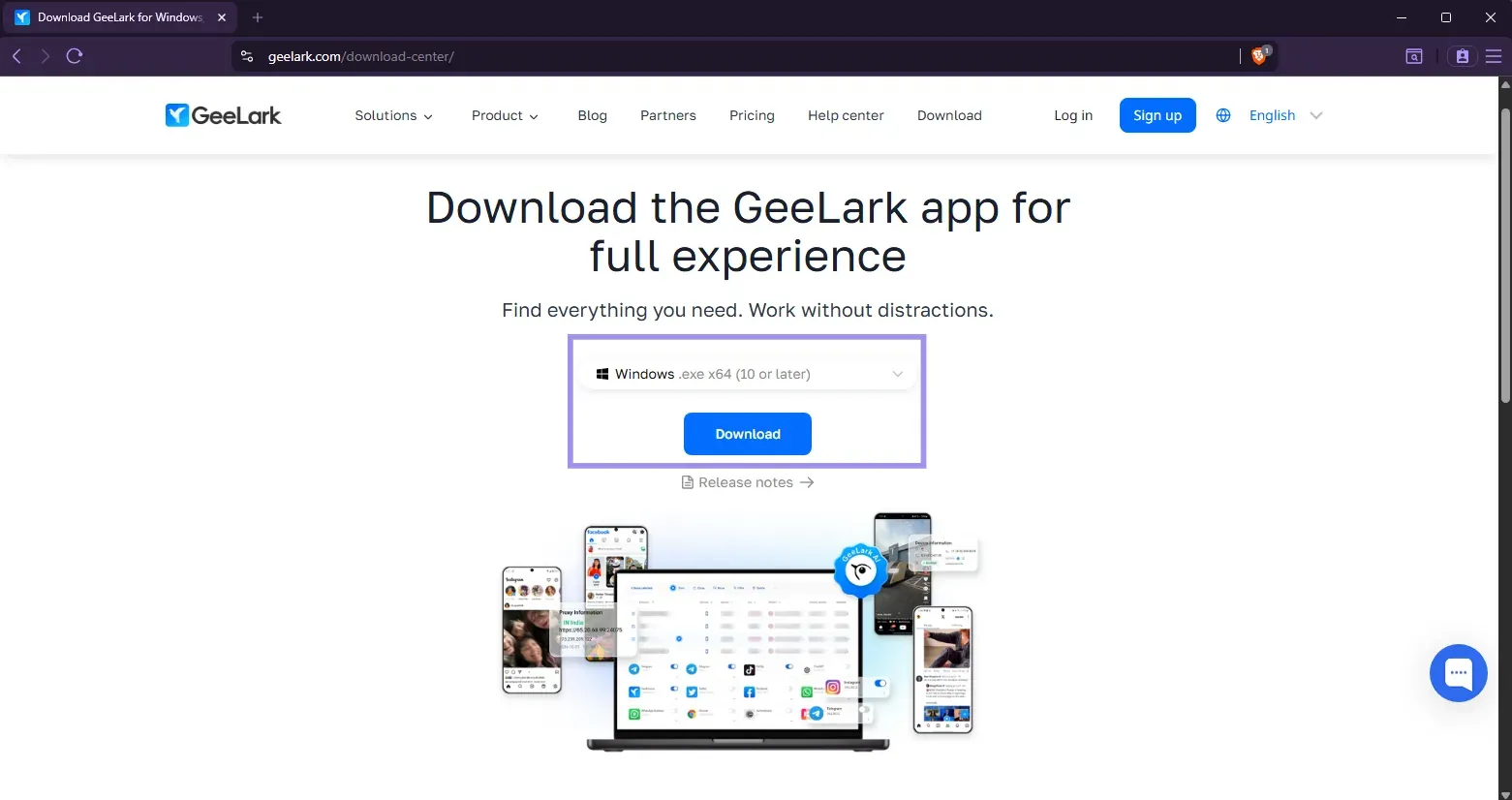
During profile creation, you can select an entirely new proxy or one you've saved previously in the Proxies section.
Adding a proxy to GeeLark
GeeLark does not have built-in proxies, and instead gives you all the tools for choosing and configuring the right proxy by yourself. Choosing the wrong proxy type or session behaviour may defeat the purpose of achieving network separation between cloud-phone profiles.
GeeLark supports HTTP, HTTPS, and SOCKS5 proxies. Mobile proxies can suit mobile-first workflows, while residential proxies are useful when you need broad location coverage or a separate IP for each profile. Sticky sessions maintain the same exit IP across logins and activity and are more suited for account-based workflows, while rotating sessions fit tasks that do not require the same IP throughout.
Byteful offers mobile and residential proxies where you can choose the location, protocol, and session type before copy-pasting the host, port, username, and password to GeeLark. Proxyway’s 2026 market research recorded a global mobile response time of 0.48 seconds for Byteful and a residential IP-quality detection rate of 37.09%, with a risk score of 2.61.
You can generate the credentials through the Byteful dashboard and start with 1 GB of free residential data for your GeeLark profiles.
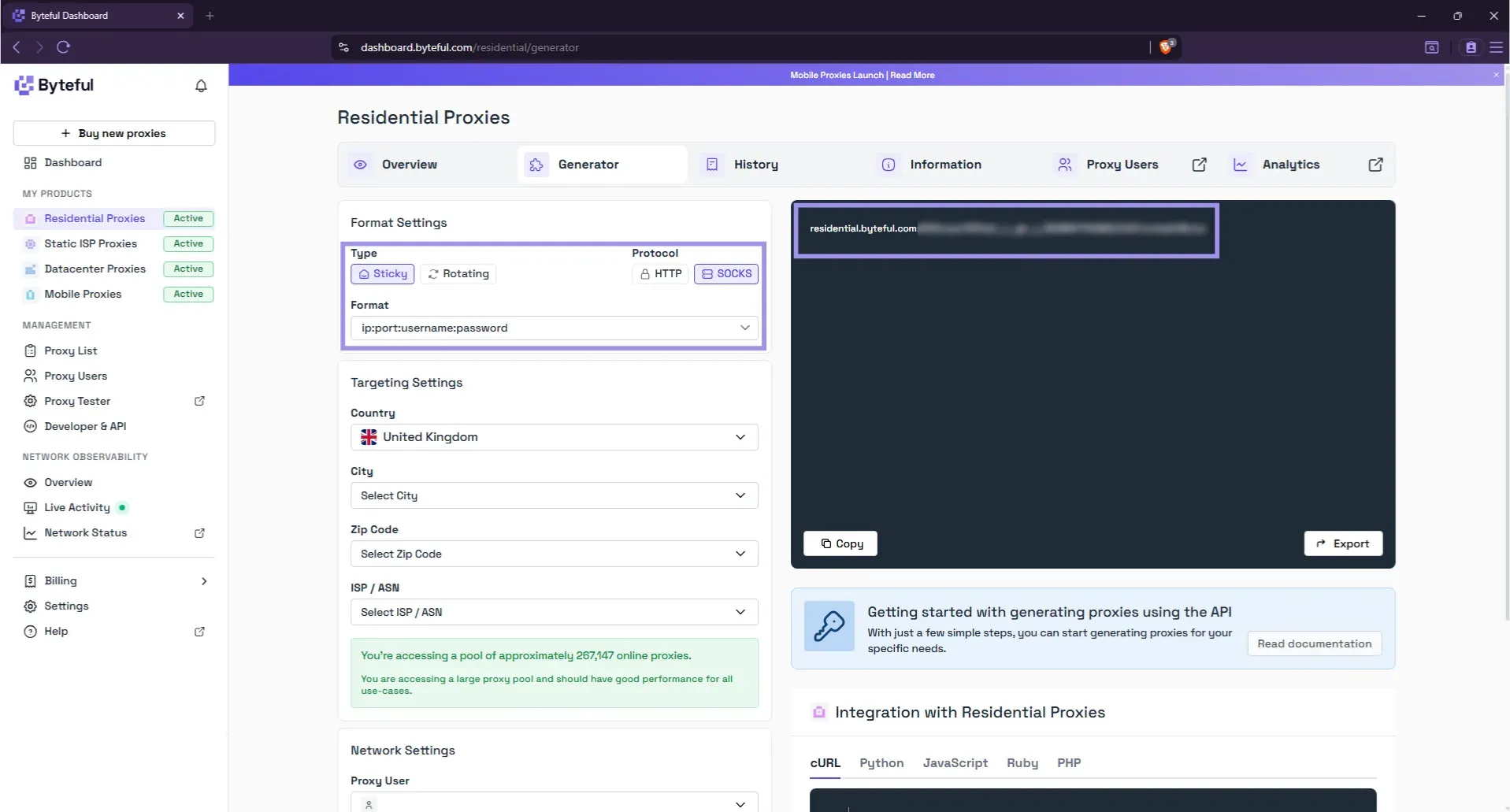
Now that the proxies are generated, you can proceed with adding them to GeeLark.
1. Click New Profile, then open the Single create tab. Give the profile a name and select its group.
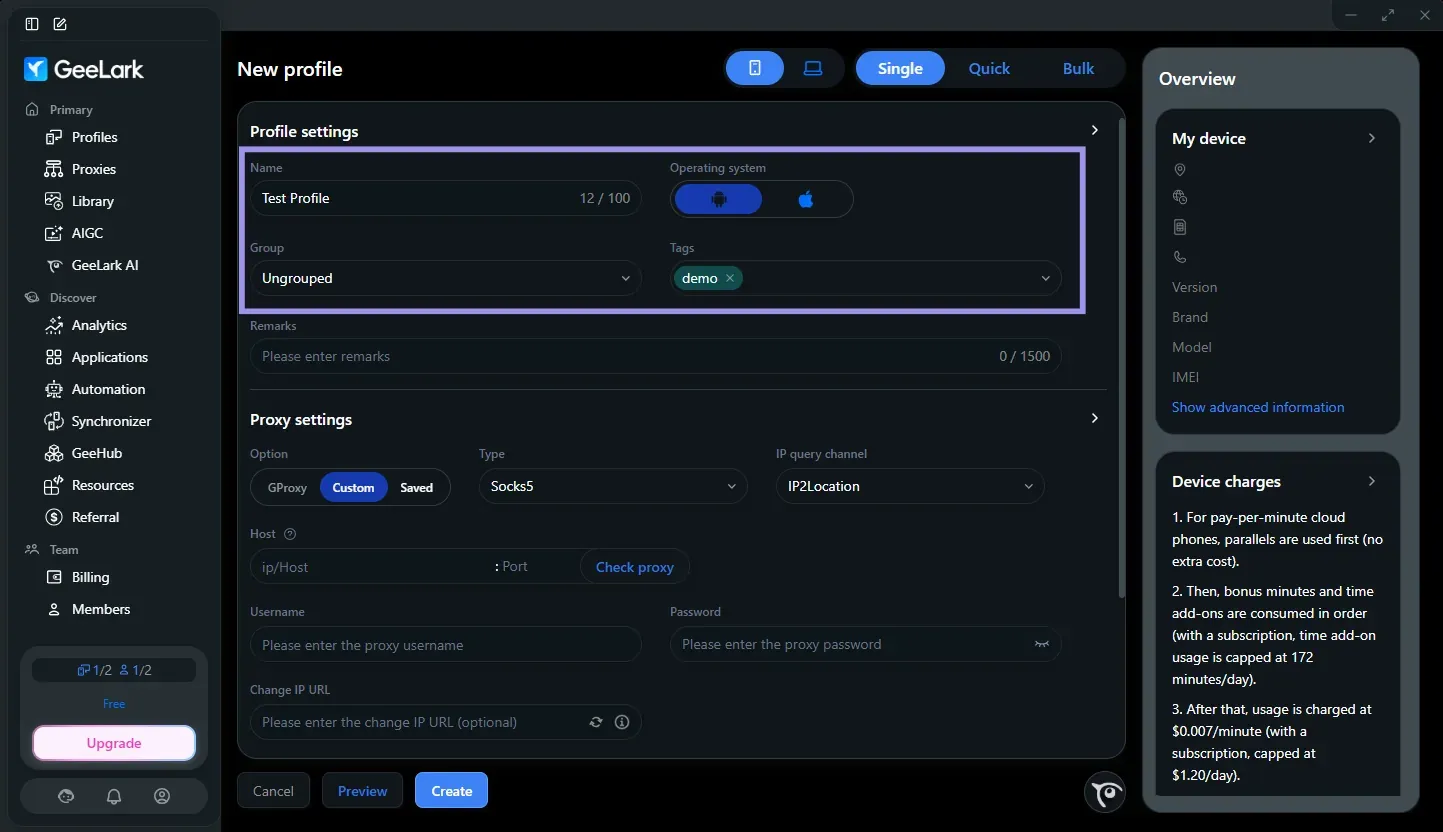
2. Open Proxy settings and choose how you want to add the proxy. Click Custom to input your new proxy directly, or Saved to use one already saved in GeeLark.
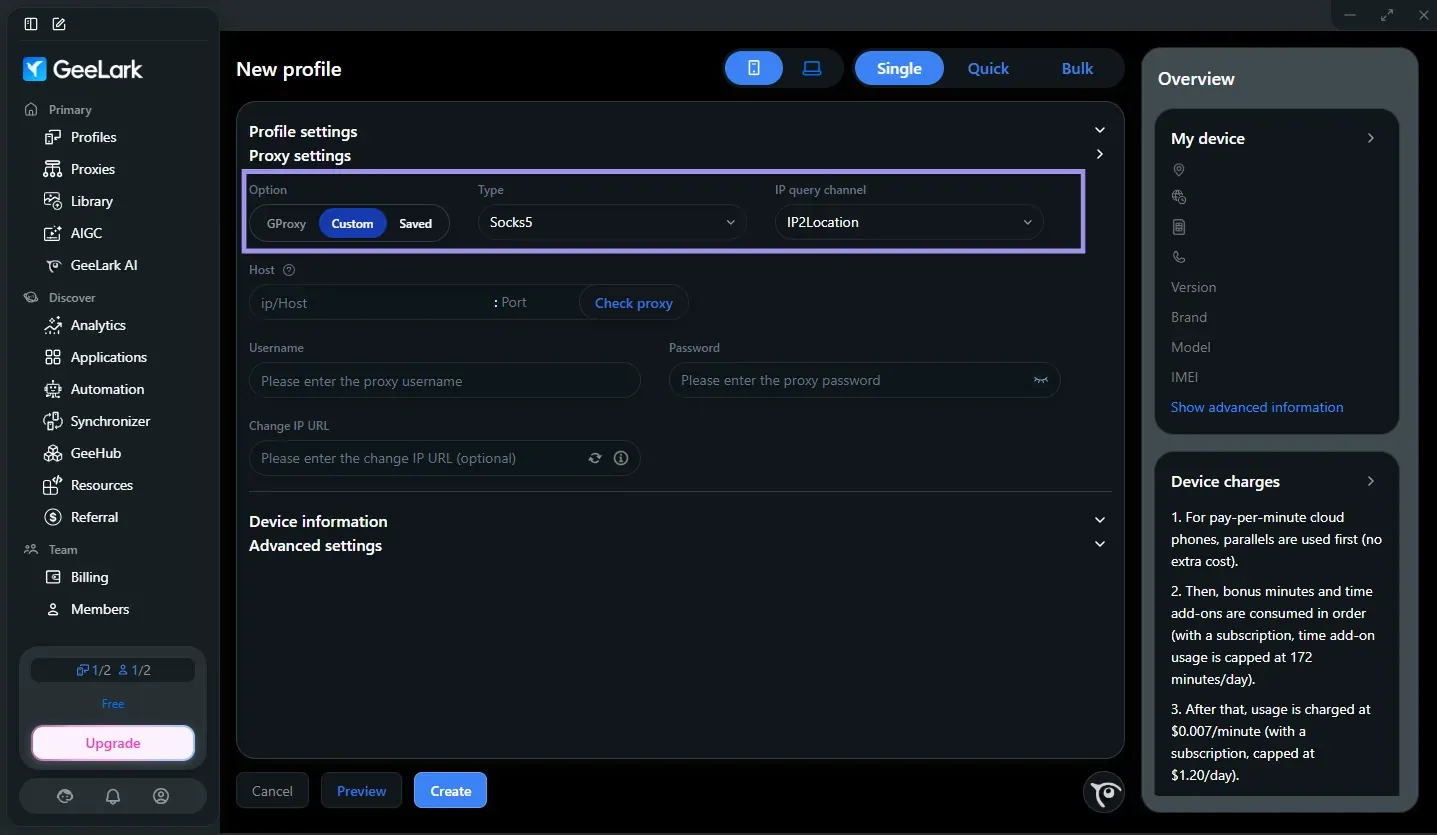
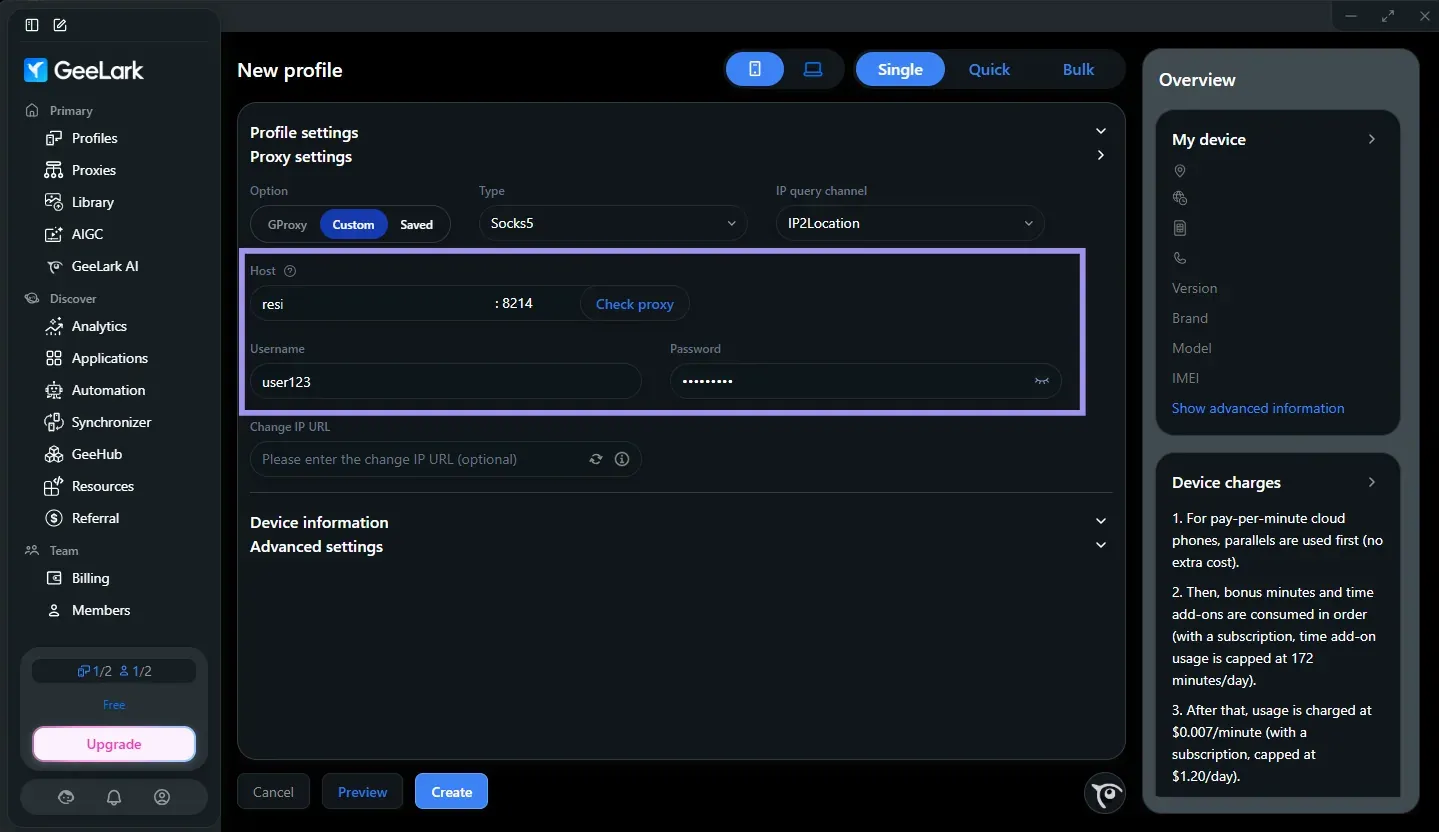
3. If you select Custom, you can choose the correct proxy protocol and enter your proxy host, port, username, and password from your proxy provider. You can also paste a complete proxy string when the format is supported, and also add proxies in bulk.
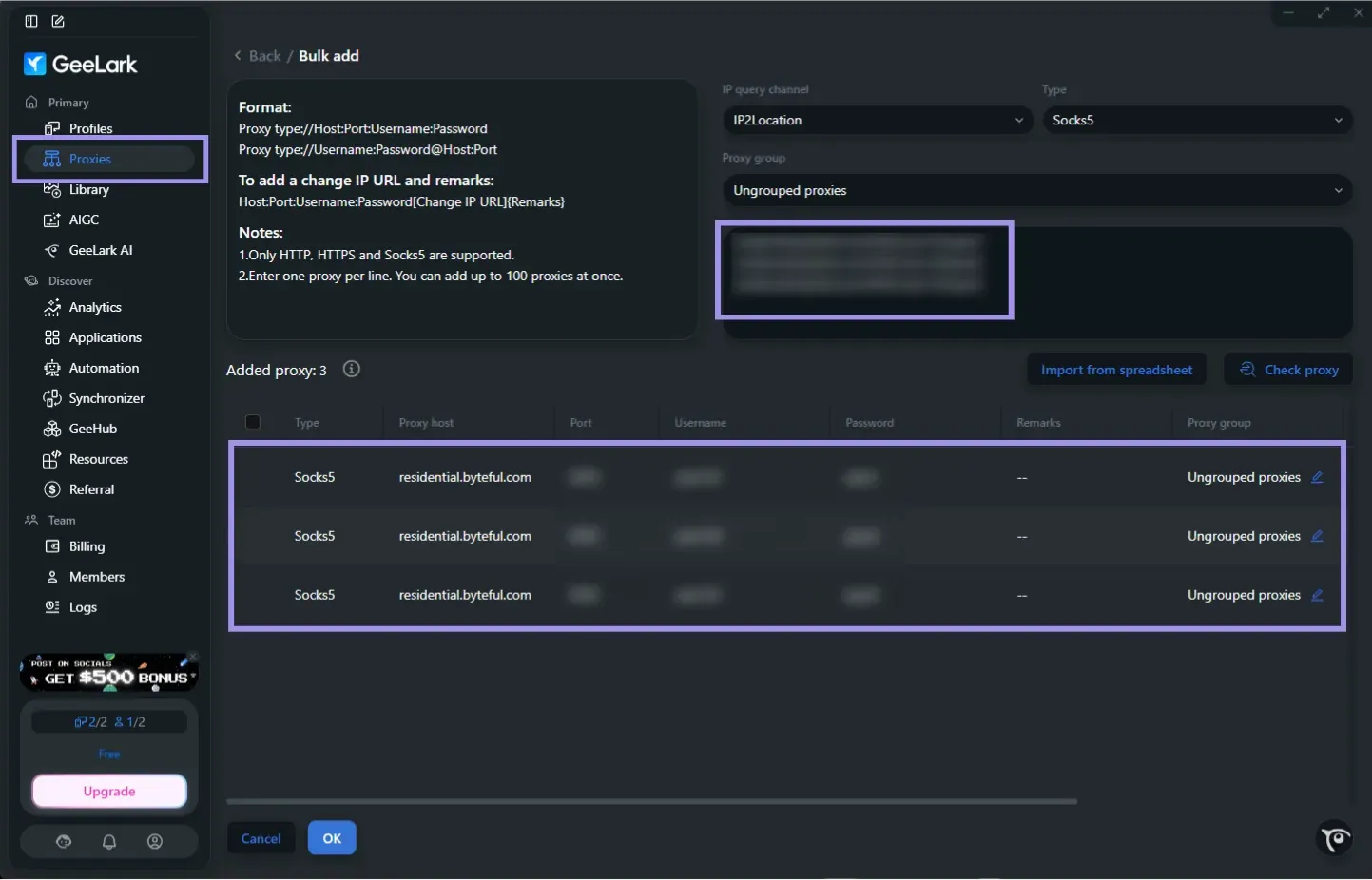
4. We recommend adding proxies in bulk from Proxies in the left sidebar and bulk import your proxies, rather than at profile creation. This is because after saving them, you can return to the profile, open the Saved tab, and select the required proxy.
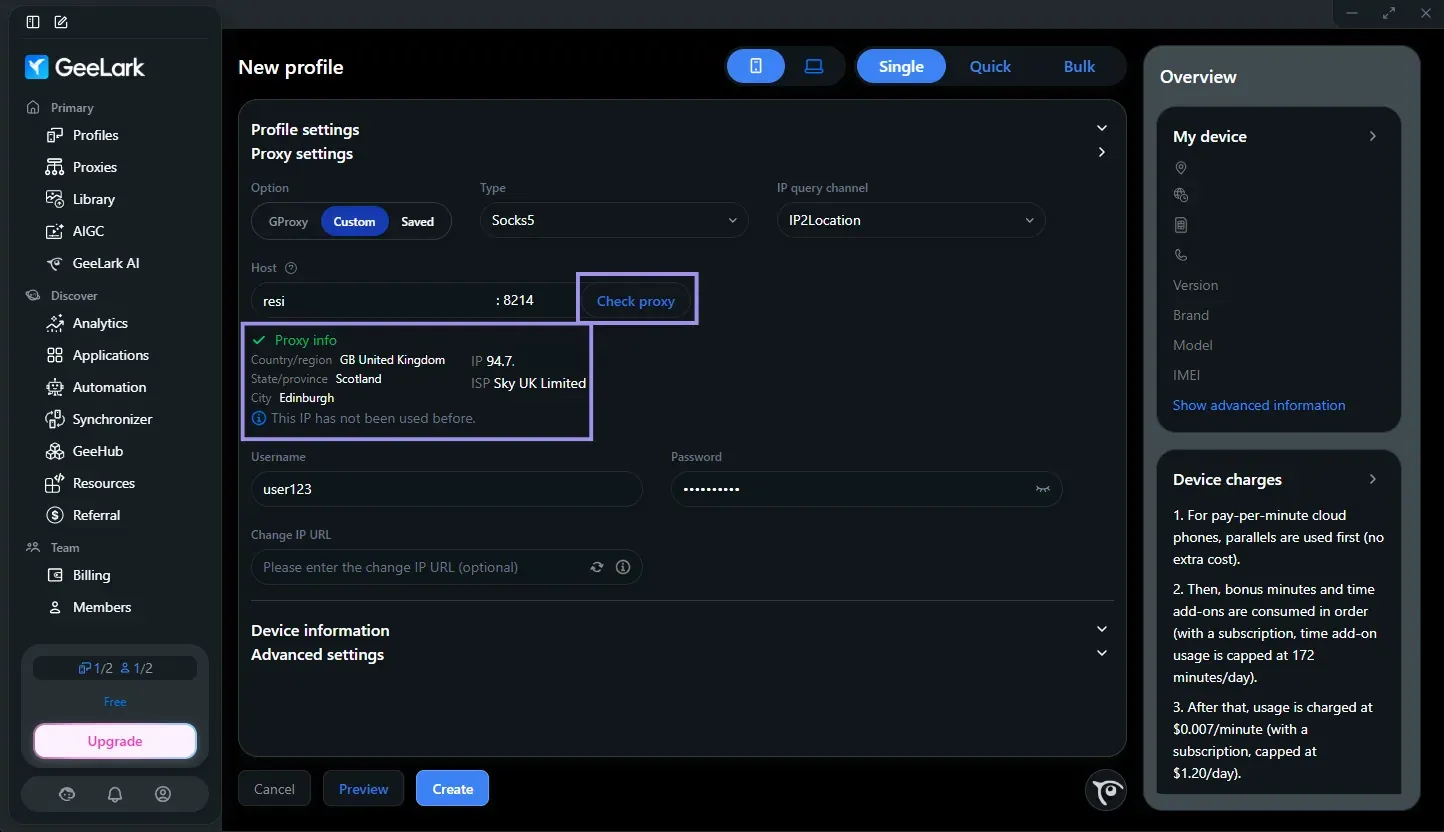
5. Click Check proxy to confirm that GeeLark can connect and to review the detected IP address and location.
6. Scroll down to the Device information section and select your desired Android version. Expand Advanced settings, then make sure Location is set to Based on IP so the cloud phone uses the region this proxy determines.
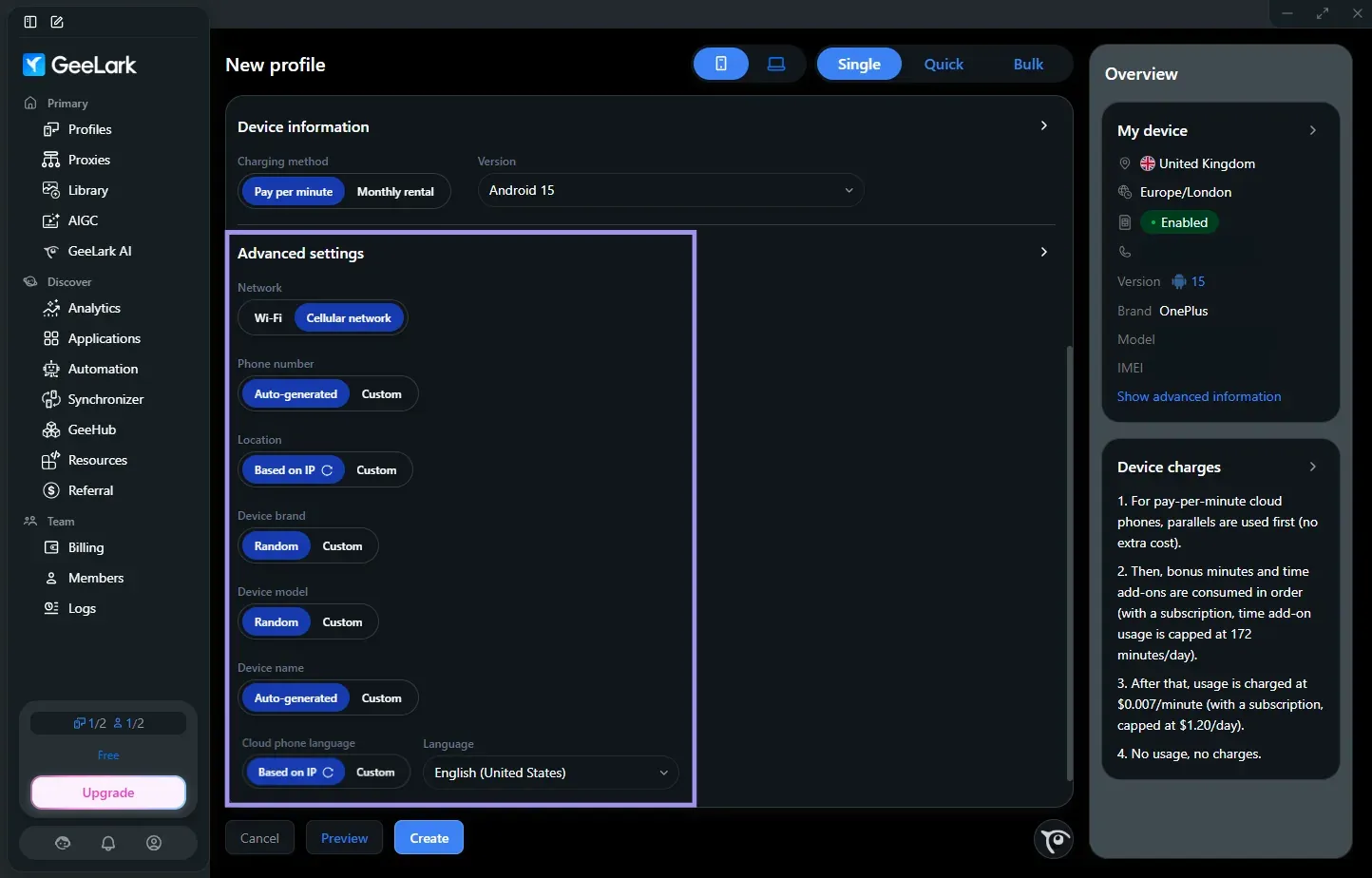
7. Click Create to save the profile. Go back to the Profiles page and press Start next to the new cloud phone.
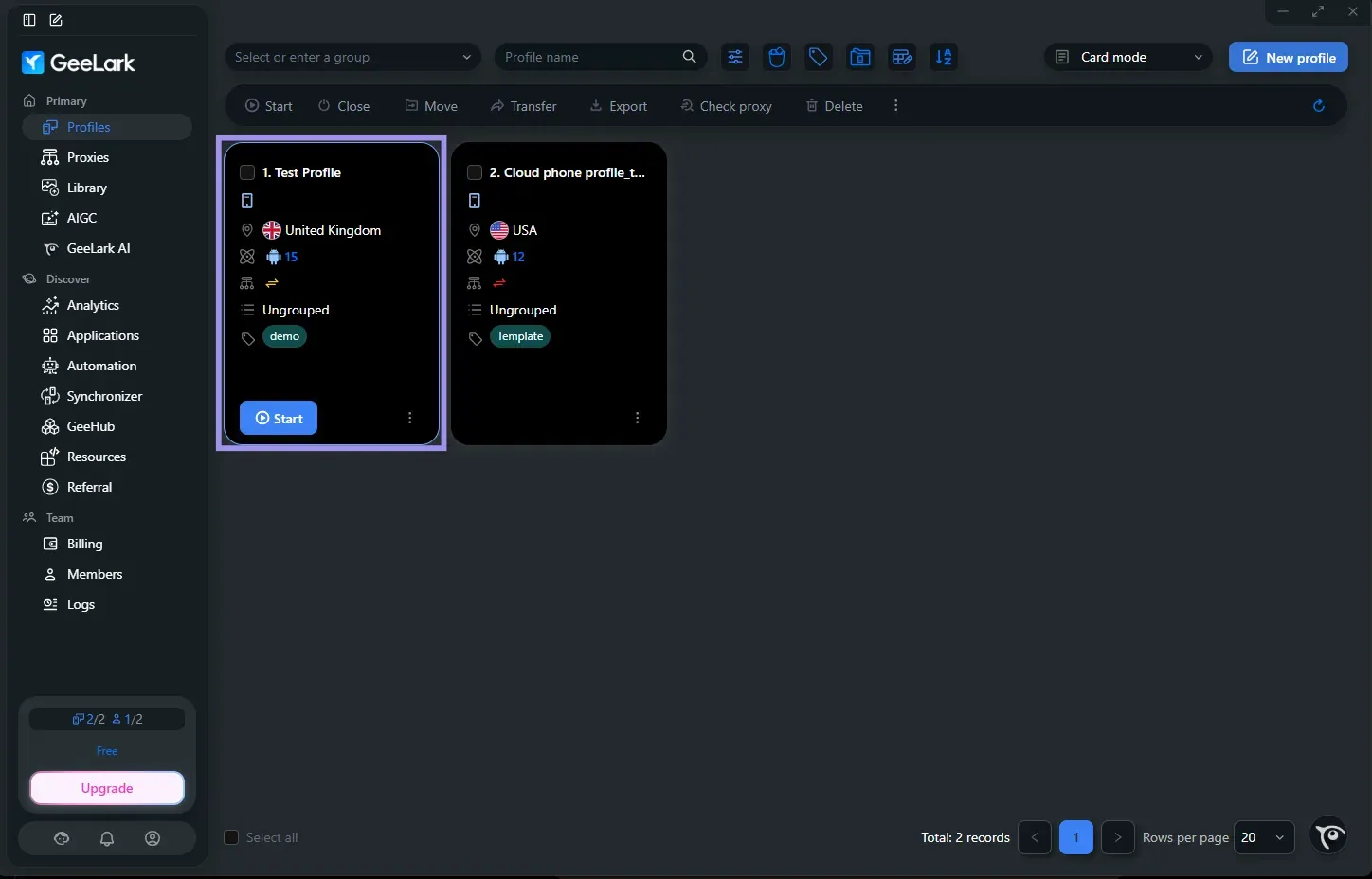
8. Wait for the cloud phone to finish starting, then open the profile. Once the cloud phone window appears, you can install apps, log into your accounts, or set up automation.
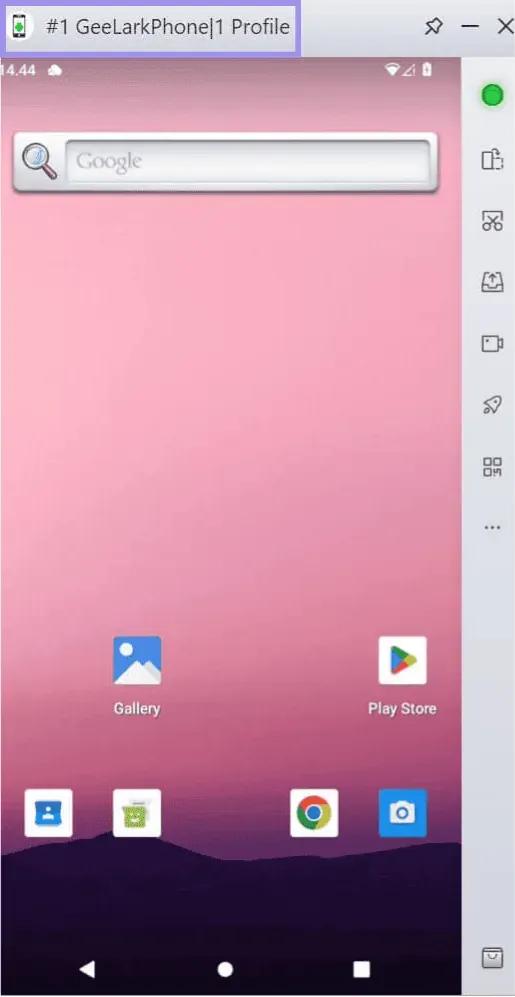
Test and manage your GeeLark proxies
GeeLark’s built-in Check Proxy confirms that the proxy connects correctly inside the profile, while the Byteful Proxy Tester lets you test it against a target website beforehand. It helps to verify connectivity or access-related issues before associating the proxy with an active cloud phone.
Fill in proxy info and choose a target URL to ensure that the endpoint can reach the service you want to use. The results tell you if the connection was successful, the exit IP, and where it is located.
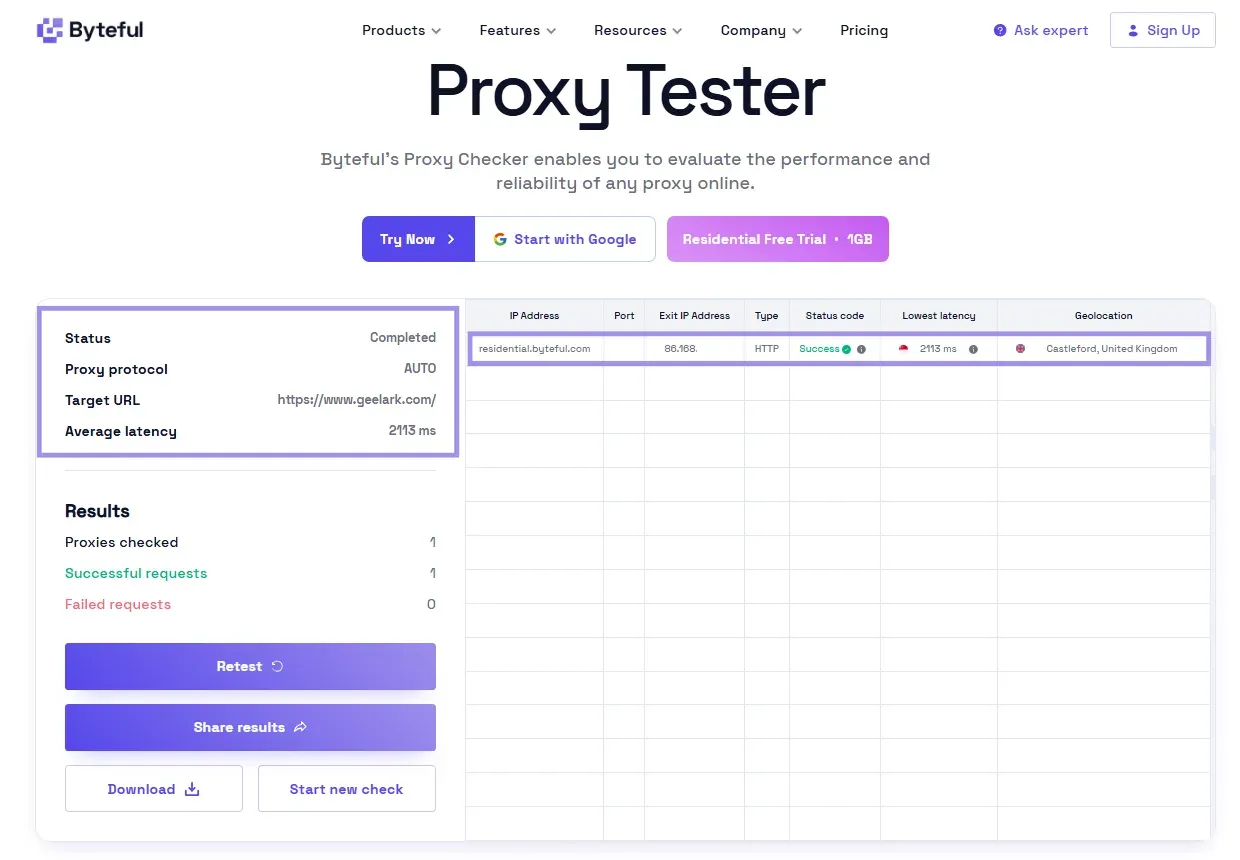
When your cloud phone is live, check the IP from inside your profile. The detected location should match the proxy location shown in GeeLark, and the exit IP should not change during the session.
For repeated proxy use: Open Proxies → Proxy list → Add proxy and save the endpoints that you tested. GeeLark highlights accidental proxy reuse and shows how many profiles use each saved proxy. When creating the profile, choose these saved entries under Saved proxies instead of having to re-enter your credentials.
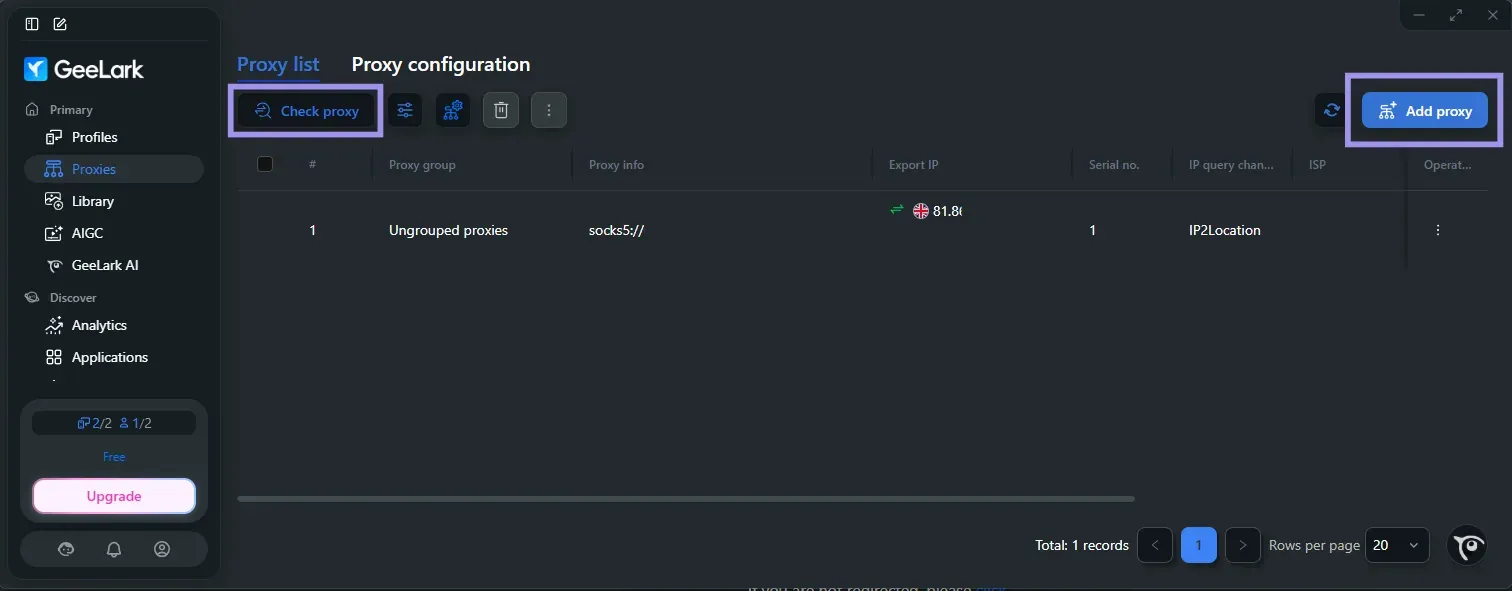
Batch create works on a finished template file and helps you bulk fill batches of profiles for bigger jobs. Also, the GeeLark API can create, run, shut down, or delete cloud phones programmatically, transport files and apps, use ADB commands, and automate tasks.
Consequently, batch controls and the API itself provided by GeeLark are better suited for bulk operations than setting every profile from scratch, and this same copy-paste routine is applicable to some other antidetect tools that you might run next to it.
How much does GeeLark cost?
GeeLark provides plan pricing with cloud-phone usage charges, optional extras such as rentals and time add-ons, and separately purchased proxies.
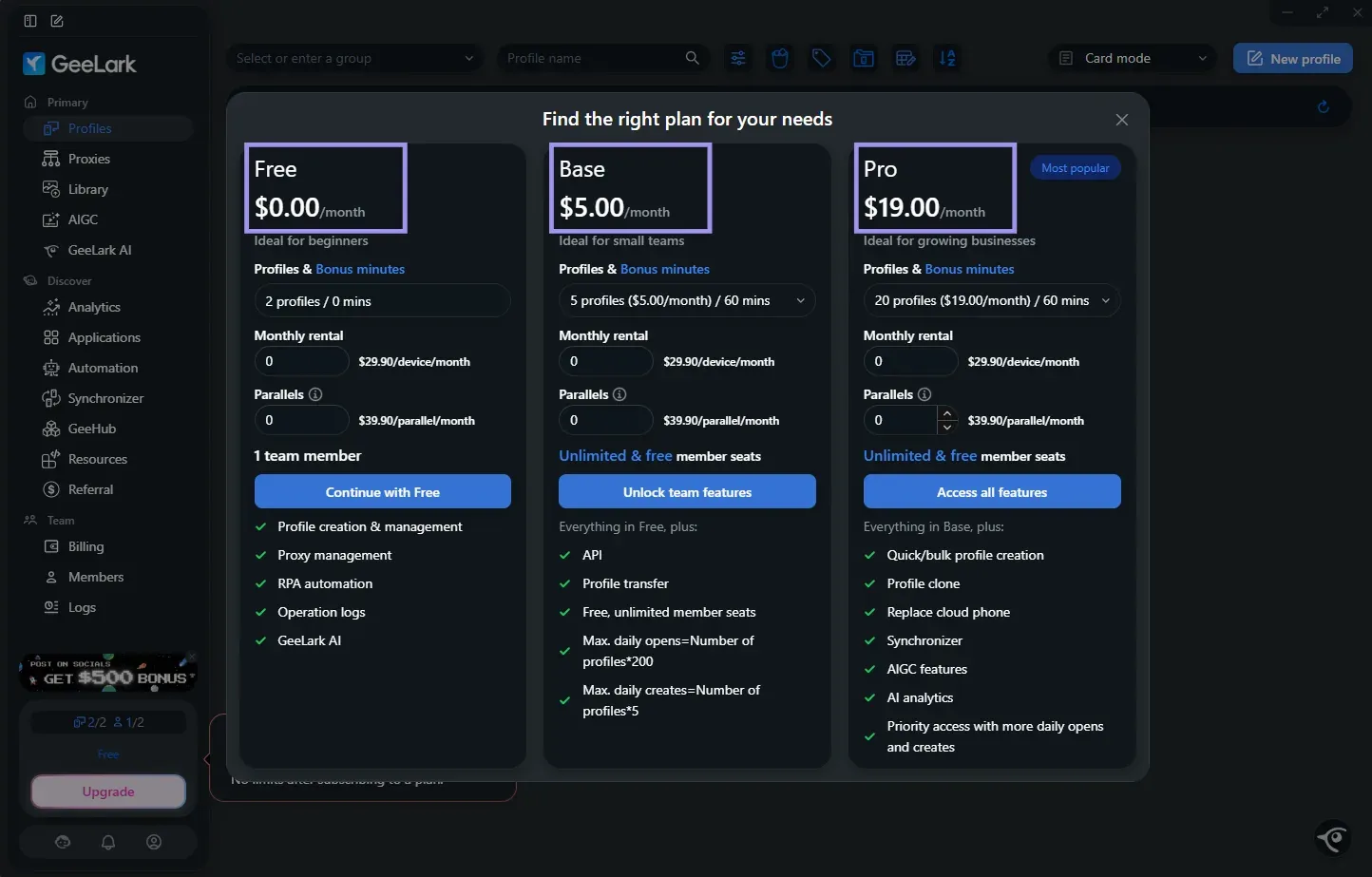
During testing, the free plan showed 0 bonus minutes, and the cloud phone prompted for payment instead of starting. This means you can create and manage profiles for free, but cloud-phone usage may still require wallet balance.
Pricing for Base and Pro is tiered according to the number of profiles selected. A discount on the total for billing annually is available, as well as separate charging, which may include optional add-ons, proxies, and use of cloud-phone.
GeeLark Pros and Cons
The following strengths and limitations reflect GeeLark’s current feature set alongside the issues observed during Proxyway’s independent review.
Pros:
- Strong overall fingerprint-test results. GeeLark’s performance of cloud phone profiles was strong across Whoer, BrowserScan, Pixelscan, and CreepJS, with Android 10 and Android 13 yielding the best results.
- Lower resource demands than local emulators. As the phones are operated remotely, it means that GeeLark can handle mobile profiles without having to load your own PC as much as locally hosted Android emulators.
- Useful tools for large profile sets. Quick Create, Batch Create, profile groups, and the synchronizer reduce repetitive work when managing several cloud phones.
- Mobile and browser profiles in one subscription. GeeLark also includes a desktop antidetect browser for accounts that do not depend on mobile apps.
- Flexible entry and scaling. The platform offers a free plan and allows users to scale its paid plans from a small number of profiles to hundreds of accounts.
Cons:
- Some Android versions performed less consistently. Proxyway found that Android 11 and 12 profiles were not able to pass Pixelscan checks, resulting in their being outpaced by Android 10 and also Android 13 profiles.
- Location and network mismatches can still appear. Testing uncovered cases in which the IP timezone was not matching with the local timezone, and there was a tiny chance of DNS leakage.
- Customer support is limited. Proxyway tried to submit a ticket via GeeLark’s ticketing system, but received no response.
- Documentation can fall behind the interface. Some Help Center screenshots and instructions show out-of-date settings and UI elements.
- Automation takes time to learn. GeeLark’s RPA workflows can be complex enough that the company runs a multi-part tutorial series on them.
