

Managing multiple accounts on strict platforms can be a constant battle against bans and account linking. This is where an anti-detect browser like RoxyBrowser helps to keep your digital identities safe and separate.
But the browser alone isn't enough. If your proxy is misconfigured, or your browser fingerprint doesn't match your proxy's IP, your accounts are still at risk of getting flagged.
This guide will walk you through the whole process of properly configuring proxies in RoxyBrowser, from creating your first profile to batch-adding proxies and automating workflows via the API.
Step 1: Install RoxyBrowser
To install RoxyBrowser:
1. Get your system-compatible version from the official download page.
2. After downloading it, launch the installer and follow the on-screen prompts to complete the installation.
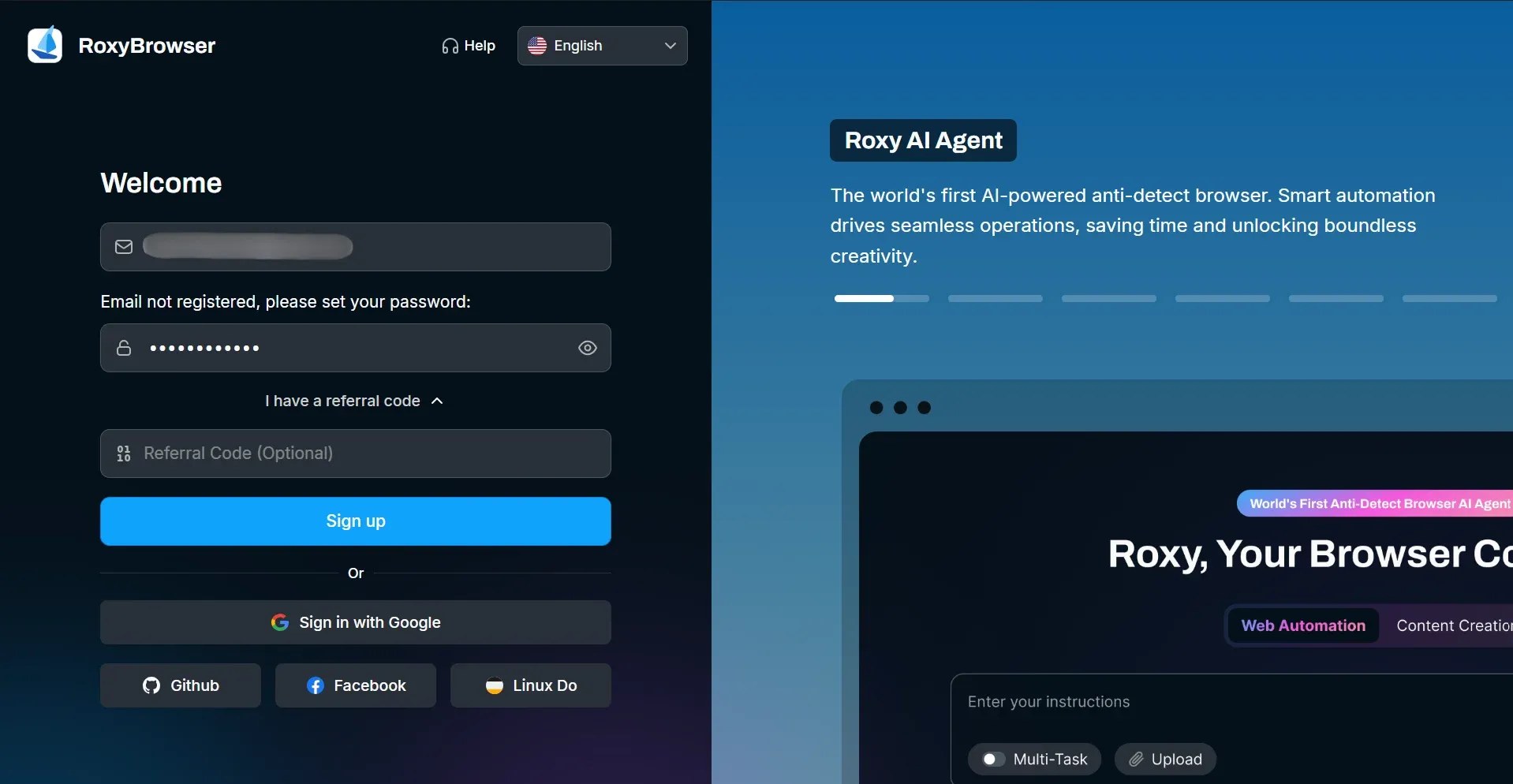
3. When installed, log in to your RoxyBrowser account, or create an account in case you don’t have one already.
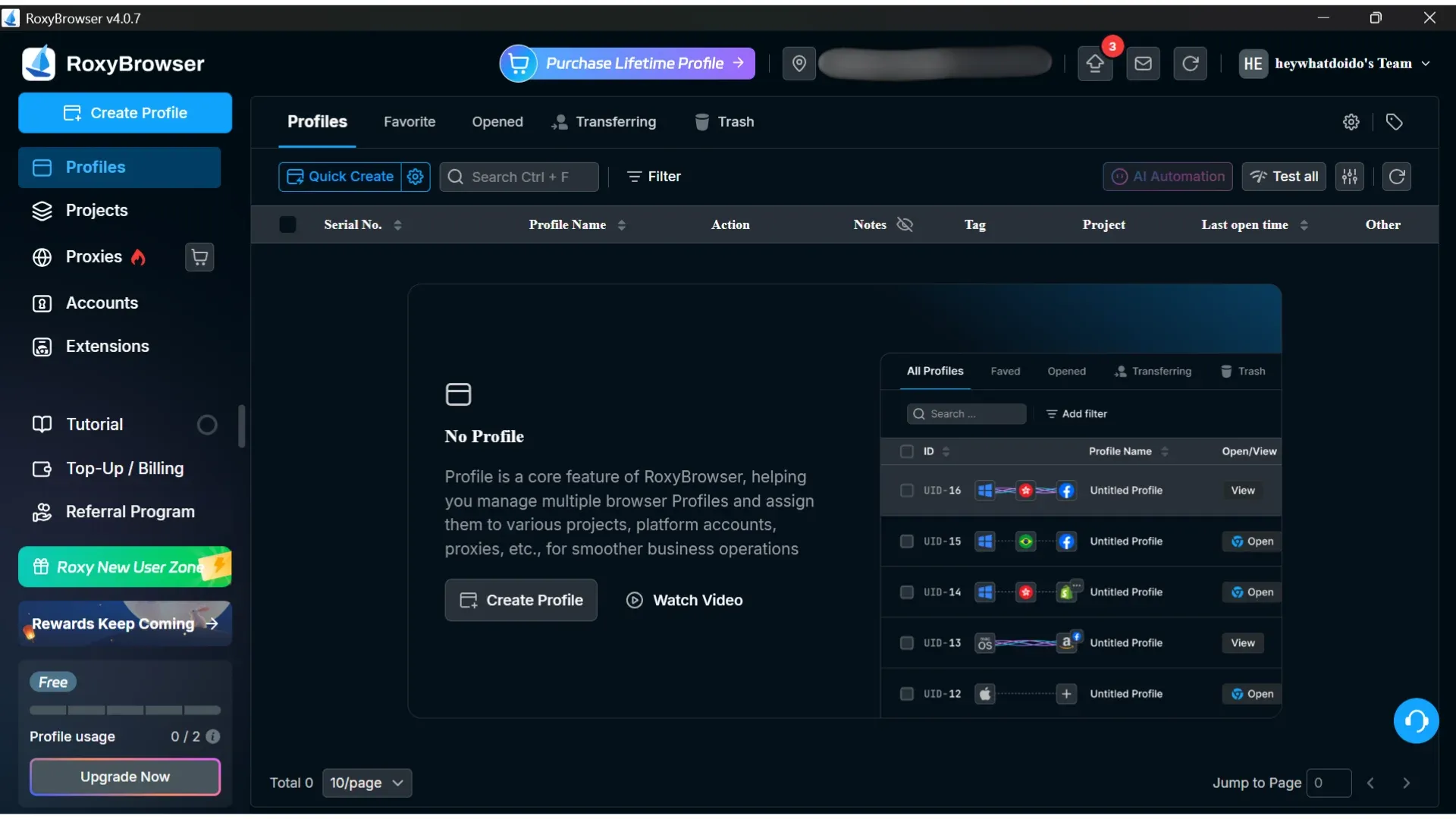
Once done with the installation, here’s what the interface looks like:
Step 2: Get Your Proxy Details From the Dashboard
To get your proxy details, log in to your provider's dashboard and open the section for the proxy type you want to configure. For demonstration purposes, we are using Byteful’s dashboard to generate sticky residential proxies.
1. RoxyBrowser mainly accepts two proxy URL formats: “PROXY_HOST:PROXY_PORT:USER:PASS” and “USER:PASS@PROXY_HOST:PROXY_PORT”. With Byteful residential and mobile proxies, you can generate proxies matching these two formats and more.
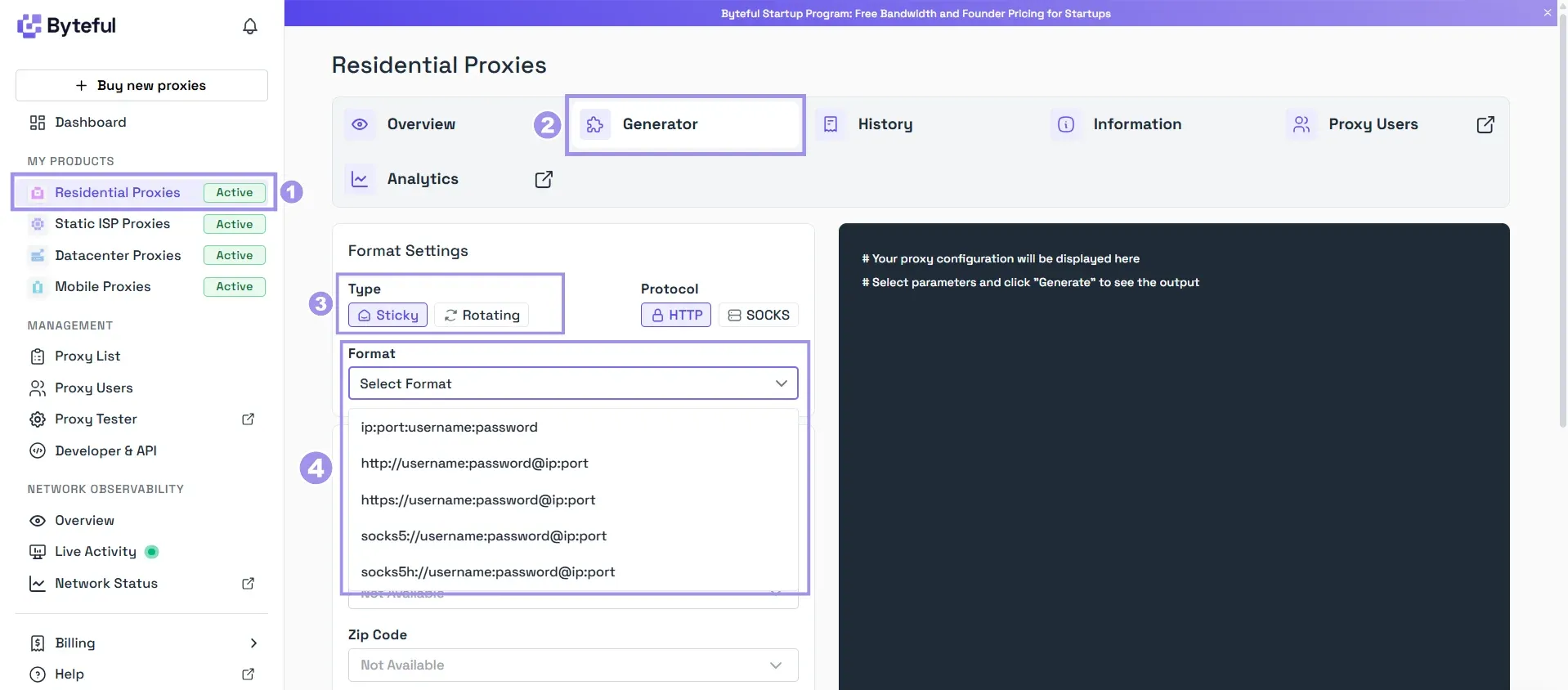
2. From the Targeting settings, you can target a specific location and also the OS of the system your proxy IP comes from.
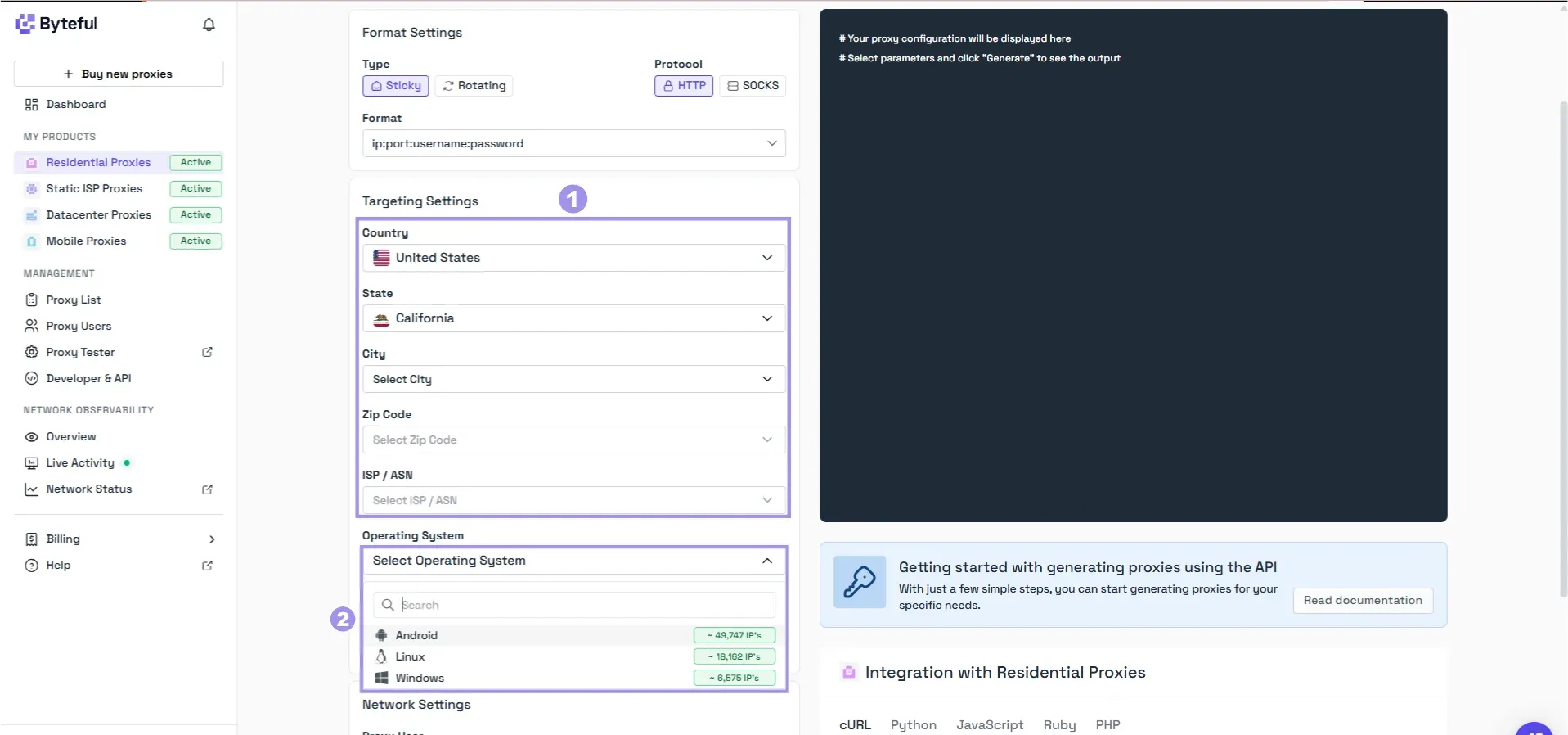
3. After configuring targeting, click Generate to get your sticky residential proxy details.
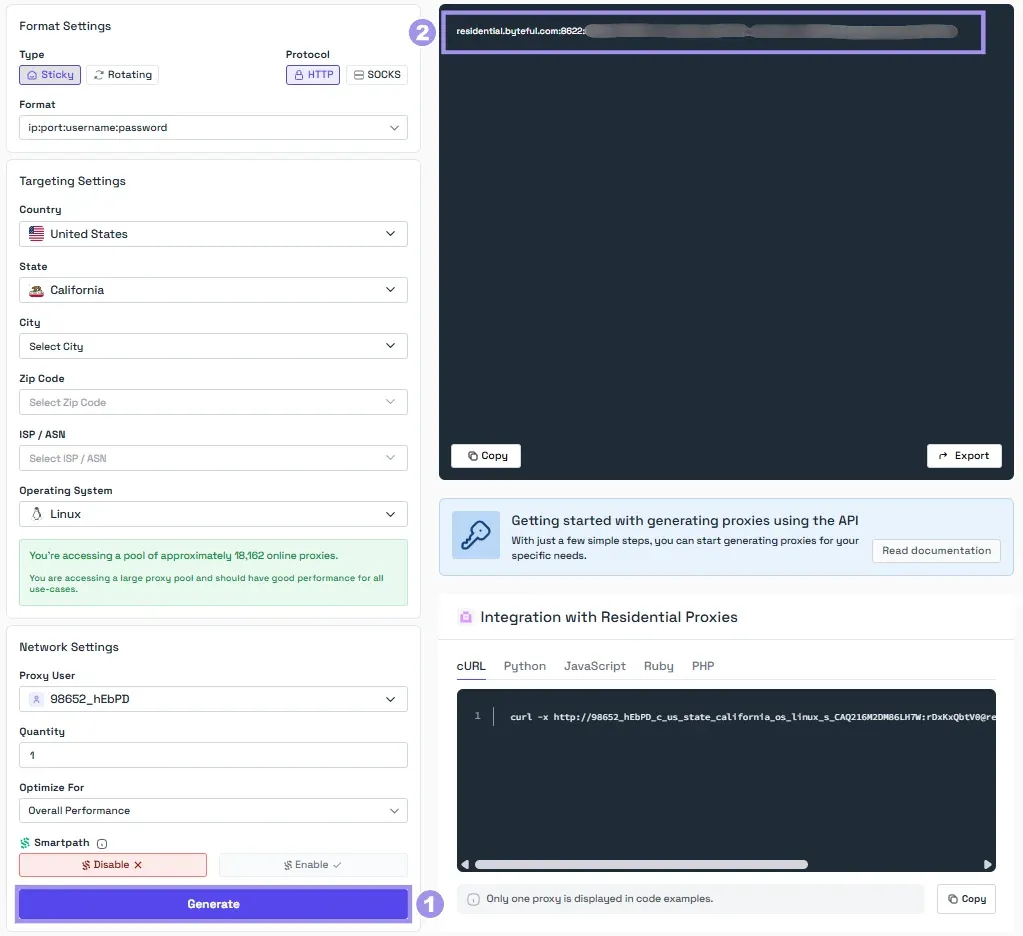
Note: To prevent misuse of the network, Byteful now allows proxy connections to domain names only. If your setup resolves domain names locally before sending traffic to the proxy, requests may fail. Use the HTTP/HTTPS proxy option where possible, or enable remote DNS if using SOCKS5. You can unlock direct IP access after KYC verification, depending on your use case.
Step 3: Create a Profile With Proxy
To start using RoxyBrowser, you need to create a RoxyBrowser profile. To create a profile on RoxyBrowser:
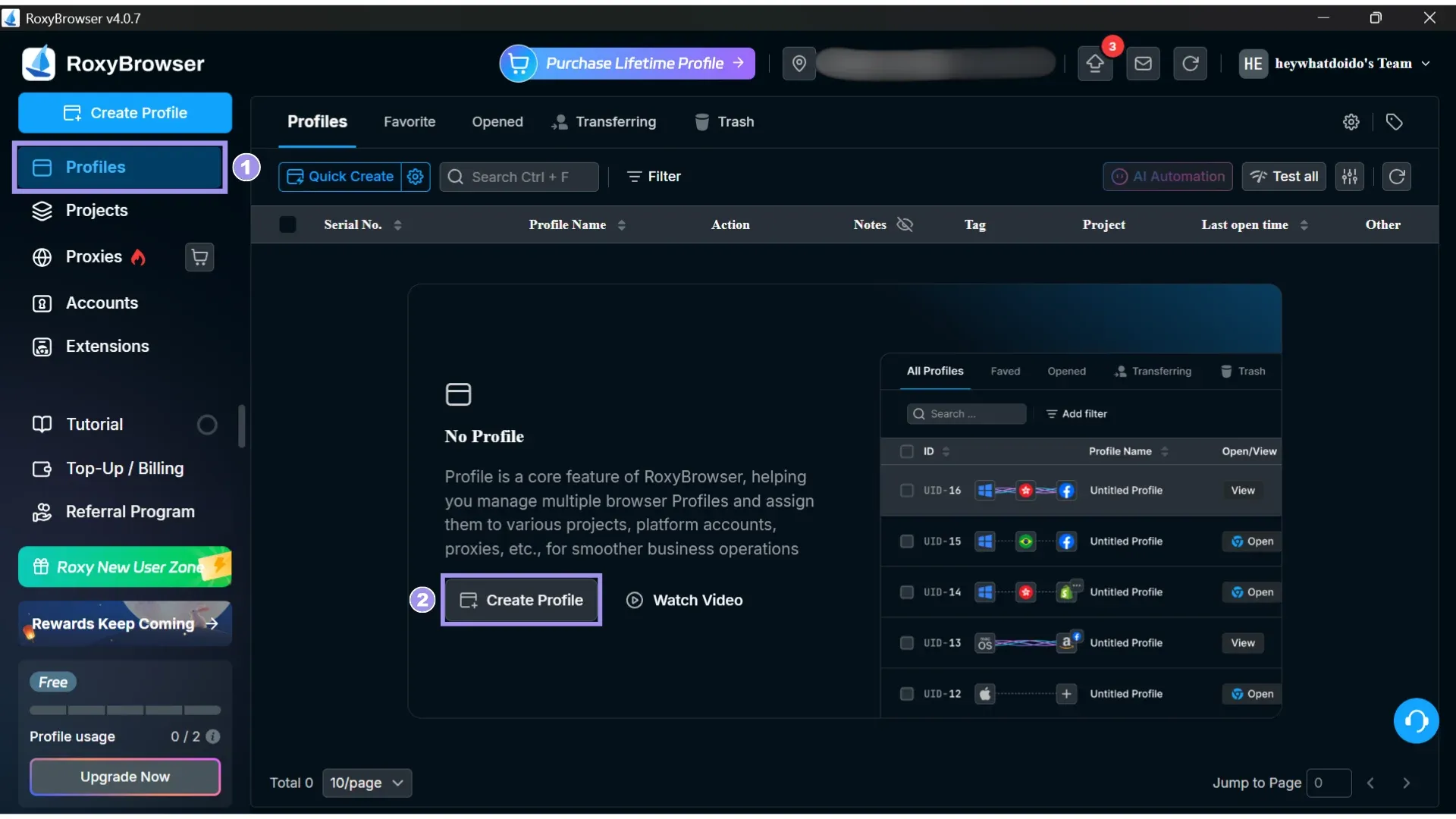
1. From the Profile tab, click Create Profile.
2. On the next screen, fill in basic profile details, like the profile name.
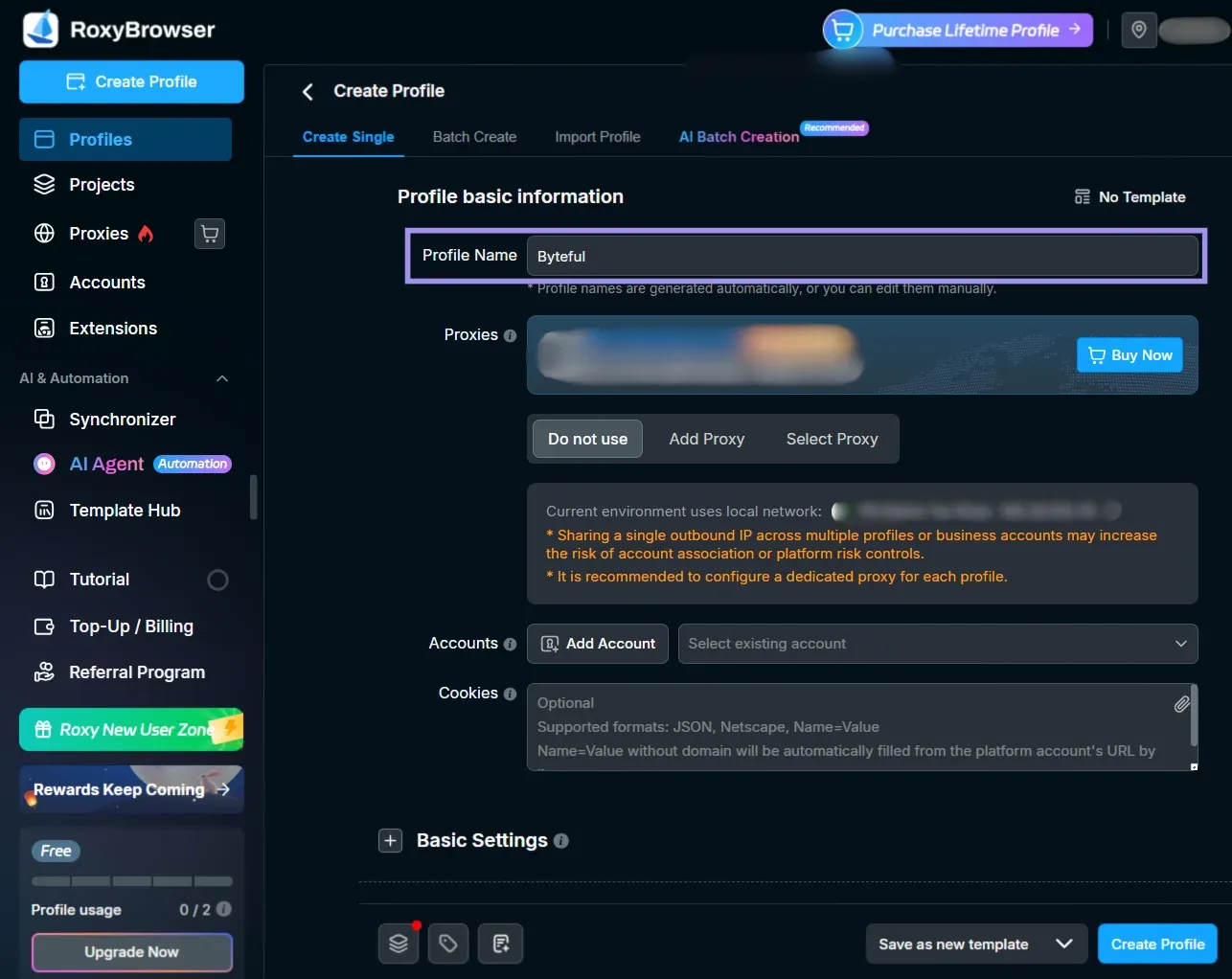
3. Next, in the proxies section, you can set a proxy with the profile from either “Add proxy” or “Select proxy”. To use proxies with the profile, we will use the “Add proxy” option here, and “Select proxy” will be explored later.
4. From the “Add proxies” option, you can either manually input the proxy details or use the Intelligent Recognition field. For the former option, enter your proxy URL from step 2 in the Intelligent Recognition field, then click outside the input field; the proxy details will fill in automatically.
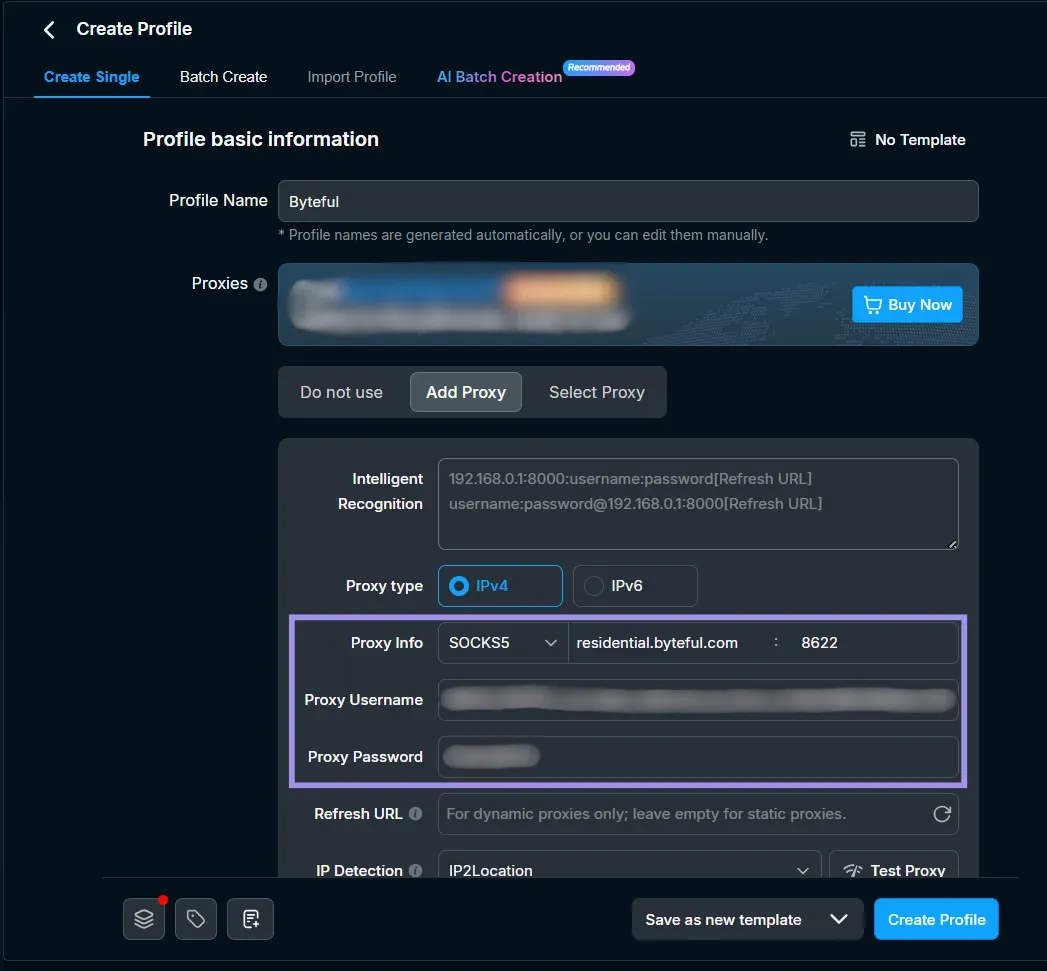
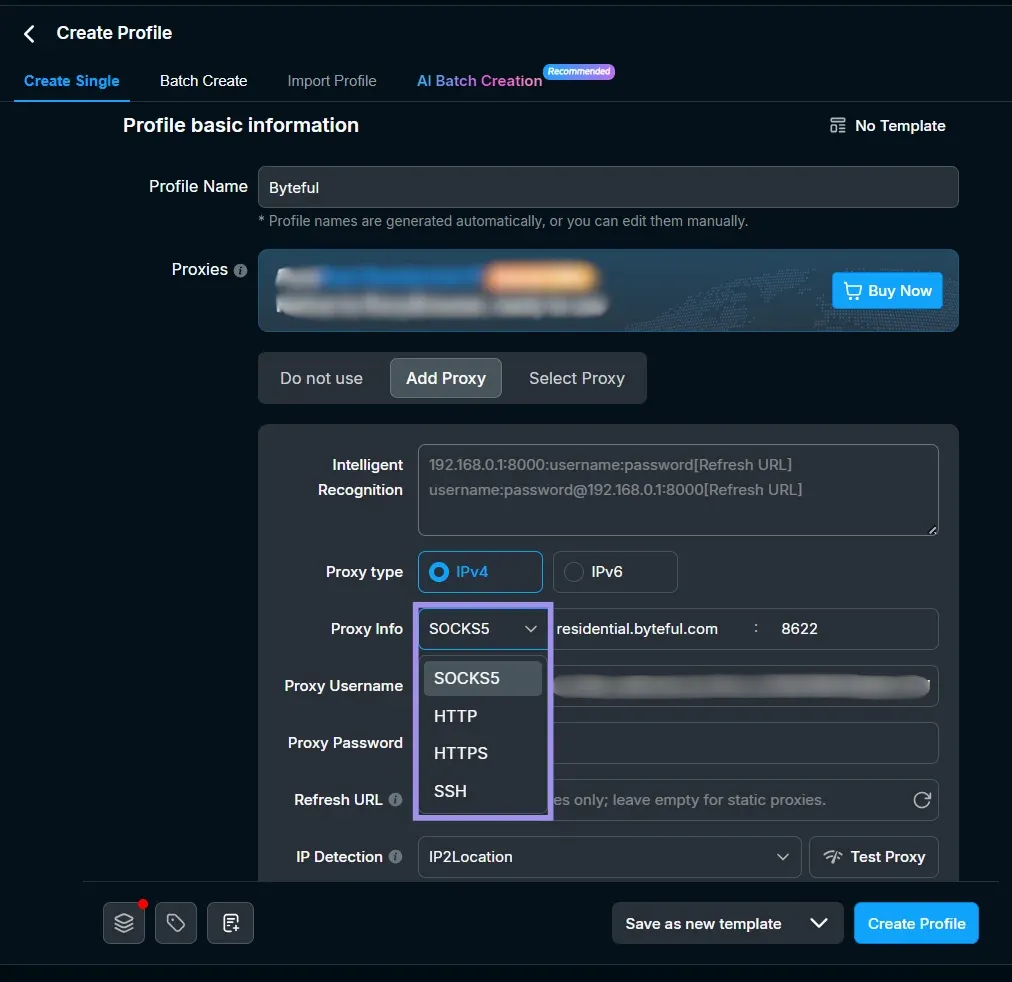
5. If your proxy URL doesn’t specify the proxy protocol, SOCKS5 will be used as the preset. You can also set the proxy protocol from the drop-down menu.
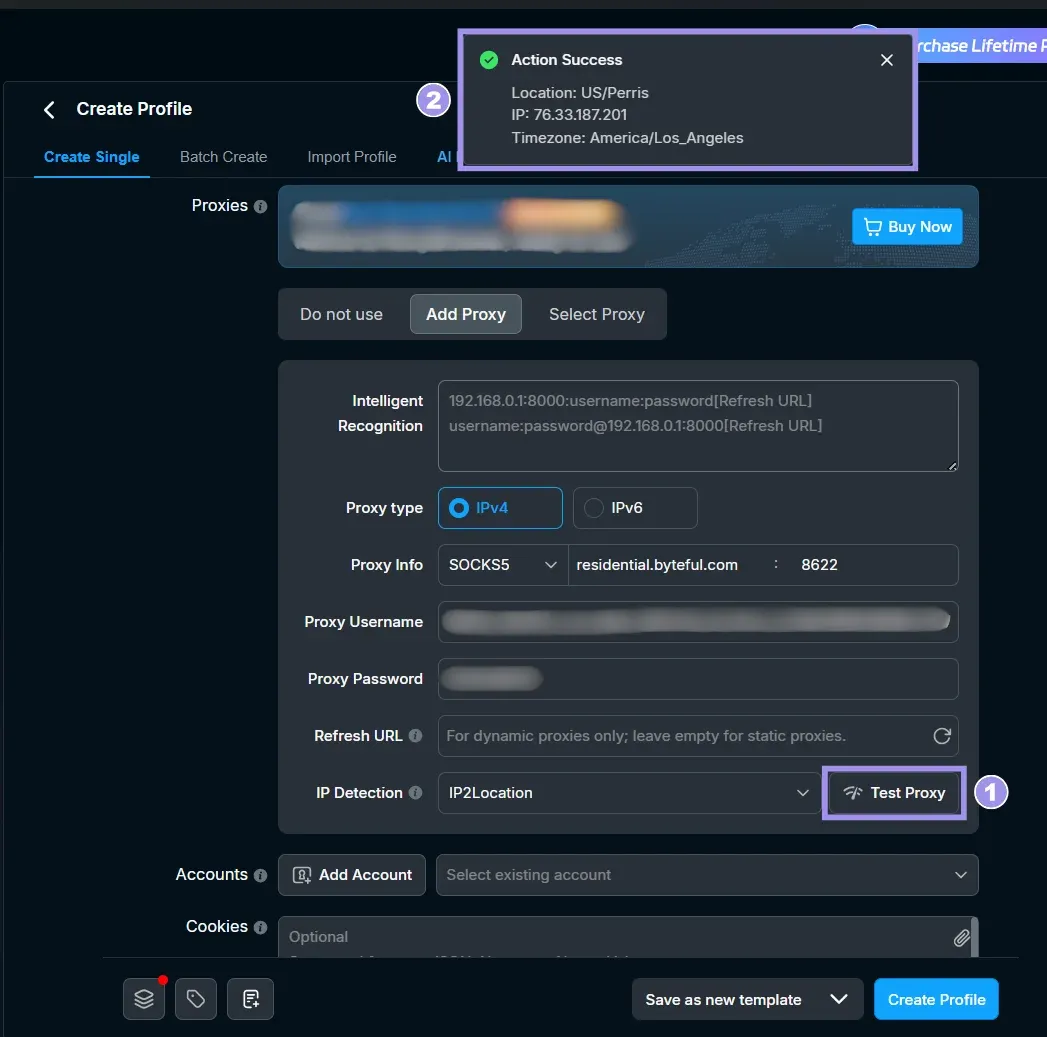
6. Once done adding the proxy, scroll down to find the Test Proxy button and use that to test your proxy reachability. If successful, it’ll show the proxy IP, proxy IP location, and timezone.
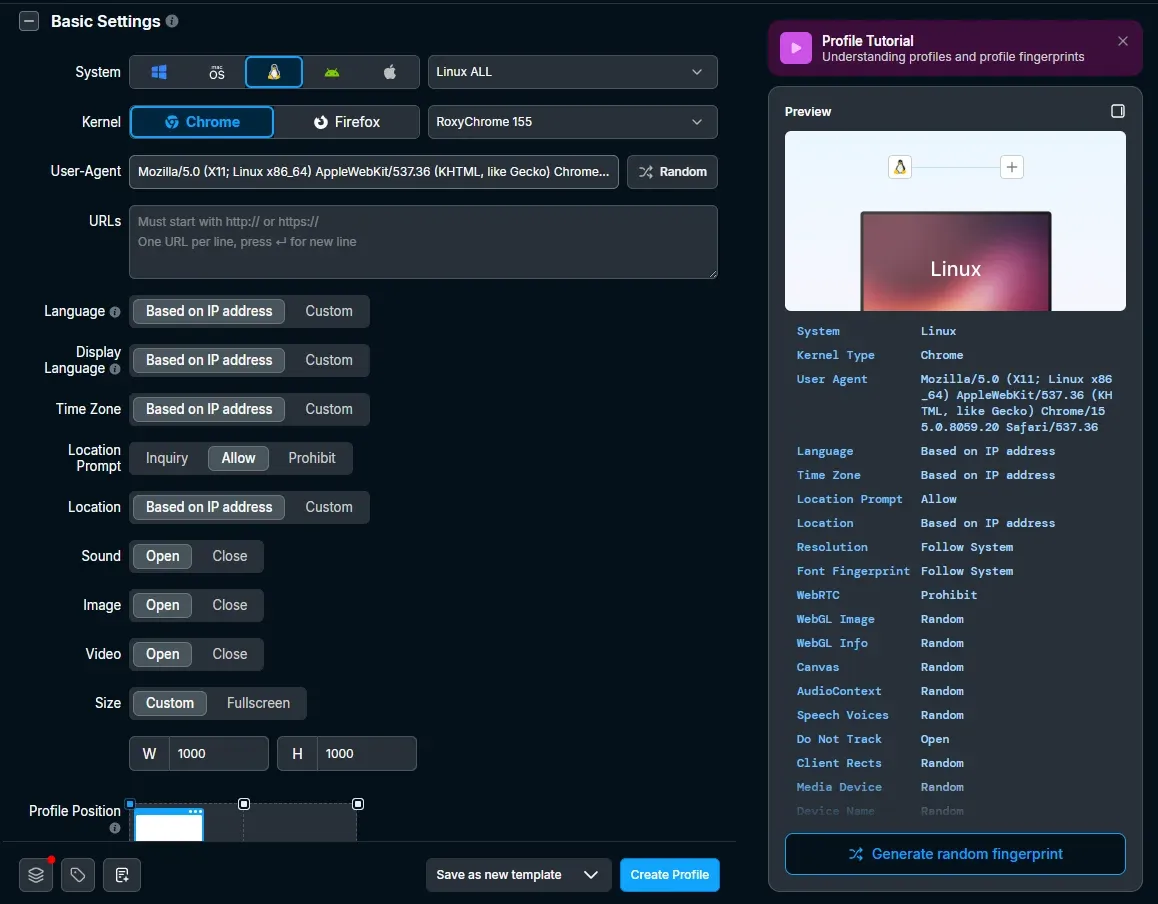
7. Next, from the Basic Settings, you can specify fingerprint settings like OS, Kernel, User-Agent, Language, and more. Here, if your fingerprint OS is set to Windows but the proxy you are using lives on a Linux machine, this mismatch can get your workflow restricted on strict targets.
Pro Tip: To address this, Byteful now supports OS targeting for residential and mobile proxies, so you can choose whether your proxy IP comes from a Windows, Linux, or Android system. We also support TCP/IP fingerprint emulation for our datacenter and ISP proxies, covering Windows, macOS, Linux, Android, and iOS.
8. You can set your profile OS to, for example, Linux and, from the proxies dashboard, choose Linux as your target system. That removes the OS mismatch between your proxy IP and browser fingerprint. You can keep other settings as “Based on IP address” and then choose your preferred Search Engine.
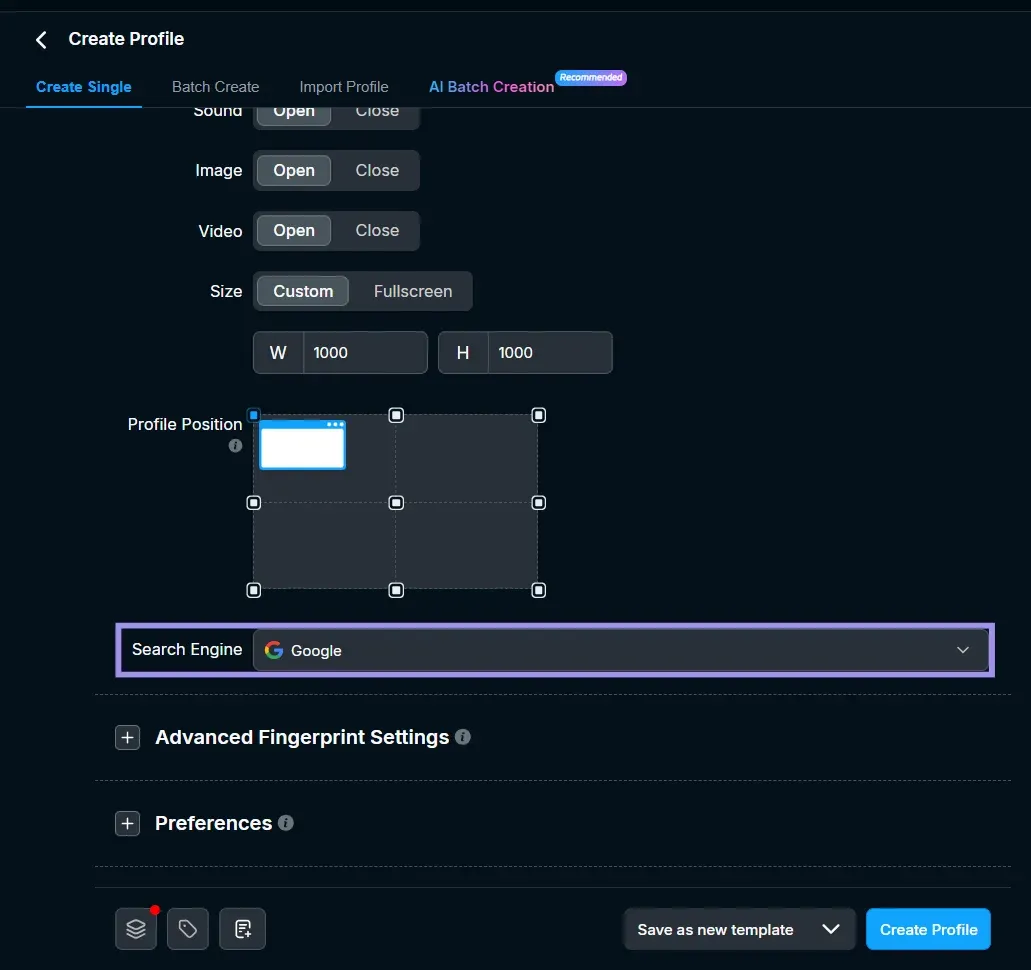
9. You can also customize “Advanced Fingerprint Settings”, but RoxyBrowser recommends keeping them at default settings. Once done, click Create profile to finalize creating the profile.
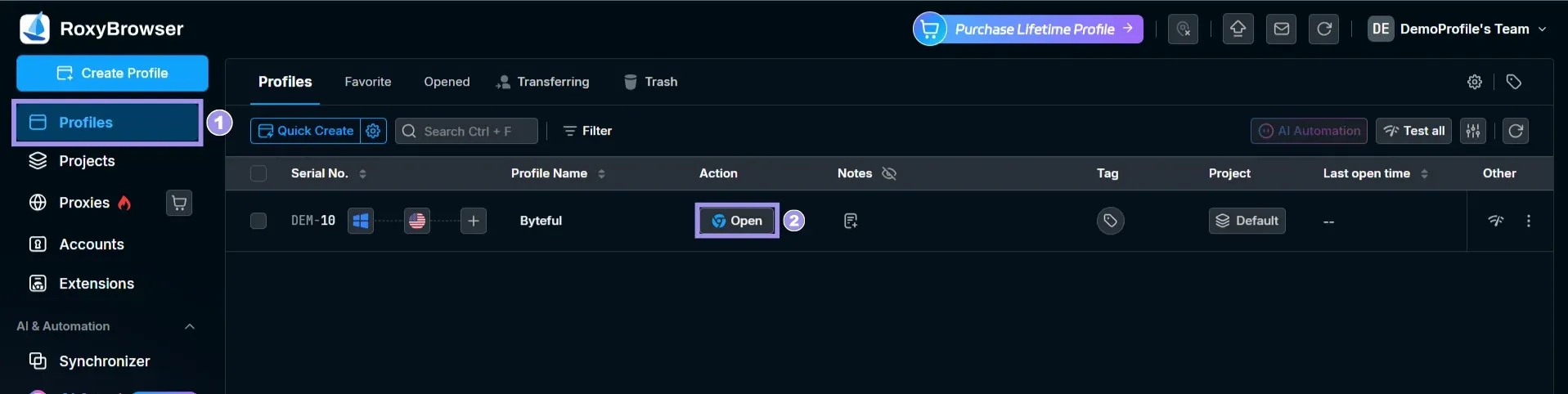
10. Find your created profiles in the “Profiles” tab. From here, you can click on Open to launch the profile.
Verify the Proxy Works
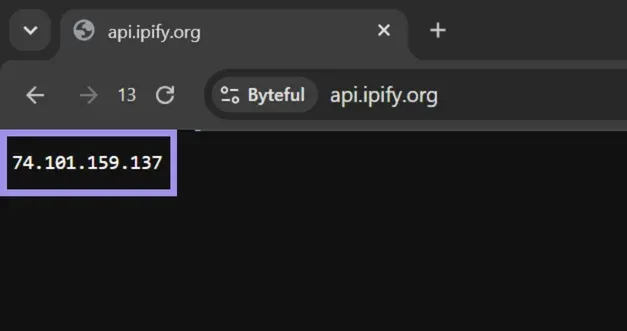
To verify the proxy configuration was successful, open the created profile. It opens a dashboard page by default with your profile’s exit IP. If that IP matches your proxy’s, the configuration was successful.
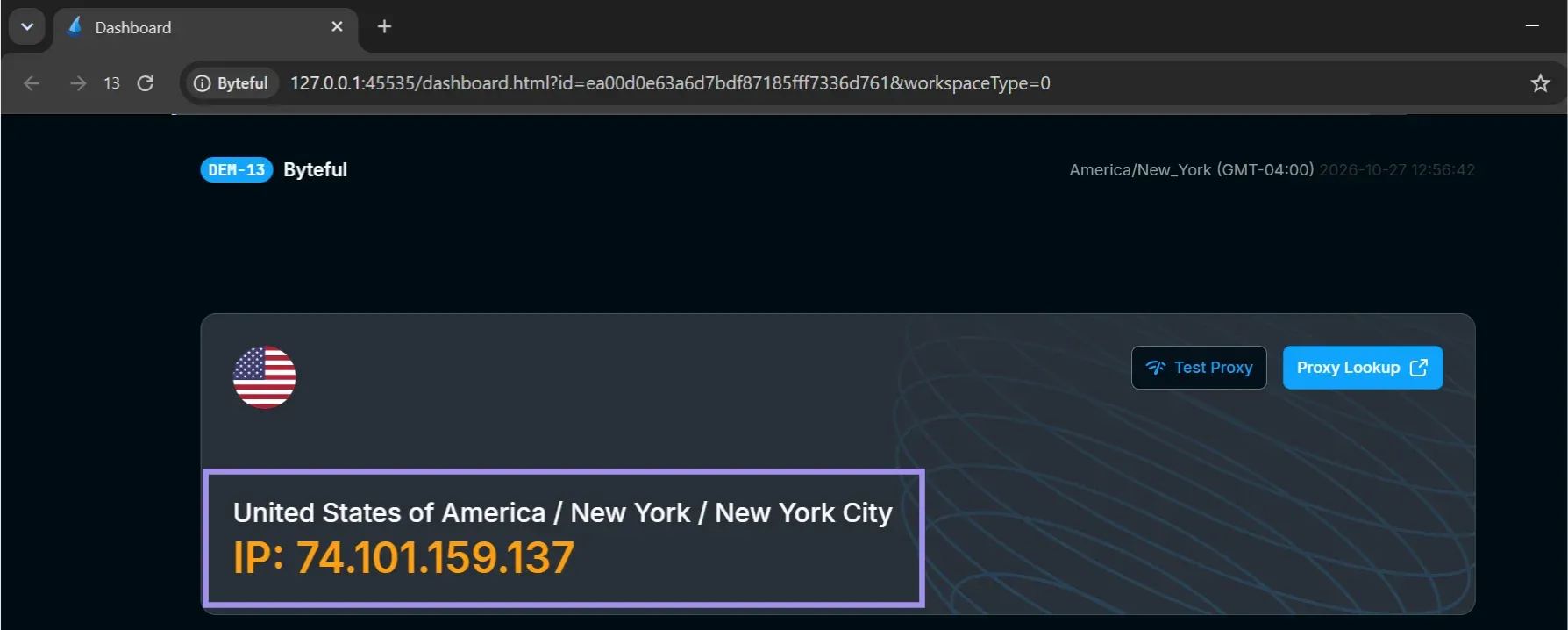
The dashboard can also sometimes show IPv6 of your proxy instead of IPv4. In that case, you can also use an IP-echo page like api.ipify.org to verify the proxy configuration.
Step 4: Scale With Batch Proxies and Profiles
To create batch profiles with proxies, we will use the “Add proxies” option to assign the proxies to the profiles. To add batch proxies in RoxyBrowser:
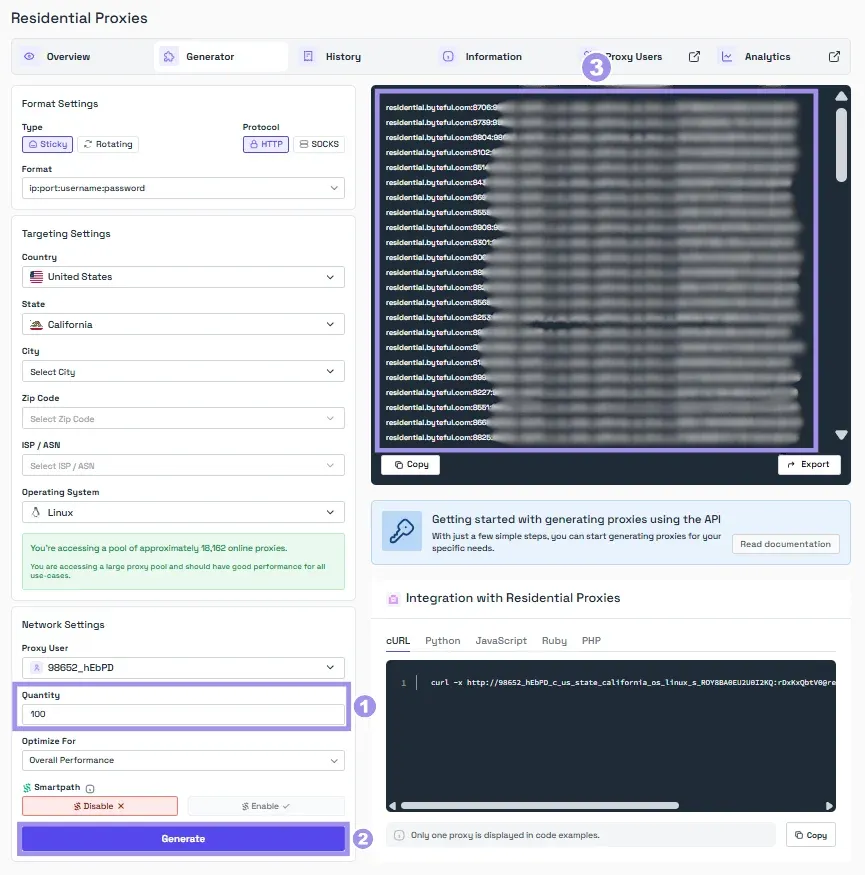
1. Get your proxy details from the provider’s dashboard after specifying the proxy quantity. On the Byteful dashboard, you can generate 1,000 proxies at a time through the dashboard, and you can do this an unlimited number of times.
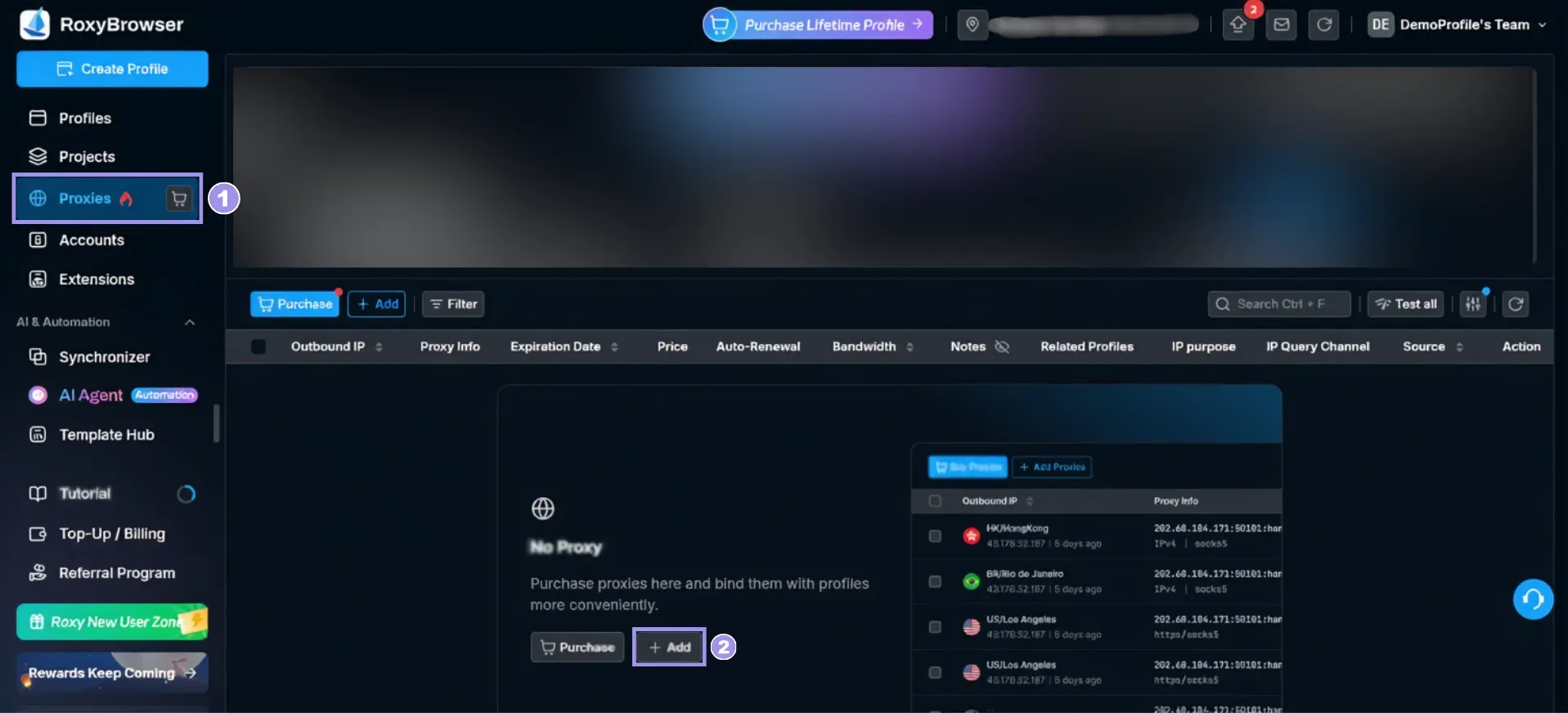
2. Next, go to the “Proxies” tab in RoxyBrowser and click on Add.
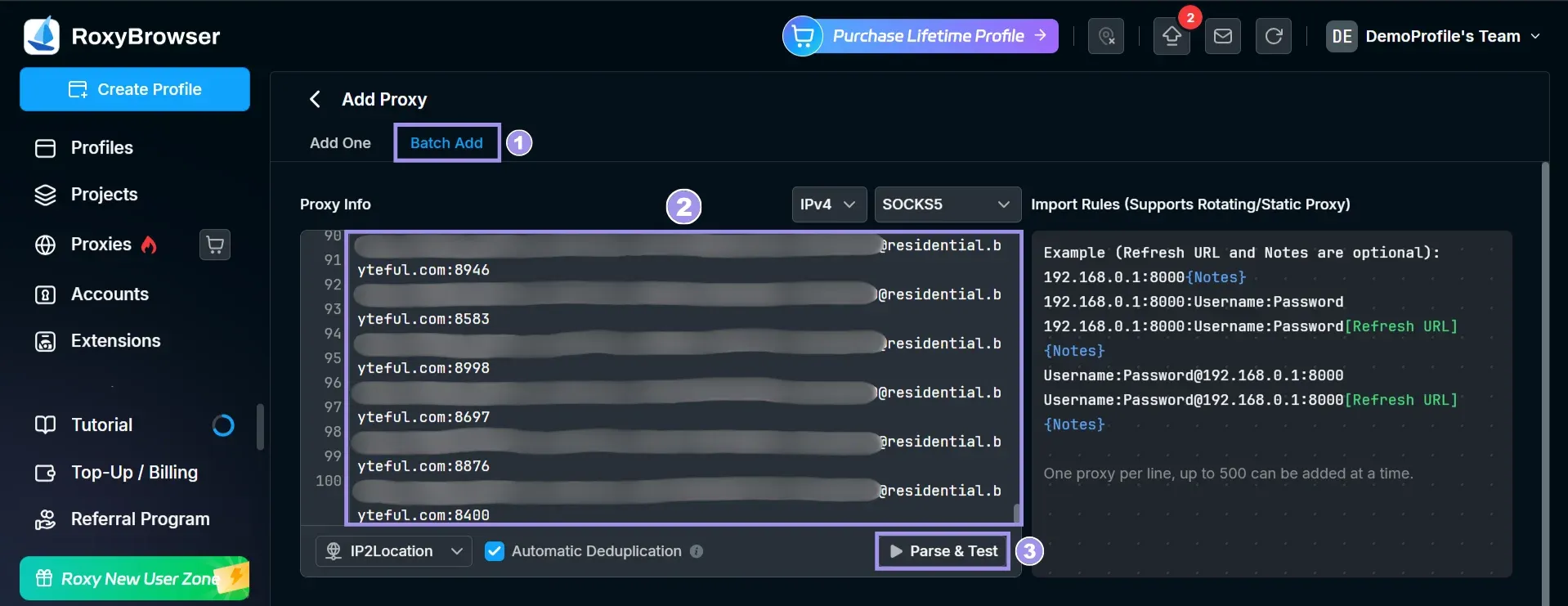
3. From there, select Batch Add, enter the copied proxy details in the “Proxy info” input box, and click Parse and Test. This will parse the entered proxy details and test the proxies for reachability.
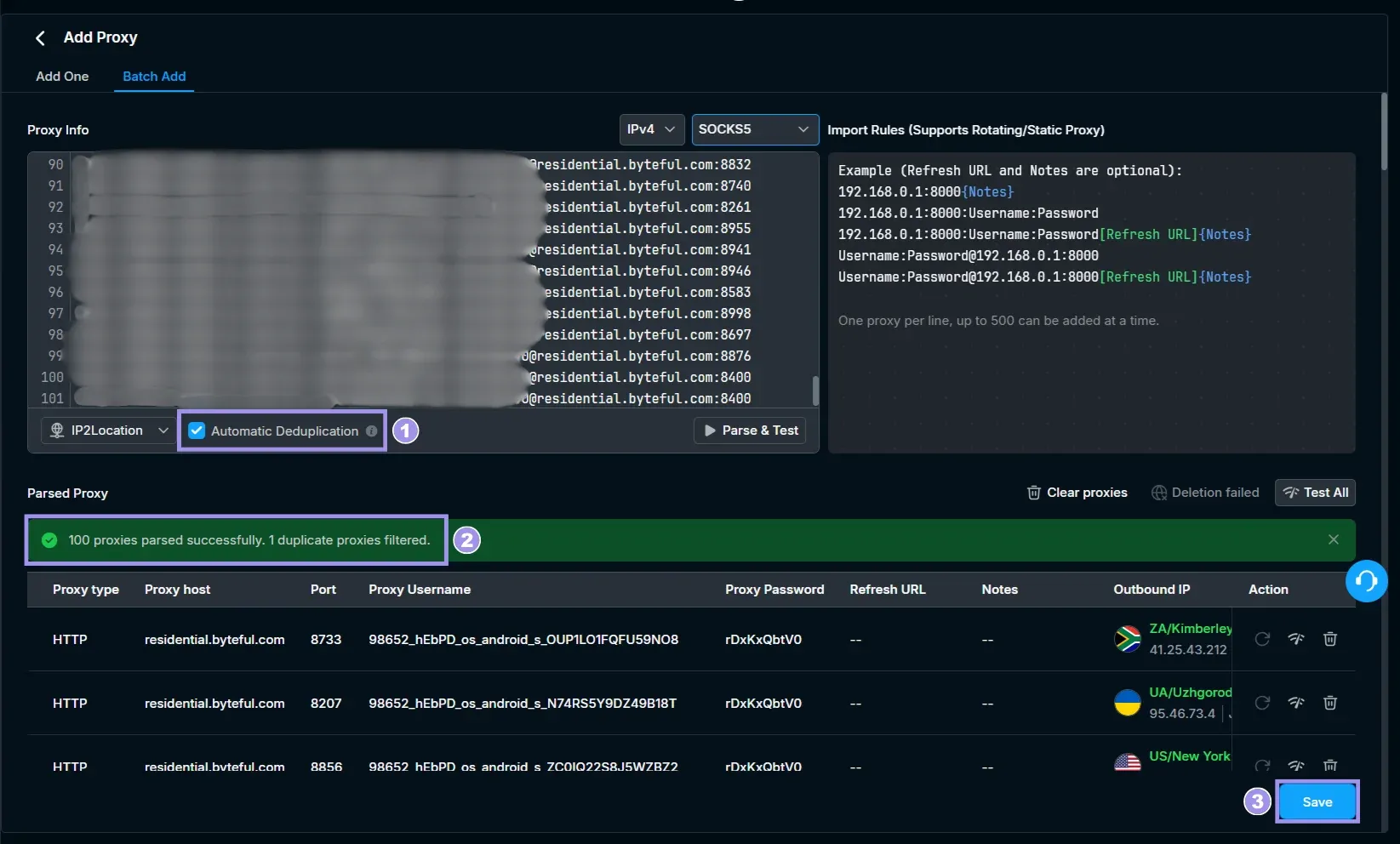
4. Check the Automatic Deduplication box to detect and delete the duplicate proxies, and finally, click Save to add all the proxies.
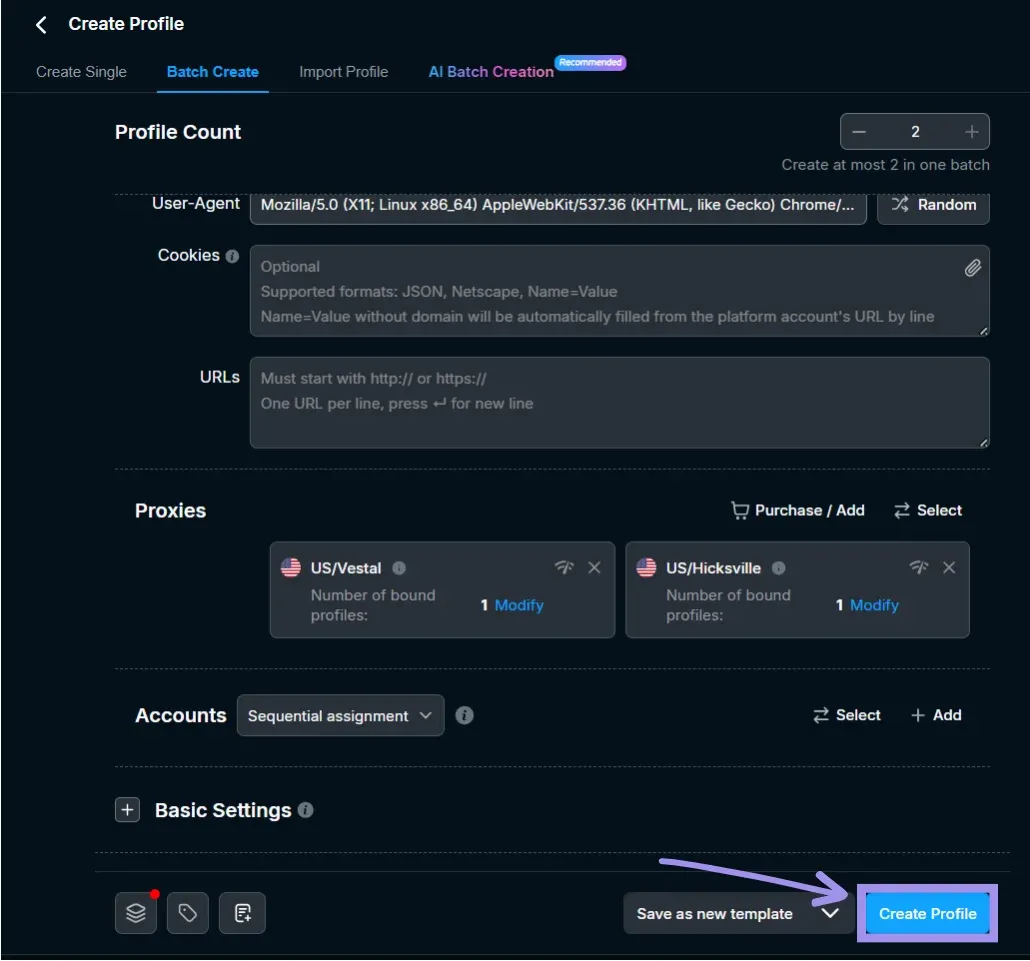
5. Now, to create batch profiles, click on Create profile and then select Batch create.
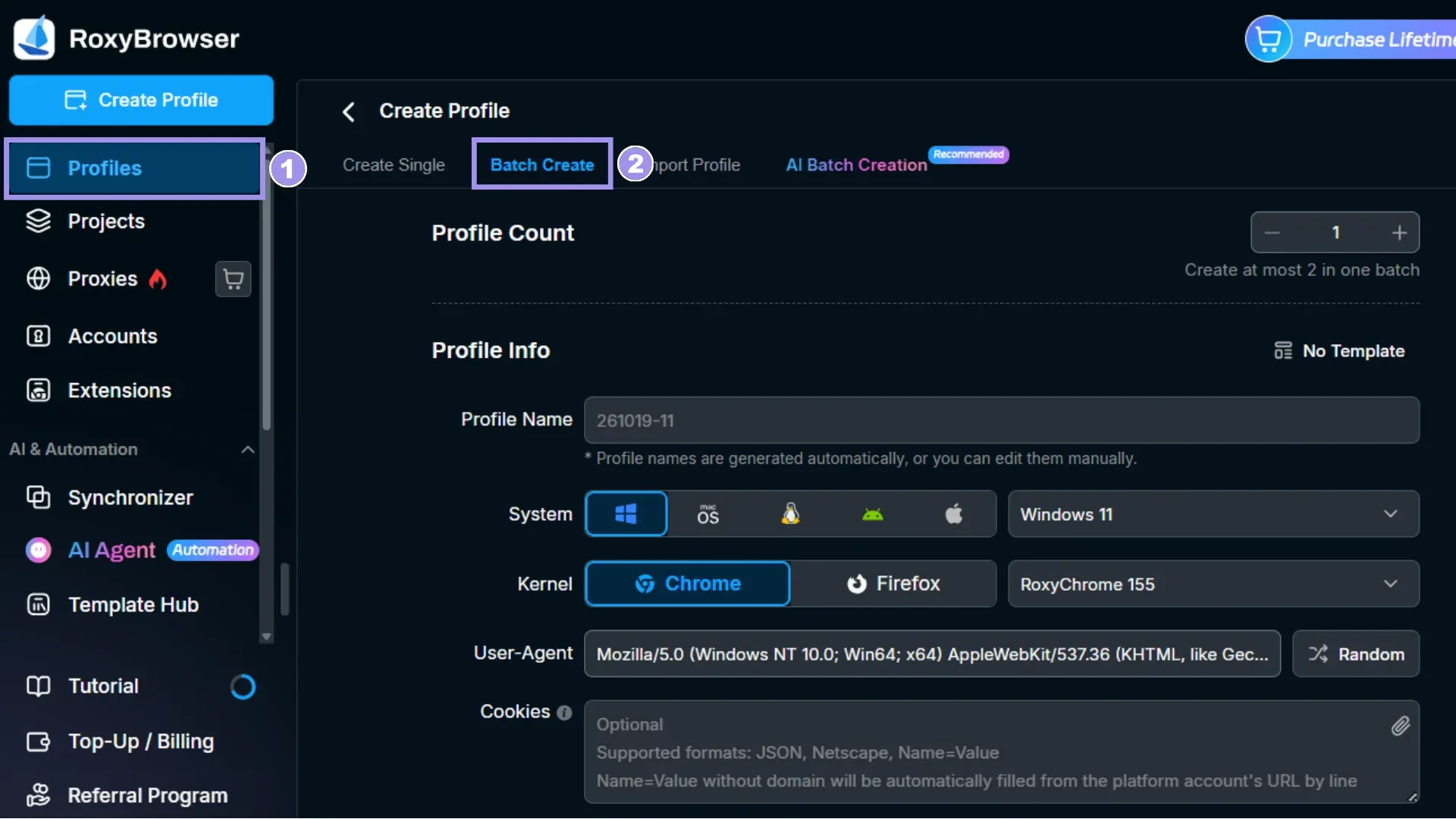
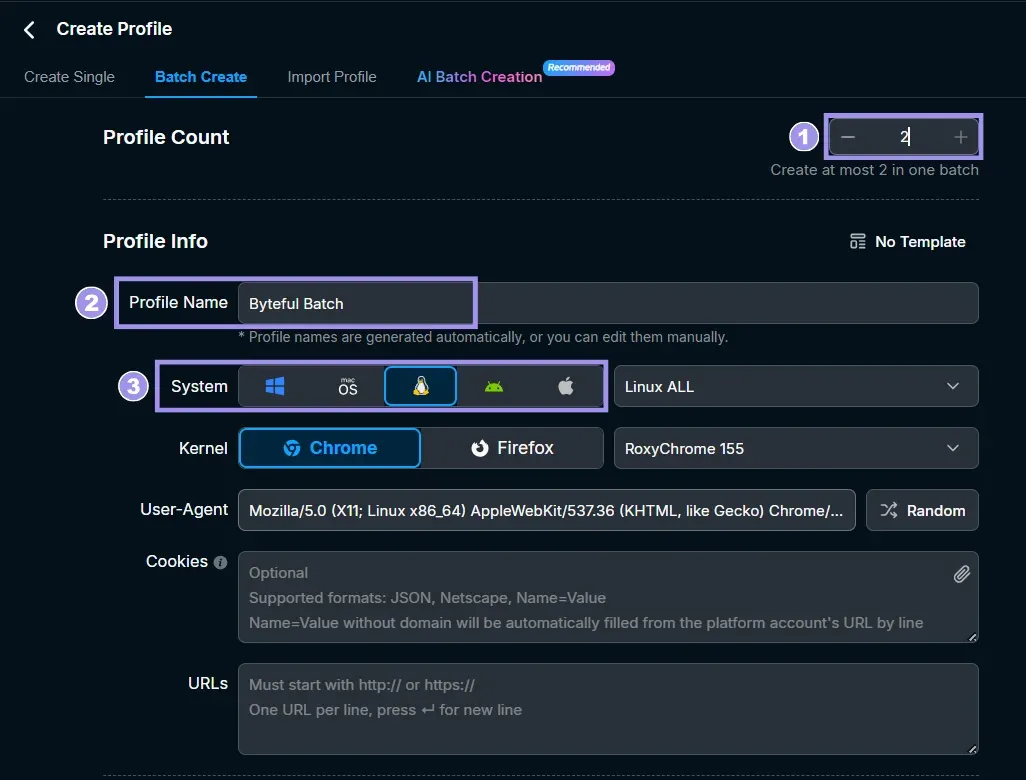
6. From here, set your batch profile count and add profile info like name and System to use. For system, select the OS to match what you selected for your proxy IPs. If you are on a free plan, it allows you to create two profiles at maximum.
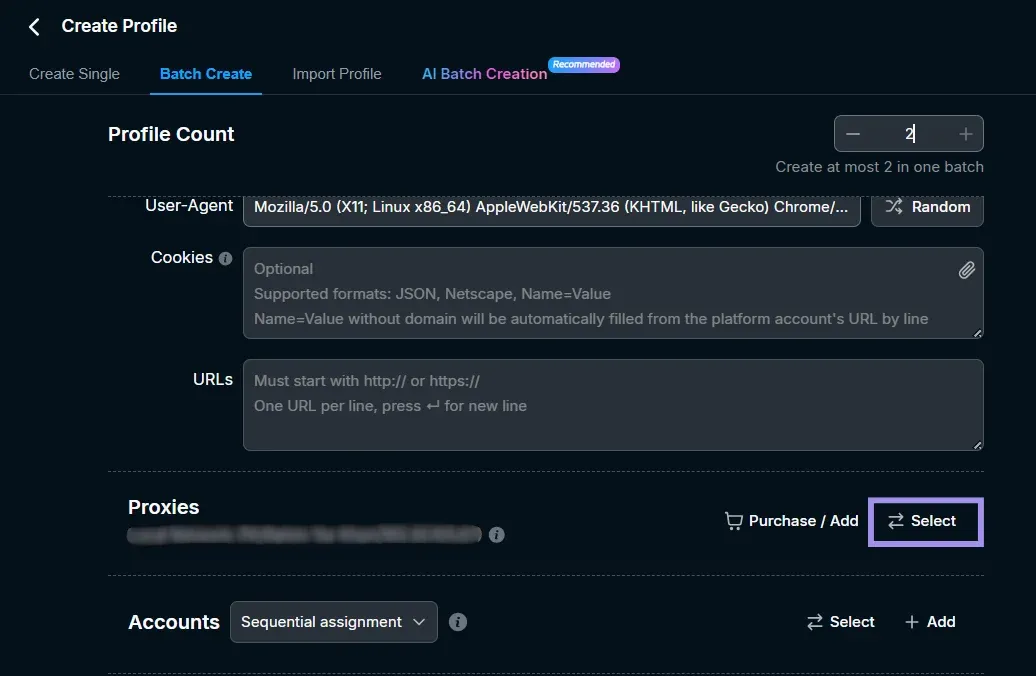
7. In the “Proxies” section, click on Select.
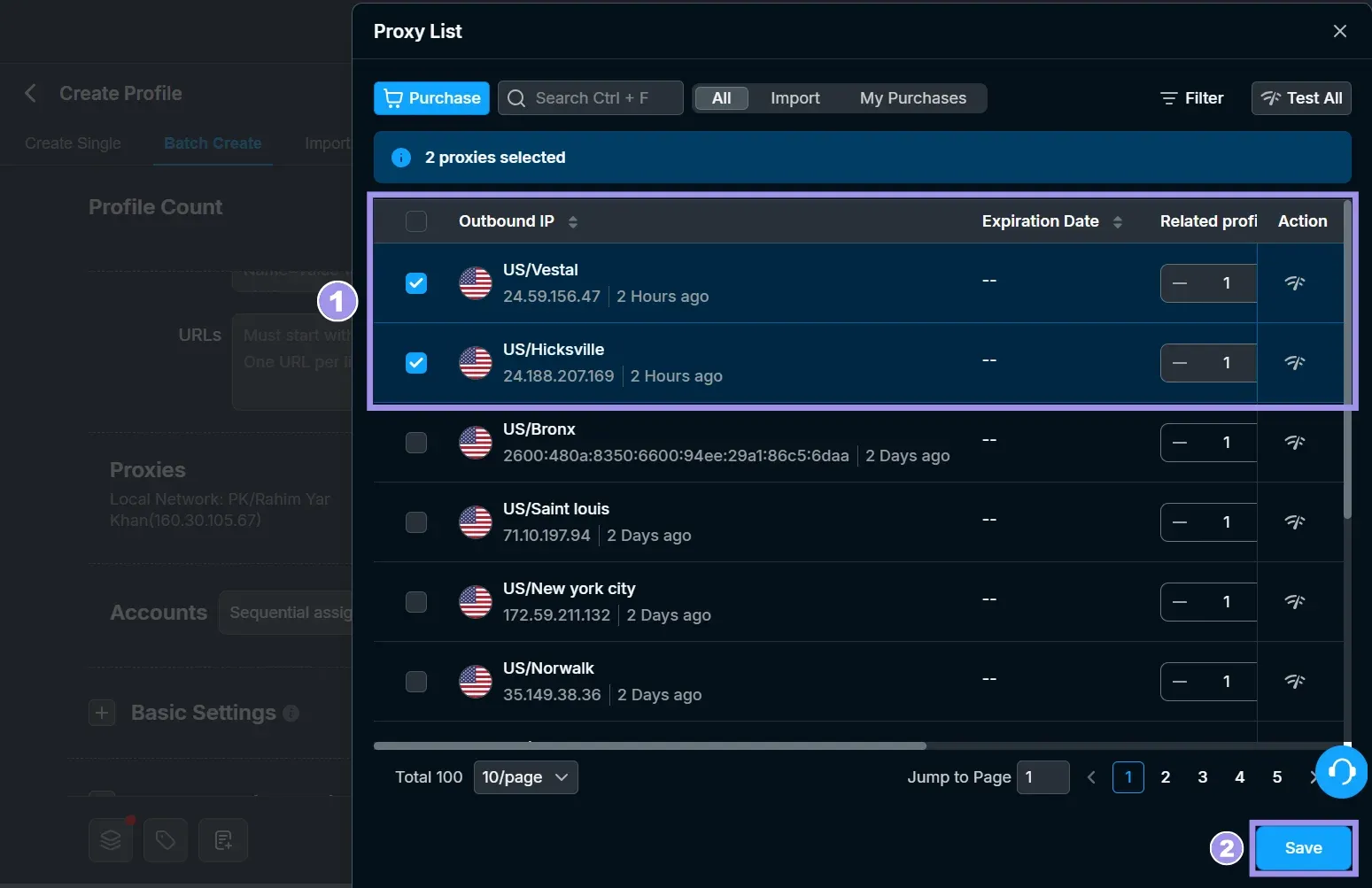
8. This will show you a side panel with all of the proxies added earlier via batch proxies. Select the proxies to use with your batch profiles and click Save. This will test the selected proxies and then randomly bind them to the batch profiles. But if you select fewer proxies than profiles, the extra profiles will be created with no proxy at all.
9. Finally, click on Create Profile to finish creating the batch profiles.
Bonus Step: Automate Profiles With the RoxyBrowser API
RoxyBrowser provides a local API that manages profiles and gives your script an endpoint to connect to with automation frameworks like Puppeteer, Playwright, or Selenium. By using this API, your automation script can drive a profile that already has its proxy set up. Hence, your script doesn't need any proxy code of its own
To start using the RoxyBrowser API:
1. Scroll down the right-side menu and look for the “API & AI MCP” option.
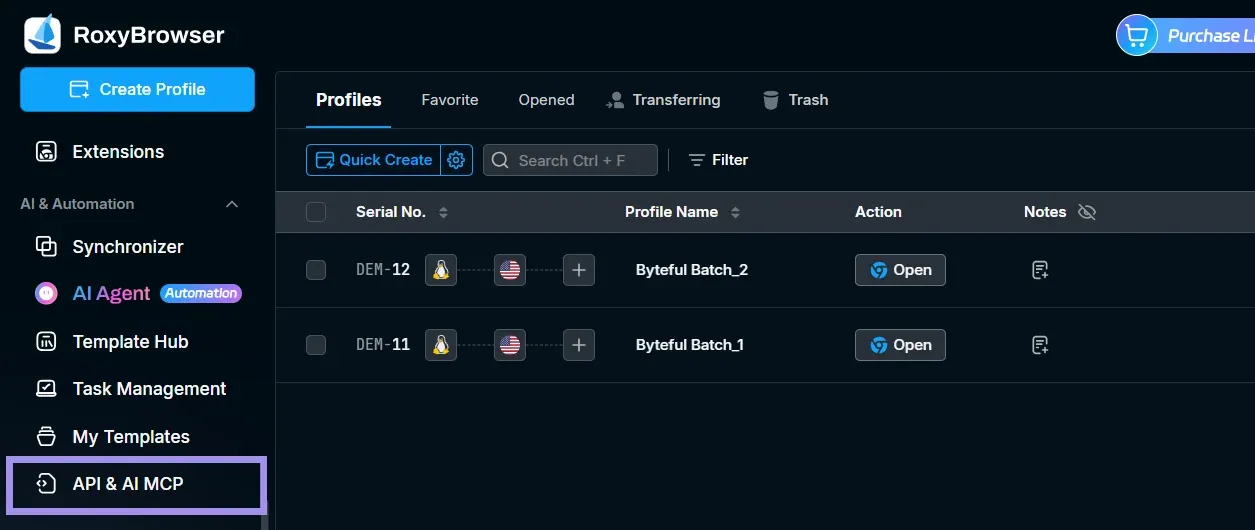
2. From there, turn the API status toggle on, and you will have your API key ready to use in your automation scripts.
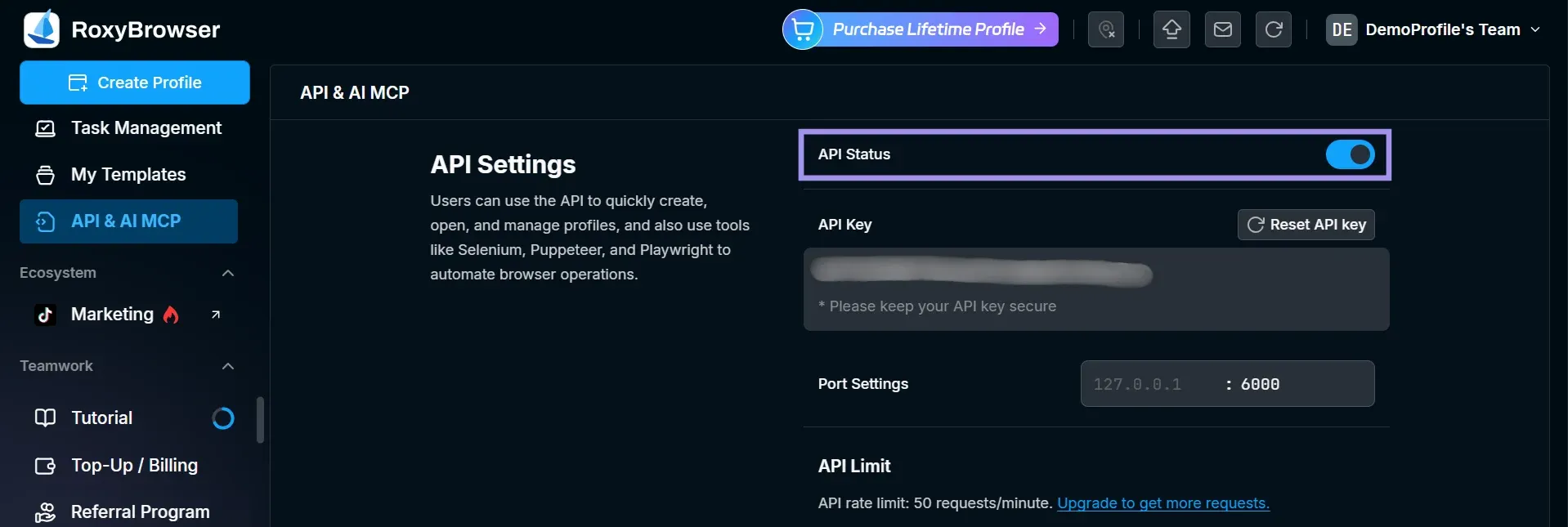
You can also go through the official RoxyBrowser API documentation to learn more about how it works. For AI agent workflows, RoxyBrowser also offers an MCP server (currently in beta) that lets an assistant open profiles and automate them through Playwright.
Proxy Rules That Keep Profiles Clean
You configured proxies in RoxyBrowser, but how you manage them across profiles decides whether your workflow and linked accounts stay stable. Here are a few points that, if followed, help you keep your workflow clean and stable:
- When managing accounts in RoxyBrowser on platforms with high IP stability requirements, RoxyBrowser recommends assigning one IP per profile when adding a proxy. Also, avoid managing the same account in more than one RoxyBrowser profile to prevent your account from being flagged because the two profiles have different fingerprints.
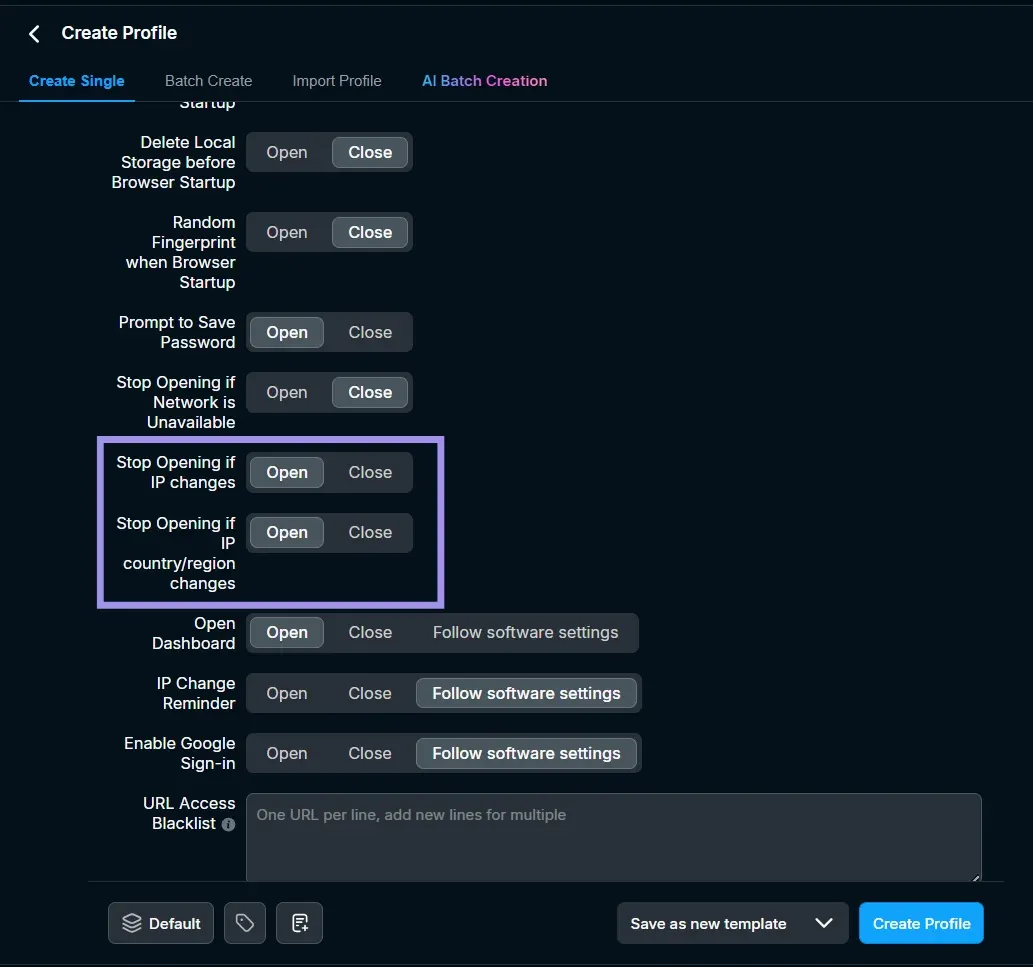
- Use a static IP or a sticky session for anything that requires a login, as a rotating endpoint can change the exit IP mid-session, which many platforms see as a red flag. Additionally, there is an option called “Stop opening if IP changes” in the Preferences settings of the profile. If turned on, this can alert you to the IP change before you open the profile and help prevent negative effects on the linked account.
- If you have bound a profile to a saved proxy, do not modify the proxy, as modifying the proxy will affect all of the profiles bound to that proxy. If you need to make changes to the proxy bound to a specific profile, consider adding a new proxy and then rebinding that proxy to the profile.
- A saved profile template doesn't carry proxy details, accounts, or cookies, so assign proxies after you create profiles from a template.
- Leave language, time zone, and location on "Based on IP address," so the browser's locale agrees with where the proxy appears to be from.
Troubleshooting RoxyBrowser Proxy Setup Issues
This section lists some commonly faced issues when integrating proxies in RoxyBrowser along with the solution.
Test Proxy fails: Make sure the entered proxy details are correct and use a tool like Byteful’s proxy tester to check if the proxy is reachable. Ensure the proxy protocol set in the RoxyBrowser profile matches the protocol your proxy supports. If using HTTPS proxies, make sure your proxies support TLS tunneling. Byteful supports TLS tunneling with all of the proxy offerings. You can also try switching the IP detection channel used by RoxyBrowser, which can be found right beside the “Test Proxy” button.
Accounts get flagged after successful proxy test: A successful proxy test only confirms that the proxy works, not that your fingerprint and IP tell the same story. Ensure that the profile's timezone, language, and geolocation settings match the proxy's actual location or are set to “based on IP address”. Also, if two profiles manage two different accounts on the same platform, assign each profile a different IP to avoid linking the accounts.
Pages load slowly: Residential and mobile proxies are slower than static ISP proxies because they come from real user devices. While you can't change proxy latency, you can pick a proxy location near the target to improve the speed as much as possible.
Profile isn’t opening: This can happen if you are using a residential or mobile proxy and have set the profile preferences to stop opening if the IP or IP location changes. Consider using a sticky session or a static IP. Sticky sessions can hold one IP for a set time, but because those IPs come from real devices, they can drop and switch early. This is uncommon but can still happen.
Account gets flagged despite a clean fingerprint: This is a possibility if you are using a datacenter IP or a free proxy IP that is already flagged on several targets. Consider using clean proxy IPs with high reputation from a legitimate proxy provider like Byteful.
Which Proxy Type To Use With RoxyBrowser?
There are four different types of proxies, but not all of them fit well with an anti-detect browser like RoxyBrowser. The three types that fit well with RoxyBrowser workflow are:
- Static ISP proxies: These proxies are registered with real ISPs and are hosted in datacenters, which gives them datacenter speed and a residential reputation. Because these IPs are consistent, they can be a good choice for a RoxyBrowser profile that is used to manage different accounts.
- Residential Proxies: Residential proxies route requests through real home networks, offering a high level of IP reputation. When pairing residential proxies with RoxyBrowser, you need sticky sessions. By default, RoxyBrowser sets several fingerprinting factors, like Language and timezone, based on the proxy IP. A mid-session IP change can conflict with the fingerprints and trigger detection. Sticky residential proxies hold a single egress IP for a set duration, keeping your network identity aligned with RoxyBrowser fingerprints throughout the session.
- Mobile Proxies: Mobile proxies route traffic through Carrier-Grade NAT (CGNAT) networks, assigning your session an IP shared by thousands of mobile devices. Because anti-bot platforms cannot block a CGNAT IP without blacklisting vast numbers of legitimate mobile subscribers, these proxies offer maximum IP trust. That is why these are a strong option for strict targets.
Byteful offers ethically sourced proxies. In Proxyway’s 2026 Market research, when tested alongside 12 other well-known proxy providers, our proxies scored the fastest mobile response time globally (0.48s), the fastest residential response time (0.41s), and the best residential success rate (81.23%) against real-world targets.
You can also test our proxies with our no-credit-card 1 GB of free, non-expiring residential data after signing up on the dashboard and completing a short KYC. We KYC every user to ensure everyone sharing the pool is legitimate, which means cleaner, less-abused IPs for every user.