

Anti-detect browsers like Camoufox are built to spoof the fingerprint of the automated workflow to make it look like a real user. But one factor these browsers cannot control is the exit IP your request carries.
Anti-bot detection systems compare that IP to the fingerprint, and any mismatch can restrict your workflow. This is where using proxies with Camoufox helps match your fingerprint to the exit IP.
This guide covers proxy integration with Camoufox, rotating identities within the script, and solutions to common problems you might face during integration.
Prerequisites
To use Camoufox with proxies, first install it, which requires Python 3.10+. To get Python on your system and start using Camoufox:
1. Download the Python 3.10 or newer installer from python.org.
2. Use the downloaded installer to install Python on your system.
3. Verify the successful installation of Python using python --version on Windows, or python3 --version on Linux or macOS.
4. Once done, install Camoufox on your system via the command: pip install -U "camoufox[geoip]"
5. Next, download the Camoufox browser by using the following command on Windows:
python -m camoufox fetch, and on Linux or macOS: python3 -m camoufox fetch
Step 1: Add a Proxy via Built-In Support
As Camoufox is built on top of Playwright, it accepts the proxy details in the form of a dictionary. The proxy server, username, and password have to be defined separately rather than combined in a URL.
The following Camoufox script targets browserscan.net while using the integrated proxy. When executed, the script gets the exit IP address from ipinfo.io/json, prints the exit IP, the location of the exit IP, the browser timezone, and the language detected by the target page:
import json
from camoufox import Camoufox

proxy_config = {
    'server': 'http://PROXY_HOST:PROXY_PORT',
    'username': 'PROXY_USER',
    'password': 'PROXY_PASS'
}

with Camoufox(headless=True, proxy=proxy_config) as browser:
    page = browser.new_page()

    # 1. Visit BrowserScan first to initialize/verify client-side JS context
    page.goto("https://www.browserscan.net", wait_until="domcontentloaded")

    # Evaluate JS properties directly in context
    timezone, language = page.evaluate(
        "[Intl.DateTimeFormat().resolvedOptions().timeZone, navigator.language]"
    )

    # 2. Fetch IP location JSON directly via browser context
    ip_data = page.goto("https://ipinfo.io/json").json()

    output = {
        "exit_ip": ip_data.get("ip", "N/A"),
        "exit_ip_location": f"{ip_data.get('city', 'N/A')}/{ip_data.get('country', 'N/A')}",
        "timezone": timezone,
        "language": language
    }

    print(json.dumps(output, indent=2))
If you want to use HTTPS or SOCKS5 proxies, you can do so just by replacing the ‘http’ part of the proxy URL with ‘https’ or ‘socks5’. As Camoufox is built on Playwright, it inherits Playwright’s inability to support authenticated SOCKS5 proxies.
When using authenticated SOCKS5 proxies with static ISP or datacenter proxies, switch to IP whitelisting instead, which is explained in a later section. For residential and mobile proxies, use HTTP with separate credential fields
Note: If you want to use HTTPS proxies, make sure that your HTTP proxy supports SSL tunneling. Byteful supports SSL tunneling across all proxy offerings.
Save the script with a name of your choice. For demonstration, we will be using a placeholder “SCRIPT_NAME.py”
Execute the script with: python SCRIPT_NAME.py
This is what the output will look like:

The exit IP address comes from the UK, while the target detects the timezone of the device the request is leaving from.
This is the exact mismatch that gets the proxy workflows detected and restricted on strict targets. That is why Camoufox supports matching the browser fingerprint with the exit IP through the geoip parameter, which is discussed next.
Step 2: Match Your Fingerprint to the Proxy With ‘geoip=True’
As shown earlier, when you run a Camoufox script with an integrated proxy, the target can detect the fingerprint difference between the exit IP location and the timezone your device reports. The script also prints a LeakWarning recommending you use the geoip=True parameter when using proxies with Camoufox.

The geoip=True parameter matches your request fingerprint to the exit IP fingerprint. Add this in with Camoufox() as demonstrated next:
with Camoufox(
        headless=True,
        geoip=True,
        proxy=proxy_config
    ) as browser:
        page = browser.new_page()
        page.goto(URL)
        page.wait_for_timeout(10000)
When executed, here’s what the results will look like:

Besides the geoip=True parameter, Camoufox also provides an OS parameter to set the operating system the browser claims to use. But the proxy you are using also has its own OS. If your proxy IP lives on a Linux machine while your browser reports Windows, this mismatch can also lead to detections.
To address this, you can now use Byteful’s OS Targeting, available as a beta for our residential and mobile proxies. With Byteful OS targeting, you can set the exit device OS to Windows or Linux and match the Camoufox browser’s OS to the exit device OS.
The following is an example of matching both the Camoufox OS and the proxy OS to Windows:
from camoufox.sync_api import Camoufox

with Camoufox(
    os="windows",
    headless=True,
    geoip=True,
    proxy={
        "server": "http://residential.byteful.com:port_number",
        "username": "your_username_os_windows",
        "password": "your_password",
    },
) as browser:
    page = browser.new_page()
_ = page.goto("https://www.browserscan.net")Note: Byteful now allows proxy connections to domain names only, to prevent misuse of the network. If your setup resolves domain names locally before sending traffic to the proxy, requests may fail. Use the HTTP/HTTPS proxy option where possible, or enable remote DNS if using SOCKS5. You can unlock direct IP access after KYC verification, depending on your use case.
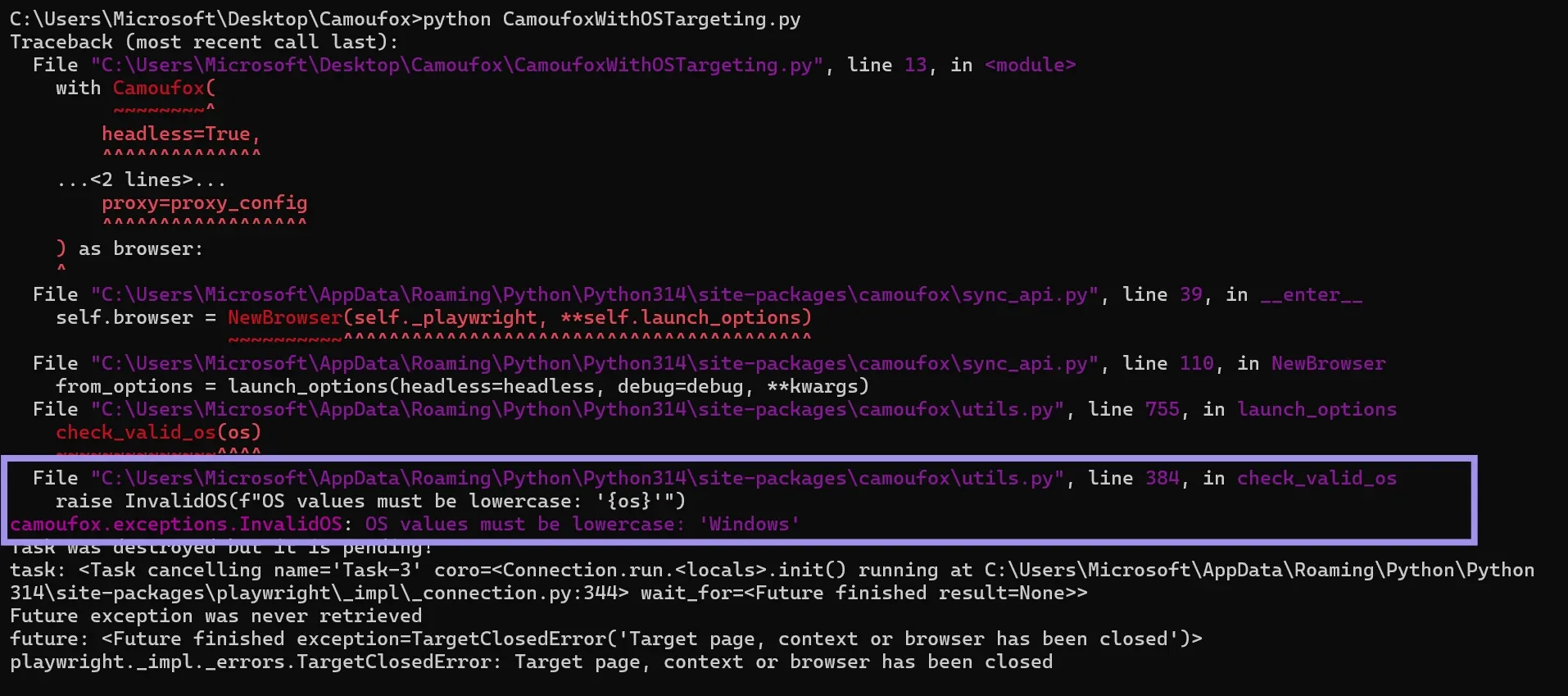
When setting the OS value via the OS parameter, it must be in lowercase. Otherwise, it will throw an exception:
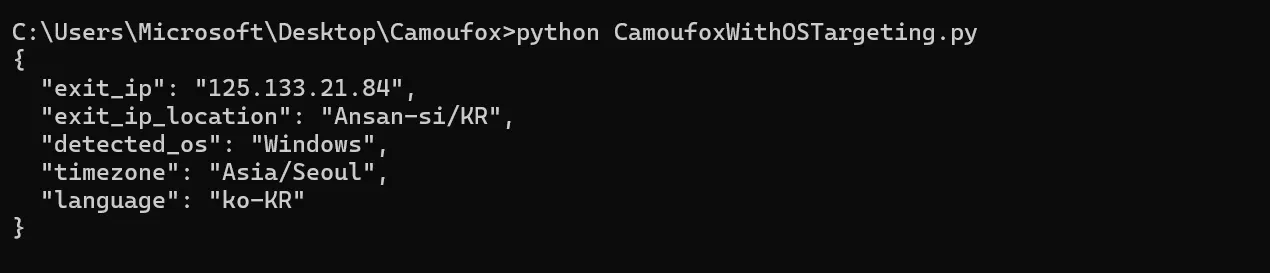
Run the script with the browser OS matched to the proxy’s and also print the OS detected by the target. Here’s what the output looks like:
Step 3: Set Session Type on Camoufox
When using a residential or mobile proxy, you can either have a sticky or rotating session. A rotating session rotates the proxy IP on every request, while sticky sessions hold the same IP for a specified time. That time is called Time To Live (TTL) and can range from a minute to 24 hours with Byteful residential or mobile proxies.
If you use a rotating session with Camoufox, it breaks at two important points:
- Anti-bot clearance cookies: With your automated Camoufox workflow, you first have to manually solve a challenge that gives a token, like Cloudflare cf_clearance. That token is tied to the IP address the challenge was solved from. With rotating sessions, the IP changes every request, so the token gets invalidated, and hence you are required to solve the challenge again.
- geoip=True spoofing: When you launch the browser, geoip=True snapshots the exit IP and then matches the fingerprint of the rest of the script based on that exit IP. If the IP changes mid-workflow, the spoofed fingerprints no longer match the workflow traffic, creating fingerprint inconsistency and potentially triggering restrictions on the target.
To prevent these breaks, consider using a sticky session when using a residential or mobile proxy.
Step 4: Use IP Whitelisting
With IP whitelisting, you don't need proxy credentials, and your connection will be authenticated based on whitelisted IP addresses. Many proxy providers support IP whitelisting. Ask your proxy provider whether your proxies support whitelisting.
Byteful supports proxy IP whitelisting for the static ISP and datacenter proxies. To whitelist your IP address from the Byteful dashboard:
1. Visit an IP-echo page like httpbin.org/ip to get your public IP address.
2. Log in to the Byteful dashboard.
3. Navigate to “Proxy Users” from the left-side menu and click “Edit Authentication” for a proxy user.
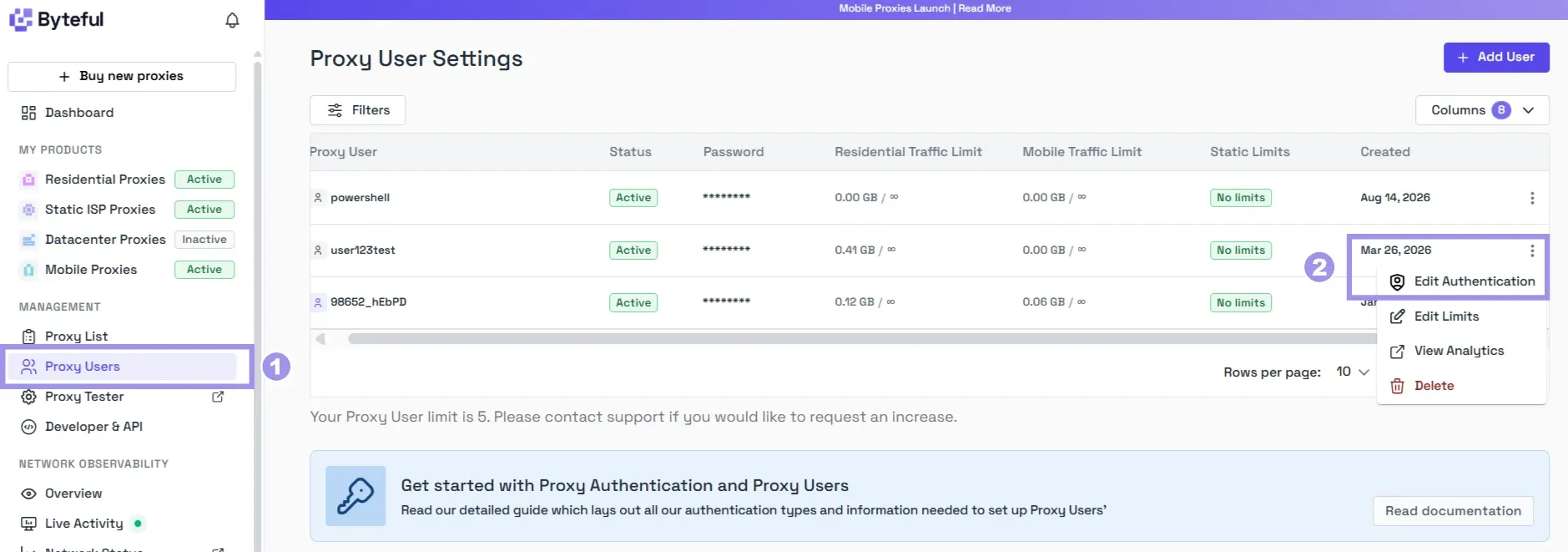
4. In the Edit Proxy User pop-up, enter the IP address you got in the first step, press “Enter,” and then click “Confirm.”
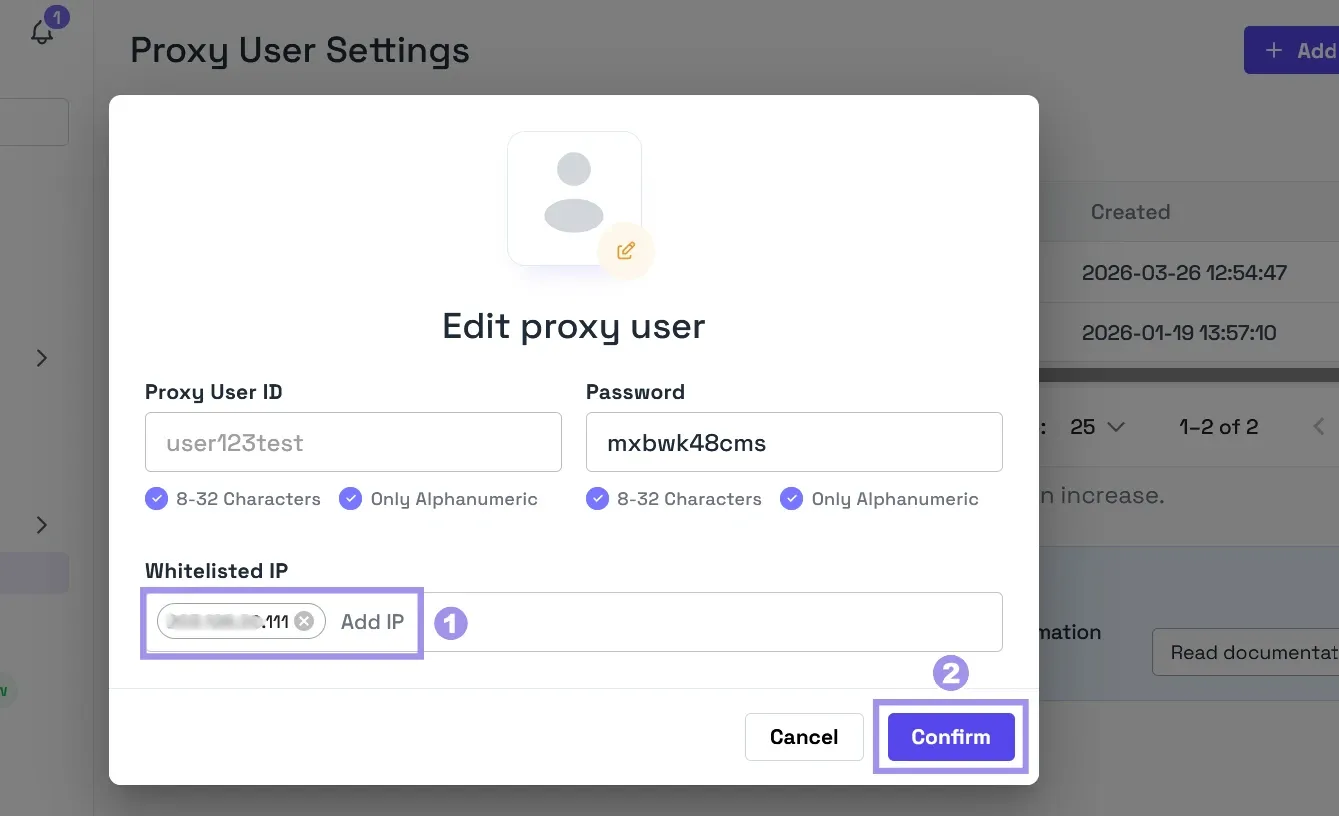
Once your IP is whitelisted, you do not need credentials to use authenticated proxies with Camoufox. After whitelisting your IP in the provider's dashboard, use the same script as given in the built-in proxy section, but remove the username and password fields so the proxy dictionary contains only the server value. This approach is especially helpful when using authenticated SOCKS5 proxies.
Rotating Identities the Right Way on Camoufox
Camoufox generates a consistent fingerprint from the exit IP when you launch it with geoip=True. If you need to rotate identities within a Camoufox script, do it at launch to keep the fingerprint consistent with the identity IP.
The following script shows a loop of two proxies that are used in two different identities at a fresh launch:
import asyncio
import json
from camoufox.async_api import AsyncCamoufox

# A list of sticky proxy endpoints (or gateway ports/session IDs)
PROXY_POOL = [
    {
        "server": "http://PROXY_HOST:PROXY_PORT",
        "username": "PROXY_USER",
        "password": "PROXY_PASS",
    },
    {
        "server": "http://PROXY_HOST:PROXY_PORT",
        "username": "PROXY_USER",
        "password": "PROXY_PASS",
    }
]

async def run_identity_session(proxy_config, session_num):
    print(f"\n--- Session #{session_num} ---")

    async with AsyncCamoufox(
        headless=True,
        geoip=True,
        proxy=proxy_config
    ) as browser:
        page = await browser.new_page()
        page.set_default_navigation_timeout(60000)

        try:
            # 2. Visit target site (e.g., BrowserScan)
            await page.goto("https://www.browserscan.net/", wait_until="domcontentloaded")
            await page.wait_for_timeout(2000)

            # 3. Read client-side JS parameters set at startup by Camoufox
            js_timezone = await page.evaluate("Intl.DateTimeFormat().resolvedOptions().timeZone")
            js_language = await page.evaluate("navigator.language || navigator.userLanguage")

            # 4. Read the exit IP & location for this sticky session (using ipinfo.io via HTTPS)
            response = await page.goto("https://ipinfo.io/json", wait_until="domcontentloaded")
            ip_json = json.loads(await response.text())

            ip_address = ip_json.get("ip", "N/A")
            city = ip_json.get("city", "")
            country = ip_json.get("country", "")
            location = f"{city}, {country}" if city else country

            # Print the 4 required fields
            print(f"Exit IP Address : {ip_address}")
            print(f"Exit IP Location: {location}")
            print(f"JS Timezone     : {js_timezone}")
            print(f"JS Language     : {js_language}")

        except Exception as e:
            print(f"Error during Session #{session_num}: {e}")

async def main():
    print("CAMOUFOX PROPER IDENTITY ROTATION DEMO")

    for idx, proxy in enumerate(PROXY_POOL, start=1):
        await run_identity_session(proxy, idx)
        await asyncio.sleep(2)

if __name__ == "__main__":
    asyncio.run(main())
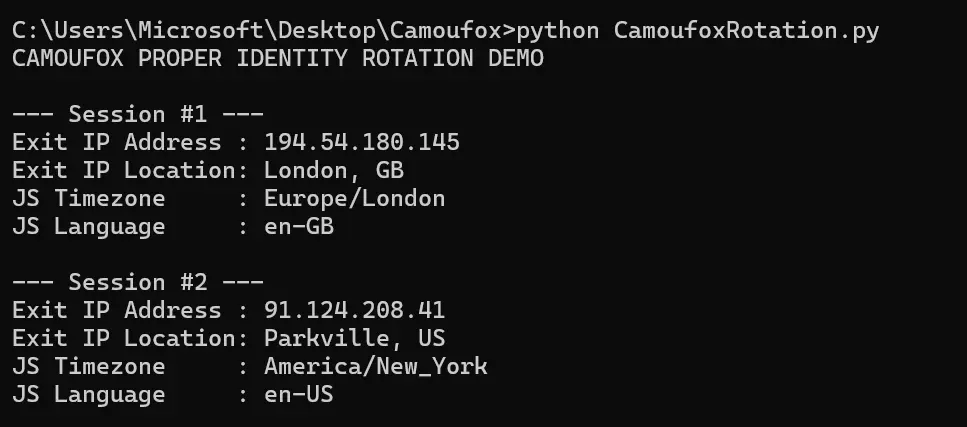
When executed, this script matches the fingerprint of each launch with the proxy IP being used with it. You can verify the fingerprint match by printing the script request exit IP, exit IP location, along with the JS-detected timezone and language:
Troubleshooting Camoufox Proxy Setup Issues
This section lists some commonly faced issues when integrating proxies in Camoufox along with the solution
- geoip=True does not match the fingerprint: This can happen if the geoip extra isn’t installed. To fix this, run: pip install -U "camoufox[geoip]", then re-run: camoufox fetch.
- geoip=True can’t resolve the IP: This could be because the proxy is blocking the lookup or the proxy is down. Use a tool like Byteful’s proxy tester to make sure the proxy is running. If the issue persists, manually pass the proxy IP to geoip (geoip="PROXY_IP"). You can find your proxy IP by connecting to an IP echo page through a proxy.
- Timezone/locale don’t match the IP on a checker: This can happen if you passed a conflicting locale/timezone, or a rotating proxy changed the IP after launch. Remove any manually passed locale or timezone overrides and use a sticky session so the fingerprint does not break mid-session.
- 407 / authentication fails: When using authenticated proxies, a combined user:pass@host:port URL does not work. Use separate fields for server, username, and password as demonstrated in the code in earlier sections. Authenticated SOCKS5 proxies are not supported in Playwright. Use HTTP with separate credential fields, or, on static ISP and datacenter proxies, whitelist your IP instead.
- Pages are slow: Residential proxies are slower than datacenter and static ISP proxies because they come from real user devices. While you can't change proxy latency, you can block unnecessary resources like images; also pick a proxy location near the target.
Which Proxy Type To Use With Camoufox
There are four different types of proxies, but not all of them fit well with Camoufox. The three types that fit well with Camoufox workflow are:
- Static ISP proxies: These proxies are registered with real ISPs and are hosted in datacenters, which gives them datacenter speed and residential reputation. Because these IPs are consistent, they provide a good foundation for long-lived Camoufox contexts.
- Residential Proxies: Residential proxies route requests through real home networks, offering a high level of IP reputation. When pairing residential proxies with Camoufox, you need sticky sessions. Because Camoufox sets location parameters directly into the browser context at startup via geoip=True, an unexpected IP rotation during a single browser run creates a mismatch between your network location and JS fingerprint. Sticky residential proxies hold a single egress IP for a set duration, keeping your network identity aligned with Camoufox’s spoofed environment throughout the session.
- Mobile Proxies: Mobile proxies route traffic through Carrier-Grade NAT (CGNAT) networks, assigning your session an IP shared by thousands of mobile devices. Because anti-bot platforms cannot block a CGNAT IP without blacklisting vast numbers of legitimate mobile subscribers, these proxies offer maximum IP trust. Even paired with a desktop fingerprint, the CGNAT trust of mobile IPs makes them a strong option for strict targets.
Byteful offers all these proxy types. Our proxies are ethically sourced and have the fastest mobile response time globally (0.48s), the fastest residential proxy response time (0.41s), and the best residential success rate (81.23%) against real-world targets. These numbers are taken from Proxyway's Proxy Market Research 2026, where they tested our proxies alongside 12 other well-known proxy providers.
You can also test our proxies with our no-credit-card 1 GB of free, non-expiring residential data. You can get the trial data after signing up on the dashboard and completing a short KYC. We KYC every user to ensure everyone sharing the pool is legitimate, which means cleaner, less-abused IPs for every user.
As an official Camoufox sponsor, we offer Camoufox users the code "CAMOUFOX10" for 10% off residential bandwidth