

OpenClaw routes its traffic through many different channels, and it does not have one single setting that controls the proxy for all of them. Each channel must be configured separately . To configure a proxy in OpenClaw, you need to understand what traffic is routed through each channel and how to proxy that traffic
This guide covers the process of proxy integration in OpenClaw managed browser and web_fetch, explains where that applies, and what proxy fits which job type.
What “Proxy” Means in OpenClaw?
As stated earlier, OpenClaw sends traffic through multiple channels, and a proxy configured on one doesn’t cover the rest. The network proxy is the widest of all, but even that leaves the managed browser out, so browser traffic goes direct unless you configure it separately.
This section covers the different channels where a proxy can be configured in OpenClaw and what traffic routes through each:
- Network proxy: This is configured through the proxy.proxyUrl config key or the OPENCLAW_PROXY_URL environment variable. It routes the OpenClaw process’s HTTP and WebSocket traffic, which includes model API calls, chat channels, and web_fetch. OpenClaw calls it a security and egress-control setting. You can use it when you need every process-level connection to pass through a forward proxy managed by you.
- Managed browser proxy: This setting routes the traffic from the OpenClaw managed browser through the proxy. It can be configured via the --proxy-server flag of browser.extraArgs. But the --proxy-server flag doesn’t accept credentials, so you will need IP whitelisting if you are using authenticated proxies.
- web_fetch proxy: This setting routes the OpenClaw web_fetch traffic through the proxy. It can be configured by setting the proxy details in environment variables or by proxy configuration in a .env file. The proxy configured for web_fetch works only when the useTrustedEnvProxy parameter is set to true.
- Hosted browser: When you connect OpenClaw to a remote or hosted Chromium endpoint, the remote browser can carry its own proxy configuration which is independent of your local machine. Use this when you want browser execution and proxy egress to be handled outside of your Gateway host.
Set a Proxy for the Managed Browser
To set a proxy for openclaw managed browsers, you need to configure the proxy in the openclaw JSON file located at ~/.openclaw/openclaw.json.
An important detail to know here is that for managed browsers, the proxy details are configured through the Chrome launch flag --proxy-server in browser.extraArgs, and this flag cannot carry credentials.
If you are using authenticated proxies, the first step would be to whitelist your system’s public IP address in the provider’s dashboard. Ask your provider to know if they support proxy IP whitelisting. Byteful supports IP whitelisting for the datacenter and static ISP proxies.
To whitelist your IP address from the Byteful dashboard:
1. Use an IP-echo page like httpbin.org/ip to get your public IP address.
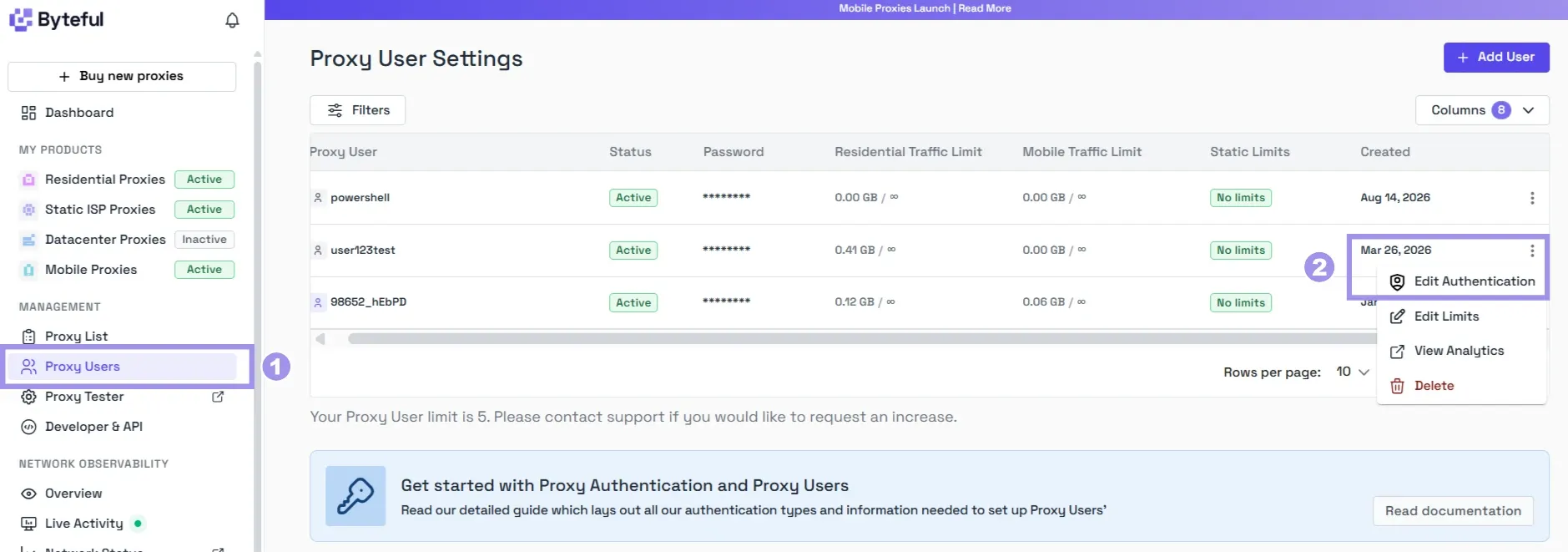
2. On your Byteful dashboard, navigate to ‘Proxy Users’ from the left-side menu and click “Edit Authentication” for a proxy user.
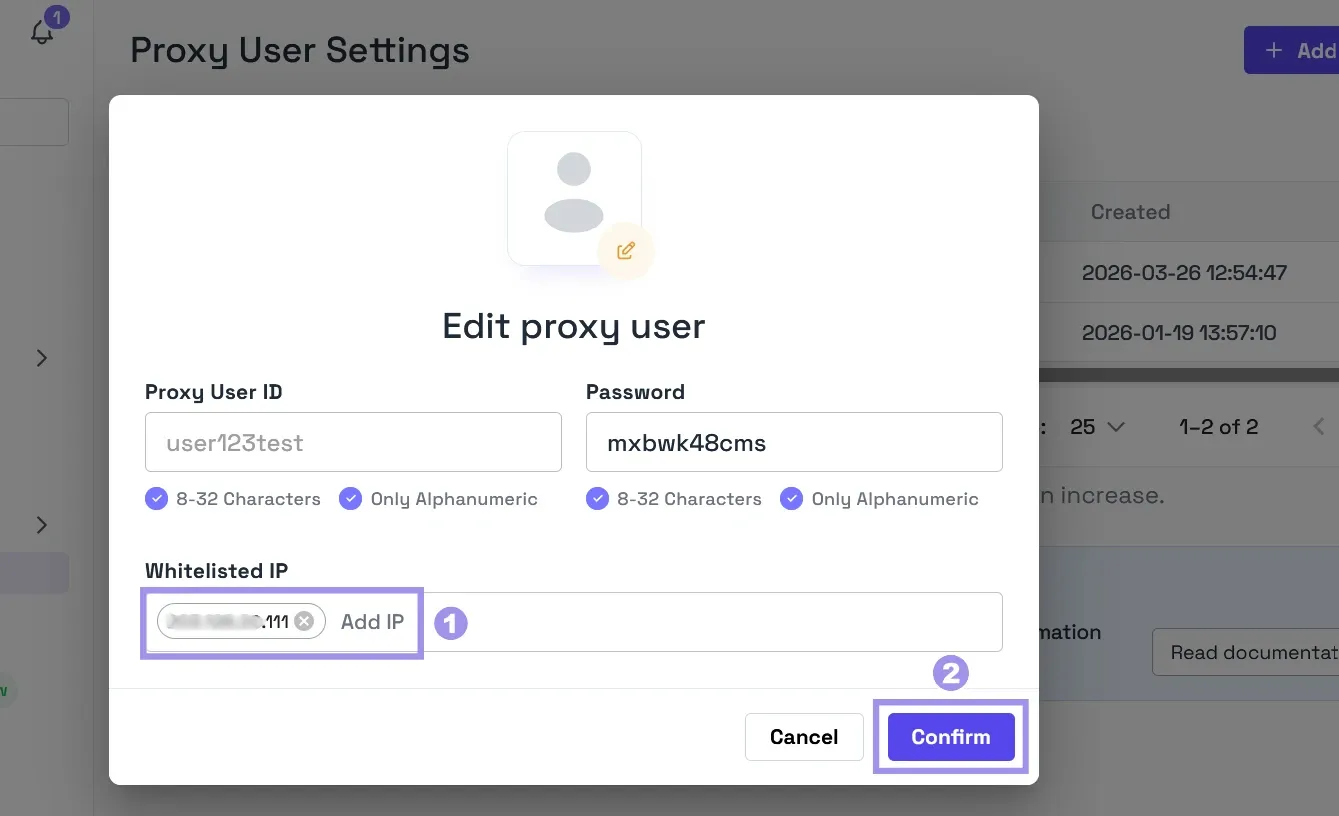
3. In the edit proxy user pop-up, enter the IP address you got from the first step, hit “Enter”, and finally, click “Confirm”.
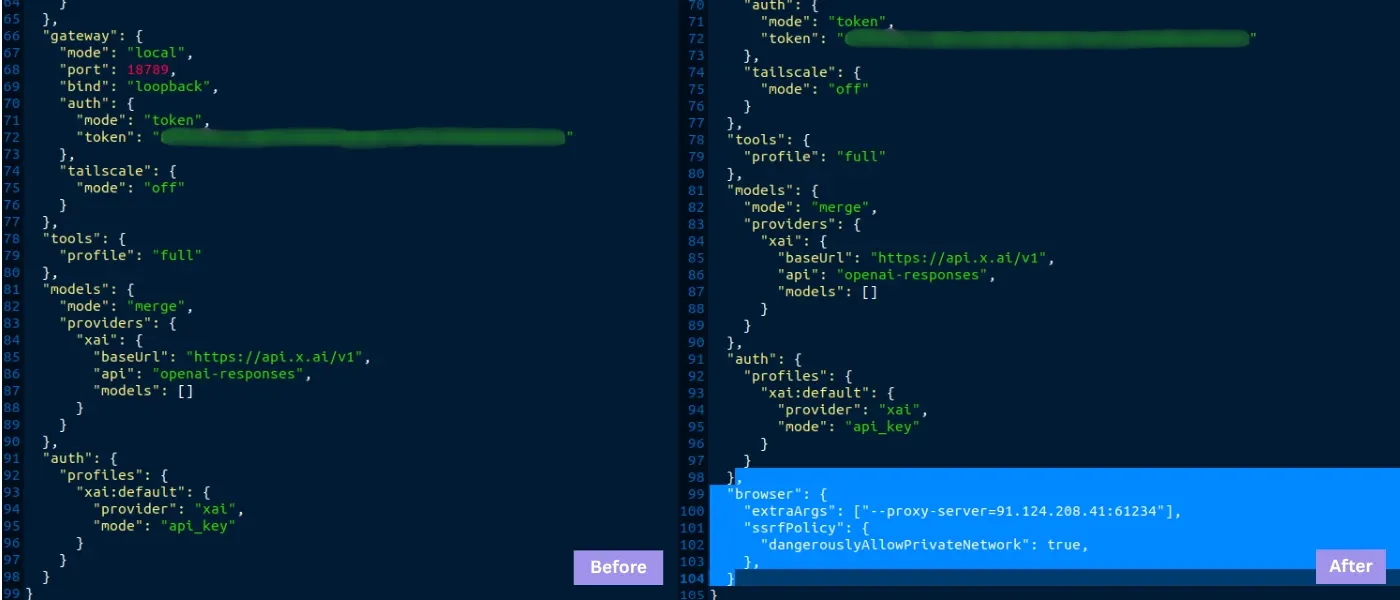
Once your IP is whitelisted, you will need to add the following configuration in the OpenClaw JSON config file, i.e., ~/.openclaw/openclaw.json.
"browser": {
  "extraArgs": ["--proxy-server=PROXY_HOST:PROXY_PORT"],
  "ssrfPolicy": {
    "dangerouslyAllowPrivateNetwork": true,
    },
  }
Here, you need to set "dangerouslyAllowPrivateNetwork" to true because OpenClaw's managed browser is SSRF-guarded. Before Chrome navigates to any URL, OpenClaw resolves the target URL and blocks any requests to private, loopback, or internal addresses.
In our testing, agent-driven navigation through the proxy failed OpenClaw’s pre-navigation check while “browser.ssrfPolicy.dangerouslyAllowPrivateNetwork” was set to false. For the proxy configuration to work without errors, set it to true
Another important detail is that the strict SSRF policy is applied to the agent-driven browser navigation only. Agent-driven navigation includes using the GUI to ask the agent to open a URL in the browser or using a command like “openclaw browser --browser-profile openclaw open <target_url>”.
If you want to use the proxied OpenClaw managed browser profile without setting “browser.ssrfPolicy.dangerouslyAllowPrivateNetwork” to true, you can start the browser without giving the agent a URL, either by asking the agent to just open the browser or by running “openclaw browser start”, and then browse manually. Doing so removes the OpenClaw DNS resolution layer. The traffic goes directly to the proxy, and DNS resolution is managed by the proxy itself.
Add the configuration in the file and check that the surrounding braces still balance.
Once done, save the file with Ctrl+S and exit with Ctrl+X.
To verify the proxy setup with the browser, you can use the OpenClaw dashboard and ask the agent to open the browser while loading a URL like api.ipify.org:
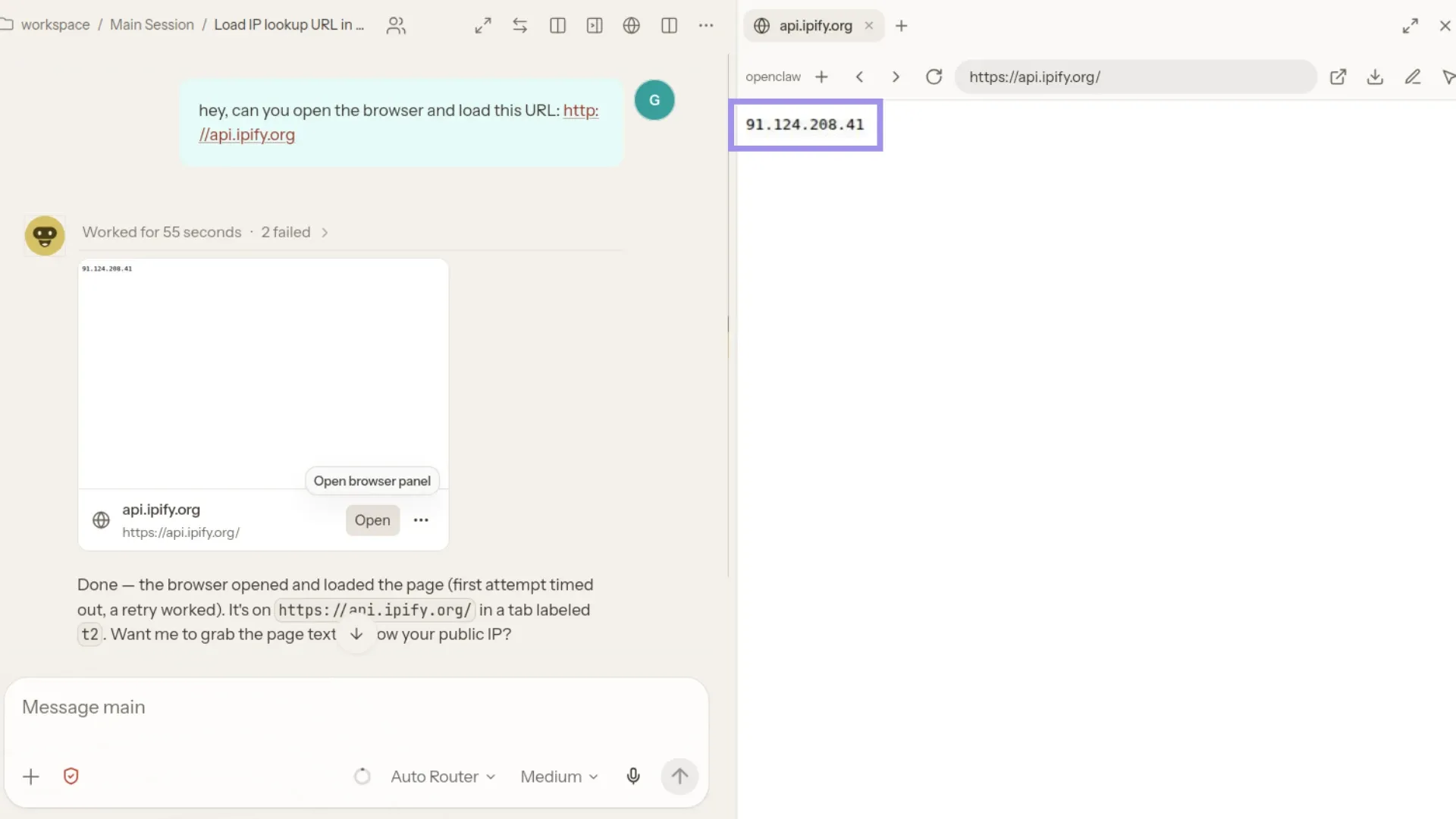
If the IP shown on the page matches your proxy IP, the configuration is successful. You can also run the command “openclaw browser start” to open the OpenClaw managed browser profile and load the URL manually.
Match the IP shown on the page with your proxy’s IP to verify your configuration:
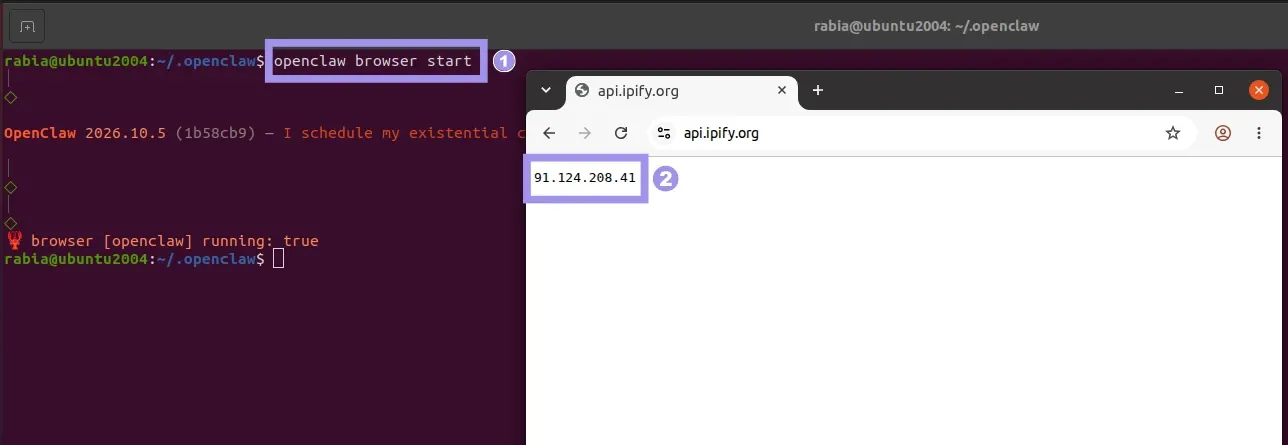
Note: Byteful now allows proxy connections to domain names only, to prevent misuse of the network. If your setup resolves domain names locally before sending traffic to the proxy, requests may fail. Use the HTTP/HTTPS proxy option where possible, or enable remote DNS if using SOCKS5. You can unlock direct IP access after KYC verification, depending on your use case
Set a Proxy for web_fetch
There are two ways to configure a proxy with web_fetch. Both work with or without IP whitelisting and have different scopes. But keep in mind that web_fetch uses the configured proxy only when the useTrustedEnvProxy parameter of tools.web.fetch is set to true. You can do so from the openclaw.json file.
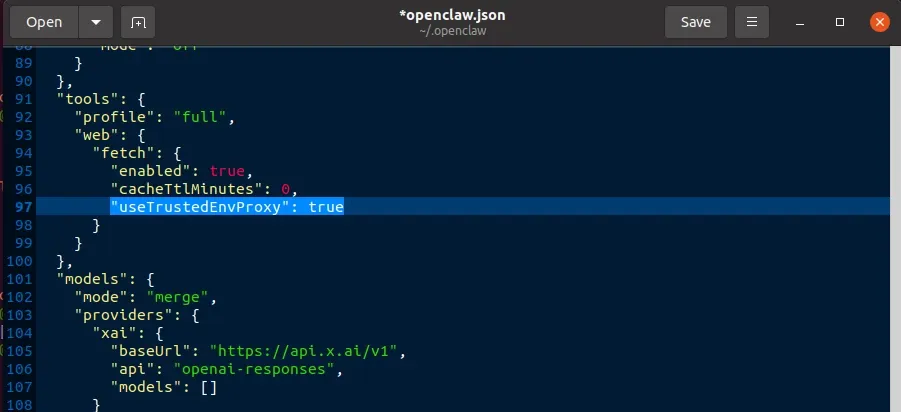
The next sections cover the two ways to configure a proxy with web_fetch:
Using Environment Variables
A proxy configured through environment variables is temporary and applies only to OpenClaw processes started from that terminal. If your gateway is already running as a service, it will not see these variables, so use this method for quick tests and the .env file (explained later) for anything persistent.
To configure a proxy for web_fetch via the environment variables, you need to configure your proxy details in the HTTPS_PROXY and HTTP_PROXY variables. Use the following commands to set the environment variable values:
export HTTPS_PROXY=https://USER:PASS@PROXY_HOST:PROXY_PORT
export HTTP_PROXY=http://USER:PASS@PROXY_HOST:PROXY_PORT
Before configuring the HTTPS proxy, make sure that your provider supports TLS Tunneling for your proxies. Byteful supports TLS tunneling for all of the proxy offerings.
Once the proxy is configured in the environment variables, you can use CLI mode to use web_fetch, and the traffic will be routed through the configured proxy. To verify the successful proxy configuration, you can use the following command:
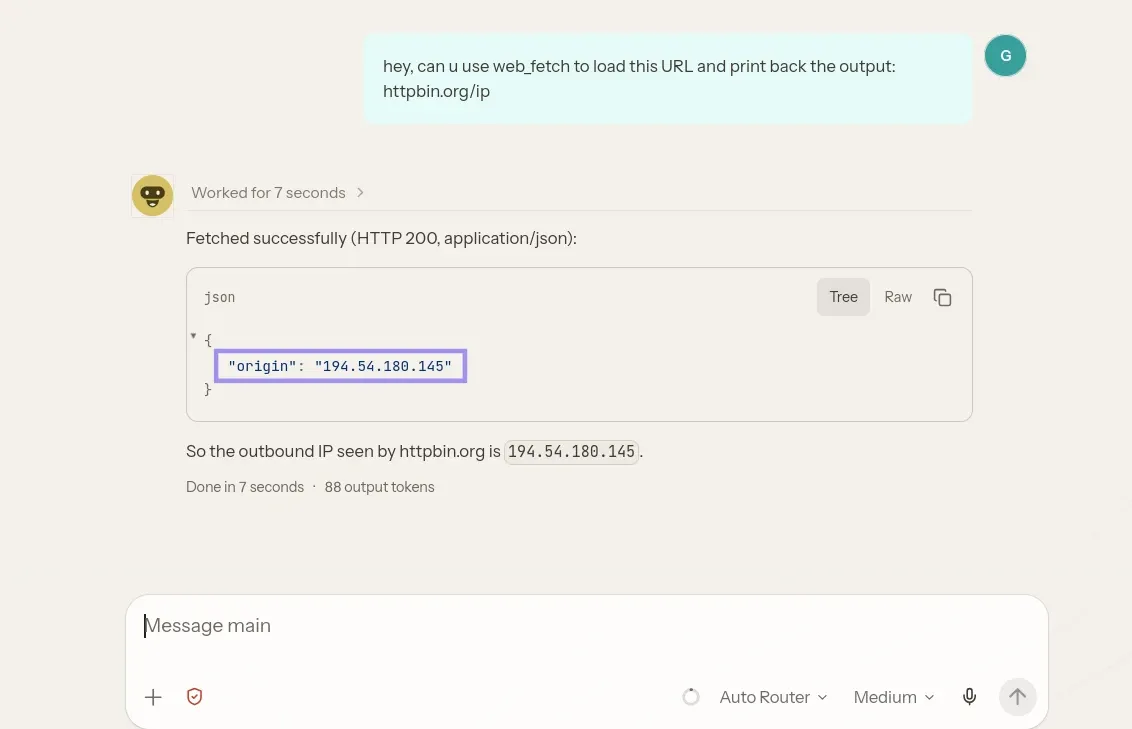
openclaw agent --agent main --message "Use the web_fetch tool to fetch https://httpbin.org/ip"This will tell the agent to use web_fetch to load the given URL and will print the output on the screen:
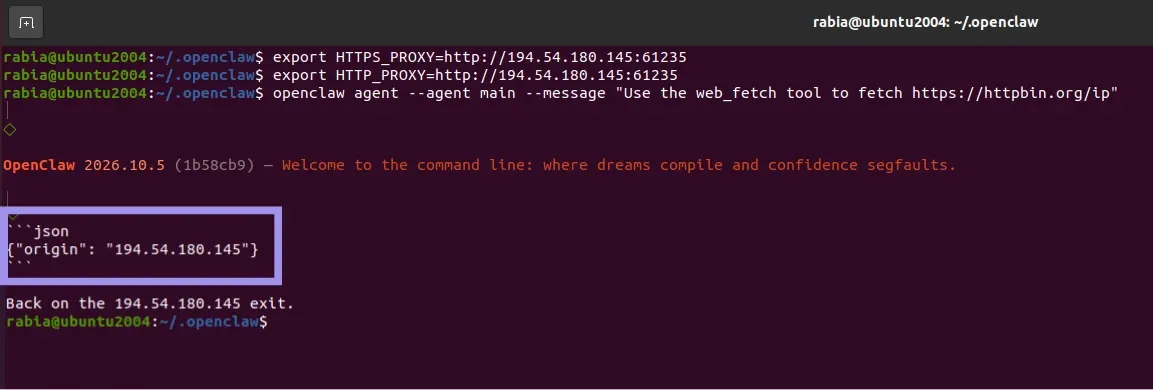
If the IP shown as the output matches your proxy IP, the configuration was successful.
Via the OpenClaw .env File
Proxy configured in the .env file of OpenClaw works in both the CLI mode and in the OpenClaw GUI dashboard.
To configure the proxy in the OpenClaw .env file, open the OpenClaw state directory with “cd ~/.openclaw” and list its contents using “ls -a” to check for a .env file. This is the global env file OpenClaw loads for the gateway, including when it runs as a service.

If you have the .env file, you can edit that file to enter your proxy configurations. If you don’t have that file, you can create it with “touch .env” and then edit that with using any text editor and enter your proxy configuration.
Here’s the content you need to add in the .env configuration file.
HTTPS_PROXY=http://USER:PASS@PROXY_HOST:PROXY_PORT
HTTP_PROXY=http://USER:PASS@PROXY_HOST:PROXY_PORT
NO_PROXY=localhost,127.0.0.1
Save the file with Ctrl+S and exit with Ctrl+X.
Once done with the configuration file, restart the OpenClaw gateway with “openclaw gateway restart” so the updated configuration can be applied.
Once done, you can use web_fetch in both CLI and GUI mode while the traffic is being routed through the proxy
Finally, verify the proxy configuration by asking the agent to load the same URL and matching the displayed IP with your proxy IP.
Managing Proxy Sessions and Identities in OpenClaw
Using rotating endpoints for tasks that need a consistent session can lead to agent tasks failing silently. This section covers a few points to keep in focus when choosing a proxy for specific tasks.
- One IP for a login-based or multi-step task: If your agent does a task that involves login or runs a multi-step flow, it needs the same exit IP from start to finish. This is where the use of a static ISP proxy or a sticky session of a residential or mobile proxy suits well. Use rotating endpoints for stateless fetch jobs only, like discovery scrapes, one-shot page reads, anything where a new IP per request is harmless.
- Set the session TTL longer than the job: Automations run unattended, so if your IP rotates mid-session, it can break the flow. When using sticky sessions, set your proxy’s TTL to exceed the time the job is expected to take.
- One identity per proxy when the agent browser manages separate accounts: If you have multiple agents and the browser managed by each handles separate accounts, give each its own egress proxy IP. You can do so using two approaches: By pointing each profile at its own remote browser using browser.profiles.<name>.cdpUrl with remote browsers managing their own proxy. Or by running separate OpenClaw instances using the --profile flag with proxy configured via browser.extraArgs.
- Keep your browser and proxy IP fingerprint consistent: If your OpenClaw managed browser runs on Linux but your proxy exit IP carries a Windows network fingerprint, this mismatch can get your workflow restricted on strict targets. To avoid this, match your proxy IP’s OS to the OS your OpenClaw browser is running on.
To support this solution, Byteful now provides OS targeting for the residential and mobile proxies, allowing you to choose the OS your proxy IP comes from (targeting available for Windows, Linux, and Android systems).
Additionally, Byteful also supports TCP/IP fingerprint emulation for the datacenter and ISP proxies. This feature supports emulating the TCP/IP fingerprints of five operating systems, i.e., Windows, macOS, Linux, Android, and iOS.
Troubleshooting Proxy Issues in OpenClaw
You may face several problems when configuring proxies in OpenClaw, and this section lists the most common ones users face along with the possible solutions:
- The browser still shows my real IP when using the browser: The proxy set for the OpenClaw managed browser works only for the OpenClaw managed browser profile. If you are using Chrome on your system, the browser would not use the configured proxy if launched as one normally does. To use the proxied browser profile, launch the OpenClaw managed browser profile using the command “openclaw browser start”.
- The browser prompts for proxy credentials: As the –proxy-server flag does not take the proxy credentials, the browser tabs will prompt you for the authentication credentials if using authenticated proxies. To avoid getting these prompts, whitelist your system’s public IP address in your proxy provider’s dashboard. Many proxy providers support IP whitelisting for their proxies. Ask your provider to know if they support it. Byteful supports proxy IP whitelisting for the datacenter and static ISP proxies.
- The web_fetch traffic is going direct even after the configuration: For the web_fetch proxy configuration to work, you need to set the useTrustedEnvProxy parameter to true. Otherwise, the traffic would be silently routed through your system’s own connection. Set the value of this parameter in the openclaw JSON config file located at ~/.openclaw/openclaw.json, save the changes, and then restart the openclaw gateway service with the command “openclaw gateway restart”. Once done, use any IP-echo page like api.ipify.org to verify that the web_fetch traffic is being routed through the proxy.
- Model calls got slower after adding a proxy: Configuring a proxy adds an additional node in the distance the data has to travel to get to the destination. The addition of that extra node can add some latency, and when using residential or mobile proxies, they route your traffic through real devices and hence can add more latency. If you have set a network proxy in OpenClaw through proxy.proxyUrl, it routes all the traffic through the proxy. Consider configuring the proxy to a specific scope, like managed browser and web_fetch.