

Google Shopping brings product listings from multiple merchants into one place, making it useful for comparing prices, sellers, and product availability. Collecting that information manually becomes impractical when you need data across multiple products or repeated searches. A scraper can automate the process and turn those results into structured data.
This guide focuses on gathering publicly displayed product listings at low volume for research and price comparison. We'll create a Google Shopping scraper in Python to extract key product information, clean the results, and save them to a CSV file. We'll also expand the scraper to support multiple queries and add a proxy for repeated or location-specific collection. Keep request rates modest, and make sure your use complies with applicable laws and our acceptable usage policy.
What Is a Google Shopping Scraper and How Does It Work?
A Google Shopping scraper is a program that collects data from Google Shopping search results and formats it into structured data for storage or analysis. Instead of checking them one by one, the scraper loads a results page, identifies the product cards, and extracts fields like product name, price, seller, rating, review count, and Google product ID.
In this guide, we'll use Playwright to load Google Shopping in Chromium and interact with the rendered page. The scraper will then iterate over the product cards, extract all available values, clean them, and store the results in a format we can later export to CSV.
How to Scrape Google Shopping With Python
The scraper will be developed in stages to allow you to check each stage before proceeding to the next. First, we'll check what Google Shopping looks like when it loads the product data, and then we'll use Playwright to load the page and extract the product data. Then we will clean the fields we got, export them to CSV, and extend the scraper to get more results.
What You Need Before You Start
You need to have Python installed and a code editor or Python IDE. Throughout this guide, we’re using PyCharm, but the same Python code will work in other development environments.
We'll use Playwright to launch Google Shopping in Chromium and then manipulate the displayed page. Start a new project in PyCharm, open the Terminal window in PyCharm, and execute these commands:
pip install playwright
playwright install chromium
The first command installs the Playwright package, which makes it possible to open and control a real browser in Python, meaning that the scraper runs on the same rendered page you would see in your own browser. The second command downloads the Chromium build controlled by Playwright. This is the point where proxy credentials will be optional since we'll first try to get the scraper working using your normal connection.
Step 1: Inspect the Google Shopping Results Page
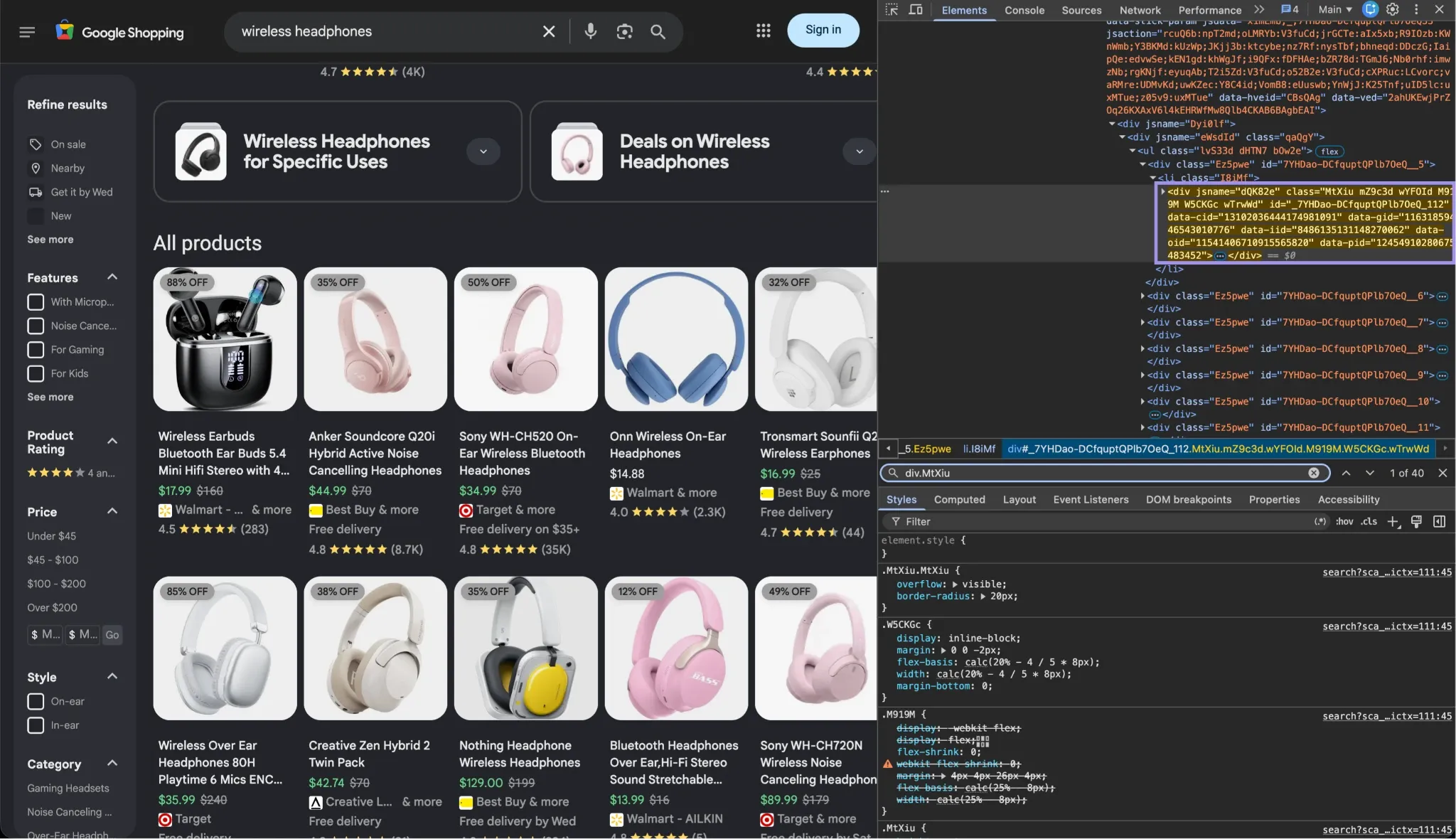
Before creating the scraper, it is good to observe how Google Shopping displays the product information we want to obtain. Open Google, search for a product such as wireless headphones, switch to the Shopping results, and open your browser’s developer tools.
Select a product card from the element inspector. Start with the outer element that contains one listing, then move inward and look for the elements with the product title, price, seller, rating, and review count.
Note that the cards have no regular product link. Clicking a card opens Google’s product panel through JavaScript, so there is no to extract. Instead, pay attention to the data-cid attribute on the outer element of the card.
Rather, pay attention to the data-cid attribute for the outer element of the card. For this guide, this is the deduplication key we'll use. We'll emphasize fields that appear regularly enough that we can treat missing fields, such as ratings and seller information, as optional.
Notice the repetition of elements. Having one surrounding structure across multiple products gives the scraper a stable basis to start looping through listings.
Keep in mind that Google can change these class names over time. The selectors used later should match the page you’re testing rather than an older scraper example.
Step 2: Open Google Shopping With Playwright
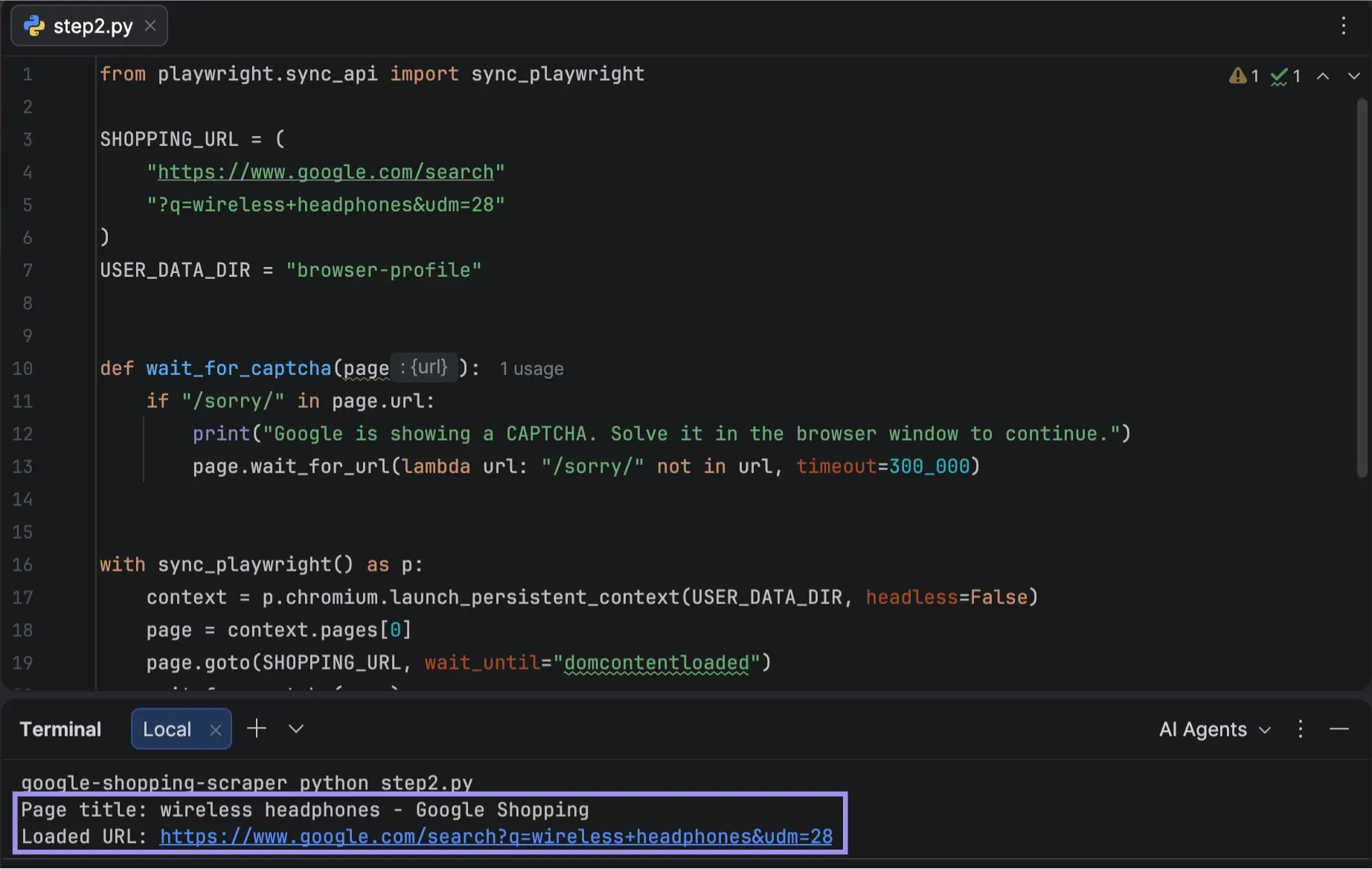
Create a new Python file in your PyCharm project, then import Playwright’s synchronous API. The script below launches Chromium with a persistent browser profile, opens a Google Shopping search for wireless headphones, waits for the page to load, and prints the page title and URL so you can confirm that navigation worked.
Playwright supports launching Chromium and creating a page directly from Python, which keeps this first test small before we add any extraction logic. Before you run it, there are two points to know. First, Google now serves Shopping results through udm=28. The older tbm=shop parameter redirects there, so we use udm=28 directly.
Second, when we tested launching Chromium with a new browser profile, Google sometimes displayed a CAPTCHA. launch_persistent_context saves cookies in the browser-profile folder, so the next time it launches with the same profile, it reuses the saved session. If it shows a CAPTCHA, the wait_for_captcha() helper will wait for a user to solve the CAPTCHA within the browser window.
from playwright.sync_api import sync_playwright

SHOPPING_URL = (
    "https://www.google.com/search"
    "?q=wireless+headphones&udm=28"
)
USER_DATA_DIR = "browser-profile"

def wait_for_captcha(page):
    if "/sorry/" in page.url:
        print("Google is showing a CAPTCHA. Solve it in the browser window to continue.")
        page.wait_for_url(lambda url: "/sorry/" not in url, timeout=300_000)

with sync_playwright() as p:
    context = p.chromium.launch_persistent_context(USER_DATA_DIR, headless=False)
    page = context.pages[0]
    page.goto(SHOPPING_URL, wait_until="domcontentloaded")
    wait_for_captcha(page)

    print("Page title:", page.title())
    print("Loaded URL:", page.url)
    context.close()
We're employing headless=False so that you can observe Chromium open while testing and attempt to solve a CAPTCHA in case Google presents one. After the page loads, ensure that Google Shopping results appear in the browser, and that PyCharm prints the title and loaded URL. The URL should contain udm=28. This same script will be applied in the next step, with the addition of the product selectors we've discovered.
Step 3: Extract Product Listings
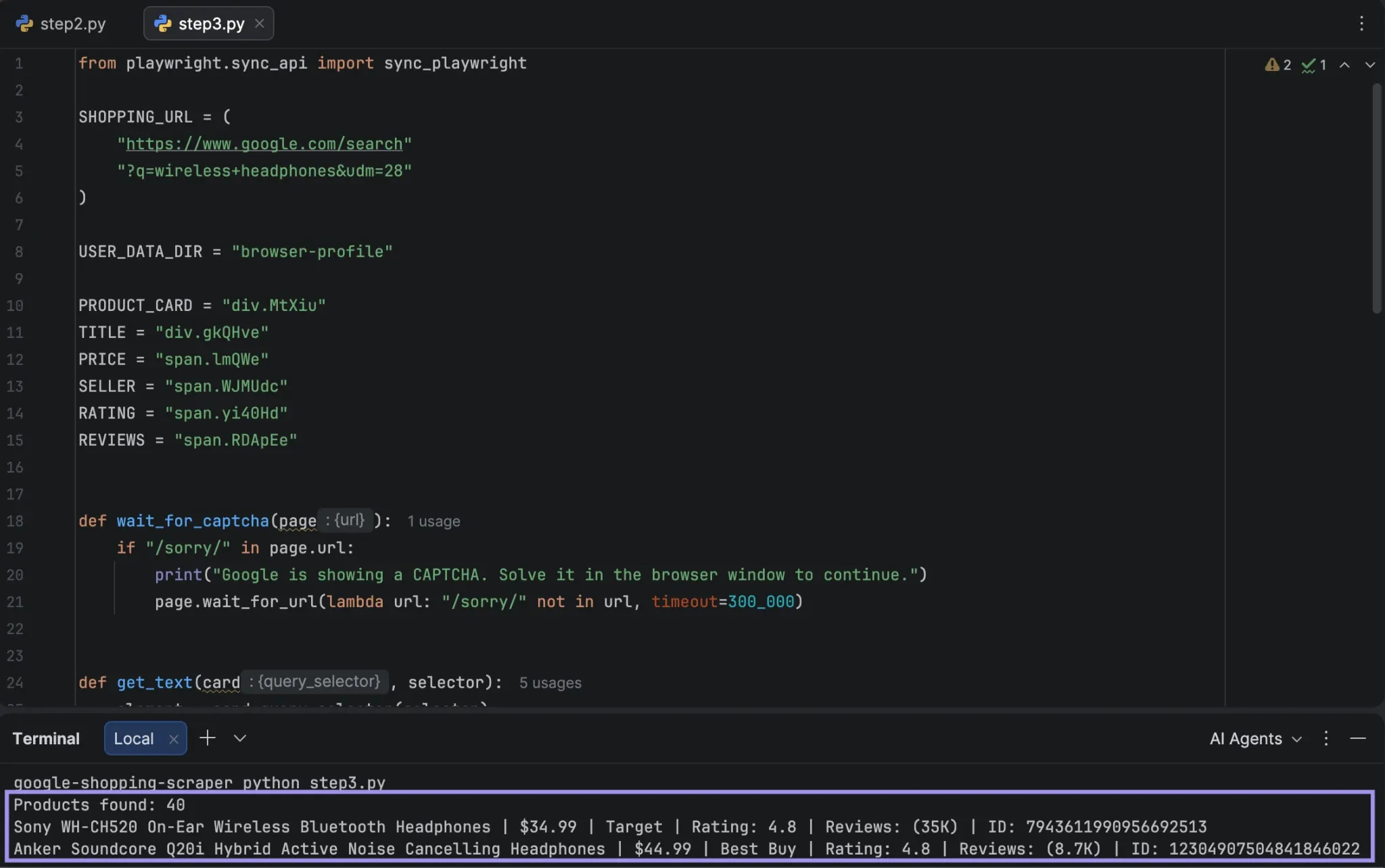
Now that the page loads, we need to identify each product card and extract the fields we want from each card. Group the selectors that you confirmed in Step 1 together at the top of the script so that they are easy to modify if Google changes the layout of the page.
Add more code to the existing script to repeat the operation for the matching product cards to create one dictionary for each product listing. If a field is not available in all results, return an empty string rather than cause the scraper to fail.
from playwright.sync_api import sync_playwright

SHOPPING_URL = (
    "https://www.google.com/search"
    "?q=wireless+headphones&udm=28"
)
USER_DATA_DIR = "browser-profile"

PRODUCT_CARD = "div.MtXiu"
TITLE = "div.gkQHve"
PRICE = "span.lmQWe"
SELLER = "span.WJMUdc"
RATING = "span.yi40Hd"
REVIEWS = "span.RDApEe"

def wait_for_captcha(page):
    if "/sorry/" in page.url:
        print("Google is showing a CAPTCHA. Solve it in the browser window to continue.")
        page.wait_for_url(lambda url: "/sorry/" not in url, timeout=300_000)

def get_text(card, selector):
    element = card.query_selector(selector)
    return element.inner_text().strip() if element else ""

with sync_playwright() as p:
    context = p.chromium.launch_persistent_context(USER_DATA_DIR, headless=False)
    page = context.pages[0]
    page.goto(SHOPPING_URL, wait_until="domcontentloaded")
    wait_for_captcha(page)
    page.wait_for_selector(PRODUCT_CARD)

    products = []
    for card in page.query_selector_all(PRODUCT_CARD):
        products.append({
            "title": get_text(card, TITLE),
            "price": get_text(card, PRICE),
            "seller": get_text(card, SELLER),
            "rating": get_text(card, RATING),
            "reviews": get_text(card, REVIEWS),
            "product_id": card.get_attribute("data-cid") or "",
        })

    print(f"Products found: {len(products)}")
    for product in products[:2]:
        print(
            f"{product['title']} | "
            f"{product['price']} | "
            f"{product['seller']} | "
            f"Rating: {product['rating']} | "
            f"Reviews: {product['reviews']} | "
            f"ID: {product['product_id']}"
        )

    context.close()
The helper function prevents a break in the run when some fields are optional. It is generally better to keep the listing even if it does not have a rating or review count because the remaining information can be saved with the rest of the listing.
The above selectors worked in our tests for wireless headphones, gaming mouse, and mechanical keyboard; each card had a title, price, and seller, and the rating was on about half of the cards. These are automatically generated class names, and if they no longer match, take another look at the page and update them accordingly. The first merchant displayed will be returned by SELLER, and REVIEWS will preserve the Google display format (e.g., (35K)). Then run the script and check the first few records. The name, cost, and seller should reflect those of the products on the Shopping page.
Sample output in screenshots in this guide is from the US, so prices, merchants, and number of results may vary according to region.
Step 4: Clean the Extracted Data
Raw text from the page is not always ready to export. Prior to saving, clean each field so that the records have the same format, and if there is an incomplete entry, then it does not disrupt the dataset.
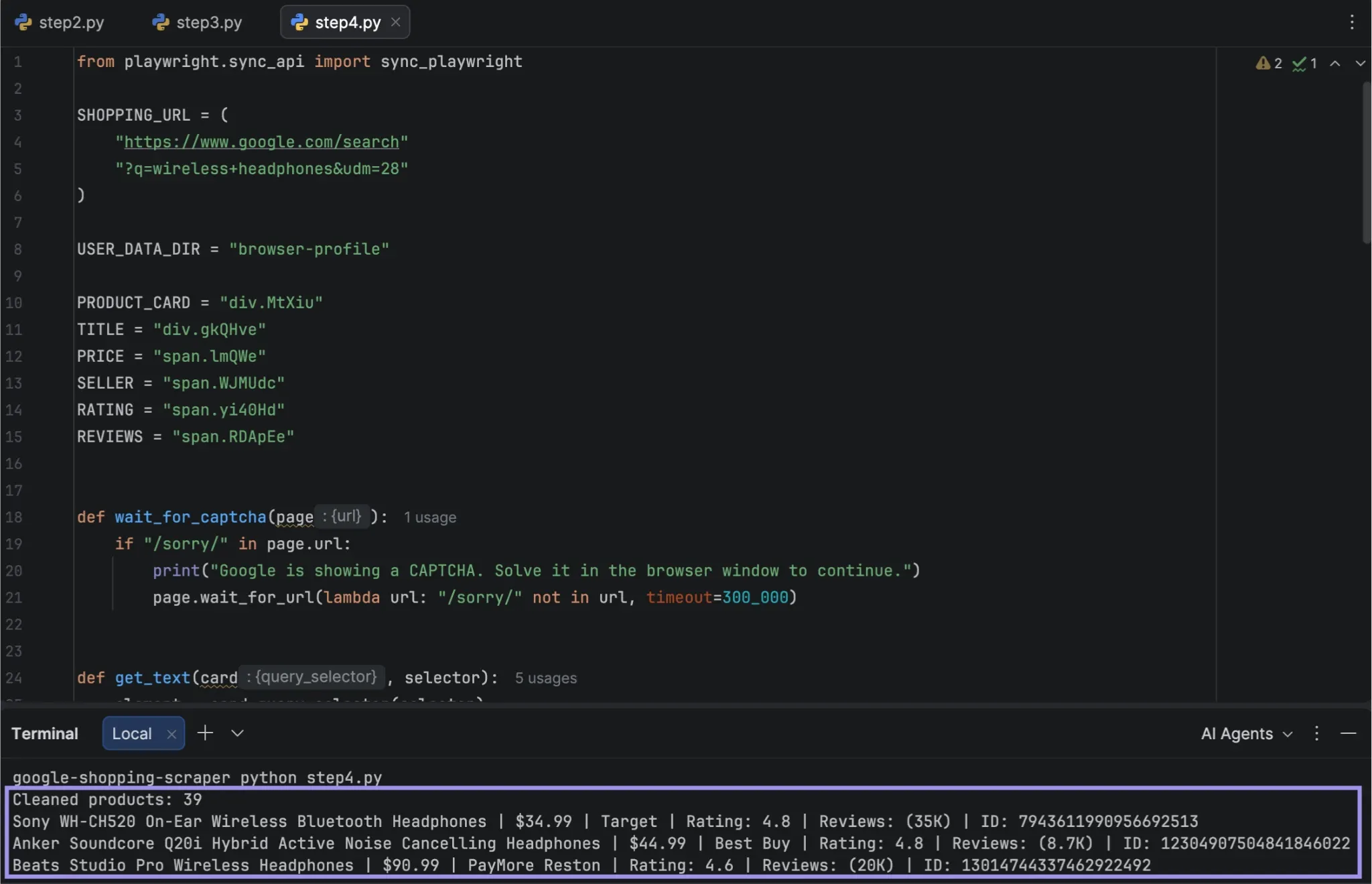
A small helper can normalize whitespace, convert any missing values to empty strings, and eliminate duplicate records by the product ID. Place clean_text() after get_text(), and put the cleaning loop inside the with block, after the Step 3 print lines and before context.close():
def clean_text(value):
    return " ".join(value.split()) if value else ""

    cleaned_products = []
    seen_ids = set()

    for product in products:
        cleaned = {
            "title": clean_text(product["title"]),
            "price": clean_text(product["price"]),
            "seller": clean_text(product["seller"]),
            "rating": clean_text(product["rating"]),
            "reviews": clean_text(product["reviews"]),
            "product_id": clean_text(product["product_id"]),
        }

        if not cleaned["title"] or not cleaned["product_id"]:
            continue

        if cleaned["product_id"] in seen_ids:
            continue

        seen_ids.add(cleaned["product_id"])
        cleaned_products.append(cleaned)

    print(f"Cleaned products: {len(cleaned_products)}")
    for product in cleaned_products[:3]:
        print(
            f"{product['title']} | "
            f"{product['price']} | "
            f"{product['seller']} | "
            f"Rating: {product['rating']} | "
            f"Reviews: {product['reviews']} | "
            f"ID: {product['product_id']}"
        )
Do not convert prices to numbers at this stage, particularly if the listings have different currency or formatting. Unspecified attributes (like ratings, review counts) may be blank. This check skips cards that do not have a data-cid; in testing, it was 0–3 of 40 cards per search (Google's single merchant offers that it does not attach to a catalog Product).
Step 5: Export Google Shopping Results to CSV
After cleaning the records, the records can be saved in a CSV file using Python's csv module. In order to keep track of where every product is from in case you have multiple searches later in the process, add the original search query to each row. Place import csv and QUERY at the beginning of the script, and the export code in the with block after the cleaning loop:
import csv

QUERY = "wireless headphones"

    fieldnames = [
        "query",
        "title",
        "price",
        "seller",
        "rating",
        "reviews",
        "product_id",
    ]

    with open(
        "google_shopping_results.csv",
        "w",
        newline="",
        encoding="utf-8",
    ) as file:
        writer = csv.DictWriter(file, fieldnames=fieldnames)
        writer.writeheader()

        for product in cleaned_products:
            writer.writerow({
                "query": QUERY,
                **product,
            })

    print(
        f"Saved {len(cleaned_products)} products "
        "to google_shopping_results.csv"
    )
The column order is guaranteed to remain fixed, and each cleaned product is written as a line of output. By incorporating the query in this case as well, this same CSV format will also work for the multi-query version we'll construct later.
The order of the columns in the CSV should be:
query,title,price,seller,rating,reviews,product_id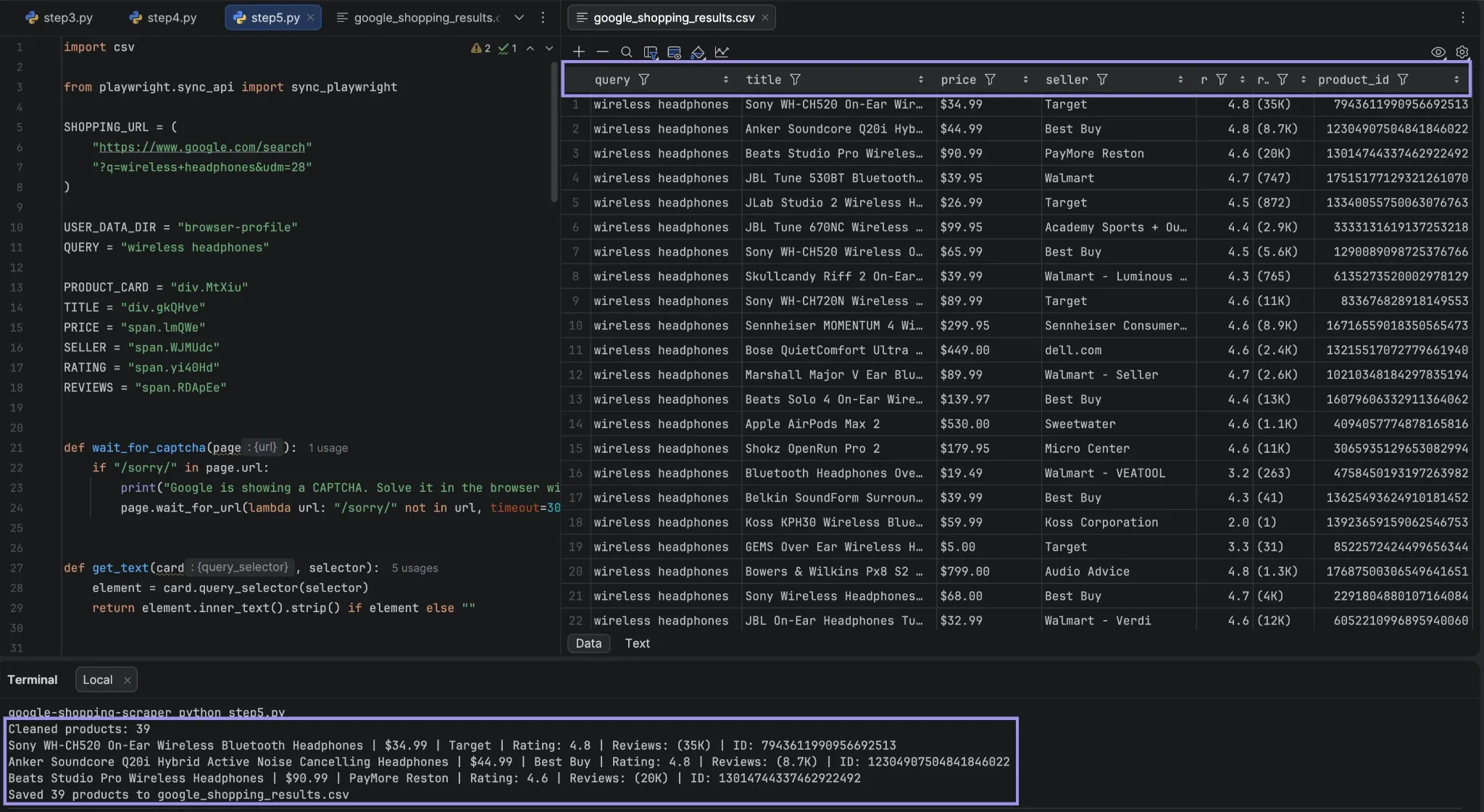
Step 6: Collect More Google Shopping Results
Only a portion of the Shopping results might appear when the first page is loaded, so the next step will be to gather more product cards without duplicating those already gathered. This should be based on what we actually see in Google Shopping and not some pattern that we assume, particularly because Google notes that the Shopping experience and settings can vary between users and locations.
In tests, Google Shopping employed infinite scroll, meaning that once it reached the bottom of the page, it was followed by a new group of 40 cards a few seconds later, and loading ended after about five batches. The scrolls are ahead of the batches, so a single scroll that adds nothing does not mean that the results are complete.
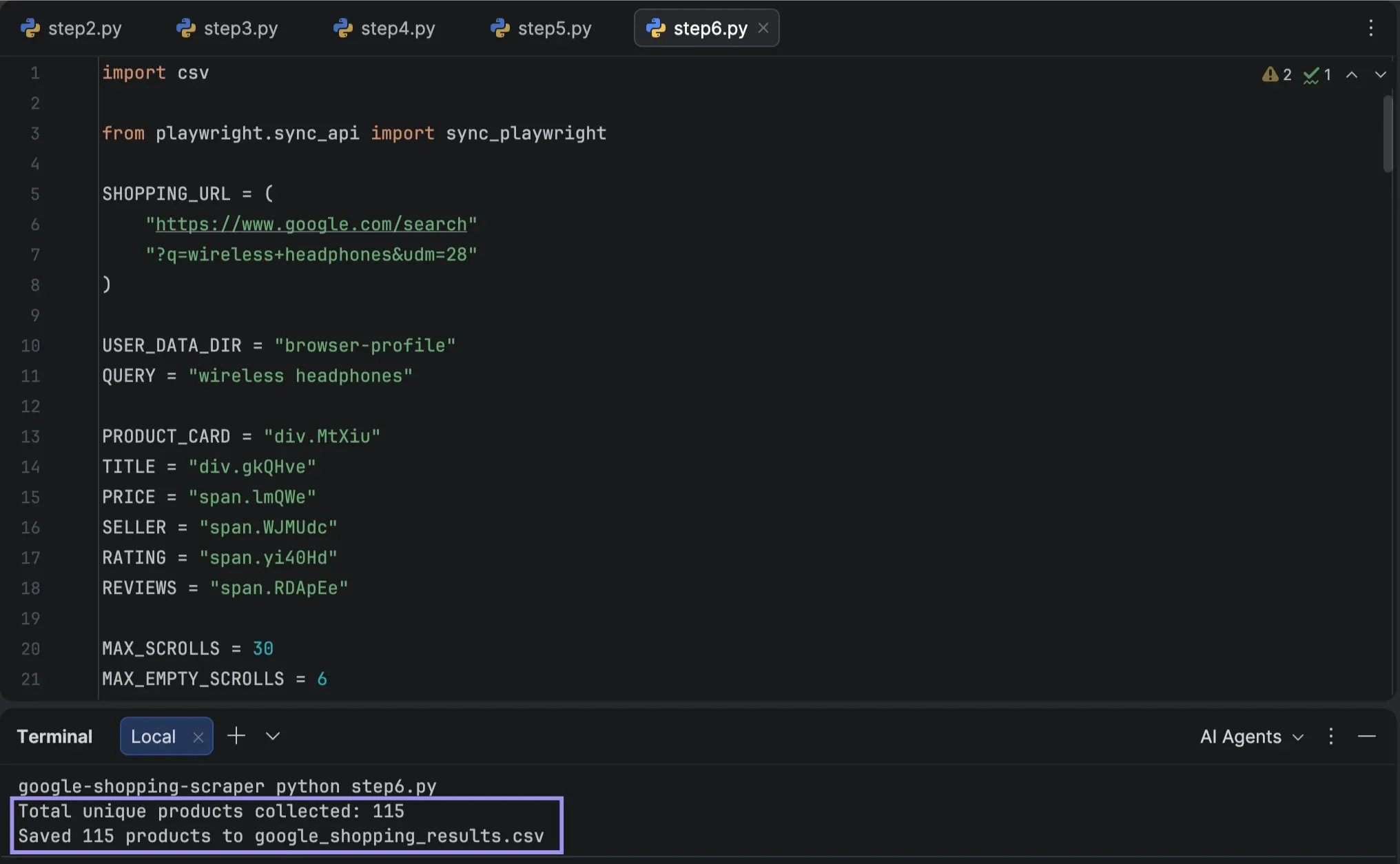
Write an extension to the script to continue scrolling, to track product IDs that have already been collected, and to stop once several scrolls in a row add no new product IDs. The loop is limited by MAX_SCROLLS to prevent it from running forever.
This loop should be placed inside the with block, after the Step 4 cleaning loop and before the Step 5 CSV export, allowing the CSV to contain all products collected by this loop.
    MAX_SCROLLS = 30
    MAX_EMPTY_SCROLLS = 6

    previous_count = len(cleaned_products)
    empty_scrolls = 0

    for _ in range(MAX_SCROLLS):
        page.mouse.wheel(0, 3000)
        page.wait_for_timeout(2000)

        for card in page.query_selector_all(PRODUCT_CARD):
            product_id = card.get_attribute("data-cid")

            if not product_id or product_id in seen_ids:
                continue

            seen_ids.add(product_id)
            cleaned_products.append({
                "title": clean_text(get_text(card, TITLE)),
                "price": clean_text(get_text(card, PRICE)),
                "seller": clean_text(get_text(card, SELLER)),
                "rating": clean_text(get_text(card, RATING)),
                "reviews": clean_text(get_text(card, REVIEWS)),
                "product_id": product_id,
            })

        if len(cleaned_products) == previous_count:
            empty_scrolls += 1
            if empty_scrolls >= MAX_EMPTY_SCROLLS:
                break
        else:
            empty_scrolls = 0

        previous_count = len(cleaned_products)

    print(f"Total unique products collected: {len(cleaned_products)}")
This version uses the product ID to check for duplicates, and an item previously collected is not repeated on subsequent passes. Google also has some products on multiple batches, which also makes the unique count less than the number of cards on the page.
The total is approximate and may change between runs, as Google does not always deliver the same number of batches every run. It was between 106 and 175 for this search in our test runs.
Scrape Multiple Google Shopping Searches
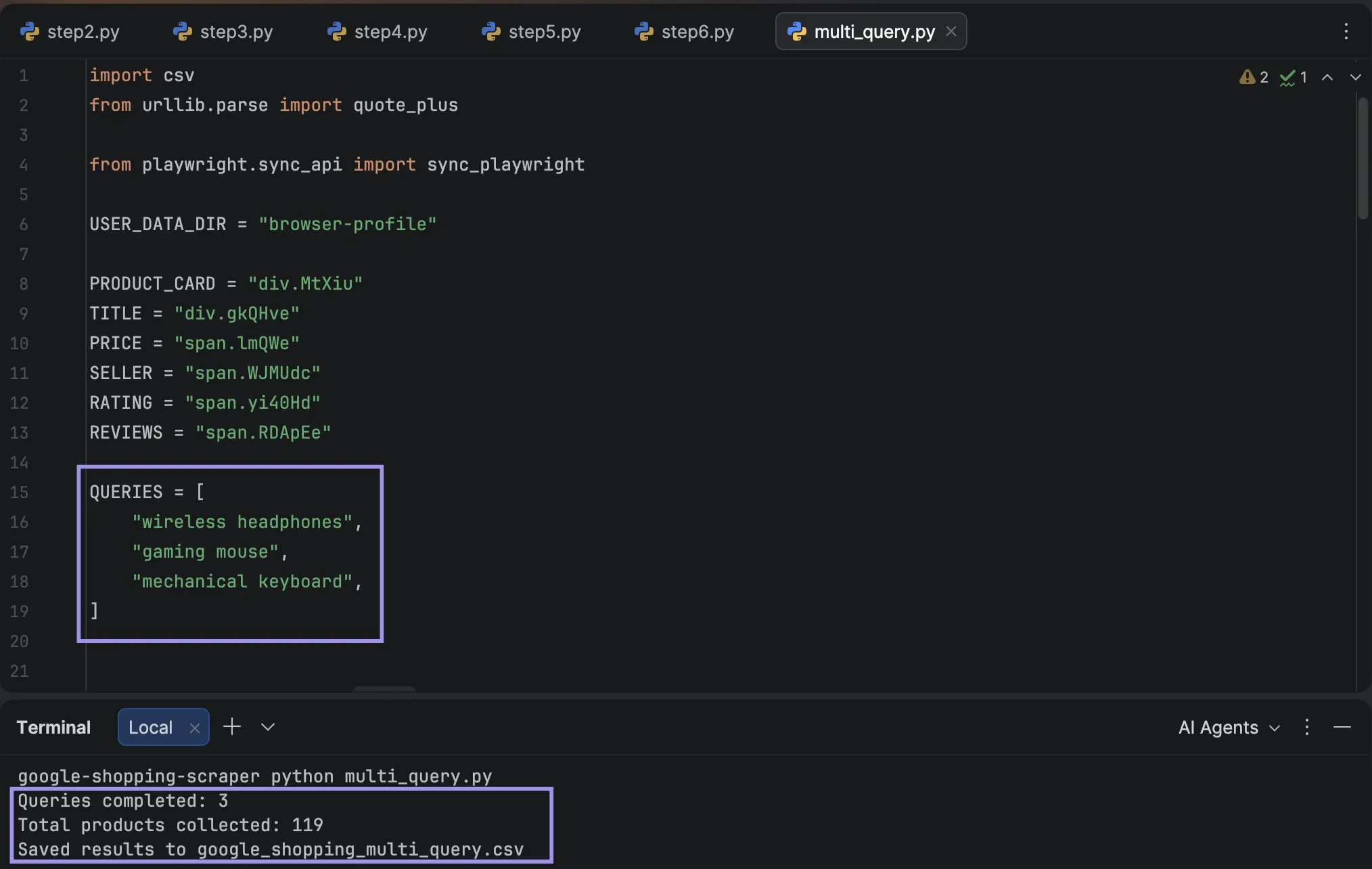
After the scraper works for one query, it can be used for other product queries. Use a list of queries, create a Shopping URL for each query, then add the query name to each record before saving all the results to a CSV file. This alters the main loop, so here is the whole script:
import csv
from urllib.parse import quote_plus

from playwright.sync_api import sync_playwright

USER_DATA_DIR = "browser-profile"

PRODUCT_CARD = "div.MtXiu"
TITLE = "div.gkQHve"
PRICE = "span.lmQWe"
SELLER = "span.WJMUdc"
RATING = "span.yi40Hd"
REVIEWS = "span.RDApEe"

QUERIES = [
        "wireless headphones",
        "gaming mouse",
        "mechanical keyboard",
]

def wait_for_captcha(page):
        if "/sorry/" in page.url:
            print("Google is showing a CAPTCHA. Solve it in the browser window to continue.")
            page.wait_for_url(lambda url: "/sorry/" not in url, timeout=300_000)

def get_text(card, selector):
        element = card.query_selector(selector)
        return element.inner_text().strip() if element else ""

def clean_text(value):
        return " ".join(value.split()) if value else ""

with sync_playwright() as p:
        context = p.chromium.launch_persistent_context(USER_DATA_DIR, headless=False)
        page = context.pages[0]

        all_products = []

        for query in QUERIES:
            shopping_url = (
            "https://www.google.com/search"
            f"?q={quote_plus(query)}&udm=28"
            )
            page.goto(shopping_url, wait_until="domcontentloaded")
            wait_for_captcha(page)
            page.wait_for_selector(PRODUCT_CARD)

            for card in page.query_selector_all(PRODUCT_CARD):
                product = {
                    "query": query,
                    "title": clean_text(get_text(card, TITLE)),
                    "price": clean_text(get_text(card, PRICE)),
                    "seller": clean_text(get_text(card, SELLER)),
                    "rating": clean_text(get_text(card, RATING)),
                    "reviews": clean_text(get_text(card, REVIEWS)),
                    "product_id": card.get_attribute("data-cid") or "",
                }

                if product["title"] and product["product_id"]:
                    all_products.append(product)

        print(f"Queries completed: {len(QUERIES)}")
        print(f"Total products collected: {len(all_products)}")

        fieldnames = [
            "query",
            "title",
            "price",
            "seller",
            "rating",
            "reviews",
            "product_id",
        ]

        with open(
        "google_shopping_multi_query.csv",
            "w",
            newline="",
            encoding="utf-8",
        ) as file:
            writer = csv.DictWriter(file, fieldnames=fieldnames)
            writer.writeheader()
            writer.writerows(all_products)

        print("Saved results to google_shopping_multi_query.csv")

        context.close()
The quote_plus() function encodes spaces and other characters so each search term is URL-safe. The query field is also useful to determine which search generated each row when all searches are merged together in one dataset.
The script writes all_products to a CSV with the same format as Step 5. It gets only the first 40 cards in each search. To collect more, add the Step 6 scrolling loop at the end of the query loop, after the existing card loop. It needs three small adaptations first: create a seen_ids set for each query from the IDs already collected, append to all_products instead of cleaned_products, and include the query field in each record.
Use a Proxy With the Google Shopping Scraper
A proxy is useful once the direct scraper works, and you can use it to rerun the same search or compare shopping results across locations, so automated searches don't involve the primary connection. The idea is not to change the way the scraper is pulling data.
We will only send the current Playwright session through a proxy, and then we verify that the browser is going through the right exit IP and exit location before we perform the same Google Shopping workflow.
Choose a Proxy Type
There are three popular types of proxies for scraping:
- Datacenter proxies: They are IP addresses located on cloud servers. They are generally faster and cheaper, but they have known ranges of IPs that are not residential, allowing Google to challenge them more frequently. They can work well for lower-cost testing where maintaining a residential-looking connection is less important.
- Static residential proxies: These are hosted on servers but are also registered with internet service providers and will retain the same IP address over time, which would be useful when you want the same location and session each time. That makes them useful for repeated checks where you want the connection to stay consistent between runs.
- Residential proxies: These work with the IP addresses that are linked to the Internet connection at home, thus providing a closer match to what a shopper in that area would see. This is the type we'll use in this guide. They are the better fit here when the goal is to compare Shopping results from different locations.
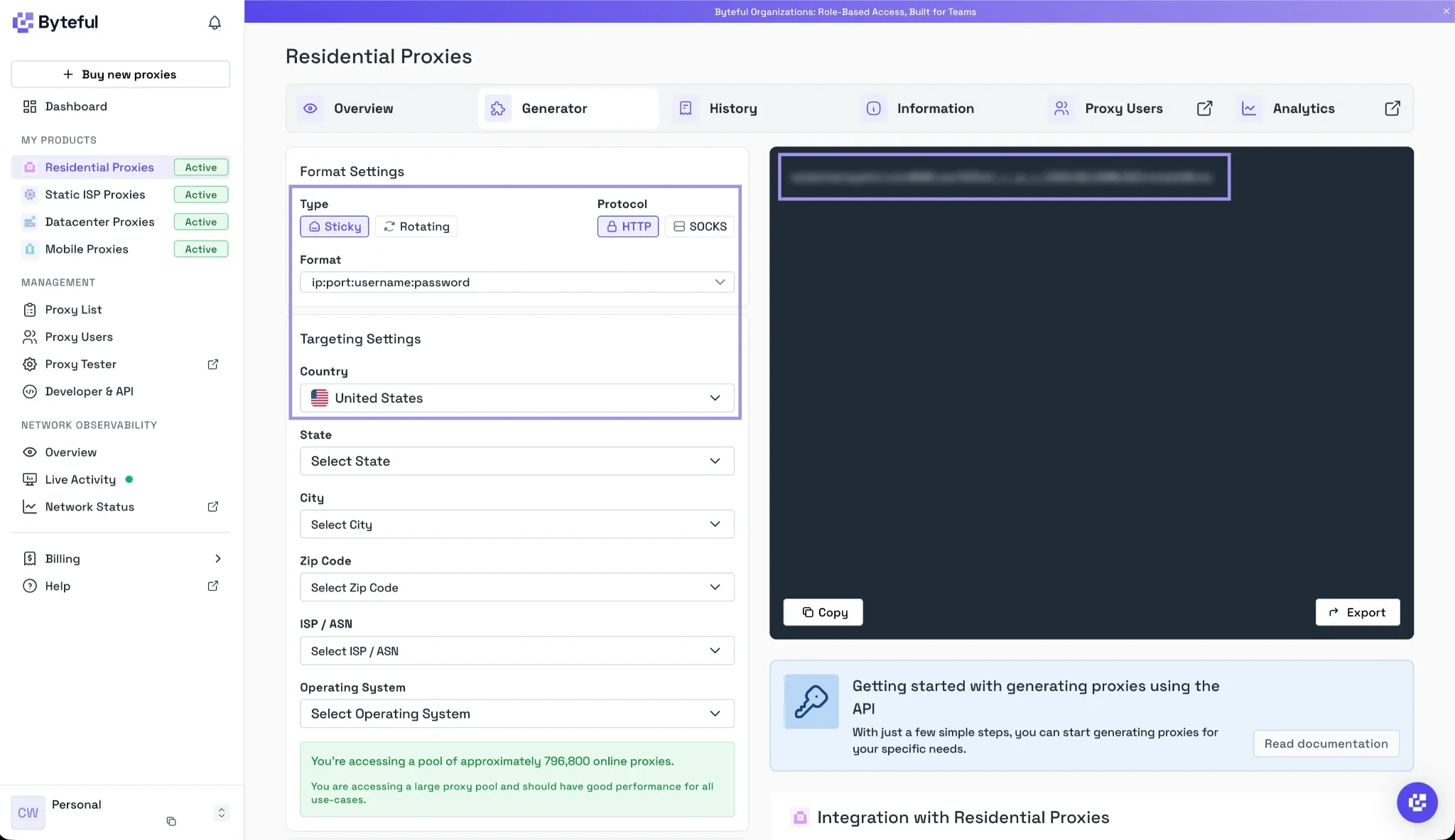
Generate Your Proxy Credentials
You can start with 1 GB of free residential data. Then generate a proxy endpoint in the Byteful dashboard and save the connection details it provides. There are four values you will need:
- Host: The proxy server address
- Port: The port used for the connection
- Username: Your proxy authentication username
- Password: Your proxy authentication password
Choose a country or region you want to test in the dashboard before generating the credentials. Keep that location consistent with the Shopping results you expect to collect.
Never put real credentials in your code or share them in screenshots. We’ll store the working values in a .env file, which the script reads at runtime, so they stay out of the script itself.
Configure the Proxy in Playwright
Playwright accepts the proxy settings while launching Chromium, and we will add them without altering the extraction logic from the previous steps. Install python-dotenv in PyCharm's Terminal panel.
pip install python-dotenvThis library takes values from a .env file and returns them to the script at runtime, so that you do not have to store your proxy credentials inside your script. Now, make a .env file near your script, and write your proxy credentials:
PROXY_SERVER=http://HOST:PORT
PROXY_USERNAME=YOUR_USERNAME
PROXY_PASSWORD=YOUR_PASSWORD
Keep .env out of version control. The script below contains the same code as the Step 2 script, but with the proxy settings added (which are read from .env at Chromium startup):
import json
import os

from dotenv import load_dotenv
from playwright.sync_api import sync_playwright

load_dotenv()

SHOPPING_URL = (
        "https://www.google.com/search"
    "?q=wireless+headphones&udm=28"
)
USER_DATA_DIR = "browser-profile"

PROXY_SERVER = os.getenv("PROXY_SERVER")
PROXY_USERNAME = os.getenv("PROXY_USERNAME")
PROXY_PASSWORD = os.getenv("PROXY_PASSWORD")

def wait_for_captcha(page):
        if "/sorry/" in page.url:
            print("Google is showing a CAPTCHA. Solve it in the browser window to continue.")
            page.wait_for_url(lambda url: "/sorry/" not in url, timeout=300_000)

with sync_playwright() as p:
        context = p.chromium.launch_persistent_context(
            USER_DATA_DIR,
            headless=False,
            proxy={
                "server": PROXY_SERVER,
                "username": PROXY_USERNAME,
                "password": PROXY_PASSWORD,
            },
        )
        page = context.pages[0]
        page.goto(SHOPPING_URL, wait_until="domcontentloaded")
        wait_for_captcha(page)

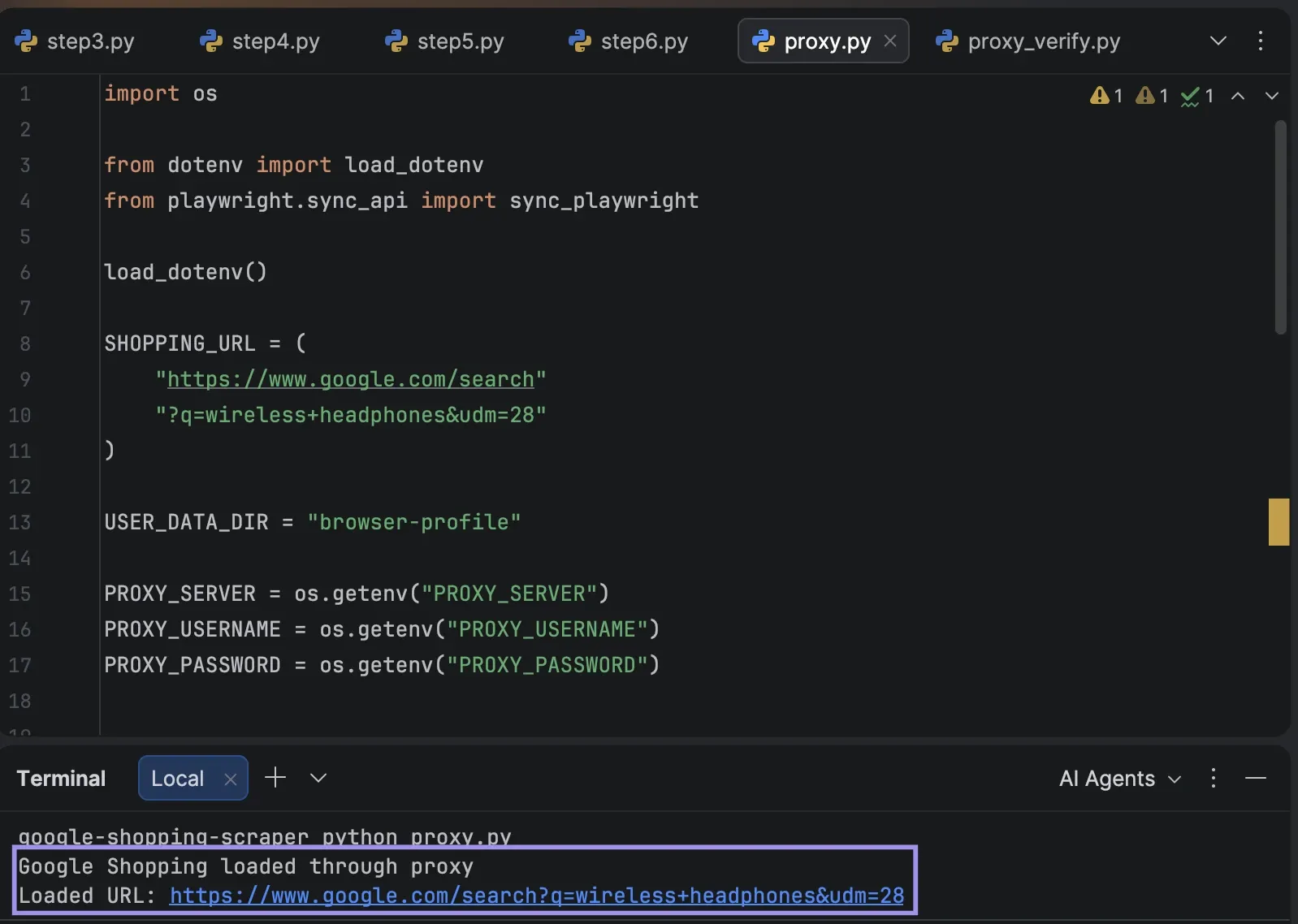
        print("Google Shopping loaded through proxy")
        print("Loaded URL:", page.url)
        context.close()
The username and password authenticate the connection, with the server value containing the proxy protocol, host, and port. Don't modify the protocol independently of the endpoint; use the one provided with the endpoint.
Check the Proxy IP and Location
A successful page load only confirms that Chromium can connect. It does not prove that the browser is using the expected proxy location, so verify the connection inside the same Playwright session before continuing with Google Shopping.
At the beginning of the script, add import json to the top and add a quick IP check, just after page = context.pages[0] but before loading the Shopping URL:
    page.goto("https://httpbin.org/ip", wait_until="domcontentloaded")
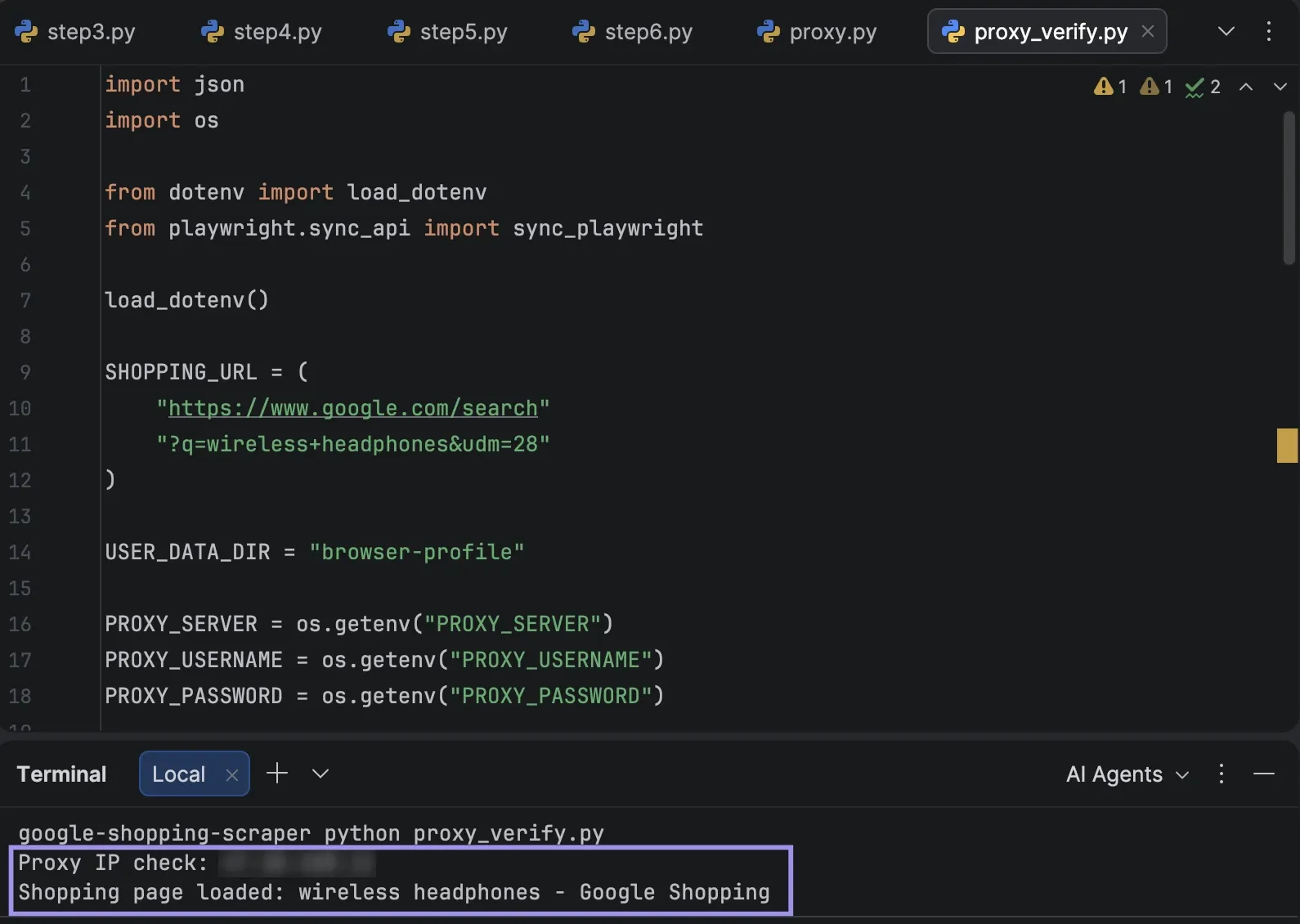
    print("Proxy IP check:", json.loads(page.inner_text("body"))["origin"])

        page.goto(SHOPPING_URL, wait_until="domcontentloaded")
        wait_for_captcha(page)
        print("Shopping page loaded:", page.title())
This means that the request is being sent out via the proxy before the scraper resumes the same browser context.
As only the IP address is returned by httpbin, look up that IP in an IP geolocation service or in your proxy dashboard, and compare its location with the location you've chosen for your endpoint, then confirm that Google Shopping still loads and that the extraction step still returns product records as expected.
In our test with a Chicago endpoint, the same selectors returned 40 product cards with prices in US dollars. A UK location, for example, should return prices in pounds.
Troubleshooting and Best Practices
Google Shopping may modify the way it displays its results, and a scraper that is successful now could require some tweaks later. Most issues are related to selectors, loading behavior, missing fields, or the connection that is used to make the request.
- No products are extracted: Open the Shopping search manually and check the product cards once more. If the PRODUCT_CARD no longer corresponds to the current page, update the selector before changing the rest of the scraper. Also ensure that the page has been completely loaded before extraction can begin.
- Some fields are missing: Not all listings have ratings, reviews, and/or sellers in the same format. Do not drop records because these fields are not available, but return an empty value.
- Results are from the wrong region: Verify the exit location of the proxy and also ensure that it is the same market you wished to study. Confirm the location within the same Playwright session prior to loading Google Shopping.
- Selectors suddenly stop working: Check the live page first. Google may modify class names or re-organize product cards, so having all the selectors grouped together at the top of the script makes it easier to update.
- A verification or error page appears: Google may show a /sorry/ CAPTCHA page, especially with a fresh browser profile or after extensive scrolling. Solve it in the visible browser window; wait_for_captcha() waits up to five minutes. Keep the browser-profile folder between runs so the session data is preserved. In some regions, you may also see a cookie-consent page. Accept or reject it in the visible browser window; the persistent profile saves your choice, so it won’t appear on later runs. If CAPTCHAs keep appearing, reduce the request frequency before testing again.
The scraper is built, and the main issues are covered. The CSV it produces is a starting point, not the end. You can run the same queries on a schedule to track prices over time, compare how your own products are listed against other sellers, or collect results from several markets to support pricing and research decisions. A few practical questions remain.