

Usually, when we refer to local proxies, people mean the proxy that gives you an address from a certain locality: the country, city, or region. Your requests go through it, so the website sees that IP instead of yours. Aim it at London, and websites will see your traffic as coming from London, wherever you are.
This is the common definition given to local proxies in fields like SEO, market research, e-commerce monitoring, and ad verification. These can be residential (home), mobile, static residential, or datacenter proxies, depending on your needs for authenticity vs stability vs price.
If your workflow depends on where your traffic appears to come from, a location-based local proxy is usually the right choice. Here’s where it is often used:
- See how search results or localized ads are displayed in a specific city/country you enter
- Tracking prices of the same products in different regions
- Testing website experiences ahead of launch per location
- Collecting publicly available data from a target market
If this is what you mean when talking about a local proxy, you want an IP that is assigned to a specific location. Next are the types of proxies, how they route traffic, and which fits what job.
Device-Level Local Proxies (A Proxy on Your Own Machine)
The second type runs on your own hardware, on your own browser, application, or local network. This is not so much about where the IP resides as it is about where the proxy runs itself, again. This is widely used by developers, network admins, and security experts who require inspecting and manipulating their own traffic prior to exiting the machine.
This is where the key difference lies. A local proxy based on location is about being from somewhere, but a device-level one is more of your own traffic control bubble.
When they want to see or manage their own traffic, people run a device-level local proxy, for example, to:
- Analyze and debug HTTP/HTTPS requests when in the development phase
- Filter or monitor Internet activity
- Check the behavior of an application when there are changing network conditions
- Apply organization-wide browsing policies or log requests for troubleshooting
When you are searching for a proxy setting or proxy address that already exists on your machine, this is the local proxy. We will discuss how it deals with traffic and where to get it soon.
How Local Proxies Work
Although location-based and device-level proxies share a similar name, they have almost opposite jobs. A location-based proxy changes where your requests appear to originate from. The second sits between your machine and the internet, watching and filtering (or forwarding) traffic already owned by you.
Routing Through a Location-Based (Geo) Proxy
Your request does not go directly to the target. Instead, it goes through a geolocation-based proxy. It goes through a server in the location you selected, and instead of your real IP and location, the site only sees that server's IP and location. But if you live in Germany and route through New York, the site believes that you're a visitor from New York, and this means you can experience local content, test localized experiences, or report market intelligence out of that location.
The proxy type you opt for dictates how convincingly local you are perceived, and not all types are interchangeable.
- Residential proxies are connections to real home internet lines with a real ISP attached, so if you see one on a website, it looks like just your average person browsing from that location. Their genuine local footprint, together with city and country targeting, makes them one of the best choices when you need to appear as a real local user.
- Mobile proxies are a blend of IPs and traffic sources as they route through the IPs of 3G, 4G, and carriers like 5G, sharing one IP among dozens of real human users. This diverse but ever-changing composition makes them extremely difficult to block, as well as a formidable local choice (especially for mobile-centric targets).
- Static residential (ISP) proxies are your local IP address (which does not change over time). They are mainly used for identity persistence in scenarios such as long-lived/sticky sessions, account-local state management, and ad verification, where there needs to be a stable endpoint.
- Datacenter proxies are the fastest and cheapest, but they don't belong to a residential network, so they're usually the least convincing option when you need to appear like a local user. They are better suited to tasks where local identity isn't important.
As a provider, we offer 1GB of residential bandwidth, which is one of the ideal choices for a local proxy. Our proxies also support SmartPath AI proxy routing, which sends non-essential browser requests through datacenter IPs to cut down on the residential traffic you spend. It is a cost and bandwidth optimizer rather than a success-rate booster, which keeps local sessions cheaper to run at scale.
How a Device-Level Proxy Handles Your Requests
This is where you will start playing with a device-level proxy that sits quite a bit closer to home. Instead of changing where it appears you are located, it acts as a pass-through from your browser, app, or OS to the wider web. Then all requests go to the local proxy first, which can inspect, filter, log, or forward the request before it reaches its destination and handle the response on the way back.
You want to stay in your own sandbox with visibility and control over traffic. This is how some tools, such as OWASP ZAP, work, running as a local proxy that intercepts and inspects your requests before they leave your machine.
How Do I Find the Local Proxy on My Device?
The first stage is simply finding out where your OS stores proxy settings with a device-level local proxy. These differ for every platform, but almost all provide a network menu, where the proxy settings can be viewed or modified. If a proxy is already set, it shows as a server address and port; how to find a proxy server address breaks down how to read those values.
Windows
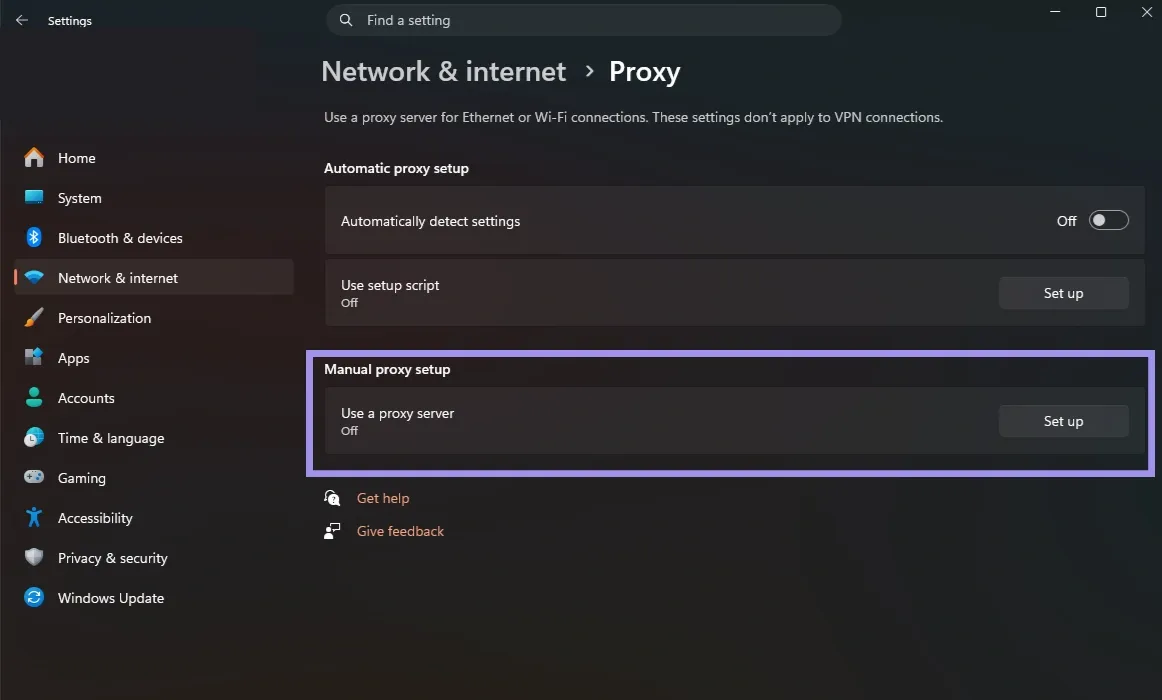
- Open Settings and click on Network & Internet.
- In the left-hand menu, click on Proxy.
- Go through the Automatic proxy configuration and Manual proxy setup sections.
- If you have a proxy configured, it will show the address, port, or configuration script of the server that is currently being used.
This has support for automatic configuration scripts and manual entries; the Windows proxy setup will guide you through configuring each of those from scratch.
macOS
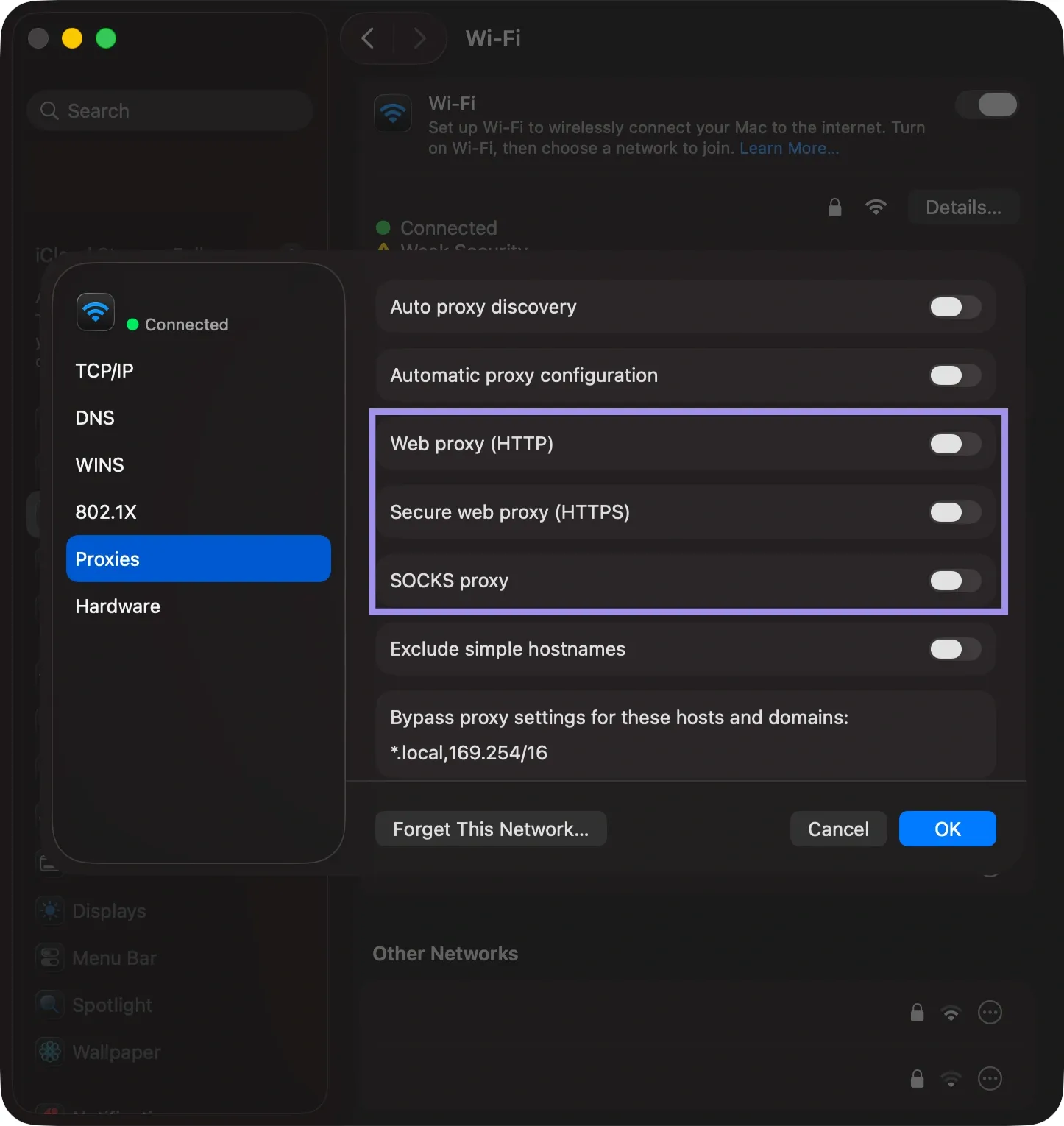
- Open System Settings, then go to Network.
- Choose your active network connection.
- Click Details and go to the Proxies tab.
- Check the configured details for enabled proxy protocols.
Note that macOS maintains proxy settings on a per-connection basis, so Wi-Fi and Ethernet are separate; configuring a proxy on macOS covers the full walkthrough.
Linux
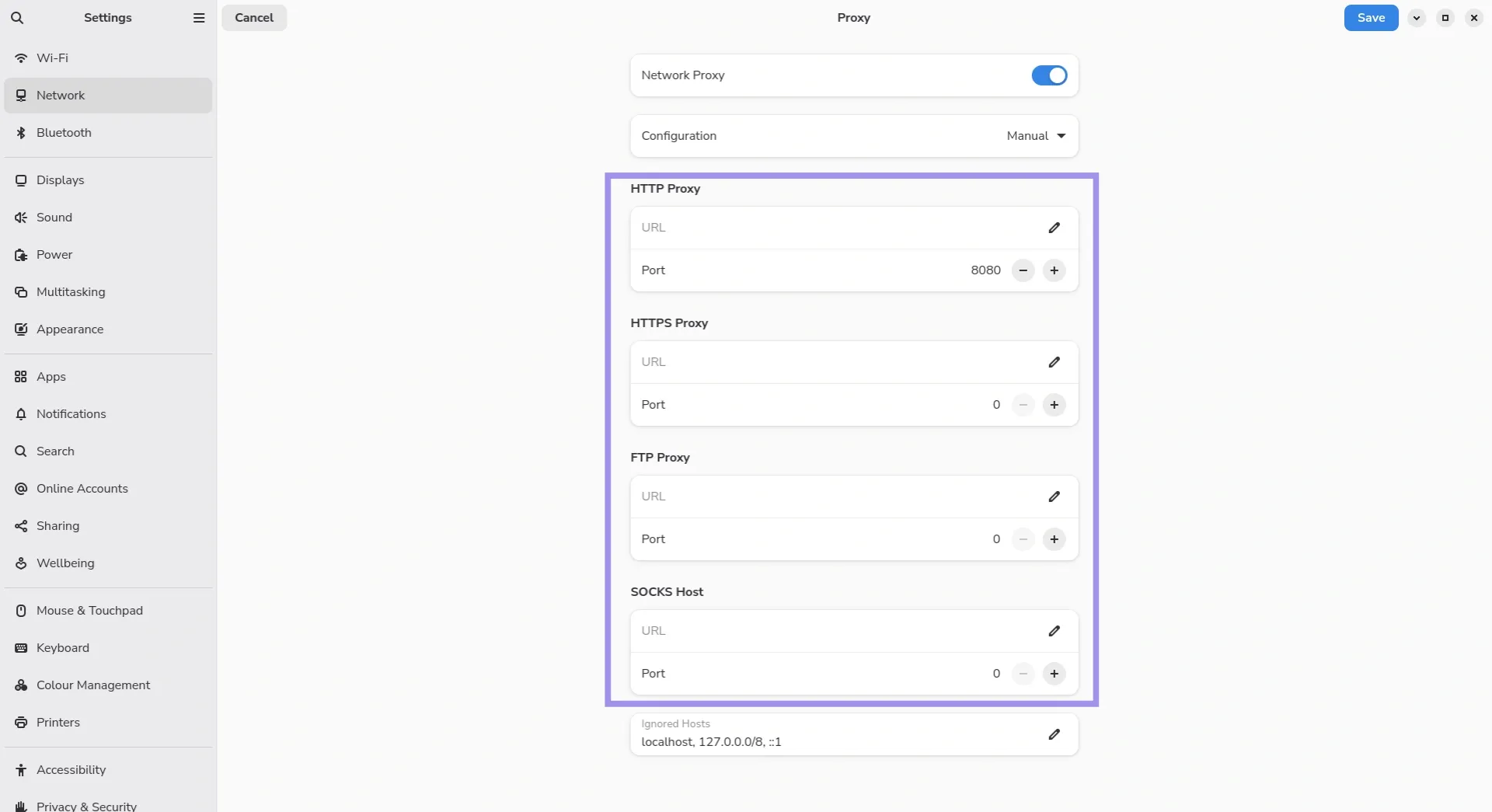
- Open your distribution’s network settings.
- Go to the Network or Proxy section.
- Check that any HTTP, HTTPS, or SOCKS proxy settings are configured.
- For server environments, check environment variables or application-specific proxy configurations if no settings appear in the graphical interface.
Menus vary by distribution and desktop environment, so steps may differ from the ones above. Configuring a proxy on Ubuntu shows how it looks on one of the most common setups.
iOS
- Open Settings and tap on Wi-Fi.
- Select the active Wi-Fi network.
- Scroll to Configure Proxy.
- Check the proxy settings that you configured manually or with an automatic configuration URL.
Since iOS has proxy settings for every Wi-Fi network that you connect to instead of system-wide, you'll repeat this procedure on each Wi-Fi network; setting up a proxy on iPhone covers the full process.

Android
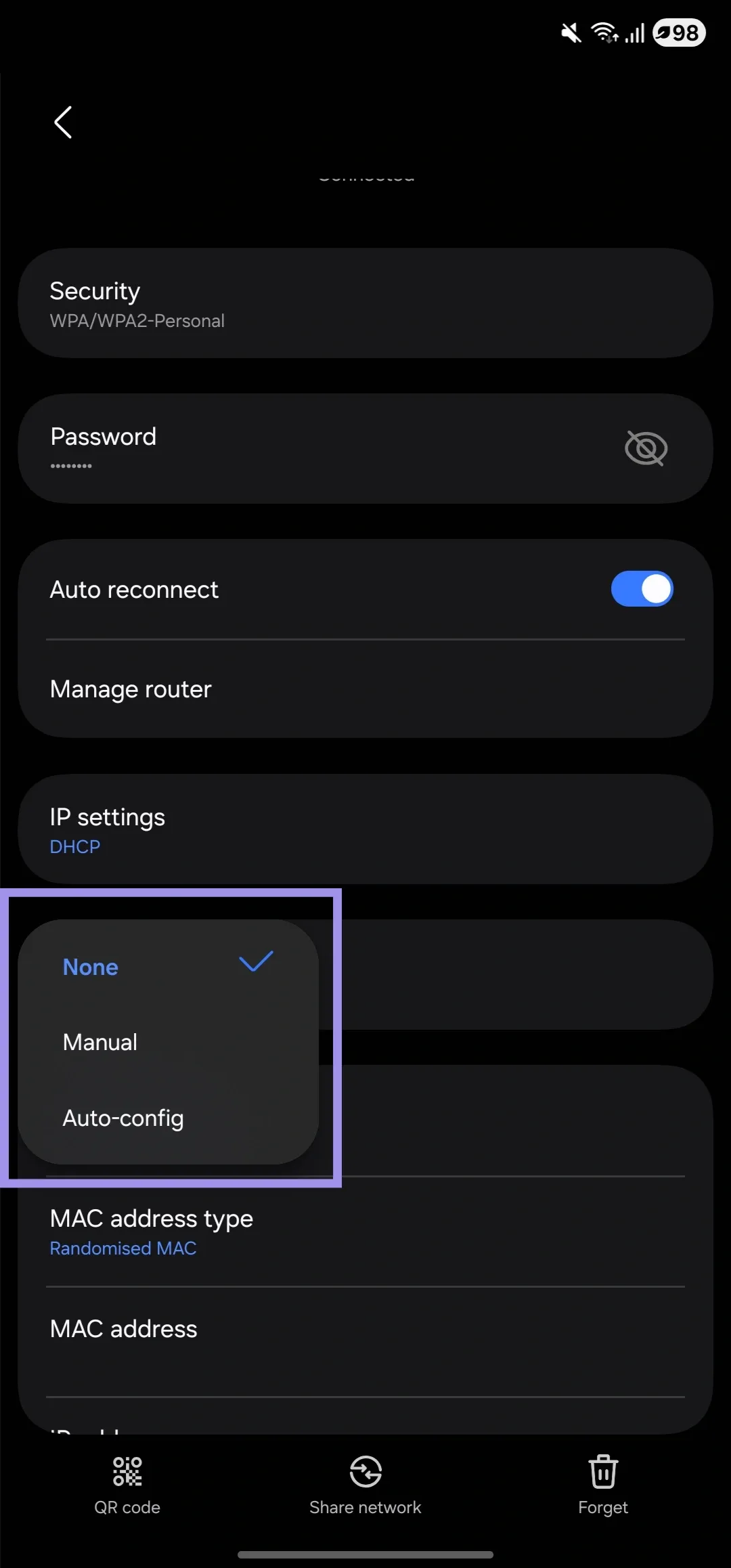
- Open Settings and go to the Network & Internet.
- Select your active Wi-Fi network.
- Choose Modify network or Advanced Settings.
- Review the proxy configuration section.
Because Android links proxies to specific networks as well, if you move between Wi-Fi networks frequently, then it might be worthwhile reading how to set up a proxy on Android.
If your provider only authenticates by IP whitelisting as opposed to a username and password, then one thing catches people out on every platform: changing networks changes your public IP, which will get rejected by the proxy until you authorize it. Setting up a proxy whitelist shows where to update it.
Getting and Setting Up Location-Based Local Proxies
Configuring the proxy in the browser, app, or OS means setting up a location-based local Proxy. Even so, you will usually get a proxy web address and port along with authentication from the majority of the suppliers, plus controls to target countries, cities, or areas.
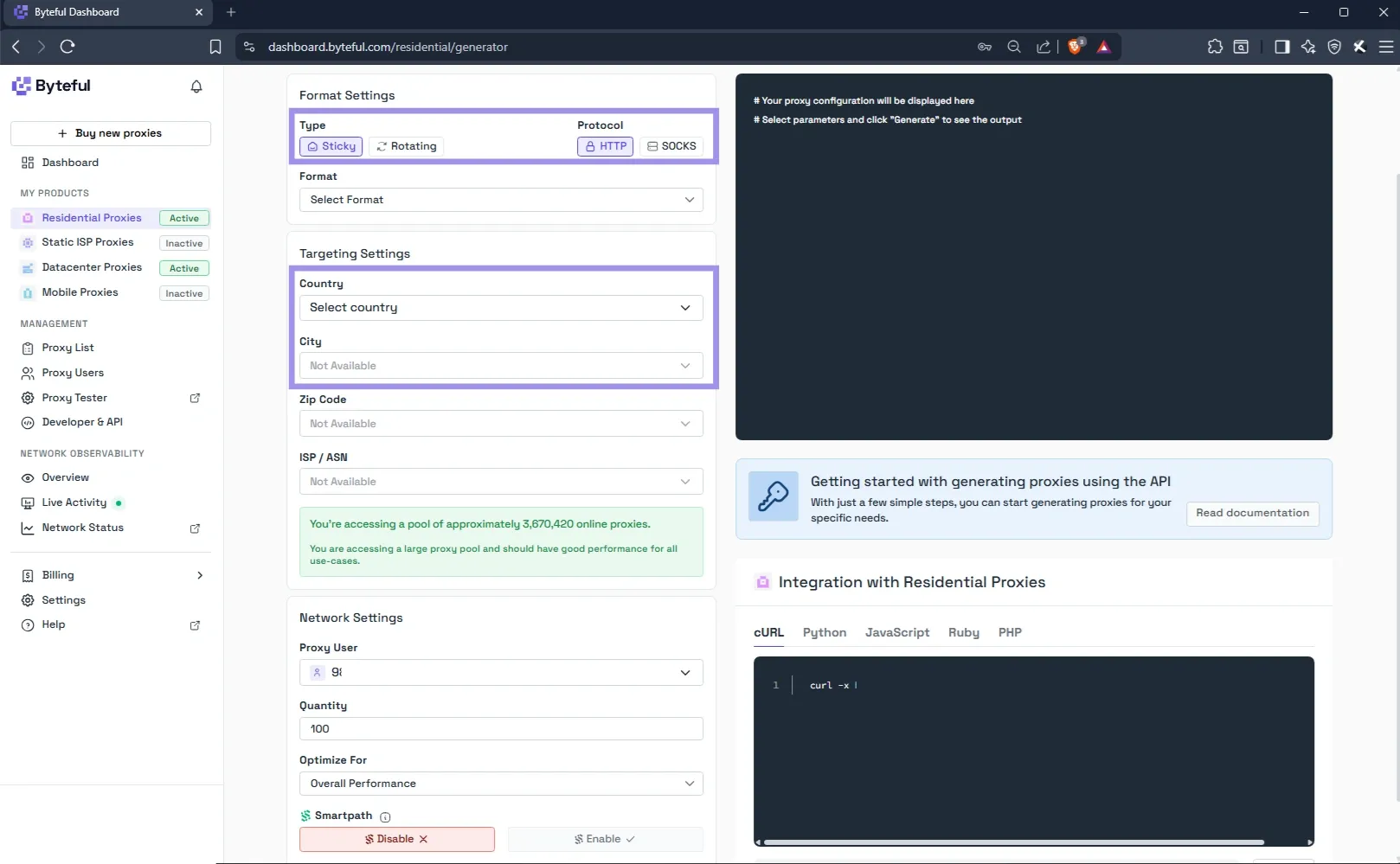
The general setup is quite simple.
- Select the location you want to appear from.
- Enter the proxy server address, port, and authentication.
- Now apply the settings to your application or device.
- Test the connection before you run your workflow.
If the provider authenticates using IP whitelisting, then you must manage to authenticate your active public IP before accessing; all requests will be rejected, even if every single other setting is optimal.
If the provider authenticates using IP whitelisting, then you must manage to authenticate your active public IP before accessing; all requests will be rejected, even if every single other setting is optimal.
Verifying the IP Location Actually Matches
If you use a local proxy, check that you appear to be coming from the address you entered. A successful connection does not mean that the proxy shows your correct location.
First, check an IP lookup service and verify that you are seeing your target country and city information next to the ISP. When at the city level, you want to scan against multiple IP databases because location records will differ for different providers.
Byteful also has a Proxy Tester, which allows for quick verification on if the target is indeed reachable over a proxy configuration. It checks reachability, shows the exit IP and location, and highlights connection or geolocation issues before they interrupt your workflow.
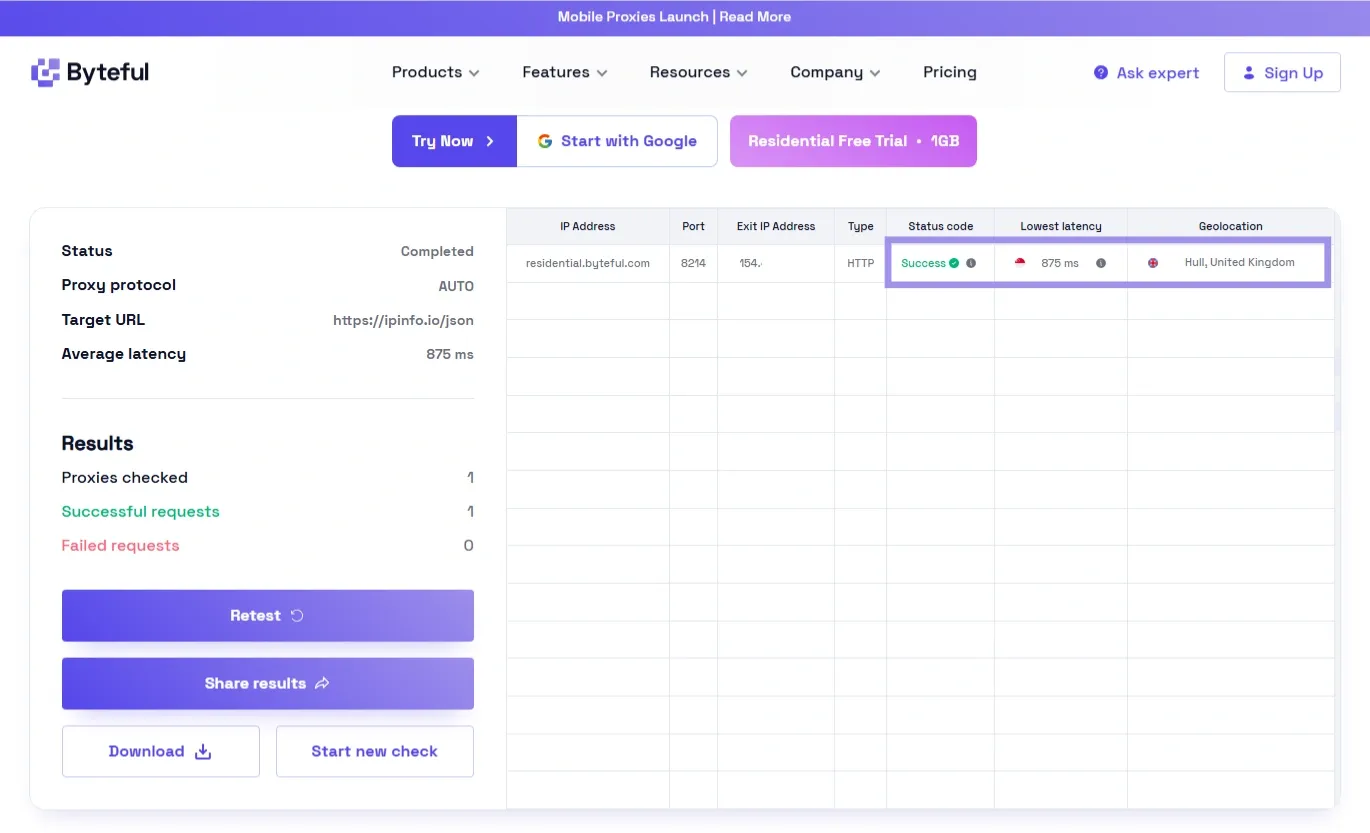
Before moving on, check that any reasonable result may be obtained after selecting a location along with other authentication parameters and session options.
What Should You Look for in a Local Proxy Provider?
The decision to select the provider is not just the lowest-price or largest contingent pool. The only thing that matters is if they repeatedly serve the IPs from your locations. When comparing options, weigh:
- Location coverage: Some providers can offer country-only coverage, while other providers offer city-level coverage as well.
- Proxy types: Different providers have various types of proxies as discussed above, so always look for whether the provider contains your required residential, mobile, static, and datacenter proxies as per your task.
- Performance and reliability: It can be better to have closed connections and consistent routing than simply a big pool size.
- Verification tools: The ability to check connectivity and destination before initiating a workflow can save endless hours of troubleshooting down the line.
Independent benchmarks help cut through marketing claims. Proxyway’s 2026 proxy market research, for instance, recorded the fastest residential response time globally for Byteful at 0.41s, the fastest mobile response time at 0.48s, and the best residential target benchmark success rate at 81.23%, alongside a 99.69% residential infrastructure success rate against a 99.28% median. Byteful is also a member of the Internet Watch Foundation, which speaks to responsible operation as well as speed.
Common pitfalls to avoid include:
- Selecting providers only based on the size of the pool or price
- Assuming that all given IPs from the same location will give the same results
- Not checking your location before initiating a workflow
- Choosing a proxy type that doesn't match your use case
Before paying, double-check the available locations, performance, and proxy types to make sure they match your workflow. At this point, any free tier can look like a good deal. However, the tradeoffs with reliability and coverage are very real, so it's worth trawling through a list of the best free proxy servers before you count on one for anything important.
