
403 Forbidden in Web Scraping: Why It Happens and How to Fix It


TL;DR
A 403 Forbidden error means the server understood your request but refused to serve it. In web scraping, it almost always means the site thinks you are a bot. Start by working out the cause. If your browser loads the page but your scraper fails, fix your headers and TLS fingerprint. If both fail, your IP is blocked, so switch to residential proxies. If requests fail only after a while, slow down your request rate. For pages that expect normal visitors, keep cookies, tokens, and sessions consistent. If the site shows a JavaScript challenge like Cloudflare's "Just a moment" page, use a stealth browser such as Patchright or Camoufox, or hand the job to a web unblocker.
A 403 forbidden error in web scraping usually means the target website understood your request but refused to fulfill it. To fix it, you need to know why the site refused your request.
In this article, we’ll dive deeper into what exactly a 403 forbidden error is, why a target returns this error, and how you can fix it.
What does a 403 error mean when web scraping?
The 403 forbidden error is an HTTP status code that indicates the server understood your request but decided not to process it. In web scraping, the 403 error usually means the server thinks you’re a bot.
Unlike the 401 error, which means your request was missing valid credentials, the 403 forbidden error is a refusal to serve the request. The server received your request and knew what you were asking for, but it refused to serve it.
In web scraping, a 403 usually isn’t about credentials, so logging in again rarely helps unless the content is behind a login. The issue is not with who you are but with what the server thinks of your request.
Also, the 403 error is different from the 429 error code, which means you’re requesting too many pages too quickly. But the lines blur in practice, as some sites return the 403 error code for rate limiting and geoblocks as well.
When you’re scraping, a 403 almost always means one of the following things:
- Your request doesn’t look like it’s coming from a real person’s browser, and the server considers you a bot.
- The content is behind a login. Some sites can use the 403 code, but the technically accurate code for this is 401.
- You’ve triggered the site’s rate limit, and the site answers with the error code 403 instead of 429.
- Your IP address is blocked, either because of its reputation or because of where it’s located.
We’ll cover possible fixes for a 403 error. But first, let’s discuss how to diagnose it.
How to tell why a site returns the 403 code
Before changing anything, work out which cause you’re dealing with. We’ve listed the common patterns of failure, which usually tell you the reason for a 403 error.
- Browser works, but scraper fails: If you can open pages in your browser but the scraper returns the error, your IP is working fine (assuming both run from the same network). The issue is with how your scraper’s request looks.
- Blocked everywhere: The site is blocking your IP address, either because of the IP’s reputation or because of where it’s located.
- Fails after a while: You may have hit the rate limit.
- Random parallel failure: This usually happens for one of two reasons. Either some of the IPs you’re rotating through are flagged, or some of your requests carry headers or fingerprints that give away that they come from a bot.
- Specific pages fail: Those pages expect something a normal visitor would already have, such as a session cookie, a token, or a Referer header. Sometimes, these pages are simply protected more tightly than the rest of the site.
- Anti-bot response: An anti-bot service such as Cloudflare, Akamai, DataDome, or HUMAN (formerly PerimeterX) blocked you, either with a JavaScript challenge or a flat block.
To narrow it down further, replay the request with curl, using the exact headers your browser sent. All major desktop browsers can copy a request as a curl command from their dev tools. Once you have the command, our guide to sending headers with curl explains the header options it uses
If the replay works, the site isn’t checking how the connection looks, only what the request contains. Your scraper’s headers or cookies were the problem.
If it still fails, the site is looking deeper. The likely cause is the TLS or HTTP/2 fingerprint, because curl’s connection doesn’t look like a browser’s, even with identical headers.
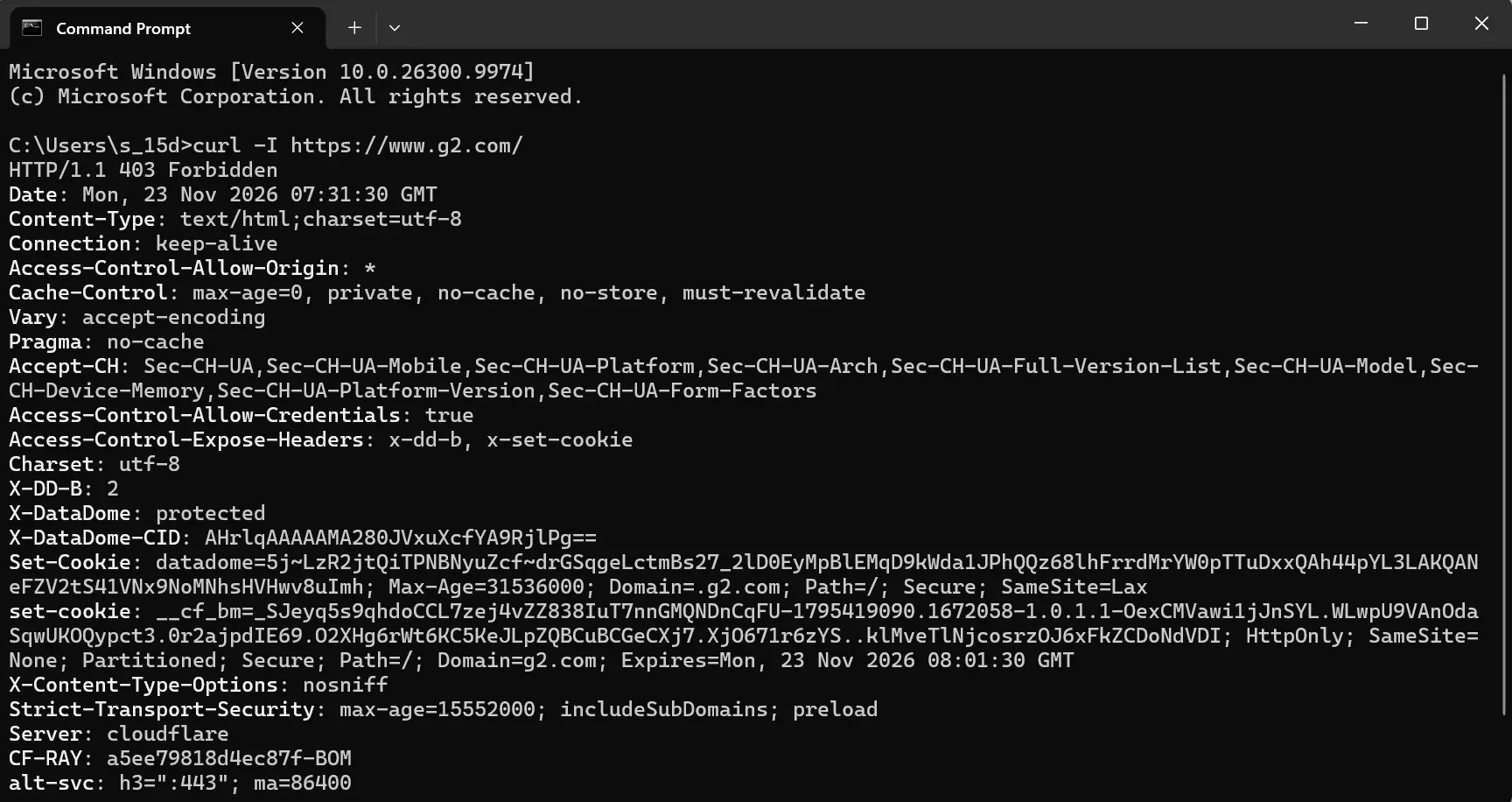
You should also read the full 403 response, both headers and body, instead of just logging the status code. Headers such as server and cf-mitigated often tell you who blocked you, and the block page may show a vendor name, an error code, or a reference number.
How to fix 403 errors when web scraping
Before you work around a block, check whether the site offers an official API, and respect its terms of service and robots.txt. A 403 is sometimes the site telling you it doesn’t want automated access.
Once you know why the site returned a 403, you can pick the right fix. The fixes below start with the simplest, so work through them in order.
Here’s a quick overview of those fixes.
| Failure pattern | Likely cause | Fix |
|---|---|---|
| Browser works, but your scraper fails | Headers or TLS handshake don’t match a real browser | Send real browser headers, then match the TLS fingerprint |
| Blocked in both browser and scraper | IP has a bad reputation or wrong location | Rotate IPs with proxies |
| Works for a while, then fails | Too many requests too fast | Slow down your requests |
| Random failures in parallel runs | Flagged IPs or bot-like requests | Rotate IPs, and check headers and TLS fingerprint |
| Only some pages or the API fail | Missing cookie, token, or Referer | Keep cookies and sessions consistent |
| Block page from Cloudflare, DataDome, or similar | An anti-bot service wants a JavaScript test, or has flagged your IP or fingerprint | With a challenge (“Just a moment…”): use a stealth browser or a web unblocker. Without one: rotate IPs and match the TLS fingerprint |
Let’s discuss these fixes one by one in detail.
Fix 1: Send real, consistent browser headers
Websites can easily identify scrapers’ headers because they don’t look like real browsers’ headers. By default, most scraping tools send only a few headers, and their user agent names the tool.
For example, Python’s requests library identifies itself as python-requests/2.x in the User-Agent header, which websites can block right away.
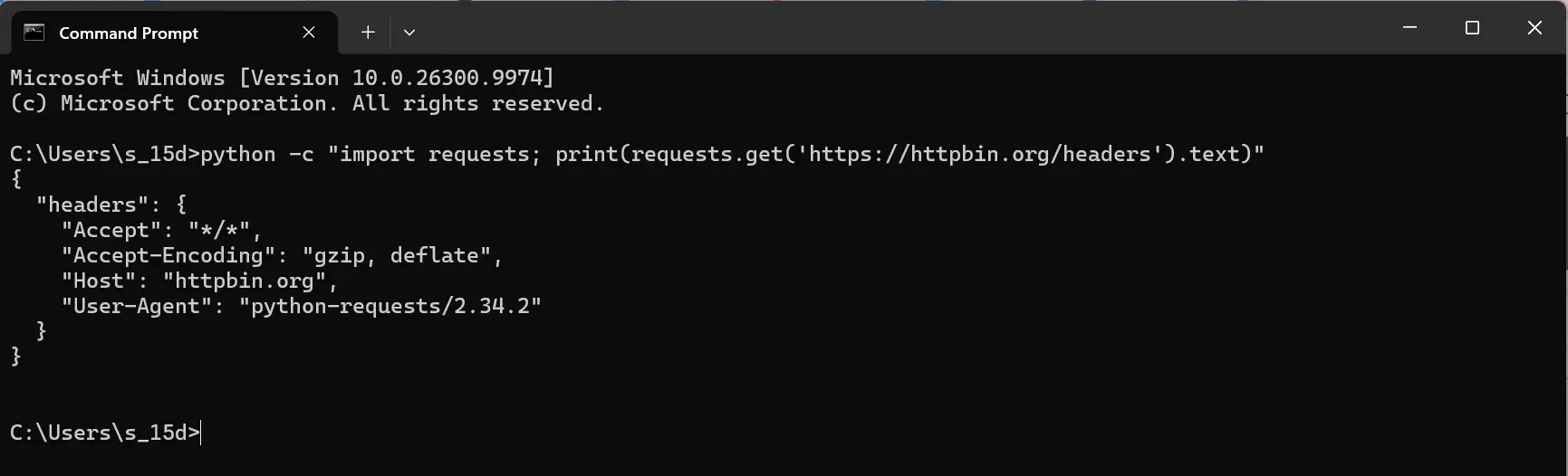
On the other hand, a real browser sends a much fuller set of headers. They include the types of content it can display (Accept), the user’s preferred language (Accept-Language), the browser’s name, version, and operating system (Sec-CH-UA and Sec-CH-UA-Platform). They also have details of how the request was made, such as whether a person typed the address or clicked a link (the Sec-Fetch headers).
Here is an example of the actual request headers Brave sends.
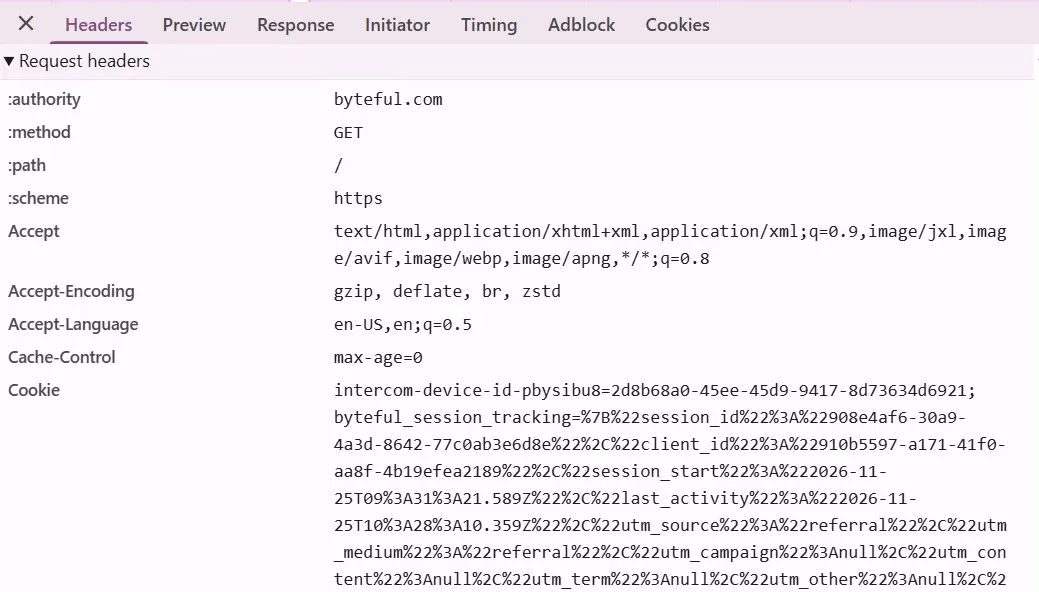
To fix a 403 error, make sure your scraper’s headers are real and consistent. When we say “real,” we mean that you should copy them from an actual up-to-date browser.
It’s also crucial to ensure that the headers agree with each other. For example, a Chrome-on-Windows User-Agent needs matching Sec-Ch-Ua and Sec-Ch-Ua-Platform headers, and your Accept-Language should suit your IP’s location.
Only Chromium-based browsers send the Sec-Ch-Ua headers; a Firefox identity must not include them. Also, if you have to switch between browser identities, you must replace the whole set of headers, not just the User-Agent line.
But headers alone may not be enough. If the site also checks the TLS handshake, Chrome headers on Python’s requests library can give you away.
If the 403 continues, move on to Fix 2.
Fix 2: Match the TLS fingerprint
Even if your headers are perfect, the target website can still spot your scraper by the way it connects to the site. When you request a page, your scraper and the target website perform a TLS handshake to set up a secure connection.
The way a client builds its opening message for the handshake depends on its software. As the message is unencrypted, servers can use it to fingerprint the client. Chrome, Firefox, Python’s requests library, and curl all produce different fingerprints.
You can see this yourself: load browserleaks.com/tls in two different browsers and compare.
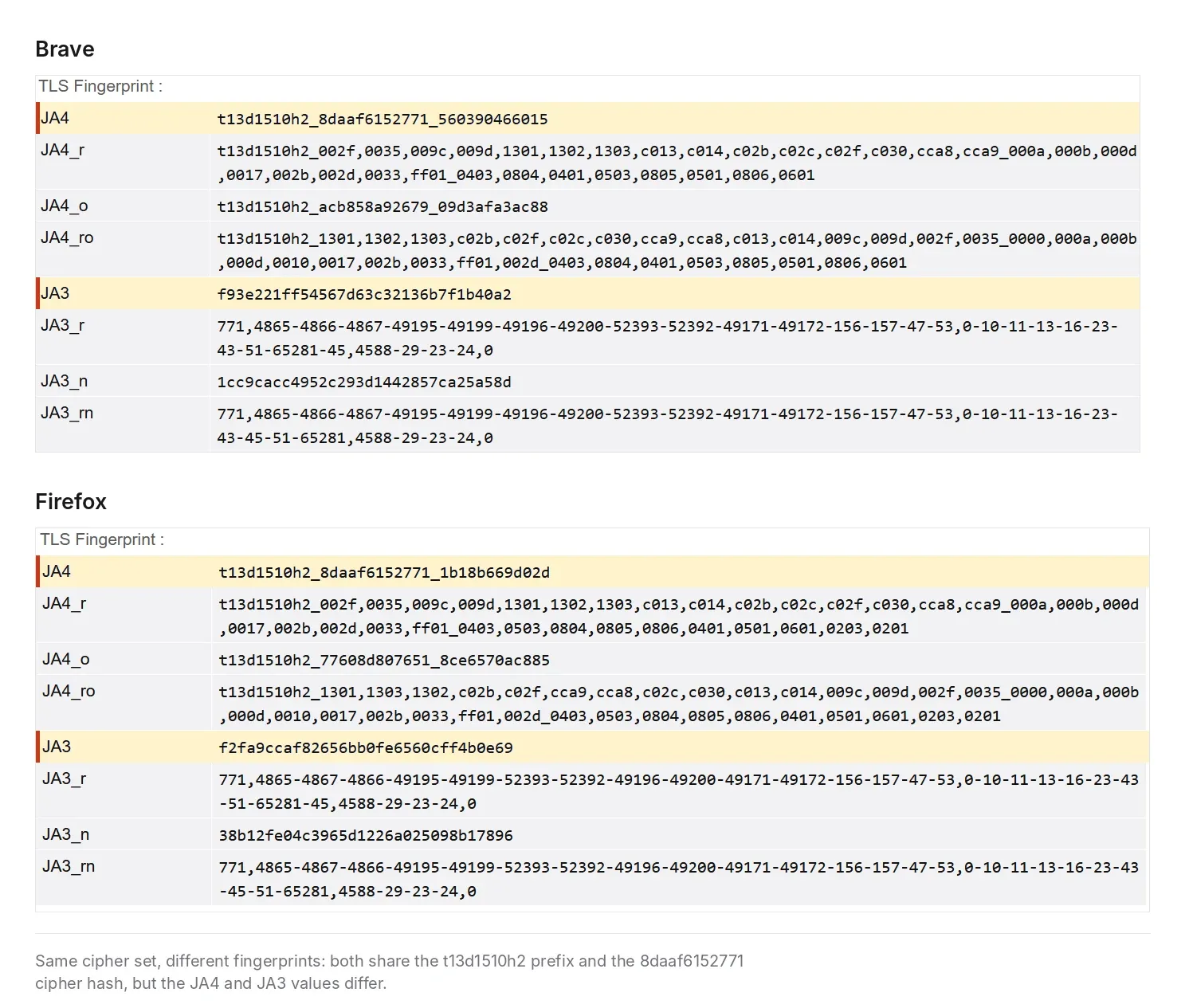
The most widely used fingerprint methods are JA3 and its successor, JA4. Cloudflare, for example, uses JA3 and JA4 fingerprints to identify TLS clients by how they start connections.
Python’s requests and most other HTTP libraries perform the handshake differently from browsers, so a site can tell your scraper isn’t a real browser even when its headers are perfect.
It’s even easier to spot when the two disagree: your headers claim to be Chrome, but your TLS fingerprint looks like Python’s. That mismatch gives you away.
You can see the difference yourself. This script sends the same request twice to a site that reports the TLS fingerprint it received: once with requests and a Chrome User-Agent, and once with curl_cffi impersonating Chrome.
import requests
from curl_cffi import requests as curl_requests

url = "https://tls.browserleaks.com/json"  # echoes back the fingerprint it saw
headers = {
    "User-Agent": "Mozilla/5.0 (Windows NT 10.0; Win64; x64) AppleWebKit/537.36 "
                  "(KHTML, like Gecko) Chrome/152.0.0.0 Safari/537.36"
}

plain = requests.get(url, headers=headers, timeout=30).json()
browser = curl_requests.get(url, impersonate="chrome", timeout=30).json()

print("requests:  ", plain["user_agent"][-30:], plain["ja4"])
print("curl_cffi: ", browser["user_agent"][-30:], browser["ja4"])
You’ll get something like this:

Both requests claim to be Chrome, but the two JA4 values differ. Only the curl_cffi one matches what a real Chrome browser sends, and that’s the one a site like Cloudflare expects to see.
To fix this, you should use a tool that can copy a real browser’s handshake. In Python, use curl_cffi, which can impersonate browsers’ TLS/JA3 and HTTP/2 fingerprints.
For Scrapy, you can use scrapy-impersonate and set USER_AGENT to an empty string and DEFAULT_REQUEST_HEADERS to an empty dictionary, so the headers match the impersonated browser. In Go, use uTLS or tls-client; in Node.js, use node-tls-client or CycleTLS.
Fix 3: Rotate IPs with proxies
If neither your browser nor your scraper can open the target website, your IP can be the culprit in two ways: its bad reputation or its location.
A quick way to fix this is to use a proxy to send your traffic through a different IP address. Depending on your scraping needs, you can choose from the following proxies:
- Rotating residential proxies: For independent pages, rotating proxies are your best bet. You can get a new IP for each request.
- Sticky sessions or ISP proxies: Residential proxies with sticky sessions or ISP proxies keep one IP for multi-step sequences. Use them for targets that set challenge cookies.
If the site serves only certain regions, pick the proxy that offers targeting from those regions.
When you use a proxy, make sure the connection is consistent, meaning the operating system should match the browser claim. Your traffic leaves from the exit node’s machine, so that’s the OS the site reads. Byteful’s OS Targeting lets you choose residential or mobile proxies running Windows, Linux, or Android. Set it to match the platform your headers and TLS impersonation already claim. Then all three layers tell the same story.
It’s worth mentioning that you should avoid free proxies, as they are often blocklisted.
Fix 4: Keep cookies and sessions consistent
Web pages that work only when visitors arrive in the normal way require a different approach to fix the 403 error. On these websites, you need to behave as a normal visitor does.
Here are some strategies:
- Send all your requests through a session, so the cookies a site gives you are stored and sent back automatically, just as a browser does.
- Request the page first to collect its cookies and any hidden token, then request the API or deeper pages. As a result, your scraper carries the same proof a browser would.
- Set the Referer header to the page the request would normally come from.
- Use the same IP and user agent for as long as you use a cookie, and don’t share one visitor’s cookies across rotating IPs.
- When a cookie or token expires, reload the page to collect a fresh one instead of reusing the old one, which will only bring more 403s.
Here’s how these strategies fit together in Python. The script loads the page once to collect its cookies and token, then calls the API through the same session and IP, and reloads the page when the token expires.
import re
import time

import requests

page_url = "https://example.com/products"
api_url = "https://example.com/api/products"
proxy = "http://USERNAME_s_abc123:PASSWORD@residential.byteful.com:8000"  # sticky IP

session = requests.Session()  # stores cookies and sends them back automatically
session.proxies = {"http": proxy, "https": proxy}
session.headers["User-Agent"] = (
    "Mozilla/5.0 (Windows NT 10.0; Win64; x64) AppleWebKit/537.36 "
    "(KHTML, like Gecko) Chrome/158.0.0.0 Safari/537.36"
)

def get_token():
    # Load the page like a visitor: this sets the cookies and gives us the token
    page = session.get(page_url, timeout=30)
    page.raise_for_status()
    match = re.search(r'<meta name="csrf-token" content="([^"]+)"', page.text)
    if not match:
        raise RuntimeError("CSRF token not found - check the page markup")
    return match.group(1)

def call_api(token, page_number):
    return session.get(
        api_url,
        params={"page": page_number},
        headers={"X-CSRF-Token": token, "Referer": page_url},
        timeout=30,
    )

token = get_token()
for page_number in range(1, 6):
    response = call_api(token, page_number)
    if response.status_code == 403:
        # The token or cookie has expired: reload the page for fresh ones
        token = get_token()
        response = call_api(token, page_number)
    print(page_number, response.status_code)
    time.sleep(1)
Sites store tokens in different places and expect them under different header names, so check the page source and the API request in your browser’s dev tools to see where yours lives.
Fix 5: Slow down your requests
If your scraper works fine for a while and then starts getting 403s, you’ve likely hit the target’s rate limit. But the site shows you a 403 code instead of the usual 429 code.
To fix this, you should lower concurrency per domain. Send fewer requests to the same site at once, since ten parallel requests to one domain look far less human than two. You should also add delays between requests, and vary each delay with a little randomness, known as jitter.
Once a request fails after a successful run, retry after an exponential backoff with double the wait after each failure.
Here’s how to put all three together in Python. The script sends no more than two requests to the site at a time, pauses for a random interval before each one, and backs off when a 403 comes back.
import random
import threading
import time
from concurrent.futures import ThreadPoolExecutor

import requests

urls = [f"https://example.com/products?page={n}" for n in range(1, 21)]
proxy = "http://USERNAME:PASSWORD@residential.byteful.com:PORT"
proxies = {"http": proxy, "https": proxy}

MAX_WORKERS = 2    # requests in flight to this domain at once
DELAY = 2          # base pause before each request, in seconds
JITTER = 1.5       # up to this many extra seconds, chosen at random
MAX_RETRIES = 4

local = threading.local()

def get_session():
    # requests.Session isn't guaranteed thread-safe, so each worker gets its own
    if not hasattr(local, "session"):
        local.session = requests.Session()
    return local.session

def fetch(url):
    session = get_session()
    for attempt in range(MAX_RETRIES + 1):
        time.sleep(DELAY + random.uniform(0, JITTER))
        response = session.get(url, proxies=proxies, timeout=30)
        if response.status_code not in (403, 429):
            return response
        if attempt == MAX_RETRIES:
            break  # out of retries, don't wait again

        # Back off: 5s, 10s, 20s, 40s, unless the site says how long to wait
        retry_after = response.headers.get("Retry-After", "")
        wait = int(retry_after) if retry_after.isdigit() else 5 * 2 ** attempt
        print(f"{response.status_code} on {url}, waiting {wait}s")
        time.sleep(wait + random.uniform(0, 1))
    return response

with ThreadPoolExecutor(max_workers=MAX_WORKERS) as pool:
    for response in pool.map(fetch, urls):
        print(response.status_code, response.url)
If the site sends a Retry-After header, the script waits that long. If requests still fail after the last retry, the 403 has another cause, so go back to the diagnosis steps above.
Fix 6: Render JavaScript in a stealth browser
Some sites check visitors with a JavaScript challenge, such as Cloudflare’s “Just a moment…” page. HTTP clients, even those that copy a browser’s handshake, can’t run JavaScript. So they never pass.
For such sites, you need a real browser controlled by code, which can run the JavaScript and pass the test as a normal browser does. An ordinary automated browser often isn’t enough on well-protected sites, though. Tools like Playwright and Puppeteer leave clear signs of automation, such as the navigator.webdriver property, which websites check for.
The fix is to use a stealth browser that hides the most common of these signs, such as the automation flag, a “HeadlessChrome” user agent, and the traces left by the tools that control the browser.
If you use Playwright, Patchright is a drop-in replacement that patches the most common leaks in Chromium-based browsers.
Here’s what this looks like with Patchright. It uses the same code as Playwright, but the page no longer sees the automation flag, and the browser waits for the challenge to clear before it continues.
from patchright.sync_api import sync_playwright

proxy = {
    "server": "http://residential.byteful.com:PORT",
    "username": "USERNAME-session-abc123",  # sticky: the challenge pass is tied to this IP
    "password": "PASSWORD",
}

with sync_playwright() as p:
    context = p.chromium.launch_persistent_context(
        user_data_dir="profile",  # keeps cookies between runs
        channel="chrome",         # the real Chrome, not the bundled Chromium
        headless=False,
        no_viewport=True,
        proxy=proxy,
    )
    page = context.new_page()
    page.goto("https://example.com/")
    page.wait_for_function("() => !document.title.includes('Just a moment')", timeout=30000)

    print(page.evaluate("navigator.webdriver"))  # False in Patchright, True in plain Playwright
    print(page.title())
    context.close()
Because the profile folder keeps the cookies the site set after the challenge, later runs through the same sticky IP usually skip the challenge.
For sites with stronger protection, swap in Camoufox, a modified version of Firefox that also disguises details like screen size and fonts.
Another option is nodriver, which controls the Chrome browser already on your computer directly, avoiding many of the signs other tools leave.
Fix 7: Use a web unblocker or scraping API
Anti-bot systems change fast, so keeping up with them requires ongoing work. A third-party web unblocker or scraping API does that work for you. It can take care of headers, TLS fingerprints, proxies, cookies, pacing, and JavaScript rendering.
As you often pay per request, a scraping API or unblocker is suitable for targets protected by aggressive anti-bot systems, or when you don’t have developer resources to keep a scraper working as the site’s defenses change.
However, if your workflow requires high-volume scraping on lenient websites, an unblocker adds cost without adding much.
Fix 403 errors: Python requests, Scrapy, and Playwright
Here’s how to combine the fixes above in the three most common Python setups. You start with headers and a proxy, then add TLS impersonation if the 403 is still there. Reach for a headless browser only when the block page shows a challenge rather than a flat refusal.
Python requests
Start with a session that sends full browser headers through a proxy. If it still gets a 403, retry with curl_cffi impersonating Chrome. That’s usually when the 403 disappears.
import requests
from curl_cffi import requests as curl_requests

url = "https://example.com/"
proxy = "http://USERNAME:PASSWORD@residential.byteful.com:PORT"
proxies = {"http": proxy, "https": proxy}

headers = {
    "User-Agent": "Mozilla/5.0 (Windows NT 10.0; Win64; x64) AppleWebKit/537.36 (KHTML, like Gecko) Chrome/158.0.0.0 Safari/537.36",
    "Accept": "text/html,application/xhtml+xml,application/xml;q=0.9,image/avif,image/webp,image/apng,*/*;q=0.8",
    "Accept-Language": "en-US,en;q=0.9",
    "Accept-Encoding": "gzip, deflate",
    "Sec-Ch-Ua": '"Chromium";v="158", "Not.A/Brand";v="24", "Google Chrome";v="158"',
    "Sec-Ch-Ua-Mobile": "?0",
    "Sec-Ch-Ua-Platform": '"Windows"',
    "Sec-Fetch-Dest": "document",
    "Sec-Fetch-Mode": "navigate",
    "Sec-Fetch-Site": "none",
    "Sec-Fetch-User": "?1",
    "Upgrade-Insecure-Requests": "1",
}

session = requests.Session()
session.headers.update(headers)

try:
    response = session.get(url, proxies=proxies, timeout=30)
    response.raise_for_status()
    print(response.status_code)
except requests.HTTPError as error:
    print(error.response.status_code, error.response.headers.get("server"))
    print(error.response.text[:500])  # often names who blocked you

    browser_session = curl_requests.Session(impersonate="chrome")
    response = browser_session.get(url, proxies=proxies, timeout=30)
    print(response.status_code)
The Accept-Encoding header leaves out br and zstd, which Chrome also sends, because requests can’t decode those formats without the brotli and zstandard packages.
curl_cffi sends Chrome’s own headers, so it doesn’t need yours. If it still gets a 403, check the block page: a JavaScript challenge needs a browser (see Playwright below), and a flat block usually means changing the IP.
Scrapy
In Scrapy, most fixes are settings. Set a full, consistent header set, allow 403s through while diagnosing so the spider can log the block page, and slow the crawl down. Add 403 to the retry list only if it follows the rate-limit pattern.
# settings.py
USER_AGENT = "Mozilla/5.0 (Windows NT 10.0; Win64; x64) AppleWebKit/537.36 (KHTML, like Gecko) Chrome/158.0.0.0 Safari/537.36"
DEFAULT_REQUEST_HEADERS = {
    "Accept": "text/html,application/xhtml+xml,application/xml;q=0.9,image/avif,image/webp,image/apng,*/*;q=0.8",
    "Accept-Language": "en-US,en;q=0.9",
    "Sec-Ch-Ua": '"Chromium";v="158", "Not.A/Brand";v="24", "Google Chrome";v="158"',
    "Sec-Ch-Ua-Mobile": "?0",
    "Sec-Ch-Ua-Platform": '"Windows"',
}

HTTPERROR_ALLOWED_CODES = [403]  # while diagnosing
CONCURRENT_REQUESTS_PER_DOMAIN = 2
DOWNLOAD_DELAY = 2
AUTOTHROTTLE_ENABLED = True
# RETRY_HTTP_CODES = [408, 429, 500, 502, 503, 504, 522, 524, 403]  # rate limits only
Scrapy’s built-in proxy middleware reads the proxy from each request’s meta. For sites that tie cookies to an IP, give the spider one sticky session for the whole run, and log the block page when a 403 comes through. See our guide to setting up proxies in Scrapy for more details.
# spiders/products.py
import uuid
import scrapy

class ProductsSpider(scrapy.Spider):
    name = "products"
    start_urls = ["https://example.com/products"]

    def __init__(self, *args, **kwargs):
        super().__init__(*args, **kwargs)
        session = uuid.uuid4().hex[:8]  # one sticky IP for the whole run
        self.proxy = f"http://USERNAME_s_{session}:PASSWORD@residential.byteful.com:8000"

    async def start(self):
        for url in self.start_urls:
            yield scrapy.Request(url, meta={"proxy": self.proxy})

    def parse(self, response):
        if response.status == 403:
            self.logger.warning("403 | server=%s | %s",
                                response.headers.get("server"), response.text[:300])
returnNote: The async start method needs Scrapy 2.13 or newer. Older versions ignore it and crawl without the proxy, so upgrade first.
The header settings in settings.py don’t fix the TLS fingerprint. If the site checks TLS, install scrapy-impersonate, add these settings (they replace USER_AGENT and DEFAULT_REQUEST_HEADERS), and add "impersonate": "chrome" to each request’s meta:
DOWNLOAD_HANDLERS = {
    "http": "scrapy_impersonate.ImpersonateDownloadHandler",
    "https": "scrapy_impersonate.ImpersonateDownloadHandler",
}
USER_AGENT = ""
DEFAULT_REQUEST_HEADERS = {}  # otherwise Scrapy's defaults replace Chrome's headers
Playwright
For JavaScript challenges, use a stealth browser such as Camoufox, which runs a modified Firefox through Playwright, so the rest of the code is standard Playwright and our guide to configuring proxies in Playwright applies here too. Let it pass the challenge once, save the session, and reuse it through the same proxy.
The geoip=True option needs an extra package, so install Camoufox with the geoip extra and download the browser once before running the script:
pip install -U "camoufox[geoip]"
camoufox fetchfrom camoufox.sync_api import Camoufox
proxy = {
"server": "http://residential.byteful.com:PORT",
"username": "USERNAME_s_abc123", # sticky: the pass is tied to this IP
"password": "PASSWORD",
}
with Camoufox(proxy=proxy, geoip=True) as browser:
context = browser.new_context()
page = context.new_page()
page.goto("https://example.com/")
page.wait_for_function("() => !document.title.includes('Just a moment')", timeout=30000)
context.storage_state(path="state.json")
context2 = browser.new_context(storage_state="state.json")
context2.new_page().goto("https://example.com/products")If the 403 comes from a background data request (XHR), copy its headers and cookies from dev tools into curl_cffi with the same proxy and impersonate="firefox", instead of driving the browser for every call.
